
AI tools for graphic design have split into two camps. Some are image generators that happen to be useful to designers. Others are built into the apps designers already use, so the output lands as layers, vectors or editable layouts instead of a flat picture. The difference matters more than which model scores highest on a leaderboard, because a picture you cannot edit is only a starting point.
This guide covers seven real tools, as of October 2026, sorted by the job each one does best. Every feature listed comes from the company's own pages or from launch coverage linked in each section. Plans and credit limits change often, so check the vendor's page before you pay.
The short version
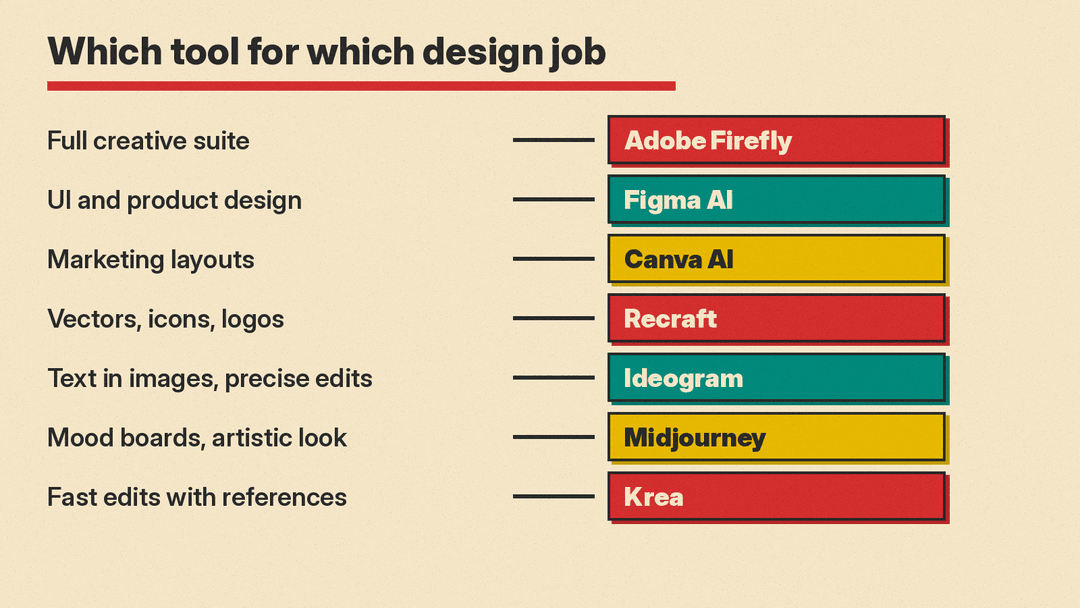
- For a full creative suite: Adobe Firefly, because it connects to Photoshop and Illustrator and offers Adobe models trained on licensed content.
- For UI and product design: Figma AI, because the AI works on your actual design files.
- For marketing layouts and social posts: Canva AI, because it applies your brand kit and turns AI images into editable layers.
- For vectors, icons and logos: Recraft, because it generates editable vector graphics.
- For text inside images and precise edits: Ideogram, because it is built around typography and step-by-step editing.
- For mood boards and an artistic look: Midjourney, because of its style and image reference tools.
- For fast product and campaign edits: Krea, because its newest model is built for quick edits with several reference images.
1. Adobe Firefly: the suite option
Adobe Firefly is Adobe's AI app for generating and editing images, video, audio and vector graphics from text prompts. For designers, three things stand out.
First, it is not only Adobe's own models. Adobe says Firefly includes its own models plus partner models from Google, OpenAI, ElevenLabs, Luma AI, Runway and others, so you can try several looks in one place.
Second, it fits into the rest of Creative Cloud. Adobe says you can bring Firefly results into Photoshop, Illustrator, Premiere, Lightroom and Adobe Express. Editing tools such as Generative Fill, Generative Expand and Prompt to Edit let you change part of an image instead of starting over.
Third, the commercial story. Adobe says its own Firefly models are trained on licensed content from Adobe Stock and on public domain content whose copyright has expired, and that it does not train on subscribers' personal content. Firefly outputs carry Content Credentials, a label that records that AI was used. For client work where the source of training data comes up, that is a real point in Adobe's favor. Note that the claim covers Adobe's own models, not the partner models in the same app.
Also useful:
- Firefly Boards: an infinite canvas where teams build mood boards, storyboards, brand identities and mockups together.
- Custom Models: Adobe offers models you train on your own assets to match a brand's style.
- Free plan: Adobe lists a free plan with free daily generations. Paid plans add generative credits that reset each billing cycle.
2. Figma AI: AI inside the design file
Figma AI is the pick if your work is interfaces, product screens or design systems. Its main advantage is that it works on the file you are already in.
Figma lists these features:
- Figma agent: generates new design directions, creates diagrams, edits images, searches your files, and gives design feedback.
- Weave tools: prebuilt AI workflows that generate and edit images and vectors directly in Figma.
- Generative plugins: describe the plugin you need and the agent builds it on the canvas. Plugins can be shared across an organization.
- Shaders (beta): prompt a custom effect or fill, such as blurs, mesh gradients and patterns.
- Figma Make: turns prompts and existing Figma designs into prototypes and web apps.
- Productivity tools: rename layers, add interactions, replace text content and adjust tone with AI.
- MCP server: lets outside AI agents read and act on your designs. MCP is an open standard for connecting AI agents to apps.
Figma runs its AI on a shared credit system. According to its FAQ, a full seat on the Professional plan includes 3,000 credits a month, Organization 3,500 and Enterprise 4,250. Other seat types and Starter plan users get 500 a month. Figma also offers an optional AI copyright protection addendum to Organization and Enterprise customers at no extra cost.
3. Canva AI: on-brand layouts fast
Canva AI is a conversational assistant inside the Canva editor. You describe a design by text or voice, then refine it by chatting or by editing elements yourself. Canva says it learns a brand's fonts, colors and rules and applies your Brand Kit automatically.
Two features matter most for designers:
- Magic Layers turns an AI-generated design into an editable layout, with separate elements you can move and change. That helps with a common problem with AI images: wrong text baked into the pixels.
- Canva Craft is Canva's own image model. As we covered in our Canva Craft explainer, Canva trained it heavily on human-made templates such as posters and social posts, and says its outputs convert well into editable layers.
Canva says its AI can be used for personal and commercial projects. It also warns that you may not have exclusive rights to AI output, and that checking whether a design needs permission for artwork, trademarks or logos is your job. That warning applies to every tool on this list.
4. Recraft: vectors, icons and brand assets
Most image generators output pixels. Recraft is built for designers who need vectors. The company says its models produce complex, editable vector graphics with consistent styles and design-ready typography.
Two features stand out:
- Custom styles without training: Recraft says you can drop in your own images and it turns them into a reusable, editable style. That helps keep a set of icons or illustrations consistent.
- Recraft Studio: a workspace for generating and editing images, vectors and mockups, with Recraft's models and other models.
Recraft's site also lists dedicated tools for logos, icons, ads, an image vectorizer, a mockup generator, an upscaler and a background remover. If your output has to scale cleanly onto print or a website, start here.
5. Ideogram: text and precise edits
Text inside images has long been the weak spot of AI images. Ideogram has made typography its focus. Its latest model, Ideogram 4.5, moves the focus to editing: change one thing at a time while the rest of the image stays put.
The model page lists the edits it targets, including text modification, color and lighting changes, product photography, sketch to image, style reference and reframing. Ideogram says the model avoids the buildup of small errors that ruins an image after several rounds of edits. That is Ideogram's own claim, from its own comparisons.
For designers, the practical use is posters, packaging comps and social graphics where the words have to be right. You can generate a layout with a headline, then fix one word or one color without redrawing the whole thing. Developers can use the same model through Ideogram's API, which supports masks to mark the area to change. Our Ideogram 4.5 explainer has the details.
6. Midjourney: mood boards and style
Midjourney suits early exploration: mood boards, art direction and a distinctive look. Its strength is style control.
Per Midjourney's prompt guide, you can add images to a prompt in three ways: Image Prompts, Style References and Edit Model References. Parameters at the end of the prompt control settings such as aspect ratio. Midjourney's own advice is to keep prompts short and clear and to name what matters to you: subject, medium, environment, lighting, color, mood and composition.
Midjourney output is a starting point, not a finished asset. Treat it as concept art that you rebuild or refine in another tool.
7. Krea: fast edits with references
Krea is a creative platform that brings many image and video models together. Its own model, Krea 3, is an editing model first. Per Krea's user guide, it is built for product photography, consistent characters, precise edits, sketch to image and text to image. Krea's launch post says it takes up to 6 reference images per edit.
Krea says most edits finish in under 8 seconds at 2K resolution. Launch coverage from e-commerce.news adds that Krea pitches it to marketing teams for adapting layouts, localizing posters into other languages and turning one ad into a series. Speed numbers are Krea's own. Our Krea 3 explainer covers the claims and caveats.
How the tools fit into one workflow
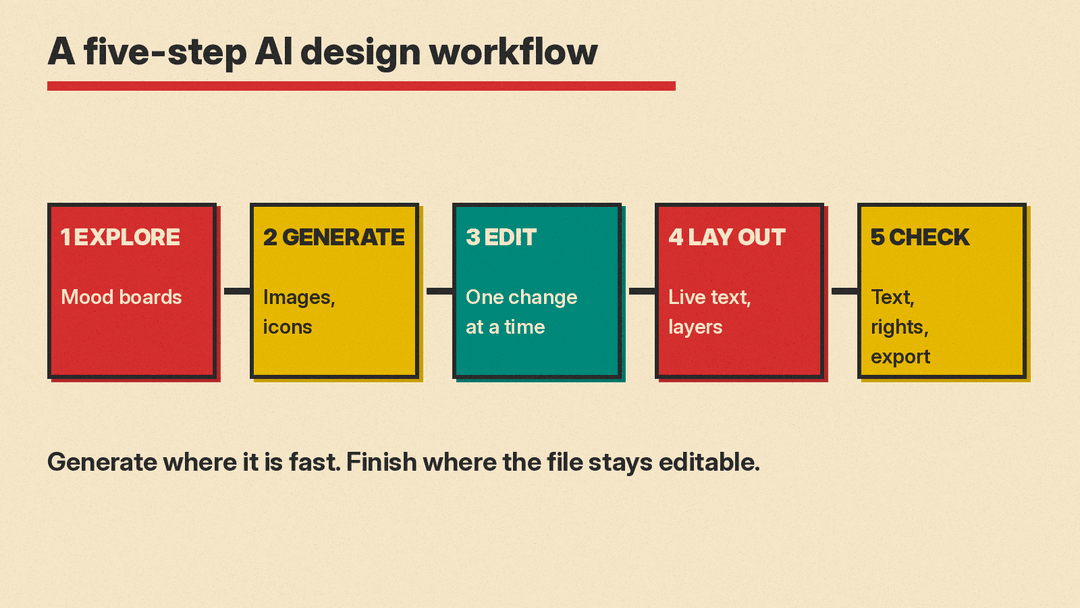
You do not need all seven. Most designers end up with one generator for exploration and one editor where the real work happens. A common flow looks like this:
- Explore. Build a mood board in Midjourney or Firefly Boards. Try several directions quickly.
- Generate assets. Make the images, icons or illustrations you need. Use Recraft if they must be vectors, Ideogram if they contain text.
- Edit precisely. Fix details one change at a time with an editing model such as Ideogram 4.5, Krea 3 or Firefly's Generative Fill.
- Lay out. Bring assets into Figma, Canva or Illustrator, where text stays live and the layout stays editable.
- Check and hand off. Check every word at full size, confirm usage rights, and export.
What to watch for
- Rights are not guaranteed. Canva states plainly that AI output may not be exclusive to you and that clearing trademarks and artwork is your job. Read the terms of whichever tool you use before delivering client work.
- Training data differs. Adobe makes specific claims about licensed training data for its own models. Most other vendors do not make the same claim. If a client asks, give them the vendor's own statement.
- Check text at full size. Typos in AI images often only show when you zoom in.
- Credits run out. Figma, Adobe and others meter AI use with credits. Heavy exploration can use a month's allowance fast.
- Keep the craft. These tools speed up exploration and production. Brand strategy, hierarchy and the final judgment call are still the designer's job.
Bottom line
If you already pay for Adobe, Figma or Canva, start with the AI built into that app, because the output stays editable. Add Recraft for vectors, Ideogram for text-heavy graphics, and Midjourney or Krea for exploration and fast edits. For more on prompting, see our guides to writing AI image prompts and removing or replacing a background with AI.
