
A good product photo does three jobs at once. It shows the product clearly, it looks trustworthy, and it fits the place where people will see it, such as a store listing, an ad or a social post. AI image tools can now help with all three, but only if the prompt tells them what kind of photo you want. A vague prompt like "nice photo of my candle" gets you a generic picture. A structured prompt gets you something closer to a real studio shot.
This guide collects prompt templates for product photos, built on the official prompting advice from Google's Gemini image generation guide and OpenAI's image generation prompting guide. Both guides include a section written specifically for product shots and mockups. Google's guide is written for its Nano Banana models in the Gemini API. OpenAI's guide is a Cookbook recipe dated April 21, 2026 and written for gpt-image-2; OpenAI now marks it as archived, and its current image generation docs list gpt-image-2.5-sunburst and gpt-image-2.5-flare. The prompts are plain text, so you can also try them in apps such as ChatGPT and Gemini, but results vary by tool and model. For how the two current model families compare, see our GPT Image 2.5 vs Nano Banana 2.1 comparison. If you are new to image prompts, start with our beginner's guide to writing AI image prompts.
The basic formula
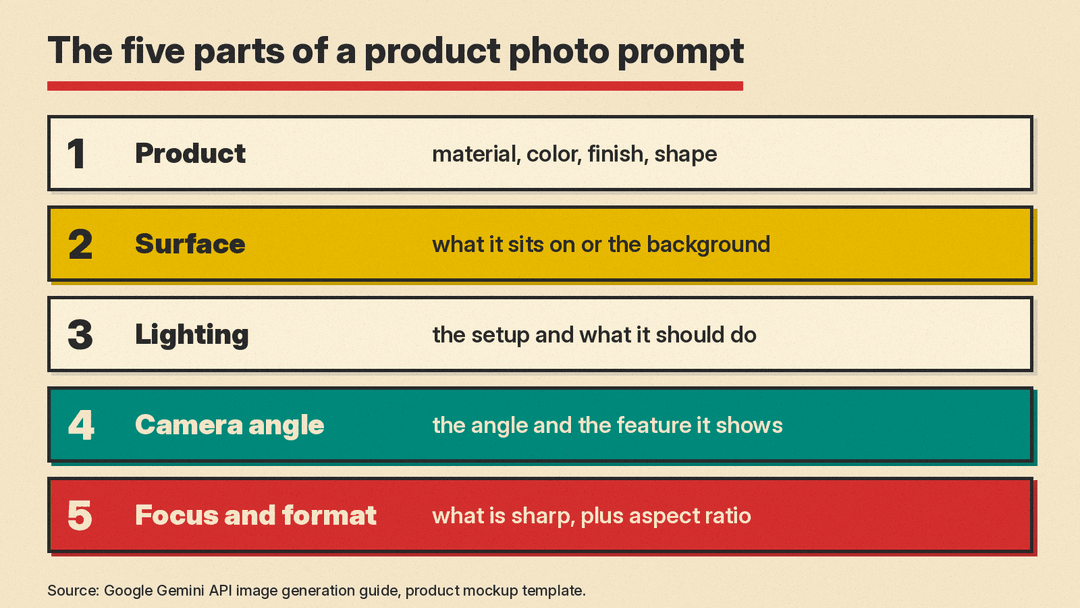
Google's guide gives a template under the heading "Product mockups & commercial photography" that is a good backbone for almost any product shot. In plain terms, it asks you to fill in five slots:
- The product, described precisely: material, color, finish and shape.
- The surface or background it sits on.
- The lighting setup, and what that lighting is meant to do.
- The camera angle, and which feature that angle should show off.
- The focus point and format: what must be sharp, and the aspect ratio.
Here is Google's own example prompt, which follows that template:
A high-resolution, studio-lit product photograph of a minimalist ceramic coffee mug in matte black, presented on a polished concrete surface. The lighting is a three-point softbox setup designed to create soft, diffused highlights and eliminate harsh shadows. The camera angle is a slightly elevated 45-degree shot to showcase its clean lines. Ultra-realistic, with sharp focus on the steam rising from the coffee. Square image.Notice what makes it work. Each lighting and camera choice comes with a reason ("to eliminate harsh shadows", "to showcase its clean lines"). Google's guide says that explaining the purpose of an image helps, because the model's understanding of context shapes the result.
Here is the same structure as a fill-in template you can copy:
A high-resolution, studio-lit product photograph of a [product: material, color, finish] on a [surface or background]. The lighting is a [lighting setup] to [what the lighting should do]. The camera angle is a [angle] to showcase [key feature]. Photorealistic, with sharp focus on [key detail]. [Aspect ratio].Seven prompts for common product shots
Each prompt below follows the same five-slot pattern. Replace the bracketed parts with your own product. The scenes are examples, not rules.
1. Clean catalog shot on a plain background
A photorealistic studio product photograph of [product] centered on a seamless plain white background. Soft, even lighting from both sides to show true colors with only a faint natural shadow under the product. Straight-on eye-level camera angle. Sharp focus across the whole product, including the label. No props, no extra text, no watermark. Square image.Use this for listing pages where shoppers compare items side by side. Many marketplaces have their own rules for the main image, so check your store's image requirements before you upload.
2. Lifestyle scene
A photorealistic lifestyle photograph of [product] on a [setting, e.g. a light oak kitchen counter] in a bright, uncluttered home. Morning window light from the left, soft and warm. Slightly elevated three-quarter angle so the product is the clear focus. Shallow depth of field, background softly blurred. The product label stays sharp and unchanged. Wide image.3. Detail or texture close-up
A macro product photograph of [product], focusing on [texture or detail, e.g. the stitching on the strap]. Raking side light to bring out surface texture. Extreme close-up with sharp focus on [detail] and the rest falling off softly. Photorealistic. Square image.Google's guide recommends photographic terms like "macro shot", "wide-angle shot" and "low-angle perspective" to control composition. This prompt leans on that.
4. Flat lay for social media
A top-down flat lay photograph of [product] arranged with [2 or 3 related items] on a [surface color] background. Even, diffused overhead light with no harsh shadows. The product sits slightly off-center and is the largest item in the frame. Photorealistic, clean and minimal. Vertical image.5. Hero shot for an ad or banner
A dramatic, photorealistic hero photograph of [product] on a [dark or colored surface], intended for a website banner. A single strong key light from above right with a subtle rim light to separate the product from the background. Low-angle camera to make the product look bold. Leave empty space on the left side for headline text. Wide image.OpenAI's guide says to state the intended use (an ad, a UI mockup, an infographic) because it sets the "mode" and level of polish. Saying "for a website banner" and asking for empty space does exactly that.
6. Ad creative with real text
A photorealistic product ad for [product] on a [background]. Include the exact headline text "[Your headline]" at the top in a bold sans-serif font, rendered verbatim with no extra characters. The product sits in the lower half, sharply in focus. No other text, no logos other than the product's own label.OpenAI's guide advises putting the exact copy in quotes, asking for verbatim rendering with no extra characters, and describing the text's placement and font style. OpenAI's current docs also say the models "can still struggle with precise text placement and clarity." Proofread every letter before you publish.
7. Seasonal or themed variant
Keep the product exactly the same, including its shape, color and label. Change only the setting to a [season or theme] scene: [describe props and colors]. Keep the lighting soft and the product as the clear focus. Photorealistic.This one works best as an edit of an image you already like. See the editing section below.
Start from a photo of your real product
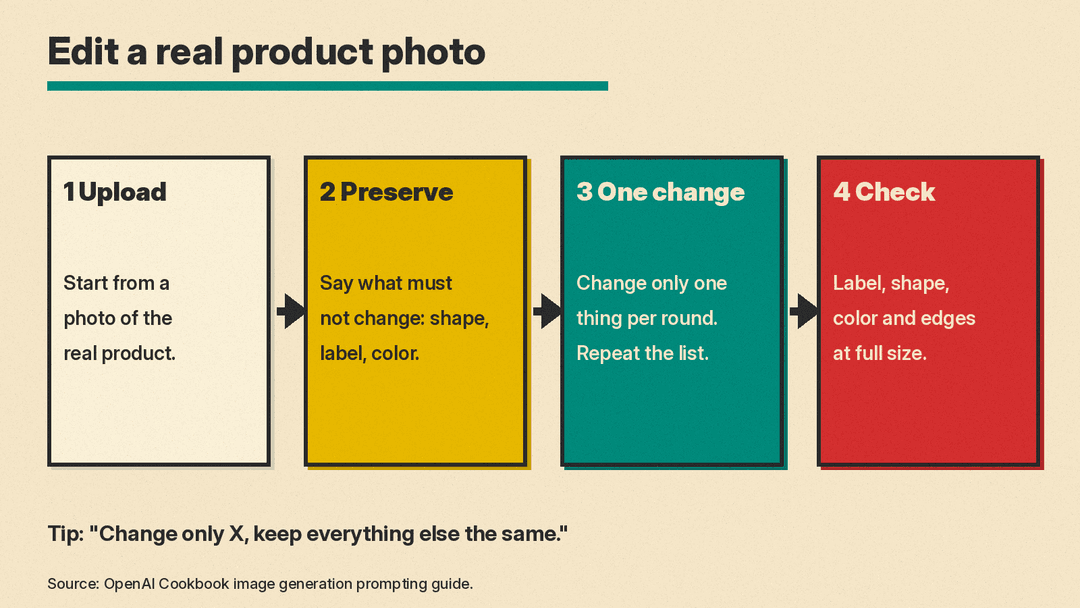
The prompts above can generate a product from a description, but for anything you will actually sell, start from a real photo. Shoppers expect the picture to match what arrives in the box. A generated bottle may look close to yours and still get the cap, the proportions or the label wrong.
Both guides support editing an uploaded image. OpenAI's guide has a section on product mockups that focuses on two things: clean edges around the product (no halos or fringing) and "label integrity", meaning the label text stays sharp and unchanged. Its example prompt for cutting a product out of a photo reads:
Extract the product from the input image and isolate it on a fully transparent background. Output: centered product, crisp silhouette, no halos/fringing. Preserve product geometry and label legibility exactly. Add only light polishing. Do not add a solid backdrop, checkerboard, scenery, or shadow. Do not restyle the product; remove the background and preserve clean alpha transparency.The April Cookbook guide described transparent backgrounds as a preview feature for gpt-image-2. OpenAI's current image generation docs say transparent backgrounds work with both gpt-image-2.5-sunburst and gpt-image-2.5-flare in the API: set the background to transparent and use PNG or WebP output, because JPEG does not support transparency. The docs suggest Sunburst for "workflows where editing precision matters most." A transparent cutout is useful because you can drop the same product into many scenes or templates.
For scene changes, OpenAI's guide recommends a simple rule: say "change only X" and "keep everything else the same", and repeat the list of things to preserve on every follow-up. For surgical edits, it also suggests saying not to alter things like saturation, contrast, layout, camera angle or surrounding objects.
Rules that improve almost every product prompt
These come straight from the two official guides.
- Write in a consistent order. OpenAI's guide suggests background or scene first, then subject, then key details, then constraints. For long requests, use short labeled lines instead of one big paragraph.
- Say "photorealistic". OpenAI's guide says including the word "photorealistic" strongly engages the model's photorealistic mode. Phrases like "professional photography" can also help.
- Be concrete about materials. "Brushed aluminum", "matte ceramic" and "frosted glass" give the model far more to work with than "metal", "mug" or "bottle". OpenAI's guide lists materials, shapes, textures and the visual medium as things to be specific about.
- Describe what you want, not only what you don't. Google's guide calls this using "semantic negative prompts": describe the intended scene positively. For a product shot, that means asking for a clean, empty countertop instead of writing "no clutter".
- State the hard limits. OpenAI's guide recommends spelling out exclusions such as "no watermark", "no extra text" and "no logos/trademarks", and invariants such as "preserve geometry and brand elements".
- Iterate in small steps. Google's guide says not to expect a perfect image on the first try and to make small changes in follow-ups. OpenAI's guide suggests starting with a clean base prompt, then making single-change follow-ups such as "make lighting warmer". If details start to drift, restate them.
A quick checklist before you publish
AI product photos can fail in small ways that are easy to miss on a phone screen. Before an image goes on a store page or into an ad, check it at full size:
- The label and text. Every letter must be correct and match the real product.
- The shape and proportions. Lids, handles, buttons and seams should look like your item, not a similar one.
- The color. Compare against the real product under neutral light.
- The edges. Look for halos, fringing or soft outlines around the product, the flaws OpenAI's guide singles out for cutouts.
- Extra objects. Remove stray props, hands, logos or text the model added on its own.
- Honesty. Scenes and props are fine as styling, but the product itself should be shown as it really is. Do not add features, sizes or finishes the product does not have.
Why this matters
Product photos are often the first thing a shopper judges. A structured prompt does not replace a good photographer for every job, but it does give sellers a fast way to make catalog shots, lifestyle scenes and ad variants from one real photo. The difference between a usable result and a generic one is mostly in the prompt: a precise product description, a lighting plan, a camera angle with a reason, and a clear list of what must not change. If you sell on Etsy or Shopify, our guide to AI tools for Etsy and Shopify sellers covers store tools too, including Shopify Sidekick, which Shopify says can upgrade phone photos to studio shots.
Sources
- Google: Gemini API image generation guide, including prompt templates for product mockups and commercial photography
- OpenAI Cookbook: GPT Image Generation Models Prompting Guide (April 21, 2026, now archived), including product mockups and in-image text
- OpenAI: Image generation guide (current models gpt-image-2.5-sunburst and gpt-image-2.5-flare, transparent backgrounds, limitations)
