
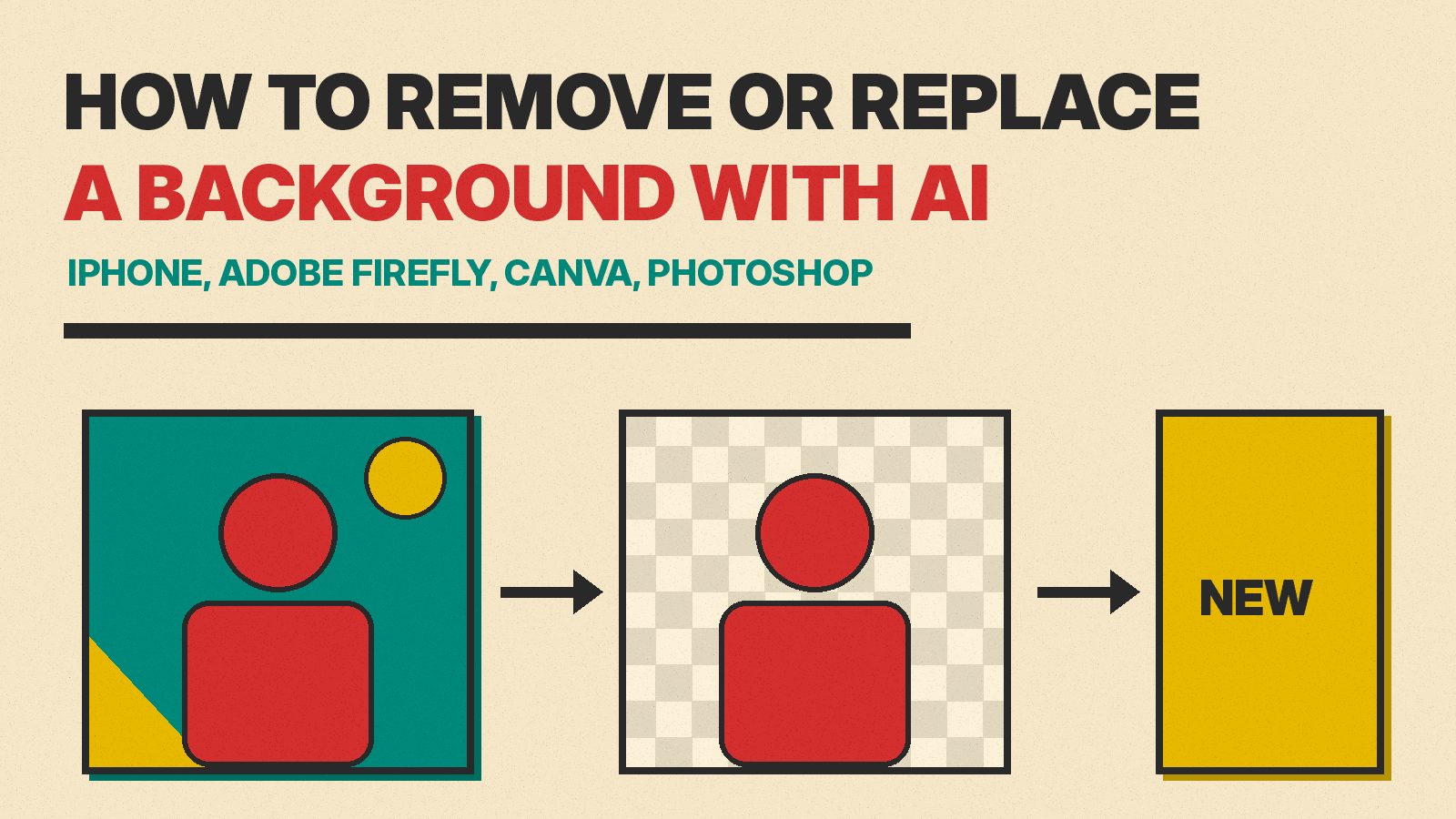
Many photo tools can now remove a background in one step, and some can generate a new scene behind your subject from a text prompt. Getting a clean result takes a few habits. This guide covers both jobs: removing a background, and replacing it.
What "AI background removal" actually does
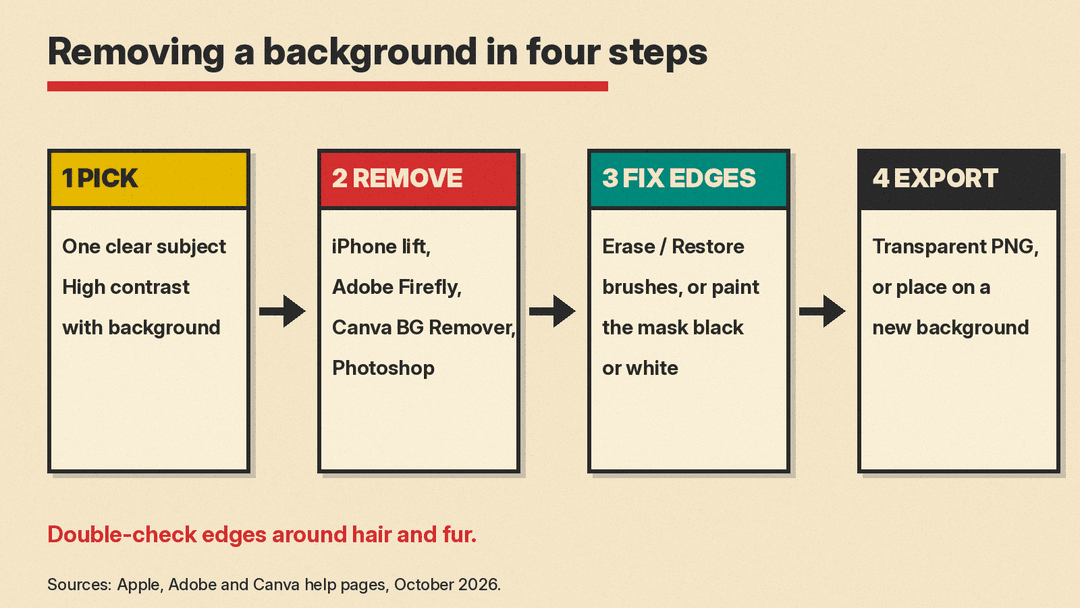
Every tool in this guide does the same basic thing. A model looks at the photo, decides which pixels belong to the main subject, and separates them from everything else. Adobe describes its Photoshop version plainly: the Remove Background quick action uses Subject Select to detect the main foreground subject and create a layer mask.
That gives you two kinds of output:
- A cutout with transparency. Usually a PNG file where the background is empty. You can drop it onto a slide, a website header, a product listing, or a sticker.
- A mask. In Photoshop, Remove Background adds a layer mask. You can paint the mask to bring parts back or hide more. This is the safer choice when you expect to fix edges later.
Replacing a background is a second step. You either place your cutout on a new image yourself, or you ask a generative tool to create a new scene that fits the subject.
Which photos work best
Adobe says its tool works best on images with high contrast between subject and background, and names portraits, products, and still objects as good fits. Adobe's Firefly page gives similar advice: use a high-resolution image with clear contrast between the subject and background.
In practice, that means:
- One clear subject, in focus.
- A background that differs in color or brightness from the subject.
- Good light on the edges, especially hair and fur.
Adobe singles out hair and animal fur as intricate areas to double-check. Adobe's Express help also warns that the tool may remove fine details or low-contrast areas, so check subjects that match the color of what is behind them.
Option 1: On your phone (iPhone)
If you have an iPhone, you may not need an app at all. Apple's iPhone guide explains how to lift a subject from a photo or a paused video frame, and says it works in Photos, Safari, Quick Look, and more.
- Open the photo in full screen, or pause a video on a frame.
- Touch and hold the subject until an outline appears.
- Tap Copy (or Copy Subject) and paste it into a message, email, or note. You can also tap Add Sticker, tap Share, or keep holding and drag the subject into another app.
This is a quick option for stickers and casual cutouts. Apple's steps include no edge controls, so for anything you plan to print or sell, use an editor.
Option 2: Free in a browser (Adobe Firefly)
Adobe's free online background remover is now part of Adobe Firefly. Adobe says you can use it for free with an Adobe account, through Firefly's free daily generations, and that it works on mobile.
- Upload a JPEG, PNG, or WebP file of up to 50MB.
- The tool detects and removes the background on its own.
- Download the result as a transparent PNG, or keep editing in Firefly to generate a new background or apply a solid color.
This is a good default for a one-off product photo, a profile picture, or a cutout for a slide.
If you already design in Adobe Express, Adobe's Express help shows the same one-step tool there: select the image in your design, then select Remove Background in the left Image panel.
Option 3: Canva
Canva's tool is called BG Remover. Per Canva's help center, it is included with Canva's paid plans.
- In the editor, select the photo.
- From the editor toolbar, select BG Remover.
- Wait for the background to be processed.
- To fix mistakes, select BG Remover again and use the Erase or Restore brush. A slider sets the brush size, and Show original image lets you compare.
Canva's help page lists a few limits as of October 2026: photos must be under 9MB, vector images are not supported, and photos above 10MP are downscaled to 10MP after removal. For bulk work, you can remove backgrounds from the uploaded images in a Projects folder of up to 50 images at once.
Canva is the easiest choice when the cutout is going straight into a social post, a flyer, or a presentation you are already building there.
Option 4: Photoshop, for the most control
Adobe's help page shows how to run Remove Background from the Discover panel: select the unlocked image layer, open the Discover panel (the search icon, or Help > Photoshop Help), then select Browse > Quick Actions > Remove Background. Select Revert in the same panel to undo it. Adobe's product page lists a second route: in the Properties panel, click Remove Background under Quick Actions or in the Contextual Task Bar.
Because Photoshop gives you a mask, cleanup is where it shines. Adobe's own tips for refining the result:
- Paint the mask with a white brush to reveal parts that were cut by mistake, and a black brush to hide leftover background.
- Use the Refine Edge Brush on tricky areas such as hair and animal fur.
Use Photoshop when the image matters: product shots for a store, print, or anything a client will look at closely.
For other photo editors with AI masking and background tools, such as Imagen and Evoto, see our list of the best AI tools for photographers.
How to replace the background
Once your subject is isolated, you have two paths.
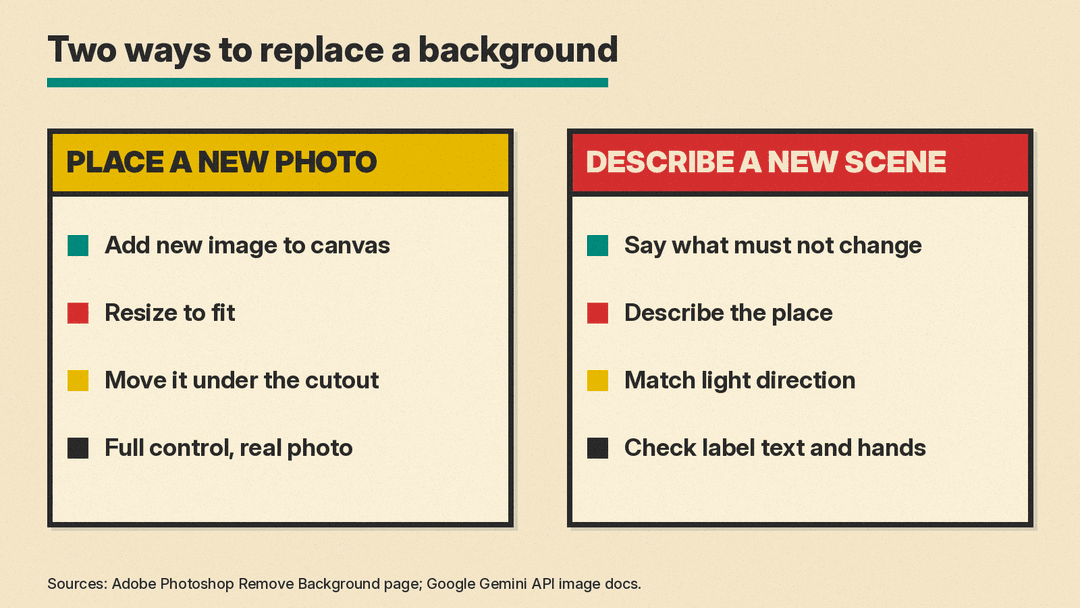
Place it on a new image yourself. Adobe's Photoshop steps are a good model for any editor: drag the new background image onto the canvas, resize it with the Transform tool, then move it under your subject in the Layers panel. In Canva, Adobe Express or Adobe Firefly you can place the cutout on top of a new photo or a solid color.
Generate a new background with a prompt. Adobe describes a Generate Background feature (in beta) in Photoshop that creates a background from a text description and matches your subject's lighting, shadows, and perspective. Chat-style image models can also edit an uploaded photo from a text instruction. Google's Gemini API documentation covers editing an image by sending it along with a text prompt.
To compare prompt-based image models, see our guide to the best AI image generators.
Prompt tips for a new background
When you ask an AI tool to replace a background, be specific about four things:
- Keep the subject. Say what must not change, for example "keep the person, their face, clothes, and pose exactly the same."
- Describe the place. "A plain light gray studio backdrop" or "a wooden kitchen counter near a window" gives the model more to work with than "a nice background."
- Match the light. Name the direction and mood of the light in the original photo, for example "soft daylight from the left." A subject and background lit from different sides can look pasted on.
- Set the depth. For portraits and products, you can ask for a "softly blurred background" to keep attention on the subject.
A sample prompt for a product photo: "Replace the background with a clean white marble surface and a soft, out-of-focus light gray wall. Keep the bottle, its label, and its shape exactly the same. Soft daylight from the upper left, with a gentle shadow under the bottle."
Before you use a generated edit, compare it with the original side by side, and check small details such as label text, logos, and hands.
If you sell online, our guide to the best AI tools for Etsy and Shopify sellers covers Photoroom, which removes backgrounds and generates studio-style product shots.
Fixing the common problems
- Halo or fringe around the edges. Leftover background color clings to the outline. Use the erase or black mask brush along the edge, or refine the edge in Photoshop.
- Missing pieces. A thin strap, a pet's ear, or a gap between arm and body got removed. Use the restore or white mask brush to paint it back.
- Floating subject. The cutout looks pasted on. Add a soft shadow under it, or use a generated background that matches the light.
- Blurry or small output. Start from the largest version of the photo you have. Some tools downscale big images, as Canva's notes show.
Which option to pick
- Quick sticker or casual share: the iPhone lift feature.
- Free, one-off cutout: Adobe Firefly.
- Cutout going into a design you are building: Canva.
- Store, print, or client work: Photoshop, with mask cleanup.
- New scene behind the subject: Photoshop's Generate Background, or an image model that edits from a prompt.
A note on fair use of photos
Removing a background does not change who owns the photo. Only edit images you took, have a license for, or have permission to use, and be careful with photos of other people. If you put an edited photo of a real person in a public post, make sure it does not mislead anyone about where they were or what they did.
Sources
- Apple Support: Lift a subject from the photo or video background on iPhone
- Adobe Firefly: Free image background remover
- Adobe Express Help: Remove background from images
- Canva Help Center: Removing photo and video backgrounds
- Adobe Help: Remove background in your images (Photoshop)
- Adobe: Remove Background with AI in Photoshop
- Google AI for Developers: Gemini API image generation and editing
