
An AI headshot can save you a photo shoot, but many of them look fake for the same few reasons: skin that is too smooth, lighting that is too dramatic, and a face that drifts away from your own. This guide shows how to avoid those problems with any modern image tool that accepts a photo of you plus a text prompt, such as ChatGPT or Google Gemini. For how the two companies' current image models compare, see our GPT Image 2.5 vs Nano Banana 2.1 comparison.
The advice is built on two official sources: OpenAI's image generation prompting guide and Google's Gemini image generation guide. Both describe how their models handle photorealism, identity and edits. Where this guide gives a tip that is our own judgment rather than something those guides say, it says so.
OpenAI now marks that April 2026 Cookbook guide as archived. Its current image prompting guide gives the same core advice on edits, identity and photorealism: say "change only X," list what to preserve, describe a photo through its framing, light and texture, and change one thing per step.
Two ways to make an AI headshot
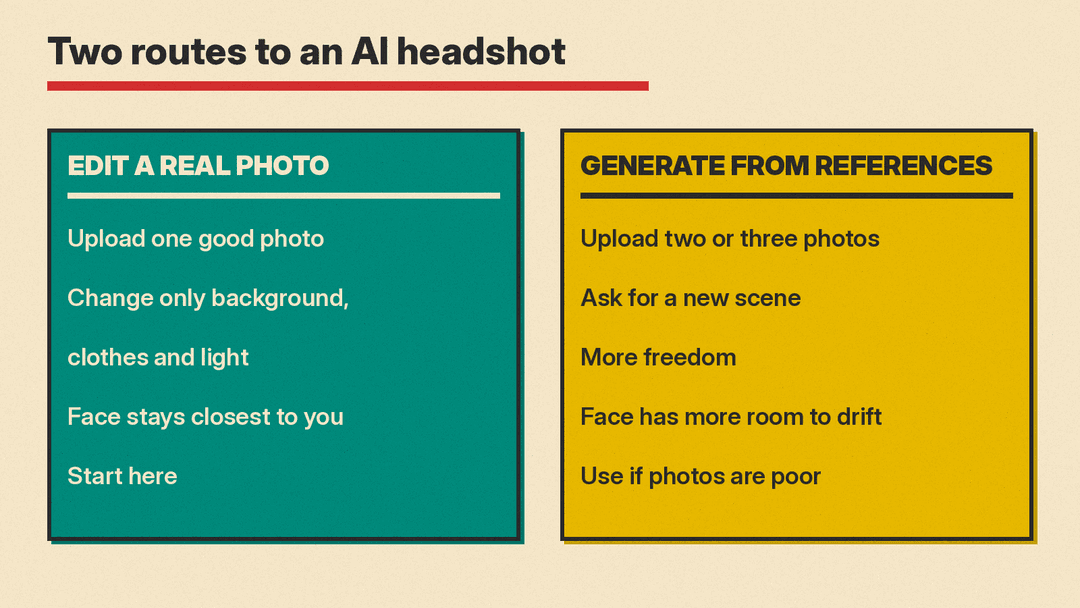
There are two basic routes, and they give different results.
- Edit a real photo of yourself. You upload a photo and ask the tool to change the background, clothing or lighting while keeping your face. This is the route most likely to look like you, because the model starts from your real features.
- Generate a new image from reference photos. You upload one or more photos and ask for a new scene, such as a studio portrait. This gives more freedom, but the face has more room to drift.
For a work headshot, start with the edit route. Move to generation only if your source photos are too poor to fix.
Step 1: Pick a good source photo
The model can only keep what it can see. In our experience, these choices matter most:
- A recent photo where you face the camera, or are turned slightly.
- Even light on your face, with no hard shadow across the eyes.
- Your face large enough in the frame that features are clear, not a distant group shot.
- No sunglasses, heavy filters or beauty-mode smoothing already applied.
- A plain expression you are happy with. The model will keep your expression if you ask it to, so start with one you like.
If you only have a phone, ask someone to take a photo near a window, facing the light. That one photo is often a better base than ten selfies.
Step 2: Lock your identity in the prompt
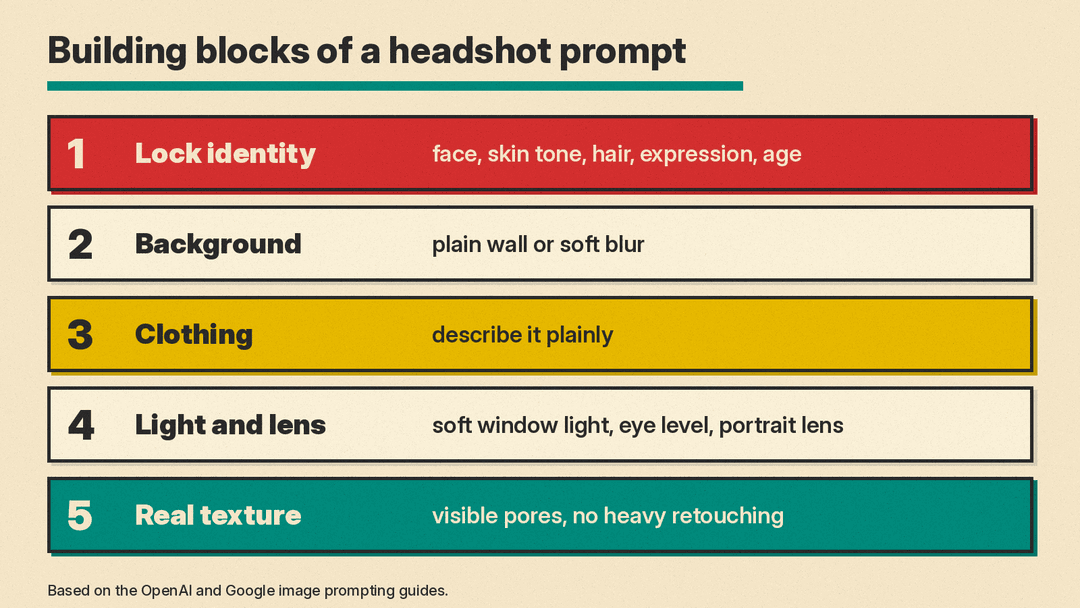
The biggest mistake is a vague prompt like "make this a professional headshot." The model then feels free to change your face, hair or age.
OpenAI's guide says to state what must not change. For edits, it recommends the pattern "change only X" plus "keep everything else the same," and it lists "preserve identity" as an example of an explicit constraint. Its virtual try-on example goes further and tells the model not to change the person's face, facial features, skin tone, body shape, pose or identity "in any way."
Use the same idea for a headshot:
Edit this photo into a professional headshot.
Do not change my face, facial features, skin tone, hairstyle,
expression, age or identity in any way. Preserve my exact likeness.
Change only the background and clothing.
Name each feature you care about. A general "keep me the same" is weaker than a list. For the basics of prompt structure, see our beginner's guide to writing AI image prompts.
Step 3: Ask for a real photo, not a glossy render
The second reason AI headshots look fake is the polish. OpenAI's guide addresses this directly. For believable photorealism, it says to prompt as if a real photo is being captured in the moment, to use photography language (lens, lighting, framing), and to ask for real texture such as pores, wrinkles and imperfections. It also says to avoid words that imply studio polish or staging, and its sample prompt ends with "No glamorization, no heavy retouching."
Google's guide gives a similar template for photorealistic scenes: name the type of shot, the subject, the setting, the light, the camera angle and the lens. It notes that the more specific you are, the more control you have.
Put those together for a headshot:
A photorealistic head-and-shoulders portrait of the person in this photo,
in front of a plain light gray wall. Soft, even window light from the left.
Shot at eye level with a portrait lens. Natural skin texture with visible
pores. No heavy retouching, no glamour lighting, no airbrushed skin.
In our experience, words like "flawless," "perfect skin," "cinematic" and "ultra detailed" push results toward the plastic look. Leave them out.
Step 4: Choose the background and clothes
Keep both simple. A headshot is about your face, and busy scenes give the model more places to make mistakes.
In our experience, these backgrounds tend to work:
- A plain wall in light gray, off-white or a muted color.
- A softly blurred office or bookshelf.
- An outdoor setting with distant greenery, kept out of focus.
For clothing, describe it plainly: "a navy blazer over a white shirt," "a dark crew-neck sweater." If you want to keep your real outfit, say so, and tell the model to change only the background.
Step 5: Fix one thing at a time
Your first result will rarely be the final one. Both guides recommend refining an image through follow-up edits. Google calls multi-turn conversation the recommended way to iterate on images. OpenAI suggests starting with a clean base prompt and then making single-change follow-ups, such as "make lighting warmer."
Useful follow-ups for headshots:
- "Keep everything the same, but make the lighting softer."
- "Keep my face exactly the same. Make the background slightly darker."
- "Restore my original hairstyle from the first photo."
- "Remove the extra button on the jacket. Change nothing else."
Repeat the identity lock in each follow-up. OpenAI's current guide also says to repeat the details to preserve with each change. Each new edit is another chance for the face to drift, so restate what must stay the same.
Step 6: Use more than one reference photo if you generate
If you take the generation route, give the model more than one photo of yourself. Google's guide says some Gemini image models can mix up to 14 reference images, and that several of those can be images of a character, used to keep that character consistent. In our experience, two or three clear photos from slightly different angles give the model a better idea of your face than one.
Tell the model what each photo is for, for example: "Use these photos only for my face. Use the lighting described below."
Step 7: Check the result like a stranger would
Before you upload the headshot anywhere, look for the common giveaways:
- Eyes: do both eyes match in color, size and direction?
- Teeth and ears: are they the right number and shape?
- Hair edges: do strands blend into the background, or is there a halo?
- Skin: does it have texture, or does it look like wax?
- Clothing: are collars, buttons and lapels symmetrical and complete?
- Likeness: would a coworker recognize you at once?
The last check matters most. If a friend has to ask whether it is you, the headshot fails its job, no matter how polished it looks.
Be honest about what it is
A headshot represents you to employers, clients and colleagues. Our view is that it should look like you on a good day, not like a different person. Avoid edits that change your age, weight or features in ways people would notice when they meet you.
Some tools label their output, and platforms can add labels too. For one example, see our explainer on why Instagram puts an AI label on some photos. Google's guide says all images generated by its Gemini image models include a SynthID watermark. If you use an AI headshot at work, check whether your employer or the platform you upload to has its own rules about AI images.
A full prompt you can copy
Here is a complete edit prompt that combines the steps above. Upload your best photo, then paste:
Edit this photo into a professional, photorealistic headshot.
Keep my face, facial features, skin tone, hairstyle, expression, age
and identity exactly the same. Preserve my exact likeness.
Change only the background and clothing.
Background: a plain light gray wall, slightly out of focus.
Clothing: a navy blazer over a white shirt.
Lighting: soft, even window light from the left, no harsh shadows.
Framing: head and shoulders, centered, shot at eye level with a portrait lens.
Keep natural skin texture with visible pores.
No heavy retouching, no glamour lighting, no airbrushed skin, no text,
no watermark.
Then fix what is off with one short follow-up at a time.
Why this works
In our experience, image models follow instructions closely, but they fill every gap you leave. A vague prompt leaves your face, your skin and the lighting open to the model's defaults, and those defaults lean toward a polished, staged look. The fix is to close the gaps: lock what must stay, describe the photo the way a photographer would, ask for real texture, and change one thing per step. The same method works for product shots, team photos and any edit where a real person or object must stay recognizable.
Sources
- OpenAI Cookbook (archived): GPT Image generation models prompting guide, including photorealism, identity preservation and iterative edits
- OpenAI API docs: Image prompting guide (current), including change-versus-preserve constraints, photographic detail and one-change iteration
- Google: Gemini API image generation guide, including the photorealistic scene template, multi-turn editing, reference images and SynthID
