
Google AI Studio has a Build mode where you describe an app in plain words and an AI agent writes the code. Google's own docs call this "vibe coding." It runs in the browser, and you see a live preview of your app as it is built.
This guide walks through the full loop, step by step, using only what Google's Build mode documentation and publishing guide describe. It also includes a prompt template for writing your first app prompt. We tested that template on a chat model and share the results below. We did not test AI Studio itself, so treat the test as a check on the prompt, not on the app builder.
If you are new to the product, start with our explainer, What Is Google AI Studio?. If the term is new, see What Is Vibe Coding?
What you need before you start
- A Google account.
- A web browser. AI Studio runs at aistudio.google.com.
- A clear idea for a small app. One screen and a few features is a good first target.
Step 1: Open Build mode and pick a starting point
Build mode supports web apps with a full-stack runtime and native Android apps, all through natural language prompts, according to Google's guide. The guide lists four ways to start:
- Start with a prompt. Type a description of your app in the input box. You can select AI Chips to add features such as image generation or Google Maps data, or use the speech-to-text button to say what you want.
- "I'm Feeling Lucky". Gemini writes a prompt with a project idea for you.
- Remix a gallery app. Open a project from the App Gallery and select Copy App.
- Import from GitHub. Select Import from GitHub from the Add files (+ icon) menu in the prompt input box to bring in code you already have.
You also choose a platform with the platform picker. Web app is the default. Per the guide, a web app gets a React frontend by default and a Node.js server, which handles secure API calls, database connections and npm packages. An Android app is a Kotlin and Jetpack Compose project that you can preview in a browser-based emulator.
For a first app, start with a prompt and keep the web default.
Step 2: Write a short, scoped first prompt
The first prompt sets the shape of the whole app. A common mistake is to ask a chatbot to "write me a prompt for Build mode" and paste whatever comes back. We tried that, and the result was much bigger than the idea.
What we tested
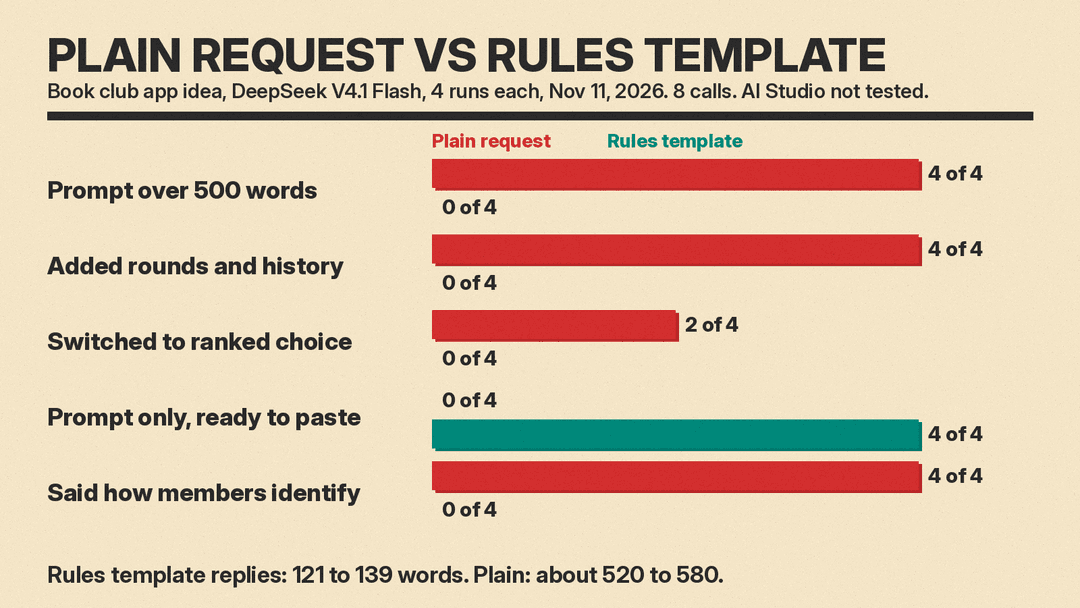
We gave DeepSeek V4.1 Flash one idea: "An app where my book club (8 people) can suggest books and vote on the next one." We used two prompts and ran each 4 times, for 8 calls in total.
The plain request was: "Write a prompt I can paste into Google AI Studio Build mode to make this app." Results:
- All 4 replies were long specs of about 520 to 580 words.
- All 4 added voting rounds and a reading history that the idea never asked for.
- 2 of 4 switched simple voting to ranked-choice voting.
- 2 of 4 doubted that Build mode has a backend. Google's guide says web apps get a Node.js server, and the agent can set up a Firestore database.
- All 4 wrapped the prompt in extra notes that you would need to cut before you paste.
Then we ran the rules template below. Results:
- All 4 replies were 121 to 139 words and contained only the prompt.
- All 4 ended with a "Leave out for now" line.
- None added rounds, a history page or ranked choice.
- One gap: none of the 4 said how members identify themselves, and 2 of 4 put logins under "Leave out for now." The plain replies all included a simple name picker. Add a sign-in line yourself (see Step 5).
The template
Paste this into any chat assistant, replace the idea line, and copy the result into Build mode.
Turn my app idea into a prompt for an AI app builder.

My idea: [describe your app in one or two sentences]

Rules for the prompt you write:
- Start with one sentence: what the app is and who uses it.
- List 3 to 5 core features, using only what my idea says. Do not add features I did not ask for.
- Describe the main screen in one or two sentences.
- Say what data the app must keep.
- End with a line that starts "Leave out for now:" and names features to skip in version 1.
- Keep it under 150 words.
- Output only the prompt. No preamble, no code fences.
Here is one of the four outputs from our test, unedited:
Build a web app for a small book club of eight people to suggest books and vote on which one to read next.

Core features:
- A member can add a book suggestion (title and author) to the shared list.
- The list shows all suggested books with how many votes each has.
- A member can cast one vote for a suggested book and change that vote later.
- The app shows which book is currently leading.

Main screen: one list of all suggested books, each with its title, author, vote count, and a vote button. An "add a suggestion" form sits at the top.

Data to keep: the eight members, each suggestion (title, author, who suggested it), and each member's current vote.

Leave out for now: logins and passwords, notifications, comments, chat, cover images, and book reviews.
Step 3: Check the preview and the Code tab
When you run the prompt, Google's guide says the code and files are generated and a live preview of your app appears on the right-hand side. Use the preview the way a real user would: add an item, press each button, and reload.
To see what was written, select the Code tab in the right-hand preview pane.
The work is done by what Google calls the Antigravity Agent. Per the guide, it keeps the context of your earlier prompts and file states, manages changes across many files, and verifies code updates to reduce hallucinations. It still makes mistakes, so test the preview after each change.
Step 4: Improve the app one change at a time
Google's guide gives two ways to keep building inside AI Studio:
- Iterate with Gemini. Use the chat panel in Build mode to ask for changes, new features or new styling.
- Edit the code directly. Open the Code tab and make live edits.
The guide also describes annotation mode, which lets you highlight any part of your app's UI and describe the change you want. This is useful when words like "the button on the left" are vague.
Our suggestion: ask for one change per message, then check the preview before the next one. A few follow-ups in that style:
- "Make the vote button larger on phones."
- "Show the leading book at the top of the list."
- "When the list is empty, show a short message that tells people to add the first book."
Step 5: Add a database, sign-in and API keys
A shared app, like the book club example, needs to save data and know who is who. Google's full-stack guide says the agent can set up Firebase for you: a Firestore database for stored data and Firebase Authentication for "Sign in with Google." It suggests asking the agent to "add a database to my app" or "set up Google Sign-in."
The same guide says apps can connect to Workspace apps such as Gmail, Sheets and Calendar, through the chat panel or the Integrations panel.
API keys go in the Secrets area of the Settings menu. According to the Build mode guide, if your web app uses the Gemini API, AI Studio sets up your GEMINI_API_KEY as a server-side secret for you, and the key is never included in client-side code. For other services, such as a payment or email provider, you add the key to Secrets yourself and the agent writes server-side code that reads it.
If your app needs maps, AI Studio can also set up Google Maps Platform. See our post on the Maps demo key in AI Studio.
Step 6: Share or publish your app
Per the Build mode guide, a new app is private by default. You can share it with other users. People you share with can see its code and fork it. When you share, the app's API calls count toward your usage limits, and paid models may cost money. Google says AI Studio warns you before you share if your app could incur costs.
To give the app a public address, publish it. Google's publishing guide says AI Studio hosts the app as a Cloud Run service with a shareable URL. There are two options:
- Google Cloud Starter Tier. Eligible accounts can publish up to 2 full-stack apps without a Google Cloud project or billing account.
- Paid Google Cloud project. This needs a Google Cloud project with Cloud Billing turned on. It adds custom domains and higher quotas.
Not every account gets the Starter Tier. The guide says you may be ineligible if you sign in with a Google Workspace account, if you have an active or prior paid Google Cloud billing account, or if Google does not yet have enough evidence from your account activity. Google's support team cannot override this.
The Starter Tier steps in the guide are:
- Click Publish in the top-right corner.
- Click Get started (if shown), confirm your project and click Continue.
- Click Continue with free URL (if shown), then click Publish your app.
You can pick a free address such as your-app-name.ai.studio. Expand Free .ai.studio URL in the Publish panel and enter a name. Names are first come, first served.
Step 7: Take your code with you
You are not locked in. The Build mode guide lists two ways to work outside AI Studio:
- Sync with GitHub. Link a repository in the GitHub tab in Settings. Sync works both ways: changes you prompt in AI Studio go to the repository with AI-generated commit messages, and changes made elsewhere can be pulled back in. A Resolve conflicts dialog helps when the two versions clash.
- Download as a ZIP. Open the code in your own editor. If you host it somewhere else, set the
GEMINI_API_KEYenvironment variable there.
Common problems
- A friend gets a "403 Access Restricted" error on your shared link. Google's guide names two causes. A privacy extension such as Privacy Badger may block the app, so ask them to turn it off. Or the code has a build issue. Prompt the agent to "fix any build issues with the current code" and share the link again.
- You cannot publish for free. Check the Starter Tier rules above. If your account is not eligible, Google's guide says to attach a billing account and publish with a paid Google Cloud project. The Starter Tier also stops at 2 published apps; to publish a third, the guide says to unpublish one or upgrade to a paid Google Cloud project.
- Content rules. Google's guide says apps that break its policies can be removed, and you are responsible for your app's behavior and the data it handles.
Is AI Studio the right tool?
Google pitches Build mode for apps that test out the latest Gemini features, such as Nano Banana and the Live API. If you want to compare it with Lovable, Bolt, Replit and others, see our list of the best vibe coding tools and our general guide to building an app with AI and no code.
The short version
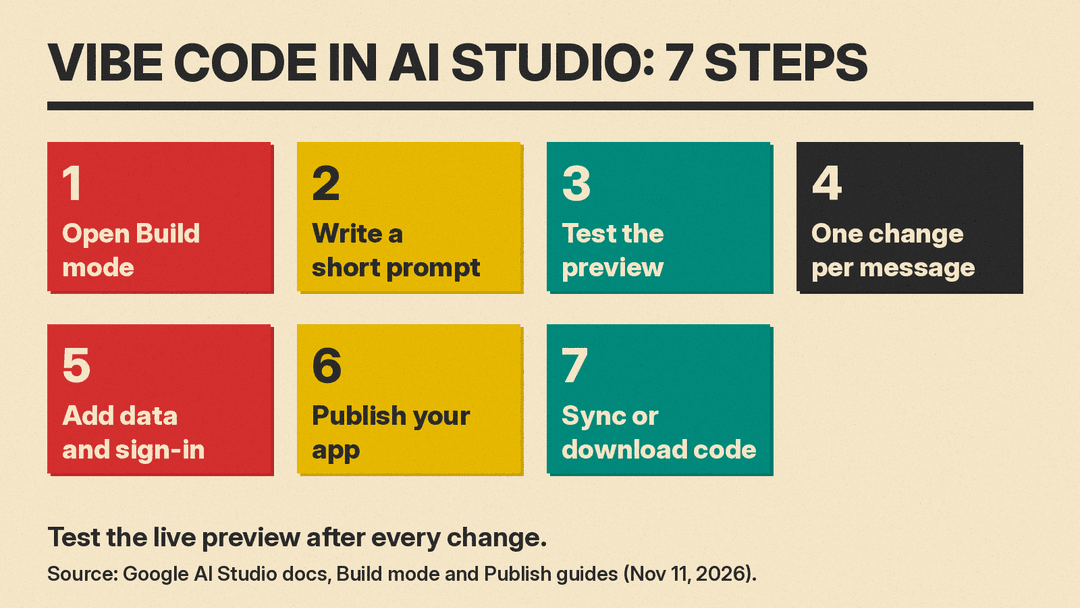
- Open Build mode, keep the web app default, and start with a prompt.
- Write a short first prompt: who it is for, 3 to 5 features, one screen, the data, and what to leave out.
- Test the live preview after every change.
- Ask for one change per message in the chat panel, or use annotation mode.
- Ask the agent to add a database and Google Sign-in when people need to share data.
- Publish with the Starter Tier if your account is eligible, or link a paid Google Cloud project.
- Sync to GitHub or download a ZIP to keep your code.
