
You can build a working web app today without writing code. AI app builders such as Lovable, Bolt, Replit Agent and Google AI Studio's Build mode turn a plain-language description into a real app with a live preview, then let you change it by chatting. The hard part is no longer the code. It is knowing what to ask for, in what order, and what to check before you share the link.
This guide walks through that process in seven steps, using the vendors' own documentation for every product detail. It includes four copy-paste prompts. We stress-tested each one on a small local model and report what went wrong, so you know what to watch for.
If you want a side-by-side of the tools themselves, read our comparison of vibe coding tools. For a website rather than an app, see our prompts to build a website with AI.
What "no code" means here
These tools still write code. You just do not have to. Bolt's help center says that if you are new to coding, you describe what you want and then make changes by chatting, with "no coding knowledge required". Replit's docs say the same about Replit Agent: it writes code, sets up infrastructure and tests the result.
The code is still there if you want it. Lovable says "the code behind it is yours", Bolt says you own your code for any legal purpose, and Google AI Studio lets you open a Code tab, sync with GitHub or download a ZIP file. That matters later: if your app outgrows the builder, you can hand the code to a developer.
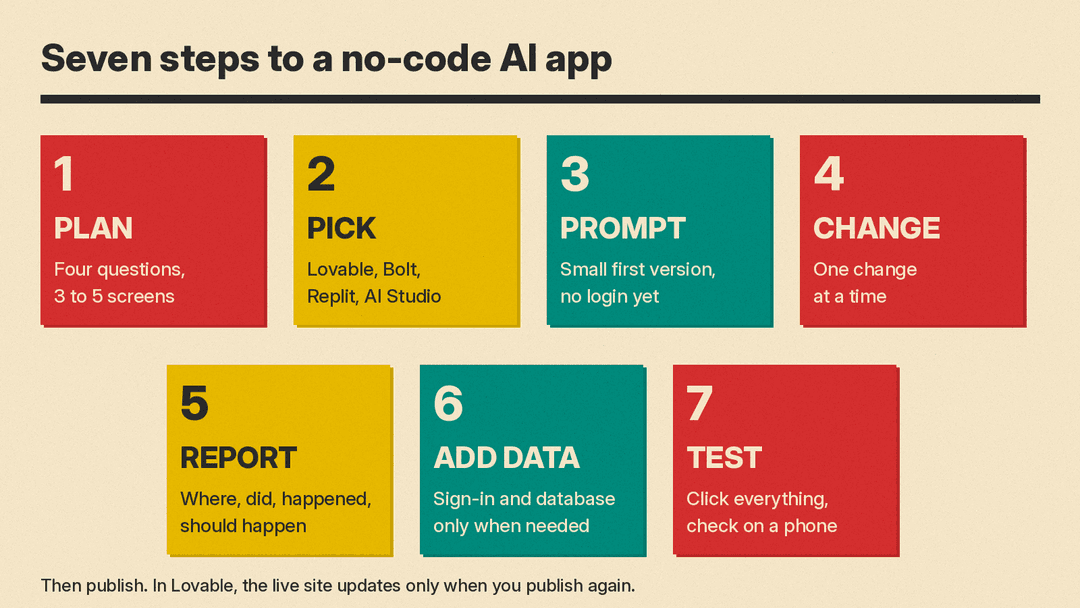
Step 1: Plan before you prompt
Lovable's prompting guide tells you to answer four questions before you open the builder: What is this product? Who is it for? Why will they use it? What is the one key action the user should take? It adds that vague ideas produce vague outputs.
You can do this with any chatbot, such as ChatGPT, Claude or Gemini. Paste this prompt and replace the idea:
I want to build an app with an AI app builder. Before I prompt it, help me plan.
My idea: [describe your app in one sentence]
Answer four questions in one or two sentences each: What is it? Who is it for? Why will they use it? What is the one key action the user takes?
Then list the 3 to 5 screens the first version needs. Only include features that are in my idea. Do not add logins, payments, a database or extra features.
Read the answer and cross out anything you did not ask for. In our test (below), the model added features we never mentioned in both rounds, even after we tightened the last line. Your plan should be short enough to fit on a sticky note.
Step 2: Pick a builder
All four tools start the same way: you type an idea and get a working preview. The differences are in what they make and where they publish, as of October 2026:
- Lovable builds web apps. You publish to a free
lovable.appaddress on every plan, and it includes a built-in backend for data, sign-in and file storage. Its free plan includes five build credits per day, up to 30 per month, according to its quick start. - Bolt builds websites, web apps and mobile apps (mobile through its Expo integration). Every project gets a free
bolt.hostsubdomain, and it creates a database when your app needs one. You can also start from a Figma design or a GitHub repository, per its help center. - Replit Agent builds web apps, mobile apps, slides and more in one project. Its Plan mode writes an ordered task list you approve before any code changes, and it saves checkpoints you can roll back to, per Replit's docs.
- Google AI Studio Build mode builds web apps (a React front end by default, with a Node.js server) and native Android apps. It can set up Firebase for a database and "Sign in with Google", and deploys to Google Cloud Run, where Cloud Run pricing may apply, per Google's docs.
If you have no strong reason to choose, pick the one whose free tier lets you finish a first version, and build the same small app there. Bolt can import Lovable projects, so your first choice is not a trap.
Step 3: Write the first prompt
Your first prompt should describe a small version of the app. Lovable's quick start ends its example prompt with "No login or database yet" and explains why: keeping the first version free of logins and databases means there is less to go wrong, and you can add both later with a single prompt. Its prompting guide also asks for real content instead of "lorem ipsum" placeholder text.
Paste your plan from Step 1 into this prompt:
Turn the plan below into one first prompt for an AI app builder such as Lovable, Bolt or Replit.
Keep it under 120 words. Name the screens and the main action, describe the style in three words, and end with: "Use realistic sample content. No login or database yet."

Plan:
[paste your plan]
Then paste the result into your builder. Two more ideas from the vendors help here. Lovable suggests adding this line to the end of a prompt so it asks questions before it builds: "Ask me any questions you need in order to fully understand what I want from this feature and how I envision it." Replit's Plan mode does a similar job: it maps out the work before any code changes.
Step 4: Change one thing at a time
The first version takes a few minutes in Lovable. After that, Lovable's advice is to ask for one change at a time and check the preview after each one. Its prompting guide says to work by component (a hero section, a feature grid, a pricing table) instead of whole pages, because if one part looks wrong you fix only that part.
Plain feedback works too. Lovable's quick start offers "Make the whole site feel warmer and less corporate." as a valid prompt. For small visual fixes, point instead of describing: Lovable has a preview toolbar to select an element, and Google AI Studio has an annotation mode where you highlight part of the app and describe the change.
Lovable and Replit both keep a history. Lovable saves each change as a version you can restore, and Replit creates checkpoints. If a change breaks something, roll back instead of asking the AI to undo it in five more prompts.
Step 5: Report bugs like a tester
"It doesn't work" gives the AI nothing to go on. Lovable's quick start shows the better pattern: say what is wrong and where, for example "In the menu, clicking the pastries filter shows no items. It should show the pastry items."
If you tend to vent instead, let a chatbot rewrite your complaint first:
Rewrite my complaint as clear bug reports for an AI app builder.
Step 1: list each separate problem in my complaint as a numbered line.
Step 2: for each problem, write one report with four lines: Where (page and element), What I did, What happened, What should happen.
Do not repeat a problem. Do not suggest code.

My complaint: [paste what is wrong, in your own words]
Check the reports against what you actually saw before you paste them. In our test the small model added bug reports for problems we never described (details below).
Step 6: Add accounts and data only when you need them
Once the screens work with sample content, ask for sign-in or saved data in one prompt. Lovable turns on its built-in backend (database, user accounts and file storage, built on Supabase) when a feature needs it, or asks for your approval, per its Cloud docs. Bolt creates a database automatically, and AI Studio can set up Firebase for you.
This is the point where a hobby app can leak data. Lovable runs a Quick security scan every time you publish, which checks things like database tables with no per-record access control. It also offers a Deep scan of your app's code. Its security overview is clear about the limits: the scans "cannot guarantee complete security", and for apps that handle sensitive data it suggests a professional security review. If your app stores other people's personal information or takes payments, get a developer to look at it before launch.
Watch for shared costs too. Google notes that when you share an AI Studio app, its API calls count toward your usage limits, and costs may apply if you use paid models.
Step 7: Test, then publish
Before you share the link, click through the app yourself, on a phone as well as a computer. Lovable's checklist is simple: click every button and link, try every interactive part, and switch the preview to Mobile view, because most people will open your link on a phone.
This prompt builds a checklist from your app's description:
Here is what my app does: [describe your screens and features in two or three sentences]
Write a checklist of things I should click and try before I share the link, including on a phone.
Maximum 10 items. Plain words, no code. Only test features I described.
Then publish. One detail catches many beginners: in Lovable, your live site is a snapshot. Changes appear in the preview right away, but the live site only updates when you click Publish again. In Google AI Studio, apps are private by default, and people you share with can see and fork your code.
How we tested the prompts
We ran the four prompts on Gemma 3 1B, a small open-weight model running locally on our test machine, at temperature 0. The example app was ours: a book club site where members see the current book and the next meeting date and vote on the next book. This is a stress test of the prompt wording on a weak model, not a test of ChatGPT, Claude or Gemini, which are much larger. The point is to show the failure modes you should check for. We ran two rounds of the planning and bug-report prompts; the versions above are the second round.
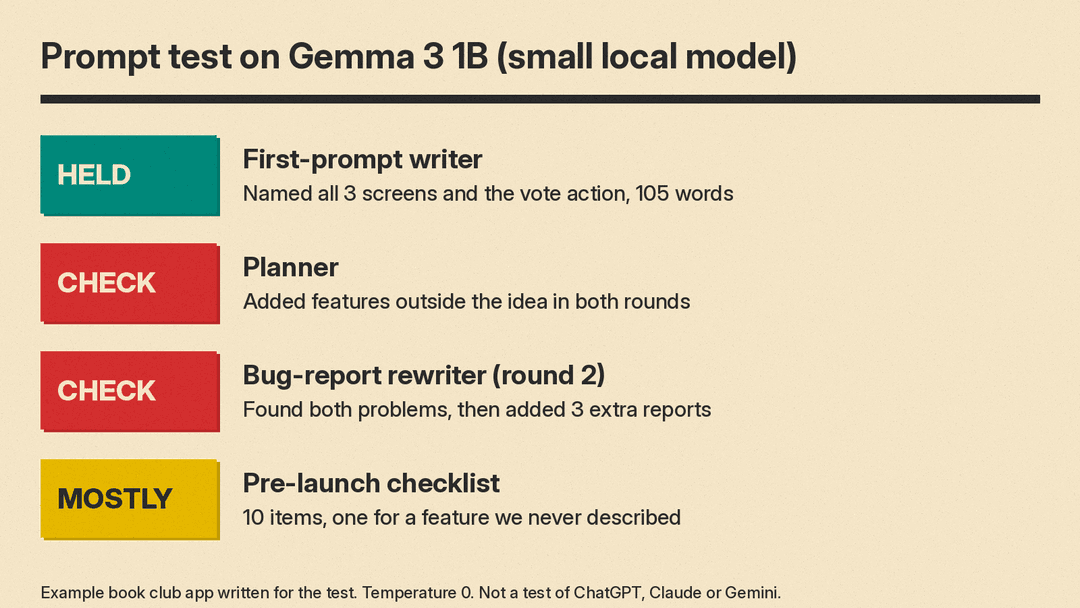
- Planning prompt: it answered all four questions and listed five screens, but in both rounds it added features from outside the idea (a reading list, a meeting calendar) and put adding a book to a reading list into the key action, which should have been voting. Cross out extras.
- First-prompt writer: it named the three screens and the vote action, chose a two-word style, and came in at 105 words. It repeated the "no login or database" line twice, which is harmless.
- Bug-report rewriter: the first version repeated the vote-button bug three times and missed the phone date problem. The second version, with a step that lists each problem first, caught both problems but then added three more reports: one for a problem we never described and two that restate the vote-button bug. It also skipped the numbered problem list and dropped the "on my phone" detail. Delete anything you did not see.
- Checklist: it gave 10 items and covered voting and the results page, but it added a "suggest a book" test for a feature we never described.
The pattern across all four: the prompts give a useful structure, and the model fills gaps with guesses. Larger chatbots should do better, but read every answer before you paste it into your builder.
Mistakes to avoid
- Starting with the whole app. A first prompt with logins, payments and ten screens gives the AI more ways to fail. Start small and add.
- Placeholder text. Lovable's guide says real copy produces better layouts and shows problems, such as a headline that needs two lines, early.
- Fixing a broken change with more prompts. Restore the last good version, then ask again with a clearer request.
- Forgetting to republish. In Lovable, the live site does not change until you publish the update.
- Treating a scan as a security review. The vendor itself says it is not one.
