
Regular expressions (regex) are short patterns that find text: every email address in a document, every order number in a column, every ZIP code in a list of addresses. They are also hard to read, which is why people ask ChatGPT, Claude, Gemini or another chatbot to write them. In our test, the AI got the pattern logic right every time. Where it trips is a fact it cannot see: which program will run the pattern.
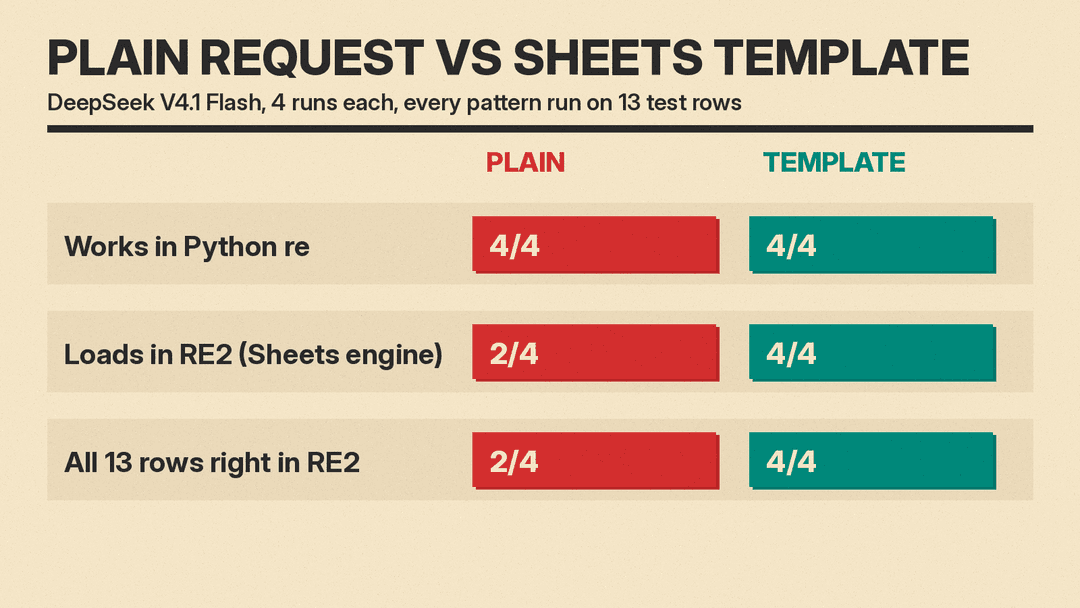
We tested this with a common job, pulling US ZIP codes out of messy text. A one-line request gave patterns that worked in Python every time, but 2 of the 4 would not even load in Google Sheets. A prompt that named Google Sheets and gave examples produced 4 working patterns out of 4. Below is the prompt, what went wrong without it, and a short checklist for testing any AI-written regex before you use it.
Why AI-written regex breaks
Regex is not one language. It is a family of similar languages, and each program speaks its own version:
- Python and many other engines support "lookarounds", which check what sits before or after a match without including it. The Python re documentation lists them as lookahead and lookbehind assertions.
- Google Sheets uses Google's RE2 engine. Google's REGEXEXTRACT help page says "Google products use RE2 for regular expressions." The RE2 syntax page marks lookaheads and lookbehinds, such as
(?<=re)and(?=re), as NOT SUPPORTED. - Spreadsheet functions return different things. REGEXEXTRACT returns the whole match when the pattern has no capture group, and the group when it has one, per the same help page.
So a pattern that is correct in one place can be an error in another. If you do not say where it will run, the model picks for you, and in our test 2 of 4 plain replies picked syntax that Google Sheets cannot load.
What we tested
The job: pull the ZIP code out of free text. A ZIP code here is 5 digits, or ZIP+4 (5 digits, a hyphen, 4 digits). It must not grab 5 digits out of a longer number, such as an order number or a tracking code.
We wrote 13 test rows, for example:
1600 Amphitheatre Pkwy, Mountain View, CA 94043should give94043Boston, MA 02115-3000, USAshould give02115-3000Ref 123456should give nothing (6 digits)Tracking 1Z999AA10123456784should give nothingAustin TX 78701 and Dallas TX 75201-4605should give78701first
We sent two prompts to DeepSeek V4.1 Flash through OpenRouter, 4 runs each, 8 calls in total. We took the first pattern each reply offered as its answer and ran it two ways: with Python's built-in re module, and with Google's RE2 library, the engine Google says Sheets uses. We did not paste the patterns into a live Google Sheet; RE2 stood in for it.
Prompt A, the plain request:
Write a regex to find US ZIP codes in text.Prompt B, the template: the one in the next section, filled in for Google Sheets.
The regex prompt template
Copy this and fill in the brackets. The two lines that matter most are "Where it runs" and the examples.
Write a regular expression for me.

Where it runs: [Google Sheets REGEXEXTRACT / Excel / Python / JavaScript / VS Code search / grep]. Use only syntax that this supports.
Job: [what the text looks like and what to pull out]
Rule: [the exact format, for example: exactly 5 digits, or 5 digits plus a hyphen and 4 digits]
Do not match: [what looks similar but is wrong, for example: digits inside longer numbers]

Should return:
- "[real example]" -> [what you want back]
- "[real example]" -> [what you want back]

Should return no match:
- "[real example that should be skipped]"
- "[real example that should be skipped]"

Reply with:
1. The full formula or code in one code block.
2. One line per part of the pattern saying what it does.
3. Any case it will get wrong.
Keep it short.
Use real rows from your own data for the examples, including the awkward ones. The "any case it will get wrong" line is there because it makes the model list its own blind spots, which you then test.
What happened
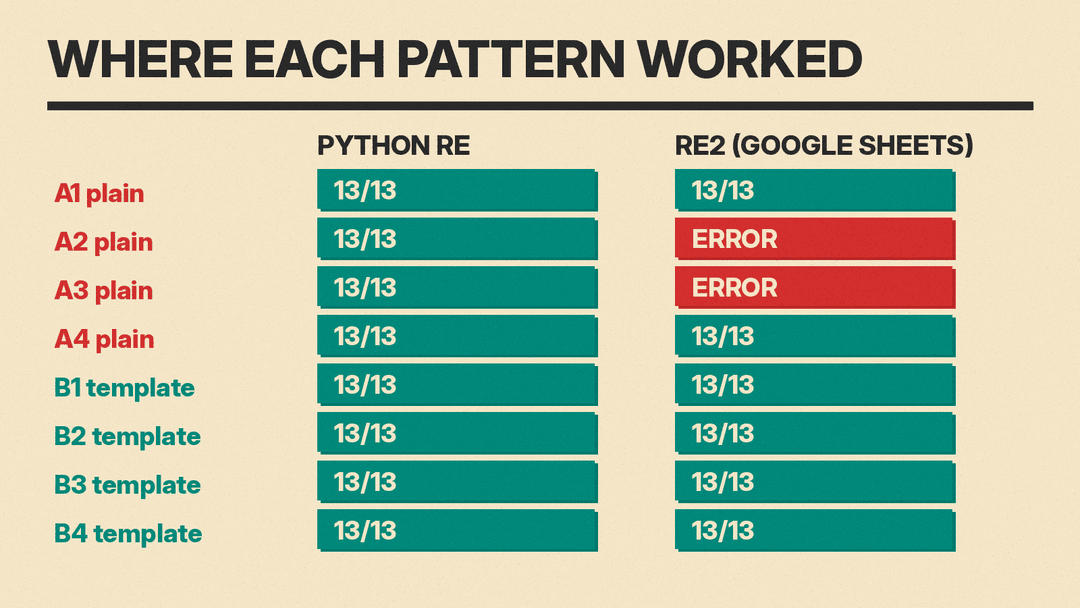
The pattern logic was fine in all 8 replies. Every pattern got all 13 rows right when run with Python. The model knew to use a 5-digit block, an optional hyphen-plus-4 part, and some kind of boundary so it would not cut into longer numbers.
The plain request ignored the engine. No reply to Prompt A asked where the pattern would run. Two of the four (runs 2 and 3) led with a pattern built on lookarounds: a negative lookbehind at the start ("no digit right before this") and negative lookaheads at the end ("no digit, or hyphen and digit, right after"). That works in Python. RE2 rejects it with "invalid perl operator", so in Google Sheets the formula would fail instead of returning a ZIP code. Both replies did offer a simpler fallback lower down (run 3 said to use it "if your regex engine doesn't support lookbehind"), but you would have to know your engine to pick it. The other two plain replies led with the simple \b\d{5}(?:-\d{4})?\b form, which works in both places.
The template worked everywhere. All 4 template replies loaded in RE2 and got all 13 rows right, including the 7 rows that were not shown in the prompt. Three of them avoided lookarounds by matching the character before and after the ZIP code and returning only the middle through a capture group, which is the usual workaround in RE2. The fourth used the simple \b form.
The self-check line paid off. All 4 template replies listed cases they would get wrong, and we tested those claims. One of the gaps is real and worth knowing: a hyphen counts as a boundary, so text like 650-94043 or 1-800-555-01995 can still return a "ZIP code" from inside a longer, hyphenated number. Two replies (runs 3 and 4) warned about exactly this. One reply (run 2) did not, and it returns 12345 from 94043-12345. Only run 1, which refuses a hyphen on either side, skipped all of these.
The template did cost more thinking. Template replies used about 1,200 to 4,000 output tokens, against about 1,000 to 2,500 for the plain request, because the model worked through the examples before answering.
How to check AI-written regex in 5 steps
- Test in the place it will run. Paste it into the real spreadsheet, editor or script with a few rows. A pattern that works on a website tester may fail in Sheets.
- If you use an online tester, set the flavor. regex101 lets you pick the flavor, including PCRE2, JavaScript, Python and Golang. Go's regexp package uses "the syntax accepted by RE2", so the Golang flavor is a close stand-in for Google Sheets.
- Keep a "should not match" list. Order numbers, phone numbers, dates, IDs. In our test, the risky rows were ones a pattern should skip, such as numbers joined by hyphens.
- Ask the AI to explain each part. If a piece of the pattern has no clear job in the explanation, ask about it or remove it and retest.
- Re-run with your edge cases. Paste the rows that failed back into the chat: "This row returned X, it should return Y. Fix the pattern, keep the same engine."
Common mistakes
- Not naming the program. "A regex for ZIP codes" and "a REGEXEXTRACT formula for Google Sheets" are different requests.
- Testing only the happy path. All 8 patterns passed our clean address rows. The differences showed up on numbers glued together with hyphens.
- Forgetting the empty case. Three template replies noted that REGEXEXTRACT returns
#N/Awhen nothing matches, and two suggested wrapping it inIFERROR(..., "")to leave the cell blank instead. - Treating a match as proof. A pattern checks format, not facts. Several replies pointed out that
\d{5}will accept a 5-digit number that is not a real ZIP code.
For more spreadsheet work with AI, see our ChatGPT prompts for Excel formulas. The same lesson came up when we tested how to write SQL queries with AI: tell the model which database you use, show real sample values, and it guesses less.
How we tested
- Model: DeepSeek V4.1 Flash (deepseek/deepseek-v4.1-flash-1017) through OpenRouter, reasoning effort low, no system prompt, on November 12, 2026.
- 2 prompts x 4 runs = 8 calls. The first pattern from each reply was run on 13 test rows with Python's
remodule and with the google-re2 Python library, using REGEXEXTRACT rules (first match; the capture group if there is one). - Google Sheets itself was not opened. RE2 is the engine Google says Sheets uses, but Sheets may differ in small ways.
- This is a small test on one model and one task. Other models and harder patterns will behave differently.
Sources
- Google Docs Editors Help: REGEXEXTRACT
- RE2 syntax reference (Google)
- Python documentation: re, regular expression operations
- regex101: online regex tester with flavor selection
- Go documentation: package regexp (RE2 syntax)
- llms.blog test, November 12, 2026: 8 calls to DeepSeek V4.1 Flash via OpenRouter, every pattern run on 13 test rows in Python re and RE2
