
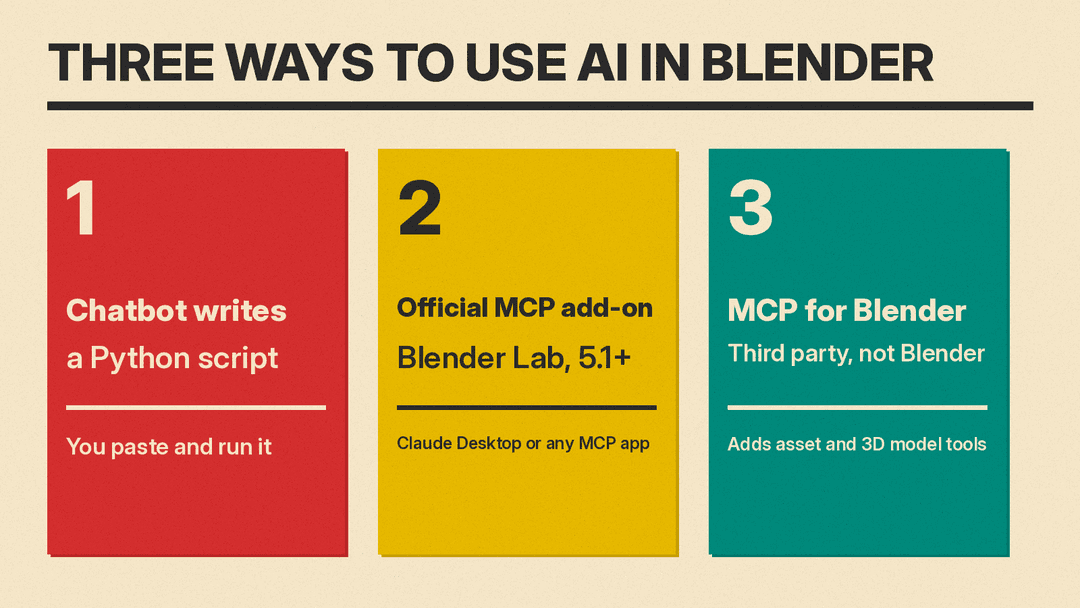
Blender has no AI button. The Blender Lab MCP Server page says it plainly: "Blender does not have any built-in functionality for connecting to LLMs." What it does have is a full Python API, and that is the door every AI tool uses. You can ask a chatbot to write a script and paste it in, or you can connect an AI app to your open scene so it runs the code for you.
This guide covers both routes, gives you a prompt we tested, and shows what happened when we ran the AI's scripts in Blender 5.3.
What can AI actually do in Blender?
All of it goes through Python, so AI is good at the jobs a script can do:
- Build simple scenes from primitives: blocks, cylinders, lights, cameras, basic materials.
- Batch changes: rename objects, swap materials, apply the same setting to 200 objects.
- Explain a file: what a Geometry Nodes setup does, which objects use a material, what has the highest polygon count.
- Add small tools to Blender's interface, such as a panel with your own buttons.
It is weak at taste. A script can place a table. It cannot tell you the table looks wrong. Blender's own Lab page frames its MCP server as "a natural language interface with Blender's Python API," meant for "improving access to documentation" and for helping users "explore and understand complex setups."
Method 1: Ask a chatbot for a Python script
This works with ChatGPT, Claude, Gemini, Grok or any model, and needs no setup.
- In Blender, switch to the Scripting workspace. The Blender manual says this opens the Text editor (Shift+F11 also opens it).
- Click New in the Text editor header.
- Paste the script from your chatbot.
- Click Run Script (the play icon) or press Alt+P.
- If it fails, copy the error and send it back to the chatbot with your Blender version.
Save your .blend file first. A script that starts by deleting objects will delete yours too.
The prompt we tested
The key is to tell the model your Blender version, your units, exact sizes, and exact names. Here is the rules prompt, word for word as we ran it:
You are helping me script Blender with its Python API (bpy).

Blender version: 5.3. Units: meters, Z is up.

Goal: a simple scene with a wooden table, a red mug on the table, one light, and a camera aimed at the table.

Rules:
- Start by deleting every object in the scene, so the script can run twice.
- Table: top 1.2 x 0.8 x 0.05 m, its top surface at Z = 0.75. Four legs, one near each corner, from the floor to the underside of the top.
- Mug: a cylinder about 0.08 m wide and 0.1 m tall, standing on the table top (its bottom at Z = 0.75), plus a simple handle.
- Name every object (Table_Top, Leg_1 to Leg_4, Mug, Mug_Handle, Key_Light, Camera) and set the scene camera.
- Materials: a brown material on the table and legs, a red one on the mug and handle. Use Principled BSDF Base Color only.
- Aim the camera with a Track To constraint on an Empty at the table top.
- Use only bpy and mathutils. No add-ons, no file paths, no rendering.
- End by printing each object's name and location.
- Reply with one Python code block and nothing else.
To reuse it, keep the first two lines and the "Rules" frame, and swap in your own objects, sizes and names.
What happened when we tested it?
We sent two prompts to DeepSeek V4.1 Flash through OpenRouter, 4 runs each, 8 calls in total. Prompt A was a plain one-line request: "Write a Blender Python script that makes a simple scene: a wooden table with four legs, a red mug sitting on the table, a light, and a camera aimed at the table." Prompt B was the rules prompt above.
We then ran every script in Blender 5.3 (the official bpy Python module, run headless), on the default startup scene, twice in a row, and checked the scene with code: object names, heights, materials, and where the camera pointed.
What we found:
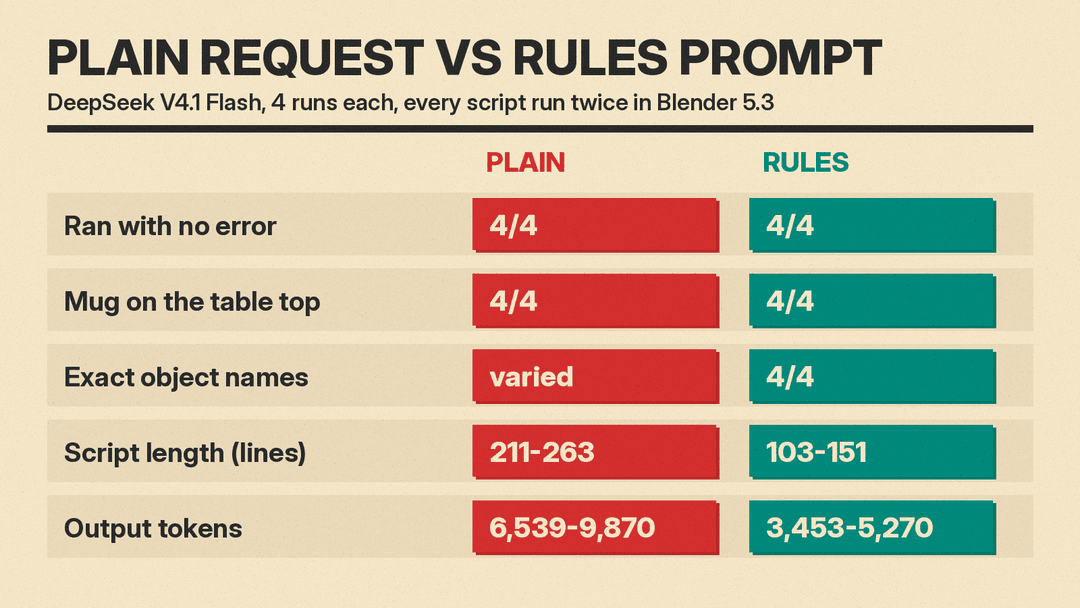
- Both prompts worked. All 8 scripts ran with no error, on the first run and the second. In all 8, the mug sat on the table top and the camera pointed within 2 degrees of the table's center.
- The plain request did more than we asked. One run added a floor and a second light (we asked for "a light") and left off the mug handle. Another added a coffee surface inside the mug. Object names changed from run to run (Leg_LF, Leg_00, TableLeg.001).
- The plain request guessed old versions. One script said "Tested with Blender 3.6+ / 4.x API" in its header and another said "Works in Blender 3.x and 4.x." A chatbot cannot test anything, and neither mentioned Blender 5. Both still ran on 5.3, but treat lines like these as decoration.
- The rules prompt gave shorter, predictable code. Exact names 4 of 4, top surface at 0.75 m 4 of 4, Track To camera 4 of 4. Scripts were 103 to 151 lines against 211 to 263, and used about half the output tokens.
- "Run twice" was not fully solved. One rules-prompt run deleted the objects but not the old materials, so the second run made "Mug_Red.001." If you rerun scripts often, add "and remove unused materials" to the rule.
- All 8 used a setting Blender is retiring. Blender 5.3 printed a warning that
Material.use_nodes"is expected to be removed in Blender 6.0." That is harmless today and a break later. Telling the model your version does not stop it from using old habits.
One more lesson: the model thinks a lot. On our first pass with a 4,000-token cap, all 8 calls ran out before finishing (6 returned no text at all). With a 16,000-token cap, all 8 finished. In a chat app you will not see this, but if you use an API, give a reasoning model room.
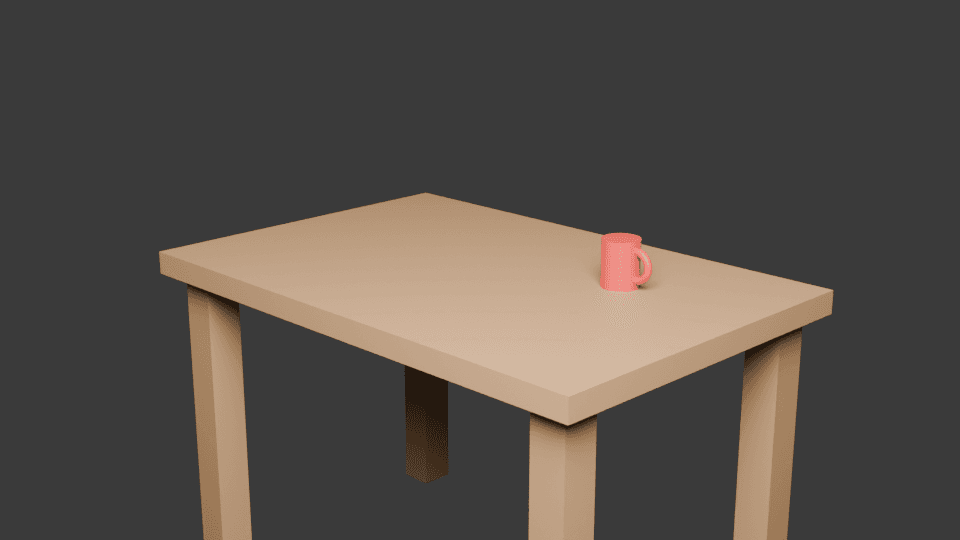
Here is the render from one rules-prompt script (Cycles, 24 samples). Note the legs run off the bottom of the frame. The camera was "aimed at the table," exactly as asked, but framing still needs a human.
Method 2: Connect AI to Blender with the official MCP add-on
The Model Context Protocol (MCP) lets an AI app call tools on your computer. Blender's developers built an MCP server under Blender Lab. With it, the AI reads your open scene and runs Python in it directly, so you skip the copy and paste.
On April 28, 2026, Anthropic listed it as a Claude connector in its Claude for Creative Work launch. Anthropic says the Blender developers built it, that Anthropic made a donation to the Blender project, and that "because the connector is built on MCP, it is accessible to other LLMs in addition to Claude."
Setup with Claude, from Claude's tutorial:
- In Claude Desktop, go to Customize > Connectors, search for Blender, and select Add. Claude says any plan works, including Free. It does not work in claude.ai in the browser, because Blender must run on the same machine.
- Open the Blender MCP Server page and drag the install link into Blender twice: once to add the Blender Lab repository, once to install the add-on.
- In Blender, enable the add-on and start the MCP server.
Check your version first. Blender's page lists Blender 5.1 or newer, and so does the add-on's manifest. Claude's tutorial says 4.2 or later. Follow Blender's number. Version 1.0.0 of the add-on came out April 27, 2026, and the latest, 1.0.3, fixed the screenshot tool on September 11.
Other MCP apps work too. Blender's page points to llama.cpp, and the Blender Lab Q1 2026 report says the page covers a local setup "using open-source tools and models with open weights."
Read the security warning
Blender's page warns: "The MCP server will execute LLM generated code in Blender without any guards in place to protect your data from removal or being sent to a remote location." It recommends a virtual machine or a system without access to sensitive information. Take that literally. Use a copy of your project, and keep client work off that machine.
Prompts from Blender's own examples
Blender's Lab page lists prompts its team tried on demo files. These are good starting points because they ask the AI to read and report, not to build:
- "Analyze the scene and list the outliers: objects with highest polygon count but smaller size from the camera point of view."
- "With the current open Blender file fix the name of all the data-blocks to remove typos. Report back which data-blocks got fixed."
- "Which objects are using the following material: pebbles"
- "With the current open Blender file explain what the main geometry nodes setup is doing. Add inline documentation for it with frame elements. Create a Text data-block with the result of analysis."
The page also says results depend on the model you use. We did not test the MCP add-on for this guide.
Method 3: MCP for Blender, the third-party option
Before Blender's own server, many people used blender-mcp, a GitHub project by ahujasid, now renamed MCP for Blender (PyPI package mcp-for-blender). Its README says: "This is a third-party integration and not made by Blender."
It does more than the official add-on. Per the README, it can pull Poly Haven assets and Sketchfab and Poly Pizza models, and make AI-generated 3D models through Meshy, Tripo, Hyper3D Rodin and Hunyuan3D. Its setup command (uvx mcp-for-blender setup) finds apps such as Claude Desktop, Claude Code, Codex, Cursor and VS Code and adds a Blender entry to the ones you pick. We did not test it either. The same security logic applies: it runs AI-written code in your Blender session.
Tips that save time
- State your version every time. Then still expect old code, and paste any warning back to the model.
- Give numbers, not adjectives. "Top surface at Z = 0.75" beats "a normal table."
- Name everything. Exact names make the next prompt easy: "move Mug 0.2 m left."
- Ask for a printout. Ending the script by printing names and locations lets you check the result without clicking around.
- Save before you run. A script can delete or change many objects in one go. Treat every script like a stranger's code.
- Learn a little Python. You do not need it to start, but reading a script is how you catch the extras. Our list of free Python courses is a start, and the same habits apply to vibe coding anywhere.
