
A landing page has one job: get a visitor to take one action. AI can write the words and build the page fast. The catch is that a plain request adds small promises you never made. This guide goes from a fact sheet to a live page in six steps, with a copy prompt we tested on 8 model calls.
What is a landing page?
A landing page is one page for one offer, aimed at one kind of visitor, with one action. That action might be "book a walk", "join the waitlist" or "get a quote". There are no menus to wander off into and no blog.
A full website does many jobs at once: services, about page, contact details, maybe a shop. If you need that, start with our website prompt guide. If you need one page that turns a visitor into a lead, keep reading.
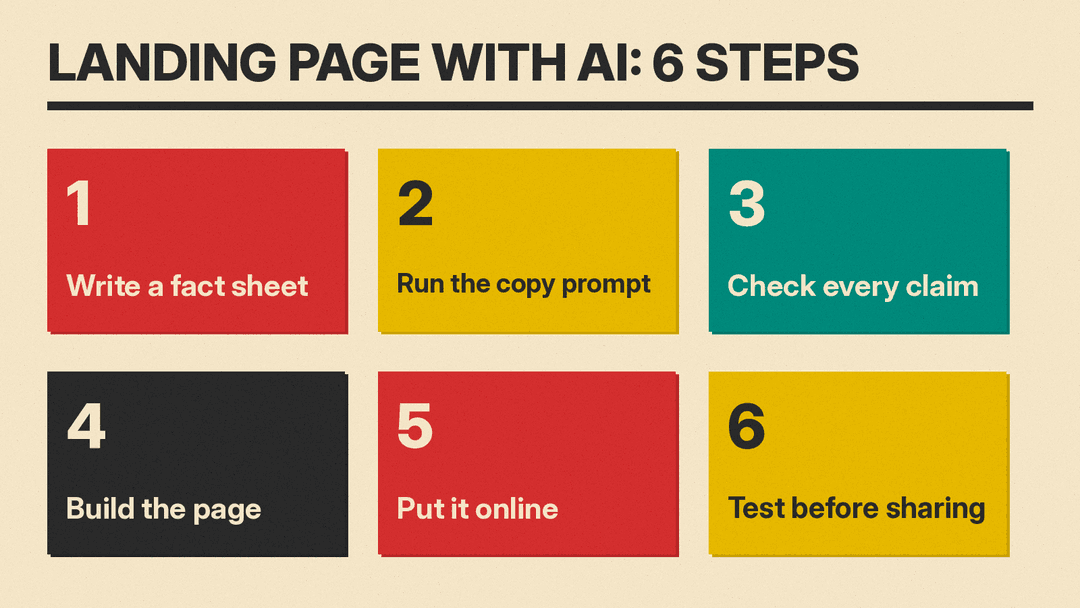
Step 1: Write a fact sheet before you open a chatbot
The fact sheet is the only source of truth for the page. Write plain notes, not polished copy. It should answer six questions:
- Business: name and what you do, including the area you serve by name.
- Offer: what the visitor gets and what it costs.
- Proof: things you can show today, such as insurance, a portfolio, or how the service works.
- Visitor: who the page is for, in one line.
- One action: the single thing the visitor should do.
- Missing facts: anything you have not decided yet, like payment or cancellation.
Here is the fact sheet we used for a made-up dog walking business:
- Business: Paws on Main, dog walking in one neighborhood
- Offer: 30-minute walks for $25, 60-minute walks for $40, weekdays 9am to 5pm
- Proof: insured; at most 3 dogs per walk; owner gets a text with a photo after each walk
- Visitor: busy dog owners who work during the day
- One action: book a walk with the short form on the page
Notice what is not there: no reviews, no customer count, no "years in business". If you have real ones, add them. If you do not, the page should not have them either.
Step 2: Generate the copy with a rules prompt
Paste your fact sheet into a prompt that sets the sections and forbids extra claims. This is the exact prompt we tested. Swap in your own facts:
Write the copy for a one-page landing page.

Use only these facts:
- Business: Paws on Main, dog walking in one neighborhood
- Offer: 30-minute walks for $25, 60-minute walks for $40, weekdays 9am to 5pm
- Proof: insured; at most 3 dogs per walk; owner gets a text with a photo after each walk
- Visitor: busy dog owners who work during the day
- One action: book a walk with the short form on the page

Rules:
- Sections in this order: headline (10 words or less), subheadline (one sentence), 3 benefits (each one short sentence that ties to a fact above), how it works (3 steps), price, a 3-question FAQ, call-to-action button text.
- Do not invent reviews, testimonials, customer counts, years in business, or guarantees. If a section needs a fact I did not give, write [ASK ME: what you need] instead.
- Plain words. No exclamation points.
- Output only the page copy, with each section label in bold.
The "[ASK ME]" line matters most. It gives the model a way to say "I don't know" instead of filling the gap with something that sounds good.
What happened when we tested it?
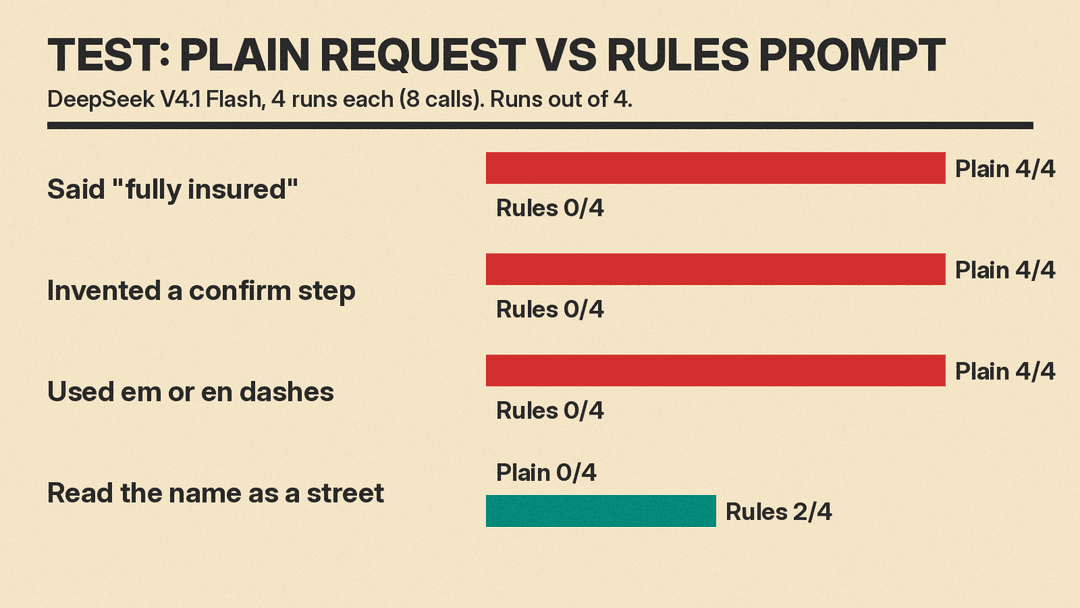
We ran two prompts 4 times each (8 calls) on DeepSeek V4.1 Flash through OpenRouter, with reasoning effort set to low. Prompt A was a plain request: "Write the copy for a landing page for my dog walking business," followed by the same facts. Prompt B was the template above. We tested only the copywriting step, not a site builder or hosting.
What the plain request did:
- No fake reviews. None of the 4 runs invented testimonials, and three said they left them out on purpose. That was better than we expected.
- Small promises instead. All 4 runs upgraded "insured" to "fully insured". All 4 added a booking confirmation step ("We'll confirm your walk") that was not in the facts, and one added "We'll get back to you within one business day."
- Other drift. One run said walks happen on "weekday afternoons" (the facts say 9am to 5pm). Others promised "reliable arrivals" or visits that are "quick, reliable, and on schedule". One mentioned handing over your house key.
- Long and dashed. Copy ran 328 to 574 words, every run used em or en dashes, and every run ended with notes to us.
What the rules prompt did:
- Stayed on the facts. No run said "fully insured" or added a confirmation step.
- Asked about the gaps. Three runs used [ASK ME], for example "how you confirm the booking, and how much notice you need" and "whether payment is due when you book or after the walk."
- Shorter and cleaner. 146 to 218 words, every headline at 10 words or less, and no dashes in any run.
- One new mistake. Two of 4 runs read "Paws on Main" as a street and wrote headlines like "Dog walking on Main". The plain request never did this. The fix is to name your neighborhood in the fact sheet, which we left out.
- More thinking. The rules prompt used more reasoning tokens (440 to 912 per run versus 140 to 214), so it is a bit slower and costs a bit more.
The lesson: AI copy rarely tells big lies. It adds small, confident details that become promises once a customer reads them.
Step 3: Check every line against your fact sheet
Go through the copy line by line and ask, "Is this on my fact sheet?" If not, cut it or add the fact.
Search for words that turn a description into a promise: "fully", "guaranteed", "within", "reliable", "always", "on time". Then look for steps you never described, like a confirmation call, a meet-and-greet, a free trial or a refund.
A follow-up prompt helps here:
List every claim in this copy that is not in my fact list. Quote each one.Treat its answer as a starting point, not the final check. You know your business. The model does not.
Step 4: Turn the copy into a page
You have two main routes.
Use an AI website builder. A builder puts the page editor and hosting in one place. Our roundup of the best AI website builders compares the main options. Paste your checked copy in, keep one call-to-action button, and delete any extra pages or menu links the builder adds.
Vibe code it. Describe the page and let an AI tool write the code. Our guide to vibe coding an app in Google AI Studio walks through one tool step by step, and what is vibe coding explains the idea. For a single page, you can also ask any chatbot for one HTML file. Here is a starting prompt. We did not include it in our test, so check the result in a browser:
Turn the landing page copy below into one HTML file named index.html.

Rules:
- Use the copy exactly as written. Do not add or change any text.
- All CSS goes inside a style tag in the same file. No outside libraries, fonts, or scripts.
- Make it readable on a phone first, then on a laptop.
- One form with these fields: name, email, dog's name, walk length (30 or 60 minutes). Give the form the attribute data-netlify="true" and the name "booking".
- Add a page title and a meta description that use the headline.
- Output only the HTML.

Copy:
[paste your checked copy here]
Save the result as index.html in a plain text editor, then open it in your browser to check it.
Step 5: Put it online and make the form work
A single HTML file needs a host. Two free starting points:
- GitHub Pages. GitHub looks for an index.html, index.md or README.md file as the entry point. On GitHub Free, the repository must be public, and changes can take up to 10 minutes to publish, according to GitHub's docs. GitHub Pages does not run server-side languages such as PHP, Ruby or Python, so it cannot handle a form on its own. You need a form service.
- Netlify Drop. Netlify's deploy docs say you can drag a project folder with your site files onto Netlify Drop to deploy it, with no account required. They suggest logging in first so the site is easier to manage.
Netlify also handles forms. Per its forms docs, you turn on form detection in the Netlify UI, then add data-netlify="true" (or netlify) to your form tag. Submissions show up in your site admin, and you can set up email notifications. That is why the HTML prompt above adds that attribute.
If your website builder has its own form tool, use that instead.
Step 6: Test before you share
Do this before you post the link anywhere or pay for ads:
- Submit the form yourself and check that the submission reaches you.
- Open the page on your phone. Check that the headline fits and the button is easy to tap.
- Read the copy out loud. Lines that sound fake are easier to hear than to see.
- Check the page title and description. They can show in search results and link previews.
- Compare against the fact sheet one last time, especially after any edits.
Common mistakes
- Asking AI for copy before you know your own facts.
- Leaving out the area you serve, so the model guesses.
- Letting "fully", "always" or "within 24 hours" slip in unchecked.
- Giving the visitor two main actions.
- Publishing a form that sends nowhere.
- Leaving AI notes or [ASK ME] placeholders on the live page.
