
Gemini in Gmail is Google's AI assistant built into the Gmail interface. Google describes it as "a collaborative inbox assistant" that can summarize long threads, draft or refine emails, organize messages, search your inbox for specific details, and propose meeting times. If you are new to the product, start with what Gemini is for background. This guide covers how to open Gemini in Gmail, what it can do on your type of account, and which prompts work well for everyday inbox tasks. Availability varies by plan, language, and country, so some steps below may not match what you see.
What Gemini in Gmail can do
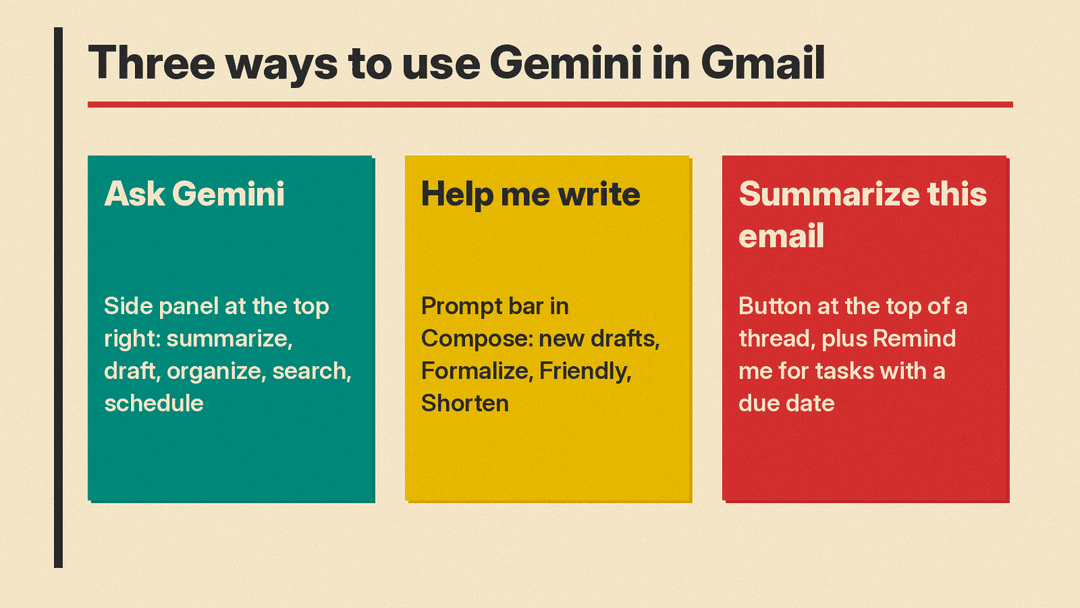
According to Google's Gmail Help documentation, Gemini in Gmail can help with five kinds of work:
- Summarize: turn long threads into concise bullet points.
- Draft: write new emails or refine existing drafts for tone and clarity.
- Organize: delete multiple emails or add labels.
- Search: find details such as flight times or package tracking.
- Schedule: propose meeting times based on your availability in Google Calendar.
Google's Gemini features in Gmail page lists a wider set of AI features, and access varies by account type. This list reflects that page as read on November 11, 2026:
- AI Inbox: surfaces your top priorities. Requires Google AI Plus, Pro, or Ultra, or an eligible Workspace plan. English, US only.
- AI Overview conversation summaries: available to Gmail users globally in supported languages.
- AI Overview in Gmail search: an answer above your search results to a natural language question. Google AI Plus, Pro, or Ultra, or an eligible Workspace plan. For personal accounts, not available in the EEA, Japan, Switzerland, or the UK.
- Gmail Live: talk to Gmail with your voice. Google AI Plus, Pro, or Ultra. English, iOS and Android.
- Help me schedule: propose times to meet in an email to someone else. Eligible Workspace plans, English, US only, on the web.
- Help me write: draft generation and refinement.
- Proofread: suggestions for conciseness, tone, and style. Web only.
- Suggested Replies: English.
- Summarize and draft emails in the side panel: eligible Workspace plans, many languages.
Beyond email, Gemini in Gmail can create Docs, Sheets, and Slides, generate images, manage Drive files (move, rename, share, copy), manage tasks, and schedule, reschedule, or delete calendar events. New events can only go on your primary calendar.
Is Gemini in Gmail available on my account?
The Gemini side panel requires an eligible Google Workspace or Google AI plan. It is also available through Google Workspace Experiments, which Google describes as a trusted tester program for personal accounts.
For Help me write, availability differs by account:
- Eligible Workspace or Google AI plans: available in multiple languages globally.
- Personal Google Accounts: supported languages, but restricted to the US only.
Conversation summaries are the most broadly available feature. Google states that AI Overview conversation summaries are available to all Gmail users globally, whether work, school, or personal, in supported languages. They require Smart features in Gmail, Chat, and Meet, and Smart features in Google Workspace, to be turned on.
Google changes these settings over time, so check Google's Gemini features in Gmail page for the current list before you assume a feature is missing from your account.
How to open Gemini in Gmail
On a computer:
- Open Gmail.
- At the top right, click "Ask Gemini".
- Use the prompt box at the bottom, type your request, and click Submit.
A few controls are worth knowing:
- "More options" at the top left gives you conversation history, Gems, and settings.
- "View" switches the panel between Side and Wide layouts.
- "Tools" opens advanced features, such as generating images.
- "Add source" attaches Google Drive files to your request. You can also type "@" in the prompt box to pick files.
- For answers drawn from the web, include a phrase like "Use Google Search" or "Using web search" in your prompt.
How to summarize an email thread
There are two ways to summarize, and they are separate features.
Conversation summaries:
- Open a thread.
- At the top, click "Summarize this email".
- Click minimize to hide the summary.
If a thread mentions a task with a due date, you can click "Remind me" to create a reminder. Google says the reminder appears in Google Tasks and Google Calendar and shows at the top of your inbox on the due date. The card stays visible for 4 days or until you dismiss it.
Side panel summaries: with an eligible Google Workspace or Google AI plan, you can ask the Gemini side panel to summarize a long thread into concise bullet points.
How to draft an email with Help me write
Help me write generates a new draft or refines text you already wrote.
- Open Gmail and click Compose. You can also reply to a message or open an existing draft.
- Type a message, or leave the body blank.
- Enter a prompt in the prompt bar at the bottom. If you cannot find it, click "Help me write".
- Click Create.
To refine a draft, give instructions such as "Make it more professional." or "Mention the Friday deadline." You can also use the options Formalize, Friendly, and Shorten. To switch between drafts, click Undo or Redo at the right of the prompt bar.
Google's prompt tips for drafting:
- Mention who you are writing to: "Write an apology to my child's teacher for their absence."
- State the subject and the action: "Decline the meeting on Thursday."
- Add tone words: "Write a formal invitation to a business partner."
- Point at a specific email or file when accuracy matters.
If you also use Microsoft tools, this comparison of Gmail Help me write vs Copilot in Outlook covers the differences in workflow.
How to search your inbox with Gemini
You can ask the side panel for details instead of building a search query. Google's examples include "What's my first meeting tomorrow?" and "Show my unread emails." Calendar answers come from your primary calendar only. To point Gemini at Google Calendar, Google suggests adding "@Calendar" at the beginning of your prompt.
Other things you can ask the side panel:
- Find a detail, such as flight times or package tracking.
- Check tasks: "What tasks do I need to do today?"
- Pull from Drive: "Save the attachment from this email to my Prospects folder."
- Web questions: add "Use Google Search" to your prompt.
For broader inbox triage tools, see this roundup of the best AI email assistants.
How to organize your inbox with Gemini
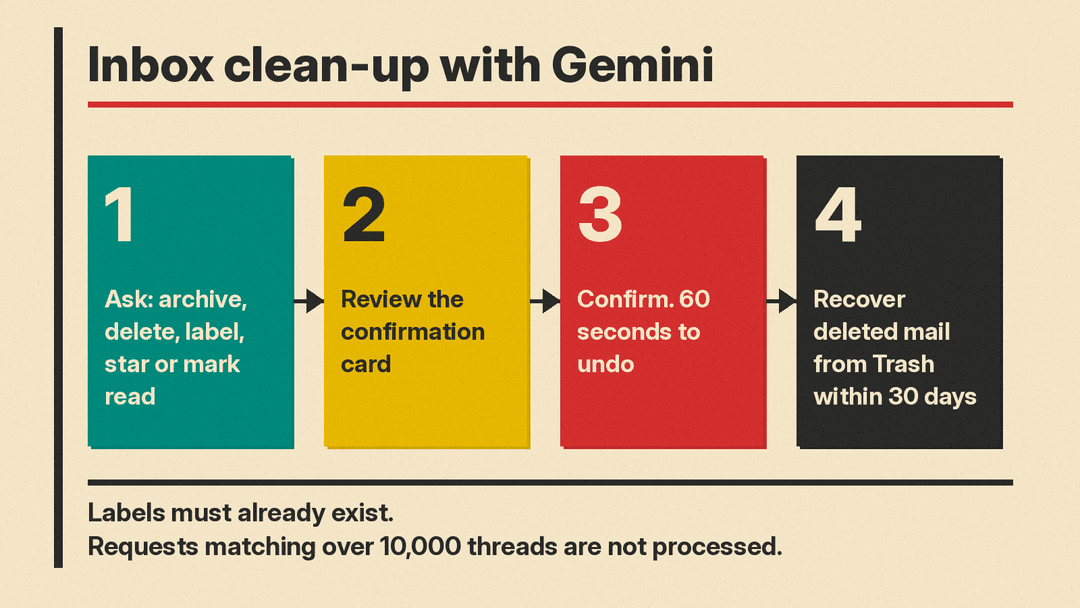
Gemini in Gmail can archive, delete, label, mark as read or unread, and star messages. Google's example prompt is "Archive emails from John Ryan that are older than 30 days."
The workflow always includes a confirmation step:
- Type the request.
- Review the confirmation card or the matching emails Gemini shows you.
- Confirm.
Rules Google applies to these actions:
- Emails are never deleted, archived, labeled, or marked read or unread until you explicitly confirm.
- After you confirm, you have 60 seconds to undo. A new prompt, or letting more than 60 seconds pass, ends the undo window.
- Deleted emails can be recovered from Trash. After 30 days in Trash, they are permanently deleted.
- You can only add labels that already exist. Gemini cannot create new labels.
- If more than 10,000 threads match, the request is not processed. Narrow the scope.
- You cannot ask Gemini to mark multiple emails as spam.
A practical approach is to run small batches first, check the confirmation card against what you expected, and only then confirm. If the card lists more messages than you intended, cancel and add a date range or a sender filter to the prompt.
How to schedule a meeting from Gmail
Google says Gemini can propose meeting times based on your availability in Google Calendar. Example prompts include "Create a 30 minute meeting with Kevin this week." and "Reschedule meeting with Lori to next week." Gemini can also schedule events, reschedule or delete existing events, find open time slots, and check calendars for availability. You can only create events on your primary calendar.
Help me schedule is a separate feature that proposes times to meet in an email to someone else. As of November 11, 2026, Google lists it for eligible Workspace plans, English and US only, on the web.
How to create Docs, Sheets, and Slides from Gmail
The side panel can create files without leaving your inbox. Google's examples:
- "Create a meeting notes agenda."
- "Create a sheet to track my monthly expenses with columns for date, category, amount, and notes."
- "Create a slide on quantum computing for a general audience with a modern design."
Google notes that Slides can take up to several minutes to generate, and you should keep the tab open while it works.
How to use Gems and Skills in Gmail
Google describes Gems as custom AI experts designed for specific roles or tasks. In Gmail, open "More options" and pick a Gem. You create Gems at gemini.google.com.
Skills are created and turned on in Workspace Studio. Once a skill is on, type "@" in the prompt box to pick it.
Our guide to Gemini skills in Google Workspace covers how to create, test, and share them.
Tips for better results
- Google says to make your prompt as specific and detailed as you can. Say who the email is for and what action it covers.
- Add tone words such as formal, friendly, or short.
- Reference a specific email or Drive file when the details matter. Use "Add source" or type "@".
- Start calendar prompts with "@Calendar".
- Include "Use Google Search" when you want information from the web.
- Check the confirmation card before you confirm any organize action.
More structured examples are in these Gemini prompt templates.
Privacy and accuracy
Google states that Gemini features may suggest inaccurate or inappropriate information, and that you should not rely on them for medical, legal, financial, or other professional advice. Review drafts before sending, and review the message list before confirming any bulk action.
On data use, Google says Help me write proactively takes details from your other emails and Drive files, such as flight times or hotel booking codes, to personalize drafts, and that this information is only used to improve drafts when you use Help me write.
Google also states that conversations with Gemini in Gmail are not saved to Gemini Apps Activity.
Conversation summaries depend on smart features. Turning off Smart features in Gmail, Chat, and Meet, or Smart features in Google Workspace, disables summaries and also turns off other tools such as AI-assisted writing and proofreading.
FAQ
Is Gemini in Gmail free? The side panel requires an eligible Google Workspace or Google AI plan, or access through Google Workspace Experiments for personal accounts. AI Overview conversation summaries are available to all Gmail users globally in supported languages. As of November 11, 2026, some features for personal Gmail accounts without a paid plan are limited to the US.
Can Gemini delete my emails without asking? No. Google states that emails are never deleted, archived, labeled, or marked read or unread until you explicitly confirm. After confirming, you have 60 seconds to undo. Deleted emails stay in Trash and can be recovered, but after 30 days they are permanently deleted.
Why do I not see the summarize button on a thread? Conversation summaries need Smart features in Gmail, Chat, and Meet, and Smart features in Google Workspace, turned on. They are also limited to supported languages. For side panel summaries, you need an eligible Google Workspace or Google AI plan.
