
Google has made reusable, custom instructions for Gemini available across Google Workspace. Skills let teams save wording, rules, and reference files they want Gemini to follow when it drafts email, writes documents, or builds presentations. They are rolling out across Workspace Studio and Workspace apps in general availability.
What are skills in Google Workspace?
Skills are reusable, custom instructions that guide Gemini to apply your team's rules, templates, and reference files. A skill is a saved set of directions. Instead of typing the same instructions each time, a person can turn one on and let Gemini follow it.
Instructions can cover style, structure, and files. A skill can tell Gemini to keep a brand tone in email drafts, use a proposal layout in Docs, or base a status update on meeting notes in Drive. Skills are part of a general AI agent idea in which reusable instructions are stored in a SKILL.md file, as explained in our skills explainer.
Where can you use skills?
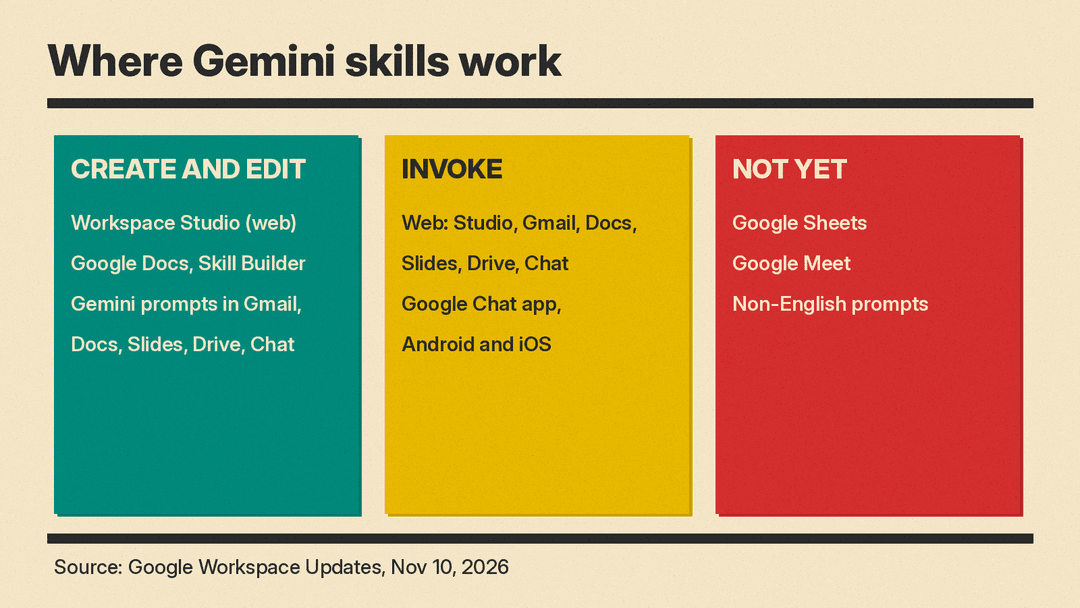
You can create, edit, test, and share skills in Workspace Studio. You can also draft and collaborate on skills in Google Docs with the Skill Builder. Once a skill is turned on, Gemini in Gmail, Docs, Slides, Drive, and Chat can recognize when it is relevant and apply it. You can also invoke skills with an @mention, including multiple skills in one request.
Google's Workspace Updates post says users can prompt Gemini directly in Gmail, Docs, Slides, Drive, and Chat to create, refine, and test skills without leaving the app. Skills can trigger Workspace Studio flows configured with a "Start manually" or "On a schedule" starter step. Creating, editing, testing, and sharing are web only. Invoking works on the web in Workspace Studio, Gmail, Docs, Slides, Drive, and Chat, plus Google Chat mobile on Android and iOS. Sheets and Meet are not included yet. English prompts and instructions are the only supported language for now.
How to create a skill
Start in Workspace Studio, where you can build from scratch, begin from new turnkey templates, or edit Markdown-native SKILL.md files directly. If your team works better in a document, use Google Docs to draft and collaborate. When ready, share copies from Workspace Studio so teammates can customize and enable the skill.
Make a first skill narrow. Choose a repeated task, such as an email draft format, a proposal template, or a status report structure. Write instructions as clear steps. Name files or Drive folders Gemini should use.
Test before relying on a skill. Workspace Studio lets you test how a skill generates email drafts, documents, or presentations before turning it on. Check output for tone, missing details, and file references. If the skill uses Drive files, confirm the test account or recipient can access them.
How to use a skill
After a skill is on, Gemini can apply it automatically or you can @mention it. This is helpful when you combine instructions, such as a brand voice skill plus a report format skill.
In Gmail, you open Ask Gemini and type @ in the prompt box to pick a skill, as our guide to using Gemini in Gmail shows.
In Gmail, Docs, Slides, Drive, and Chat, you can prompt Gemini to create, refine, and test skills without leaving the app. In Workspace Studio, skills can trigger flows that use "Start manually" or "On a schedule" steps. Remember that creating, editing, testing, and sharing are web only. On Android and iOS, Google Chat mobile supports invoking.
Skills vs Gems: what changes
Workspace skills are separate from skills and Gems in the Gemini app. They do not sync. An automated migration of remaining Gems in 2027 will convert Gems to draft skills only in the Gemini app, not in Workspace Studio or Workspace apps. Both use the open SKILL.md format, so you can copy instructions manually.
For Workspace Studio flows, you can no longer add new "Ask a Gem" steps. Teams that used that step should move to skills. If you already have Gems in the Gemini app, treat them as separate from Workspace skills. Do not assume a change in one place updates the other.
What admins need to know
Skills in Workspace Studio and Gemini in Workspace are on by default for eligible editions. Admins can disable them at domain, organizational unit, or group level in the Admin console. External sharing follows Studio sharing controls.
With general availability, admins can monitor and audit skill activity with Workspace Studio log events. Sharing from Workspace Studio gives recipients an independent copy, and author edits do not overwrite saved copies. However, if a skill references Drive files, share those files too. Check access before sharing, especially for contracts, invoices, or internal notes.
Who gets it and when
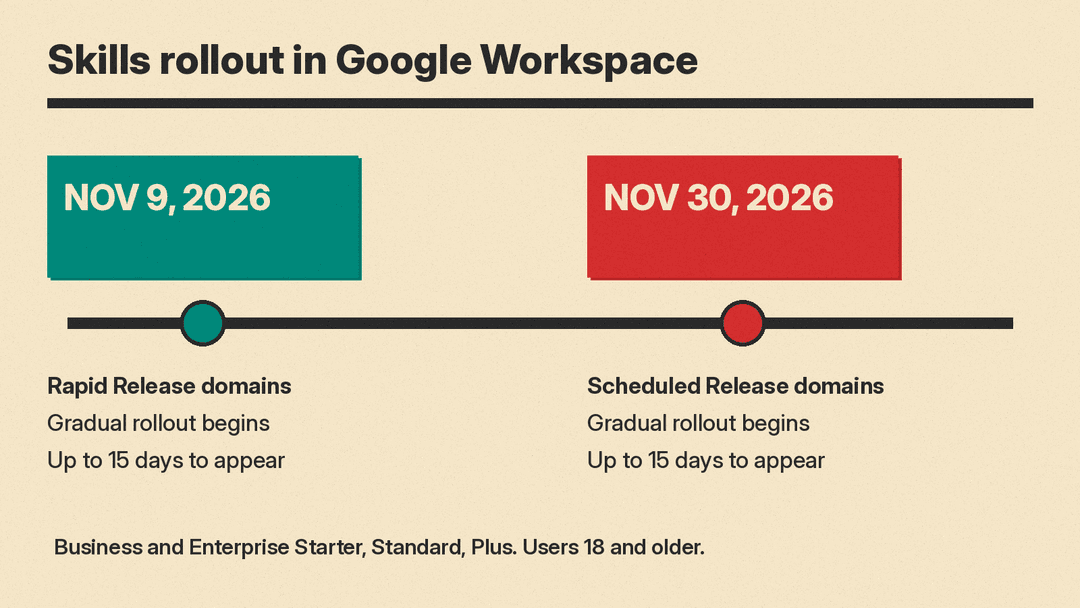
Rapid Release domains began gradual rollout on November 9, 2026, with up to 15 days for feature visibility. Scheduled Release domains start November 30, 2026, also with up to 15 days.
Google lists these editions: Business Starter, Standard and Plus; Enterprise Starter, Standard and Plus; the Google AI Pro for Education add-on; and the AI Expanded Access add-on. Users must be 18 or older.
Ideas for your team's first skills
Google gives three examples. A marketing or sales team can keep approved brand voice, tone, and structure across Gmail drafts, Docs proposals, and Slides decks. A finance or legal specialist can standardize recurring contract, proposal, or invoice reviews against reference guidelines stored in Drive. A project lead can generate recurring status updates grounded in meeting notes, Chat conversations, and Drive files without re-typing formatting each week.
Start small. Pick one repeated task and write one skill for it. Test output before turning it on. Share the skill with a small group of people who should use it. Share the Drive files it uses. Add a second skill only if the first becomes stable. The goal is to make instructions your team already uses easier to apply. Salesforce gives similar advice for AI Skills in Agentforce Coworker.
