
Gemini Live is the voice mode of Google's Gemini app. Instead of typing a prompt and reading a reply, you talk, and Gemini talks back. Google's help page for it describes "a natural, free-flowing conversation with Gemini," and adds that "you can even interrupt it like when you want to add more details or change the topic of the conversation."
This guide explains what Gemini Live is, what you need to use it, how to start and manage a Live chat, how camera and screen sharing work, which apps it can use, and which settings are worth knowing. It follows Google's Gemini Live help page for Android phones and tablets, as of November 2026. Google has a separate version of that page for iPhone and iPad, and the steps there may differ.
If you are new to Gemini itself, start with our explainer What Is Gemini? Google's AI Assistant Explained.
What Gemini Live is for
Google lists four main uses on its help page:
- Talk back and forth. "Talk to Gemini without typing, and Gemini will respond back verbally."
- Brainstorm ideas out loud. "Ask for a gift idea, to plan an event, or to make a business plan."
- Explore. "Uncover more details about topics that interest you."
- Practice aloud. "Rehearse for important moments in a more natural and conversational way."
Google's Android guide to the Gemini app adds a few more, including "Brainstorming out loud instead of typing," "Discussing images, videos or files," and the option to "Share your screen and camera for a more natural, live conversation."
The help page gives three sample prompts that show the tone Google has in mind:
- "I'm about to interview my first big guest for a podcast, and want to make sure I don't mess up. Any last minute tips?"
- "So my friend is really tough to shop for. Can you help me think of a gift?"
- "What's the best way to kickstart my day and feel super productive? I've got a big meeting coming up and want to be on top of my game."
What you need
According to Google's help page, you need:
- An Android phone or tablet.
- The Gemini mobile app, or Gemini as your mobile assistant.
- A personal Google account that you manage yourself, or a work or school Google account with access to Gemini Apps.
- The latest version of the Google app.
- To be over 13, "or the applicable age in your country."
- To be signed in to Gemini Apps.
There are also some limits. The help page says "For now, Gemini Live isn't available in the Gemini web app or Gemini in Google messages." It also says "For now, Gems can't be used with Gemini Live." And the Gemini mobile app "doesn't currently support Farsi."
Google also notes that it is "gradually releasing updates to Gemini Live, so the latest changes might not be available to you just yet." If a button in this guide is missing on your phone, that may be why.
How to start a Live chat
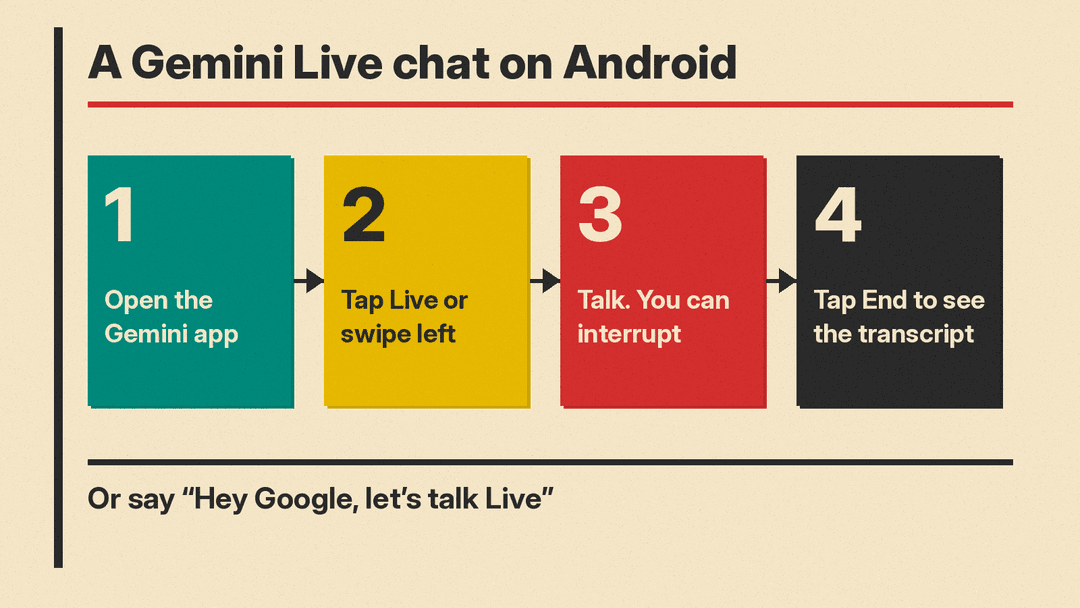
On Android, Google's steps are:
- Open the Gemini mobile app.
- At the bottom, tap Live, or swipe left.
- The first time, follow any on-screen instructions.
- Start talking.
You can also start by voice. Google says you can go Live by saying "Hey Google, let's talk Live" or "Hey Google, let's talk." On Pixel Buds, saying "Hey Google, let's talk" starts a Live chat as well.
Google's Android guide describes one more route: long-press the power button, then press the Live icon "on the far right of the prompt box."
Before you start, Google's help page has a short privacy note worth repeating: "Respect others' privacy and ask permission before recording or including them in a Live chat."
Managing a chat: hold, mute, end
Gemini Live has three ways to pause or stop, and they do different things.
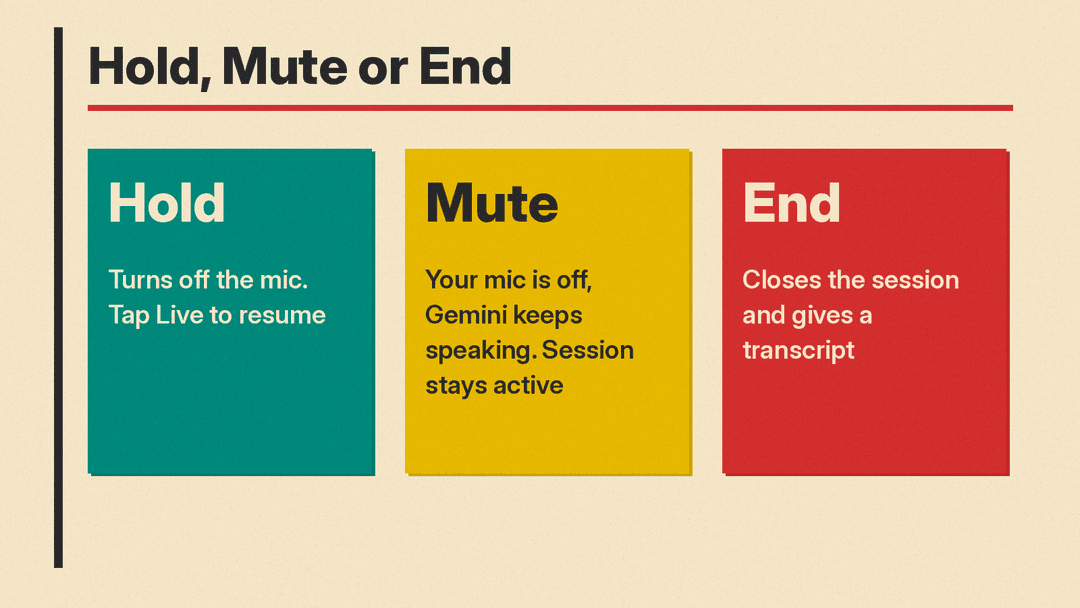
- Hold. Tap Hold to put the Live chat on hold. "This turns off the mic." Tap Live to resume.
- Mute. Muting turns off your microphone "but allow[s] Gemini to keep speaking." Google says this "keeps your Live session active, letting you resume the conversation without losing context." While muted, your video or screen "continues to be shared."
- End. Tap End, or swipe right, to exit the Live chat and review the transcript. Ending "closes the session and provides a transcript."
You can pick a past Live chat back up. Open the chat and tap Live, or swipe left.
You can also switch a single conversation between voice and text. Google says you can "seamlessly switch an ongoing conversation between Live (voice) and non-Live (text) modes without needing to start a new chat." Tap End during a Live chat to switch to text, and tap Live in a text chat to switch back to voice.
Interrupting Gemini
While Gemini is talking, you can cut in by talking. The help page says this setting, called Interrupt Live responses, can be turned off in the Gemini app's Settings. If you turn it off, "you can still interrupt Gemini by tapping the screen."
Showing Gemini your camera or screen
Gemini Live can see as well as hear.
Camera. In a Live chat, tap Camera to show Gemini what you see and talk about it. Tap Camera again to stop, and use the switch button to flip between the front and rear camera. Google lists three cases where the camera turns off on its own:
- Live is put on hold. The camera turns back on when you continue the chat.
- You leave the Gemini mobile app. The camera "doesn't automatically turn back on when you return to the app."
- Your screen locks. The camera "doesn't automatically turn back on when you unlock your screen."
Screen. You can also share your device's screen to get help with what is on it. Google is clear that "when you share your screen, your full screen is shared with Gemini." There are two ways to start: tap the screen sharing button on the Live screen, or open Gemini outside the app with "Hey Google" or by touch and tap Share screen with Live. To share your screen, you must turn on notifications for Gemini Live.
To stop, go back to the Gemini app and turn off screen sharing, or swipe down from the top of the screen and tap Stop sharing on the Screen Sharing card. Screen sharing stops on its own if Live is put on hold or you lock your screen, and it does not resume by itself. You need to share again.
Guided Vision. When you share your camera, Google says you "can get audio cues to help with things like reading a small label or understanding what's around you."
Using apps from a Live chat
Gemini Live can use some Connected Apps and Google services, Google says, "to help you with tasks like adding an event to your calendar and searching for recommended restaurants nearby."
The help page lists the apps and services available in Live chats. As of November 2026 they include Google services such as Google Calendar, Google Home, Google Flights, Google Hotels, Google Keep, Google Tasks, Google Workspace, YouTube and YouTube Music, plus Spotify, image generation, shopping, device assistance, and calendar, notes and reminder apps from phone makers including Samsung, Xiaomi, OPPO, OnePlus, HONOR, Lenovo, TECNO and Vivo. Google also says Gemini "can automatically use public information from Google Maps in your Live chats."
Some limits apply:
- Support for Connected Apps in Live "is being released gradually and may not be available to you yet."
- With a work or school account, "only Google Calendar, Google Keep, and Google Tasks can currently be used in Gemini Live chats," and your Workspace administrator must turn them on first.
- With a personal account, if an app is not connected, you connect it in your Connected Apps settings, then open Live and repeat your request.
Undo. If Gemini Live is open on screen, you can tap Undo or ask Gemini to undo an action. If Live is running in the background, "For now, you can't undo an action." Google says you also can't undo an action with Samsung apps for now. In both cases you can still edit the event or item in the app itself.
Memory and personalization
Gemini Live can draw on what Gemini knows about you. Google says Gemini "can use memories of your past chats and info from some Connected Apps," and that "Gemini Live follows the same permissions that you choose when you chat with Gemini." This personalization is "only available in English in the US."
To control it, open the Gemini app and go to Menu, then Settings, then Personal intelligence. There you can turn Memory on or off, and under Connected apps you can connect or disconnect each app.
Using Live in the background or on a locked phone
You do not have to keep Gemini Live on screen. Google says "You can use your phone and other apps while you're Live with Gemini." Swipe up from the bottom edge to put Live in the background, and swipe down from the top and tap the "Live with Gemini" card to bring it back. This also needs notifications for Gemini Live turned on.
The lock screen has its own rules. "You can't start Gemini Live on a locked screen." But if the Gemini on lock screen setting is on, you can keep a Live chat going after you lock your phone. If that setting is off, locking the phone puts Live on hold. From the lock screen you can expand the "Live with Gemini" notification and tap End Live mode to exit.
To turn on the notifications needed for background and lock screen use, Google's steps are: open your device's Settings app, tap Notifications, then App notifications, then Google, and turn on both All Google Notifications and Live with Gemini.
Voice and captions
Voice. You can choose Gemini's voice in the Gemini app under Settings, then Gemini's Voice. Tap a voice name to hear it, then tap Confirm. Google notes the voice setting "applies to all Gemini Apps features," not just Live, and that changing the voice "isn't available in some languages."
Captions. You can turn on captions for Live by starting a Live chat and tapping the captions button at the top right. Once on, "all of your Gemini Live conversations will have captions until you turn the setting off." You can change caption size and style in Settings under Caption preferences.
Your data
The help page's "Learn how Google works with Gemini Live data" link goes to a Gemini Live section of Google's Gemini Apps Privacy Hub. That section says recordings and transcripts of Live chats are stored in Gemini Apps Activity if your Keep Activity setting is on. If Keep Activity is off, Live chats are kept in your Google Account for up to 72 hours. With Keep Activity on, transcripts of your Live chats and uploads you share with Live are used to improve Google services, including AI models. Your Live audio, video and screenshares are not used to improve Google services by default. Read that section before you share your camera or screen, since the help page says screen sharing sends your full screen to Gemini.
How Gemini Live fits with other Gemini tools
Gemini Live is a mode inside the Gemini mobile app. For long research reports, Gemini has a separate tool called Deep Research; see How to Use Gemini Deep Research. For AI answers inside Google Search, see What Is Google AI Mode?
Like any Gemini feature, Live can get things wrong. A December 2024 post about Live from Google's official Gemini account on note.com, written in Japanese, warns that Gemini's responses are not always correct and asks users to check their accuracy.
Sources
- Google, "Talk naturally with Gemini Live" (Gemini Apps Help, Android)
- Android, "How to Use the Gemini AI Assistant & Mobile App"
- Google Gemini on note.com, "Talk casually and get advice with Gemini Live" (Japanese, December 18, 2024; English title is note.com's machine translation)
- Google, Gemini Apps Privacy Hub
