
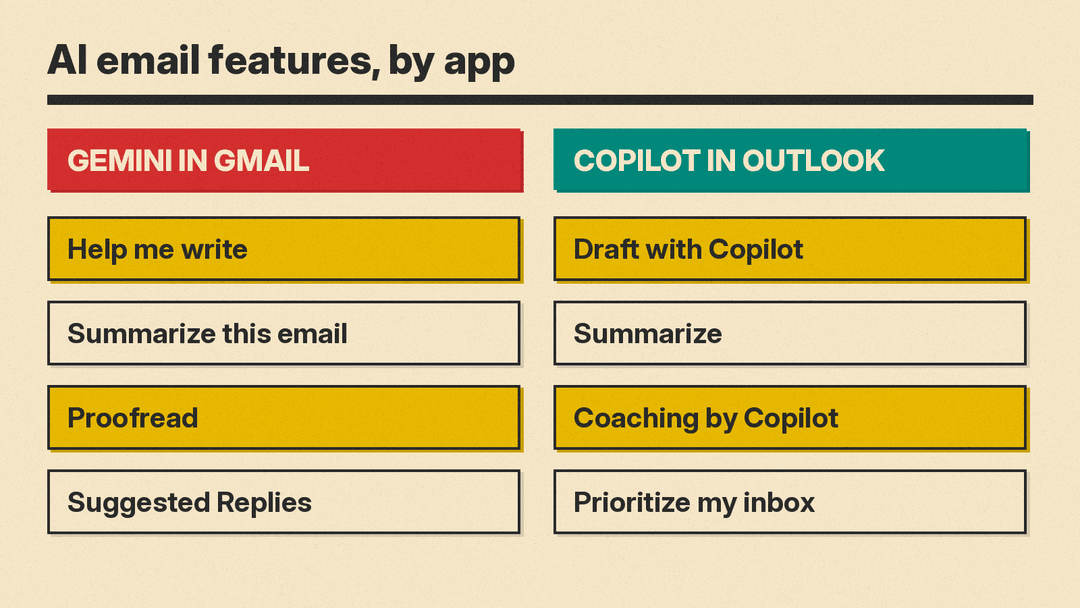
Gmail and Outlook both have an AI writing helper built in. In Gmail it is Gemini, with a feature called "Help me write". In Outlook it is Copilot, with "Draft with Copilot", "Coaching by Copilot" and a Summarize button. This guide explains what each one does, how to use it step by step, how to write a request that gets a usable draft, and what to check before you press Send.
The short version: both tools draft emails, adjust tone and summarize long threads. You still own every word that leaves your outbox. Both Google and Microsoft tell you to check the output on their own help pages.
If you are still deciding between the two office suites, our Microsoft 365 Copilot vs Gemini in Google Workspace comparison covers the wider picture. This post stays inside the inbox.
What each tool can do in your inbox
Gemini in Gmail
Google's Gemini in Gmail help page lists five jobs:
- Summarize: turn long email threads into short bullet points.
- Draft: create new emails or refine existing drafts for tone and clarity.
- Organize: for example, delete several emails or add labels.
- Search: find details such as flight times or package tracking.
- Schedule: propose meeting times based on your Google Calendar.
The drafting feature is "Help me write". Google's Help me write page says it can generate a new draft or refine text you already wrote, "for tone and clarity". Gmail also has Proofread and Suggested Replies, which Google lists on its Gemini features in Gmail page.
Copilot in Outlook
Microsoft's Copilot in Outlook FAQ lists the email features:
- Summarize: extracts key points from email threads.
- Draft with Copilot: generates full email drafts from a prompt, based on the thread and on information from your organization.
- Coaching by Copilot: gives feedback on a draft you wrote, with suggestions for tone, sentiment and clarity. You can apply them all with one click.
- Prioritize my inbox: gives incoming mail a priority (high, low, normal) and a reason.
- Chat with Copilot: a side window where you can ask about your organization's information and the web while Outlook stays open.
The same page says Copilot can also help create Outlook rules, triage messages (pin, flag, archive, delete) and schedule meetings from chat.
Who can use it
Access depends on your account and plan.
- Gmail: Google says "Help me write" needs an eligible Google Workspace or Google AI plan. Personal Google accounts can use it too, but with country and language limits that Google lists on the Help me write page. Thread summaries at the top of a conversation (Google calls them AI Overview conversation summaries) are available to all Gmail users, in supported languages, but need the "smart features" settings turned on, per Google's summaries page.
- Outlook: Microsoft's drafting page says that if you cannot see Copilot in Outlook, you should check with your IT admin. Its FAQ says Chat with Copilot in Outlook works only with a work or school account in new Outlook for Windows or Outlook on the web.
At work, the honest first step is to ask your IT team which plan you are on. The feature names below only help if the button is there.
How to draft an email in Gmail with Help me write
These steps come from Google's Help me write page:
- Open Gmail on your computer.
- Click Compose. You can also reply to an email or open a draft.
- Type your message in the compose window, or leave it blank.
- At the bottom, type your request in the prompt bar. If you cannot find it, click Help me write.
- Click Create.
To polish the result, type a new instruction such as "Make it more professional" or "Mention the Friday deadline". The prompt bar also has three one-click options: Formalize, Friendly and Shorten. Undo and Redo let you move between versions.
One detail matters for privacy and for accuracy. Google says Help me write "proactively takes details from your other emails and Drive files" to personalize a draft. To see which emails and files it used, click Sources. Check them. A draft that pulls the wrong booking code or the wrong date is worse than no draft.
How to draft an email in Outlook with Copilot
These steps are for new Outlook and Outlook on the web, from Microsoft's drafting page:
- Select Home and then New mail.
- Select the Copilot icon in the toolbar above the blank email, then select Draft.
- Type your prompt in the Copilot box, or edit one of the suggested prompts.
- Select the Generate arrow.
- If the draft is not right, pick an option to change length or tone, try the same prompt again, or enter a new prompt.
- When you like it, select Keep it, edit the draft, and select Send.
Two practical notes from the same page:
- In new Outlook and Outlook on the web, Draft with Copilot does not work on messages written in plain text. Switch to HTML in Settings > Mail > Compose and reply.
- If you select text in an email and click the Copilot button, you can ask Copilot to change just that part.
Classic Outlook works in a similar way. You pick Draft with Copilot from the Copilot icon, and the buttons are named Adjust, Regenerate and Keep.
How to catch up on a long thread
Both apps can sum up a long thread for you.
- Gmail: open the thread and click Summarize this email at the top. Google's summaries page says the summary sums up key points and replies, and can suggest a reminder when a task in the thread has a due date. In the Gemini side panel you can also ask for more, for example "Create a list of action items for me based on this email", an example Google gives on its Workspace Learning Center page.
- Outlook: Microsoft's FAQ says the summary is "available via the Summarize button at the top of each message thread".
A summary is a starting point. If a thread holds a decision, a number or a promise to a customer, open the actual message before you act on it.
How to write a request that gets a good draft
Google's Help me write page gives four tips. You can apply the same ideas when you prompt Copilot in Outlook:
- Name the person or group. Google's example: "Write an apology to my child's teacher for their absence."
- State the subject and the action you want. "Decline the meeting on Thursday."
- Name the tone. Words like "formal" or "casual". "Write a formal invitation to a business partner."
- Point to a specific email or file when facts matter. "Write a summary of the Q4 earnings email I received last week."
In practice, a good work email request has three parts: who it goes to, what you need from them, and any fact the draft must include. Compare:
- Weak: "Email the client about the delay."
- Better: "Write a short, polite email to Maria at our client. Say the report will be two days late because we are waiting on final figures. Offer a call this week. Keep it under 120 words."
The second one gives the tool the facts. Do not leave the tool to guess the reason for a delay. For more request patterns, see our beginner's guide to writing better AI prompts and our 50 ChatGPT prompts for work, which you can adapt for any mail assistant.
How to make drafts sound like you
If you keep asking for the same changes, set them once.
In new Outlook, Microsoft's page Ask Copilot to make email drafts sound like you describes custom draft instructions:
- Select the dropdown next to the Copilot icon and select Settings.
- Select Draft Instructions.
- Turn on Use custom instructions when drafting email.
- Type how Copilot should write. Microsoft's example: "Keep emails short and direct, with bullet points where they make sense. Use a friendly tone and sign emails with my first name."
- Select Save.
Microsoft says this feature needs a Microsoft Copilot (work) license or a Microsoft 365 subscription.
In Gmail, Google says Help me write already tries to match "your tone and style" by drawing on your other emails and Drive files. You can still steer each draft with words like "formal" or "friendly", or with the Formalize, Friendly and Shorten options.
Limits to know before you rely on it
Both vendors are direct about the risks.
- Google says Gemini features "may suggest inaccurate or inappropriate information" and that you should not rely on them "as medical, legal, financial or other professional advice" (Help me write page).
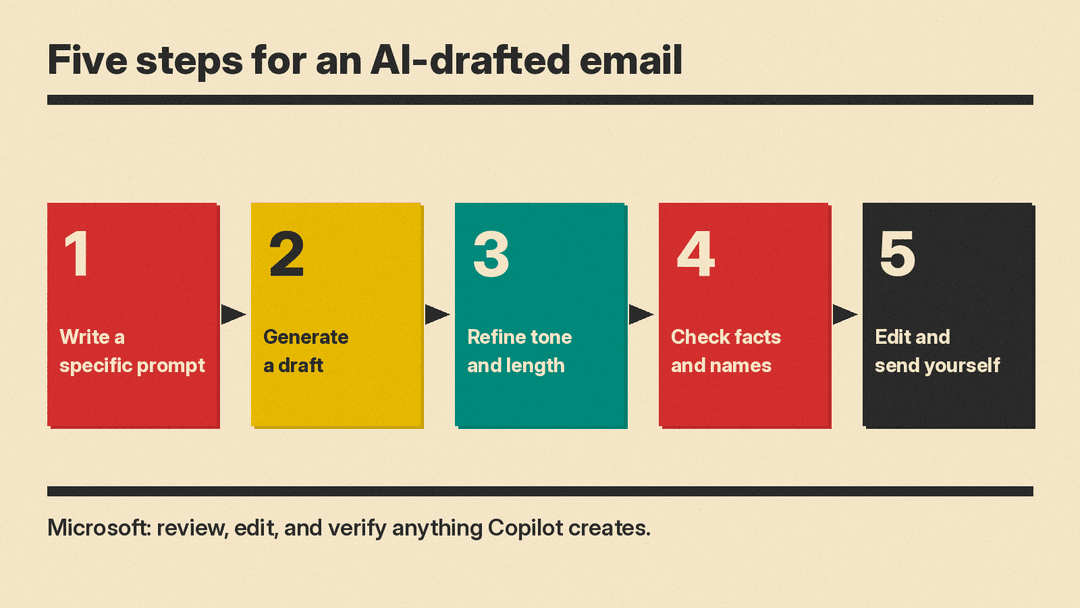
- Microsoft says "it's important that you review, edit, and verify anything it creates for you" (Copilot in Outlook FAQ).
Some limits are about which mail Copilot can see. Microsoft's FAQ says Copilot in Outlook works only on your primary mailbox, not on archive, group, shared or delegate mailboxes. It cannot read S/MIME or Double Key Encryption emails. Its features also do not work on signed or encrypted emails, on emails with IRM, or on some emails with MIP labels.
On the Gmail side, turning off smart features to stop thread summaries also turns off other tools, "such as AI-assisted writing and proofreading", per Google's summaries page.
A two-minute check before you send
Use this routine for any AI-drafted work email:
- Facts: check every name, date, number and amount against the original email or file.
- Sources: in Gmail, click Sources to see which emails and files the draft used.
- Promises: delete anything the draft commits you to that you did not decide, such as a deadline, a discount or a meeting.
- Tone: read it once as the recipient. Shorten it if it reads like a template.
- Recipients: check To and Cc. Check them yourself before you send.
Which one should you use?
Use the one built into the mail app your company already runs. Both cover the same core jobs: drafting, refining tone, and summarizing threads. The differences are in the details. Gmail has one-click Formalize, Friendly and Shorten options and a Sources view. Outlook has Coaching by Copilot for drafts you wrote yourself, inbox prioritization, and saved draft instructions.
Whichever you use, treat the AI as a fast first-draft writer and a thread reader. You are still the editor.
Sources
- Google: Draft emails with Gemini in Gmail (Help me write)
- Google: Collaborate with Gemini in Gmail
- Google: Learn about Gemini features in Gmail
- Google: Catch up on email threads with AI Overview conversation summaries
- Google Workspace Learning Center: Summarize content and organize data
- Microsoft: Draft an email message with Copilot in Outlook
- Microsoft: Frequently asked questions about Copilot in Outlook
- Microsoft: Ask Copilot to make email drafts sound like you
