
Google says a good Gemini prompt has four parts: who Gemini should be, what you want it to do, the background it needs, and how the answer should look. Google calls them persona, task, context and format. You don't need all four every time, but using a few helps.
This guide explains the formula in plain English, gives you 25 copy-paste Gemini prompts built on it, and shows what happened when we tested Google's own example prompts on a small local model. You can also paste them into ChatGPT or Claude.
Google's 4-part formula
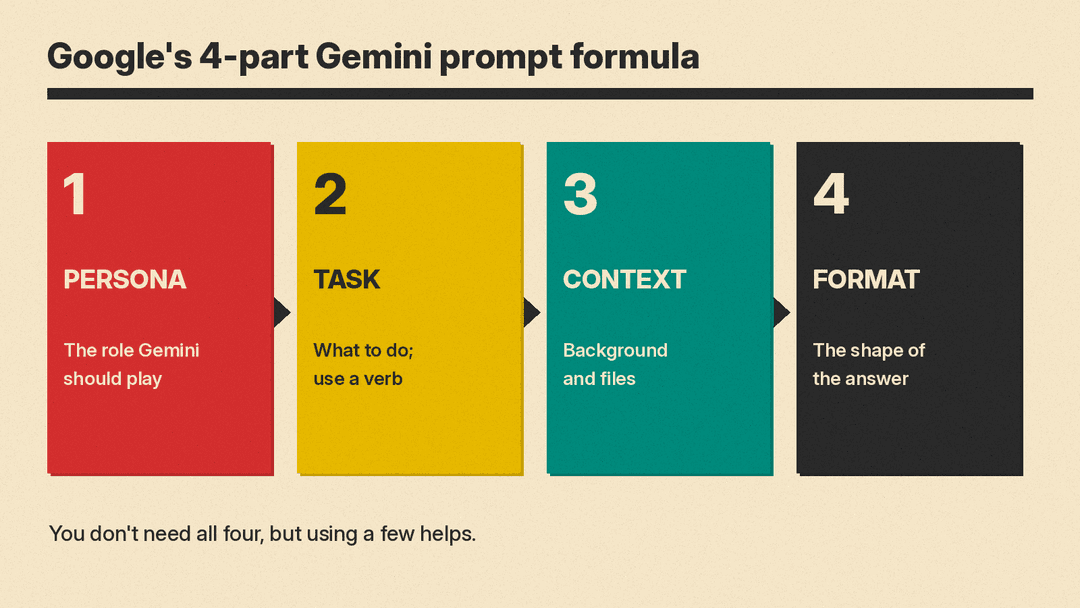
Google's Docs Editors Help page on Gemini prompts lists "4 main areas to consider when writing an effective prompt":
- Persona. "Tell Gemini what role to play." For example: "I am a customer service representative."
- Task. Tell Gemini what you need it to do (summarize, write, change the tone, create), and "use a verb." For example: "Help me craft an empathetic email response."
- Context. "Provide as much relevant background as possible." For example: "The customer ordered a pair of headphones that arrived damaged."
- Format. "Be specific when specifying desired structure." For example: "Include a paragraph that acknowledges their frustration and 3 bullet points with potential resolutions."
Put together, that is one prompt: I am a customer service representative. Help me craft an empathetic email response. The customer ordered a pair of headphones that arrived damaged. Include a paragraph that acknowledges their frustration and 3 bullet points with potential resolutions.
Google's Workspace prompting tips add a few habits:
- Write like you talk. Use full sentences, as if you were speaking to another person.
- Be specific, but brief. State your request in short, specific language and avoid jargon.
- Make it a conversation. If the first answer misses, use follow-up prompts to refine it.
- Use your files. In Google Docs and the Gemini side panel in Workspace apps, type "@" and a file name to give Gemini a document to work from.
- Review the result. Google says to check any output "to ensure clarity, relevance, and accuracy" before you use it.
Length matters too. In a July 2024 Google blog post on Workspace prompting, Google's team says the most successful prompts in its research averaged around 21 words, while people's first tries were usually fewer than nine.
If you are new to prompting in general, our beginner's guide to writing better AI prompts covers the basics.
The shortcut: let Gemini fix your prompt
Google's Workspace guide suggests one more trick in the Gemini app: start with "Make this a power prompt:" followed by your rough prompt. Gemini suggests a better version. Check it says what you need, then paste it back in.
Make this a power prompt: [your rough prompt]25 Gemini prompts you can copy
Fill in the [brackets]. Each prompt uses at least three of the four parts. Where you see @[file], type "@" and pick the file if you are using Gemini in Workspace; otherwise attach or paste the text.
Email and writing
1. Reply to a hard email.
I am [your role]. Help me write a calm, polite reply to the email below. The sender is upset because [reason]. I can offer [what you can actually offer] and nothing else. Keep it under 150 words, with one clear next step.
[paste email]
2. Executive summary email (adapted from Google's own example).
You are a program manager in [industry]. Draft an executive summary email to [who it is for] based on @[program doc]. Limit it to 5 bullet points, then one line on what I need from them.3. Change the tone.
I am sending this message to [audience]. Rewrite it to sound [friendlier / more formal / more direct] without changing any facts, names, dates or numbers. Keep it about the same length.
[paste text]
4. Shorten anything.
Cut the text below to [number] words for [where it will be used]. Keep every fact. Remove repetition and filler first. Show the new version, then list what you removed.
[paste text]
5. Project update.
Imagine you are the lead on [project]. Write an update to [audience] covering the current status of each part of the project and next steps, based on these notes: [notes]. Use a formal, brief tone and short headings.Planning and organizing
6. Project tracker (adapted from Google's own example).
I'm a project manager and need to create a project tracker for [project]. Use only these tasks, owners and dates: [list]. Put it in a simple table with columns for task, owner, due date and status. Leave a cell blank if I did not give the information.7. Meeting agenda.
I am running a [length]-minute meeting with [who] about [topic]. The goal is to [decision or outcome]. Write an agenda with times for each item, and put the decision we need at the top.8. Weekly plan.
I am a [role] with these tasks this week: [list, with deadlines]. I have about [hours] hours of free time a day. Make a day-by-day plan in a table. Put anything with a deadline first and flag anything that will not fit.9. Break down a big task.
I need to [big task] by [date]. I have never done this before. Break it into small steps I can do in under an hour each, in order, as a numbered checklist.10. Decision helper.
I am choosing between [option A] and [option B] for [purpose]. What matters most to me: [criteria]. Make a table comparing both on each point, using only what I told you plus anything I should check myself, marked "check".Research and learning
11. Explain it simply.
Act as a patient teacher. Explain [topic] to someone with no background in it. Use one everyday example, no jargon, and under 200 words. End with three questions I can ask to learn more.12. Summarize a file.
I am [role] and need the key points of @[file] for [purpose]. Summarize it in 5 bullets, then list any numbers, dates or deadlines it mentions, quoted exactly.13. Compare two documents.
Compare @[file 1] and @[file 2]. I need to know what changed between them for [purpose]. List the differences in a table with columns for section, old version and new version.14. Study notes.
I am a student studying [subject] for [exam or class]. Turn the notes below into a one-page study sheet with headings, key terms in bold, and 5 practice questions at the end with answers after them.
[paste notes]
15. Question my plan.
Act as a skeptical but friendly reviewer. Here is my plan for [goal]: [plan]. List the 5 biggest risks or weak spots, most serious first, and one way to fix each.Work and business
16. Job post.
I am a hiring manager at [company type]. Write a job post for a [role]. Must-haves: [list]. Nice-to-haves: [list]. Pay and location: [details]. Keep it under 300 words with bullet points, and do not add benefits I did not list.17. Customer FAQ.
I run [business]. Using only the information in @[file or pasted text], write 8 frequently asked questions with short answers for our website. If the information does not answer a question customers are likely to ask, list it at the end as a gap.18. Social post.
I am the social media manager for [business]. Write 3 short posts for [platform] announcing [news]. Facts: [facts]. Tone: [tone]. Each under [number] words, with no claims beyond these facts.19. Spreadsheet help.
I have a spreadsheet with these columns: [list]. I want to [goal, for example: total sales by month]. Explain step by step how to do it in Google Sheets, and give the formula with a note on what each part does.20. Feedback on a draft.
Act as an editor for [type of document]. Read the draft below, which is for [audience]. Give me the 3 changes that would improve it most, with an example rewrite for each. Do not rewrite the whole thing.
[paste draft]
Everyday life
21. Meal plan.
I cook for [number] people. We like [foods] and avoid [foods or allergies]. Plan 5 weeknight dinners that take under [minutes] minutes, in a table, then give one combined shopping list grouped by store section.22. Trip outline.
I'm planning [number] days in [place] in [month] with [who]. We like [interests] and want a [relaxed / packed] pace. Make a day-by-day outline in a table. Mark anything I should book ahead or check opening times for.23. Budget check.
Here are my monthly costs: [list]. My take-home pay is [amount]. Put them in a table by category, show what is left over, and suggest 3 places to cut, without giving investment advice.24. Practice a hard conversation.
I need to talk to [person] about [issue]. Play the role of [person], who is likely to feel [feeling]. Stay in character and reply one message at a time so I can practice. When I type "stop", give me feedback on how I did.25. Gift ideas.
I need a gift for my [relationship], who likes [interests] and already has [things]. My budget is [amount]. Suggest 8 ideas in a table with columns for idea, why it fits, and rough cost, and say which costs I should check.What happened when we tested Google's examples
We ran Google's two example prompts, a bare version of one, and the "power prompt" shortcut on Gemma 3 1B, a small model running on our own computer, on October 26, 2026, at temperature 0. This is not Gemini, and Gemini's answers will differ. We used it because it shows the kinds of mistakes to watch for.
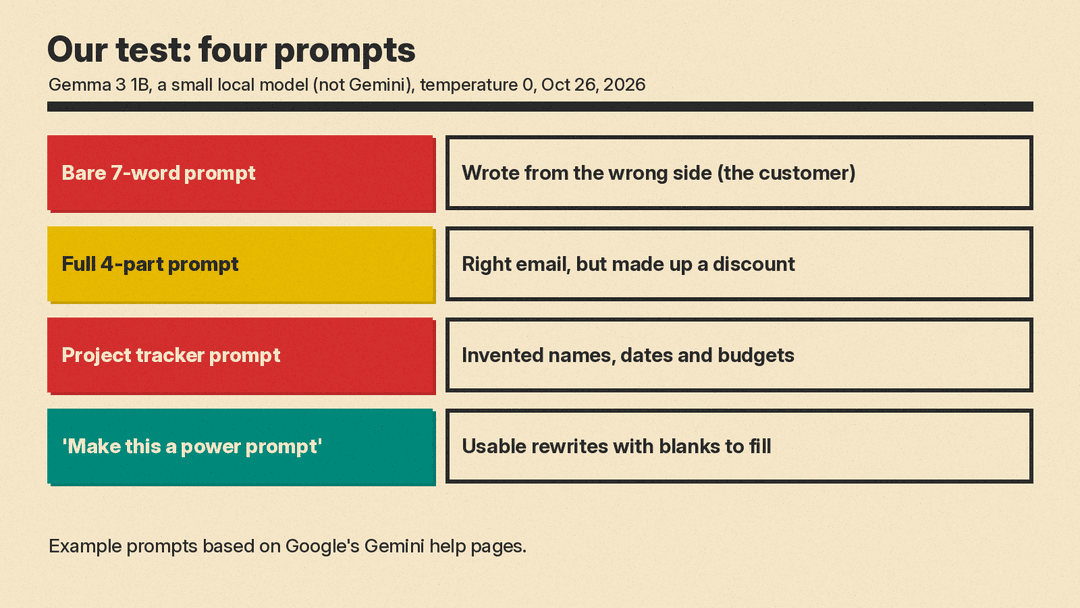
- A bare prompt ("Write an email about the damaged headphones."). The model wrote a complaint from the customer, not a reply to them. With no persona, it guessed the wrong side.
- Google's full 4-part prompt (the customer service example above). It wrote the right email: an apology that named the customer's frustration, then three options in bullet points. But it gave several drafts instead of one, and the options included "a [Percentage]% discount on your next order" and store credit, which we never said we could offer.
- Google's project tracker example. It made a table, but not a simple one: 13 columns, filled with invented people (such as "Sarah Miller"), dates in 2024, and budgets we never mentioned. That is why prompt 6 above says to use only your tasks and leave blanks.
- "Make this a power prompt: help me plan a team lunch." This worked as intended. It returned three rewritten prompts, from detailed to short, with [brackets] for the number of people, budget and food restrictions.
The lesson: the four parts steer the answer in the right direction, but the model will still fill gaps with made-up details. Tell it what it may not add ("use only these facts", "leave it blank"), and check the result before you send it, as Google itself advises. Our 5-minute routine for fact-checking AI answers helps.
Where to type these prompts
According to Google's Workspace Learning Center, you can write Gemini prompts at gemini.google.com, and, with Google Workspace with Gemini, inside Docs, Sheets, Slides, Gmail, Meet and Vids. In a Google Doc, for example, you click Help me write, enter your prompt, click Create, then optionally Refine before you Insert the text.
Sources
- Google Docs Editors Help: Learn about prompts for Gemini in Docs, Sheets, Slides, Vids & Forms
- Google Workspace: Writing effective AI prompts for business
- Google blog: 5 ways to write better AI prompts for Gemini in the Workspace side panel
- Google Workspace Learning Center: Start with a great prompt
