
Gemini is the name of Google's AI assistant, which you chat with at gemini.google.com and in the Gemini mobile app. Google's help pages say experiences like Gemini are powered by large language models. This guide explains what Gemini is, what you can do with it, how to start, what to watch out for, and how your chats are handled.
It is written for people who have never used it. It relies on Google's own help pages, which we link in each section. Features, plans and models may change, so check Google's pages for current details.
What Gemini is
Google describes the Gemini Apps as giving you "direct access to Google AI". In its help pages, Google says you can use them for help with writing, planning, learning and more.
Behind the assistant sits a large language model, or LLM. Google's help page on generative AI explains the idea in plain terms. Generative AI is a type of machine learning model that can help you create content, such as images, music and code. The page also says it is "not a human being" and that it "can't think for itself or feel emotions".
That page says experiences powered by LLMs, like Gemini and AI Overviews, predict words that might come next based on your prompt and the text generated so far. The model has some flexibility to pick probable next words that match patterns it learned in training, and Google says this flexibility lets it generate creative responses.
In practice, two things share the name:
- The models. The LLM technology that generates the responses.
- The apps. The places where you reach it, such as the web app and the mobile app. Google calls these "Gemini Apps".
Google also publishes open models under the name Gemma. They are covered in What Is Gemma?
What you can do with Gemini
Google's "Use Gemini Apps" help page lists three starting uses:
- Brainstorm ideas, develop a plan, or find different ways to get things done.
- Get a quick, easy to understand summary of more complex topics.
- Create first drafts of outlines, emails, blog posts, poems and much more.
The same page gives sample prompts, which show the range:
- Outline a blog post about summer mocktail recipes.
- Debug an error message.
- Build a learning plan for a new skill, with video suggestions.
- Draft a packing list for a weekend trip.
- Summarize the key themes of a book in five bullet points.
- Show monthly expenses in a pie chart.
Google also describes several features that go beyond plain chat.
Files from your chats. You can ask Gemini to generate a formatted file from a conversation. Google lists supported formats that include Docs and Sheets, PDF, .docx, .xlsx, .csv, LaTeX, plain text, Rich Text Format and Markdown. Google's example prompts are "Do research on King Charles Cavalier Spaniels and put it in a doc" and a request for a spreadsheet of students' weekly math scores. For most formats you can download the file or export it to Google Drive.
Charts. To turn data in a response, such as a table, into a chart, ask in a follow-up question. Google's example is "Make a bar chart showing the amount per category".
Rich cards. Gemini can create media cards you can interact with in a chat, such as workout plans, itineraries or to-do lists. A card can include an action. Google's example is an "Add to calendar" button that creates a calendar event. You can chat with Gemini to change the card, for example by asking it to remove an exercise from a workout plan.
Other features. Google's Gemini about page lists Gemini Live, Canvas, Gems, image generation and editing, and Deep Research among the features of its free plan, as of November 2026. Which features you get can depend on your plan, platform and region. For current plan tiers and model access, see our Gemini 4 Argon pricing guide. Also check Google's page for your account. For a Gemini feature in action, see our explainer on how Gemini can preview and edit your files in chat.
How to start
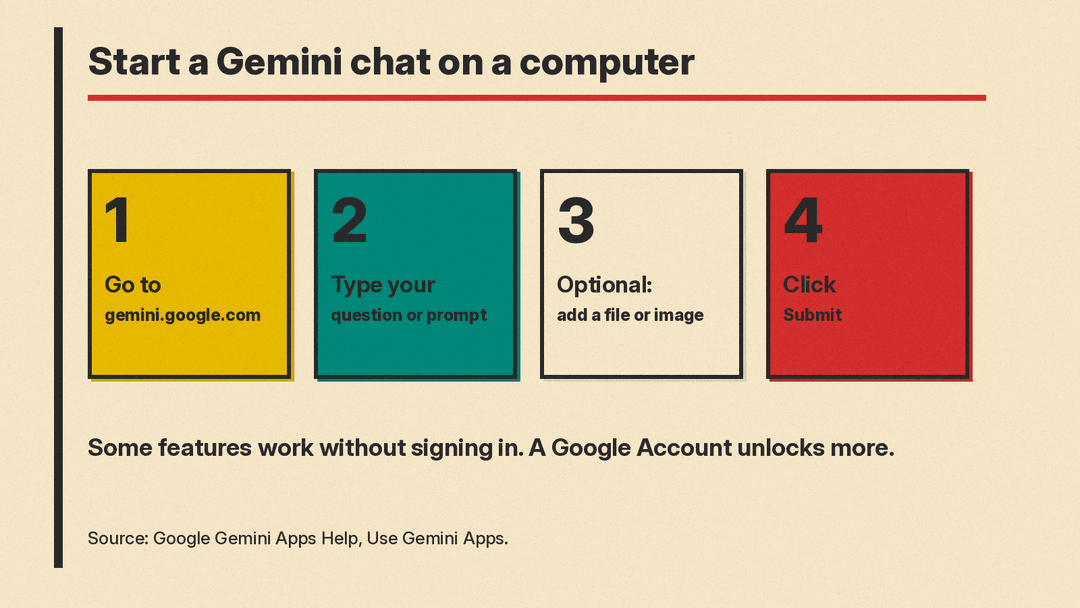
You can begin without much setup. Google's help pages describe these steps on a computer:
- Go to gemini.google.com.
- Type your question or prompt in the text box at the bottom.
- Optionally, add a file or image to your prompt, and follow the on-screen instructions.
- Click Submit.
To start a new chat, click "New chat" at the top left. If the option is not there, click Menu first.
What you need
Google says you can use some features without signing in. To use more features or to save your Gemini Apps activity, you need to sign in with a Google Account. Google lists three account types:
- A personal Google Account. If you manage a Family Link account, you can turn off access to Gemini Apps for users under 13, or the applicable age in your country.
- A work Google Account with a qualifying Workspace edition. You must also be 18 or over.
- A school Google Account. The service must be enabled by your institution's administrator.
To use gemini.google.com, Google says you need a supported browser: Chrome, Safari, Firefox, Opera or Edgium.
Using it without signing in
On some devices, you can use some Gemini Apps features without signing in. Google says some people cannot. The Gemini mobile app on an Android device requires sign-in. Features that need the Keep Activity setting also require it.
When you are signed out, Google says you cannot access past chats or get personalized responses. You also lose integration with other Google services. Google lists other features that need an account, including image generation, Gems and file upload.
Choosing a model
Gemini Apps use auto model selection. Google says this picks the most appropriate available model for your prompt. If you prefer to choose, you can select a different available model from the menu. You must be signed in to switch between models.
How to get better answers
Google's own examples are specific. They name the topic, the format and sometimes the voice. One example asks for the key themes of "The Great Gatsby" in five bullet points, styled in the voice of Nick Carraway. Another asks for a social post caption that is "creative and witty".
Our own tips, based on those examples:
- Name the format. Ask for bullets, a table, a doc or a plan.
- Give context. Say who the text is for, or what you already know.
- Follow up. You can ask Gemini to change a response, as in the chart and rich card examples above.
We have a longer guide with ready templates: Gemini Prompts: 25 Copy-Paste Templates Using Google's 4-Part Formula.
What to watch out for
Google is direct about limits. Its help page says "Gemini Apps can make mistakes" and tells you to double-check responses and not rely on them for professional advice.
The generative AI help page explains two kinds of error.
It may make things up. When a model invents an answer, Google calls it a hallucination. Google says this happens because, unlike Google Search, LLMs "don't gather information at all". They predict which words come next based on user inputs. Google's example is a question about who will win a women's gymnastics event at the 2032 Brisbane Summer Olympics. The model might answer even though the event has not happened.
It may misunderstand things. Google's example is a question about bats. A model might describe the bats used in baseball, cricket and softball when you meant the animal.
Google's advice is to think critically about responses and to use Google and other resources to check anything presented as fact. If something is wrong, report it. Google says many of its generative AI products have reporting tools, and that feedback helps refine the models.
For code, Google says its generative code features are still experimental. You are responsible for your use of suggested code or coding explanations, and Google asks you to test and review all code for errors, bugs and vulnerabilities before relying on it.
AI Overviews, another LLM-powered Google experience, are a separate feature in Google Search. Our explainer on Google AI Overviews covers how they work and how accurate they are.
Your chats and your data
Before you type anything private, know where it goes. Google's activity help page describes the controls for a personal account.
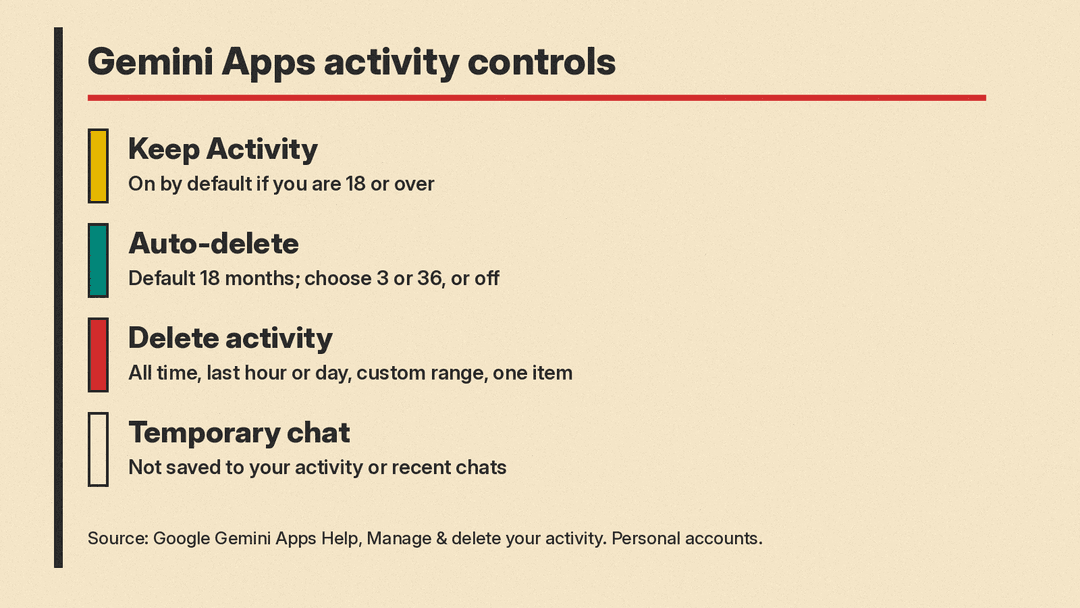
Keep Activity. When you are signed in and Keep Activity is on, Google stores your Gemini Apps activity in your Google Account. You can review your prompts, delete your activity and turn off Keep Activity in My Activity at any time. If you are 18 or over, Keep Activity is on by default.
Auto-delete. By default, activity older than 18 months is auto-deleted. You can turn off auto-delete or set the period to 3 or 36 months.
Delete activity. You can delete everything, the last hour or day, a custom range, a single day or a single item.
If you turn Keep Activity off. Google says your conversations are still saved with your account for up to 72 hours. That lets Google provide the service and process any feedback. The activity does not appear in your Gemini Apps Activity.
Audio and Live recordings. The setting that lets Google use your audio and Gemini Live videos and screenshares to improve its services, including training generative AI models, is off by default. To turn it on, you must have Keep Activity on.
Temporary chats. If you are signed in with a personal Google Account, you can start a temporary chat. It does not appear in your Gemini Apps Activity or your recent chats. When you leave it, you lose access to it. Google says temporary chats are not available on work or school accounts. In a temporary chat you cannot use Gems, use Connected Apps that need Keep Activity, get personalized responses, save information for future personalization or give feedback about the response.
Work and school accounts. Google says that on a work or school account, your Gemini Apps Activity settings are controlled by your Google Workspace administrator. You may not be able to change your retention settings.
Location. Gemini Apps may use your location to provide more relevant responses. Google says it uses your general location or, if you allow it, your device's precise location. In the web app, you can check this in Settings. A blue dot next to the location means gemini.google.com is using your precise location. A gray dot means it is not.
For full details, Google points to its Gemini Apps Privacy Hub.
Gemini and the rest of Google AI
Gemini is not the only Google AI name you will see. A short map:
- Gemini Apps are the assistant described in this guide.
- AI Overviews are AI-written summaries in Google Search. Google's help page groups them with Gemini as an LLM-powered experience.
- Gemma is Google's family of open models that developers can download.
- Google DeepMind is Google's AI research lab. See our post on what AlphaFold is for one example of its science work.
- SynthID is Google's watermark for AI content. See What Is SynthID?
A simple way to begin
- Go to gemini.google.com and try a low-stakes task, such as a packing list or an outline.
- Ask a follow-up to change the result, so you see how a chat works.
- Check any fact you plan to use against a second source.
- Open Activity and review the Keep Activity and auto-delete settings before you share anything private.
Google says its generative AI experiences can help you start the creative process and are not meant to do all the work for you or be the creator. Treat Gemini's output as a starting point and keep the final decision with you.
