
Slack wants Slackbot to stop waiting to be asked. In an October 28 post on the Slack blog, the company announced Event-Triggered Tasks, which let Slackbot act when something happens in Slack, plus a floating Slackbot Mini window, a reworked Skills library, a Skills API for managing skills from code, and a set of smaller fixes.
Taken together, the update moves Slackbot from a chat assistant you open toward something closer to a workflow tool that watches channels and drafts the next step. For teams that already run sales, support or operations in Slack, that is the part worth testing.
Event-Triggered Tasks: Slackbot acts on events
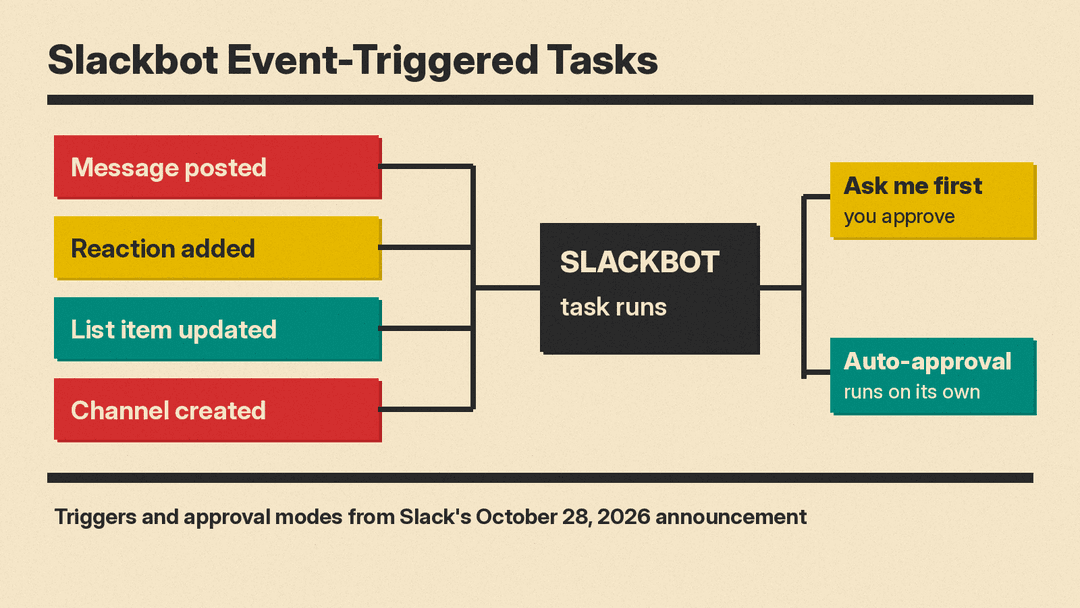
Until now, Slackbot Tasks ran on a schedule (Slack's example is "every Monday at 9am") or when you asked in conversation. Event-Triggered Tasks add a third way to start one. According to Slack, a task can now start when:
- a message is posted
- a reaction is added
- a list item is updated
- a channel is created
You choose whether Slackbot asks you first or runs on its own. Slack's post describes the choice as "ask me first" versus auto-approval.
Slack gives a few examples of how teams might use it:
- Customer accounts. A team posts updates in a customer account channel all day. When something needs action, a teammate adds an emoji reaction, and Slackbot adds it to an action items list with recommended actions and owners.
- Finance and procurement. An invoice or contract question lands in an approvals channel. Slackbot checks it against your policy, drafts the approval note or follow-up questions, and pings the approver, who reviews it and sends.
- Operations. At the end of a shift, someone reacts with :repeat: to the last note, and Slackbot drafts a handoff summary for the next owner.
The Slack updates and changes page lists the same feature, describing tasks that start when someone joins a channel, posts a message, uses an emoji reaction, or when a list item is updated. The same page says Slackbot can now run tasks automatically up to 15 times per day.
Slackbot in Workflow Builder
A related change adds a "Start Conversation with Slackbot" step to Workflow Builder. You write a prompt, add workflow variables, and point Slackbot at skills or knowledge sources. Slackbot does the open-ended part and passes structured outputs back to the workflow, which handles the fixed steps.
Slack's example is HR onboarding: a new-hire form starts the workflow, and Slackbot drafts a welcome message and checklist based on the person's organization and role. This is useful for small teams that already use Workflow Builder for forms and approvals, because it adds a drafting step without replacing the process around it.
Slackbot Mini: help outside the Slack window
Slackbot Mini is a floating window and menu bar icon that sits next to whatever app you are using. Slack says it is "the same Slackbot," and you can ask a question, run real-time research, or start a Skill without switching into Slack. The help page says that when you first open Slackbot after Mini is released, you are prompted to set a custom keyboard shortcut.
Slack's suggested uses are practical ones: asking for a stat or a tighter intro while writing a doc, getting a quick read on a competitor during a customer call, or running a pre-meeting brief Skill while your calendar stays on screen.
Skills: a library, verification and an API
Skills are saved, reusable instructions for Slackbot, similar to the skills Google is rolling out to replace Gems in the Gemini app. Slack says the new Skills experience splits them into "My skills" for the ones you built and "Discover" for skills from Slack and your teammates, sorted by category. New users see recommended Slack-made skills the first time they open it.
Admins get a dashboard to verify skills they trust and auto-assign skills to teams. The help page says owners, admins and Skill Managers can verify a skill, and verified skills show a purple badge. Slack also points to a Slackbot skills library with skills from people across Salesforce, grouped by role, including Sales and CS, Marketing, Support and Research.
This follows an October 8 update that let skill authors create an external, revocable link so people in other Slack organizations can copy a skill into their own Slackbot.
The new Skills API lets approved apps create, edit, publish and auto-assign skills from code. According to Slack's developer guide, a skill can be created from markdown instructions or from a canvas you own, updated with slackbot.skills.update, published to an Enterprise organization's catalog by an org admin, and then added to everyone's libraries, or to specific user groups, with admin.slackbot.skills.setAutoEnabled. The admin methods need a user token from an org-level app installation. Slack's suggested pattern is to keep a team's skills in a GitHub repo so a merged change updates everyone's copy through CI.
Slack's developer guide notes that Slackbot skills run in Slackbot and are different from the skills you install in coding agents, which our explainer on how Agent Skills work covers.
Slack also opened its code channels to custom coding agents on October 28. Our post on the Slack Code API covers how any agent can now open a code channel, post diffs and previews, and archive it when the work is done.
Five smaller changes
Slack also listed five smaller updates this month:
- Slackbot replies now mark the thread unread and show up in Activity.
- Slackbot can find unsent drafts, clear the ones you do not need, or schedule a message. Slack says it only touches your own drafts and asks before deleting one or changing a send time.
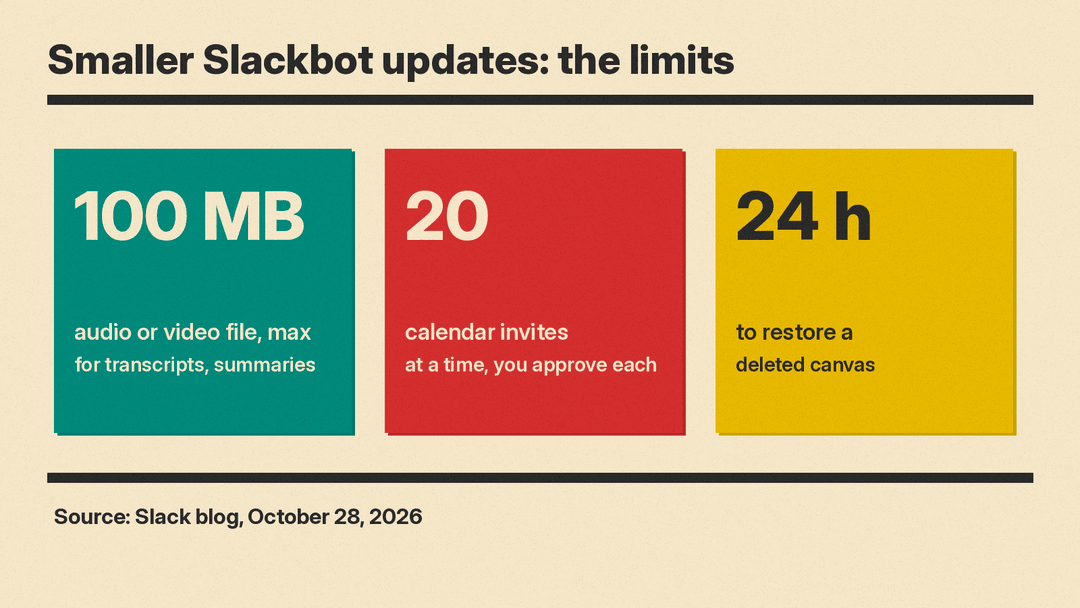
- You can attach an audio or video file up to 100 MB and ask for a transcript, a summary or an answer to a question.
- Slackbot can review calendar invites and accept, tentatively accept or decline them in Google or Outlook, up to 20 at a time. You approve each response.
- Slackbot can restore a canvas deleted in the last 24 hours, after checking permissions and asking for approval.
Who gets it
Slack calls the more compute-heavy capabilities "Advanced Features." The post says there are no limits on Advanced Features at launch for Enterprise+ customers, that Slack may add limits later because of higher compute costs, and that it will give customers 30 days notice first. Standard Slackbot messaging outside these Advanced Features stays unlimited for Enterprise+ customers. The post does not list availability for each feature on other plans and refers readers to Slack's help center for details, so check your own workspace before planning around a feature.
Why it matters for teams
Event triggers are the change most likely to affect day-to-day work. A reaction-based trigger is a low-effort way to turn "someone should deal with this" into a tracked action item, and it fits how many teams already use emoji in Slack. The risk is the same as with any automation that drafts on your behalf: a task that runs on every message in a busy channel can produce noise, and an auto-approved task can act on a bad draft.
A practical way to start:
- Begin with "ask me first" on one channel and one trigger, such as a single emoji reaction.
- Pick work that ends in a draft a person reviews, like the handoff summary or approval note examples Slack gives.
- Use verified skills for shared tasks, so the team runs one approved version instead of many personal copies.
- Move to auto-approval only for tasks where a wrong output is cheap to fix.
If you are comparing workplace assistants, our guide to using AI for work email in Gmail and Outlook covers a related set of tools.
