
Dropbox has launched Dropbox for Microsoft Copilot, an integration that lets people ask Copilot to work with the files they keep in Dropbox. Dropbox announced it on October 27, 2026, and says it is available now for customers on all Dropbox plans.
The pitch is simple. Many teams keep their briefs, specs and past decisions in Dropbox but build their decks, spreadsheets and memos in Microsoft 365. Until now, using that material in Copilot meant copying it over by hand. The new integration lets Copilot read it in place, within the permissions each person already has.
What Dropbox for Copilot does
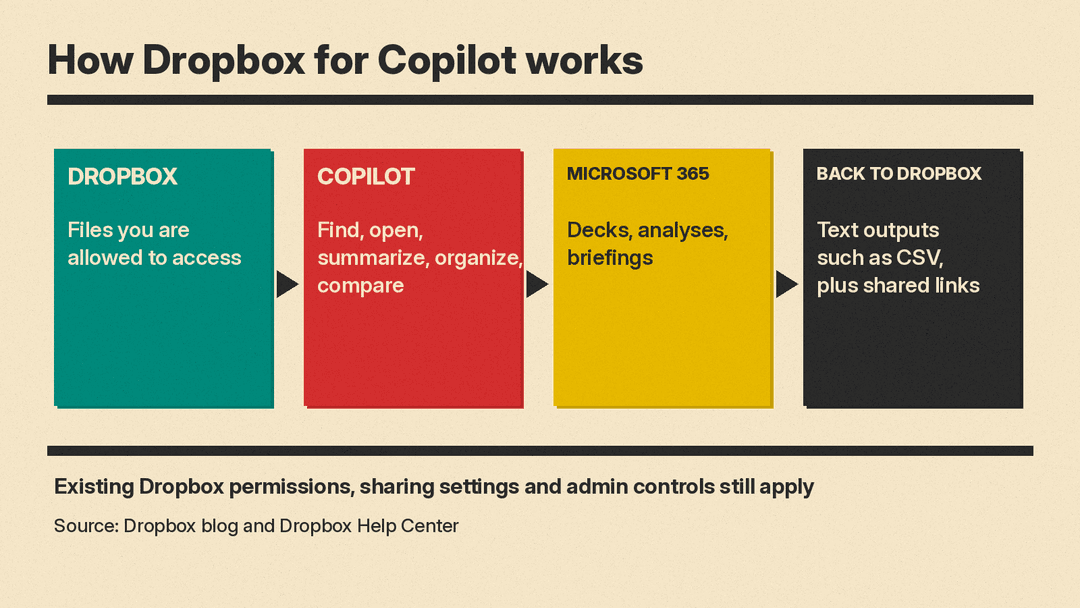
According to Dropbox, users can ask Copilot to find, open, summarize, organize and compare Dropbox content, then use that context to create new work across Microsoft 365 apps. They can also save supported text-based outputs back to Dropbox and create shared links for collaborators.
The Dropbox Help Center lists the same core actions:
- Find Dropbox files and folders
- Open supported Dropbox content
- Summarize supported Dropbox content
- Create shared links
- Save generated text to your Dropbox account
Saving back has limits. Dropbox says the integration supports newly generated UTF-8 text files up to 5 MB. Supported extensions include .txt, .md, .csv, .json, .html, .xml and .yaml, plus several code file types such as .py and .js. So Copilot can write a CSV or a Markdown summary into a Dropbox folder, but the help page does not list Word, Excel or PowerPoint files as save-back formats.
Two examples from Dropbox
Dropbox gives two use cases. In the first, a marketing lead points Copilot at an approved campaign brief, performance data and creative assets in Dropbox, pulls out key insights, and builds a PowerPoint presentation that follows the project's direction.
In the second, an architecture or construction team uses project specifications and recent updates stored in Dropbox to spot changed requirements, prepare a stakeholder briefing, or generate a CSV for analysis in Excel. The CSV then goes back into Dropbox for review and sharing.
The common thread is that the source files stay where they are. Dropbox frames this as cutting down on manual handoffs, repeated context gathering and version confusion.
Permissions: what changes and what does not
For most businesses, the main question with any AI connector is who can see what. Dropbox's answer is that nothing about access changes.
After a user connects and authorizes their Dropbox account, Copilot can only work with files and folders that user is allowed to access, Dropbox says. Existing permissions, sharing settings, team policies and admin controls still apply. Connecting the integration does not give anyone broader access or change access to the source files. Dropbox also says users can disconnect Copilot from their account at any time, from the Apps section of their Dropbox settings.
That matters for teams that share folders with clients or outside partners. One person's Copilot session can use their Dropbox context without making those files available to everyone else using Copilot in the company.
How to connect it
The Dropbox Help Center gives these steps, on copilot.com or in the Copilot desktop app:
- Log in to Microsoft Copilot and go to Copilot Cowork.
- Click Customize in the left navigation bar and search for Dropbox for Copilot.
- Click Install, then Connect, and sign in to Dropbox in the authorization window.
- Click Allow.
- Start a new task and mention Dropbox in your prompt.
One requirement stands out: Dropbox says you must have Microsoft Cowork turned on to use Dropbox for Copilot. The launch post adds that an appropriate Microsoft Copilot license and additional access may be required to use it in Copilot Cowork. Check with whoever manages your Microsoft 365 licenses before you plan a rollout around it.
How it differs from the Microsoft 365 Copilot connector
This is not the only way to bring Dropbox files into Copilot. Microsoft already documents a Dropbox connector for Microsoft 365 Copilot that an organization's admins set up. It indexes content from team folders, shared folders and private folders and surfaces it in Microsoft 365 Copilot responses and Microsoft Search, while keeping Dropbox's permission model.
The two work differently:
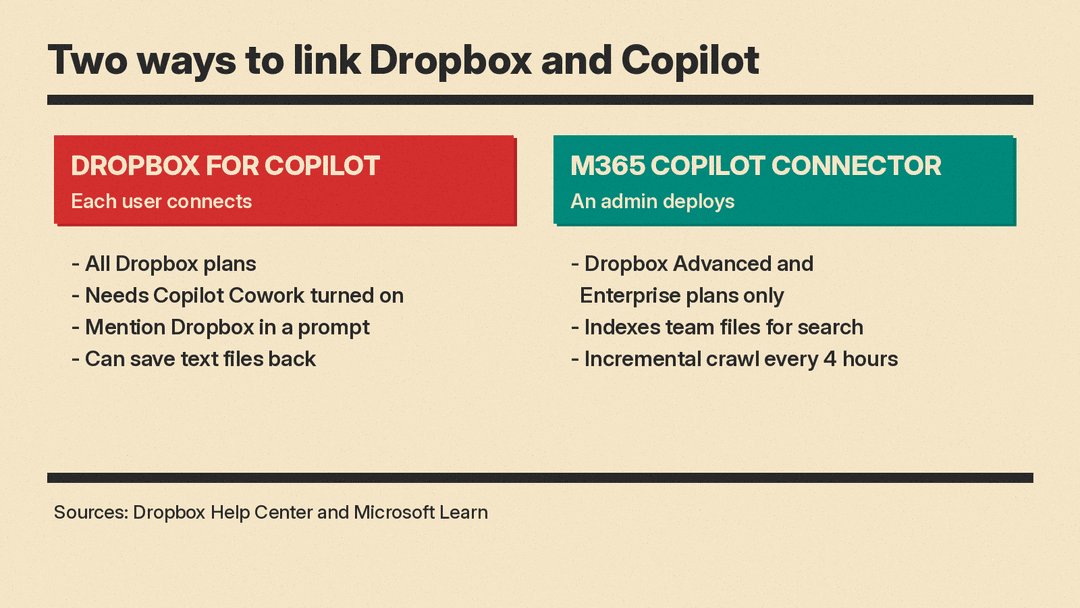
- Dropbox for Copilot is connected by each user, works on all Dropbox plans, and can act on files: open, summarize, create shared links and save text back.
- The Microsoft 365 Copilot connector is deployed by a Microsoft 365 admin after a Dropbox admin sets up an app. Microsoft says only Dropbox Advanced and Enterprise plans are supported. By default it runs an incremental crawl every 4 hours and a full crawl every day, and indexes files updated within the past three years.
Microsoft also lists limits for the connector. Folders, comments and replies are not indexed, Google Docs, Sheets and Slides files stored in Dropbox are not crawled, and access lists based on shared file links are not supported.
Why it matters
Copilot is most useful when it can see the documents a team actually works from. For companies that store files in Dropbox rather than SharePoint or OneDrive, that has been a gap. This integration closes part of it for individual users without an admin project, as long as their Copilot setup includes Cowork.
It also fits a wider pattern. Dropbox says it already connects to a range of AI tools, including Microsoft 365 Copilot, ChatGPT, Claude, Meta Muse and Google Gemini. The company is positioning Dropbox as the place where files and permissions live, whichever AI assistant a team picks. For more on how Copilot sits inside Office apps, see our explainer on Office in Copilot.
A practical first step for a small team: connect one account, point Copilot at a single project folder, and ask for a summary or a comparison of two versions of a document. That shows quickly whether the answers are grounded in your files before anyone relies on it for client work.
