
Google is retiring Gems, the custom chatbots inside the Gemini app, and replacing them with skills. For people with personal Google accounts, that happens in November 2026. At the same time, the background agent that Android Police says Google called Spark now shows up as "Task" in the main chat, next to Scheduled Actions, which have been around since 2025. That leaves three features with overlapping jobs and confusing names. This guide covers the dates, what each feature does, and how to move a Gem before Google does it for you.
The short version
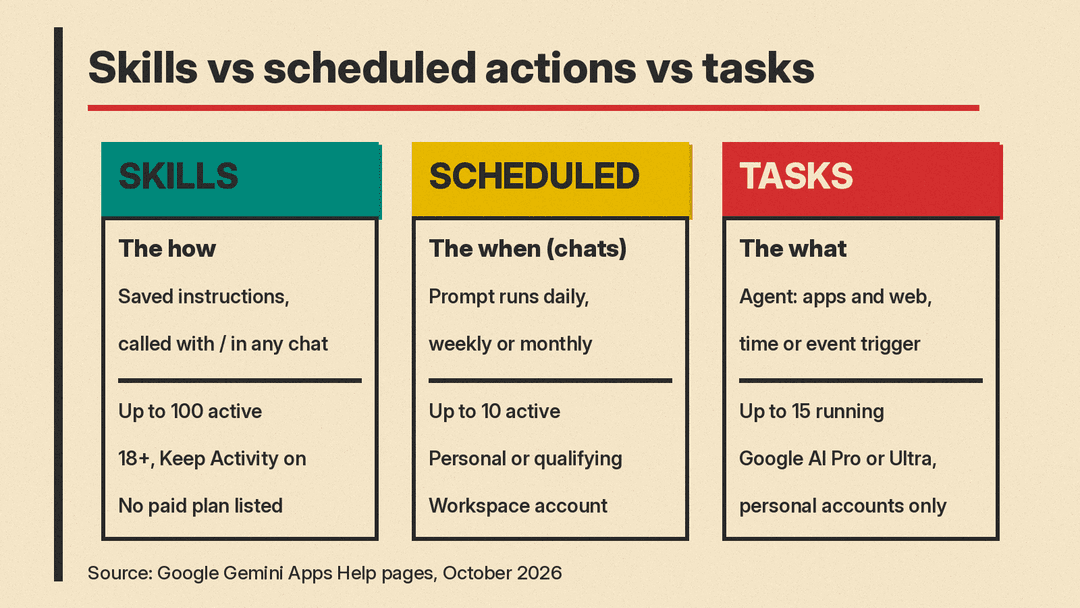
- Skills replace Gems. A skill is a saved set of instructions you call up inside any chat. Think of it as the "how".
- Scheduled actions run a prompt at a set time, such as a morning briefing. That is the "when" for simple chats.
- Tasks are Gemini's agent. They do multistep work across your apps and the web, and they can start at a time or after an event. That is the "what".
Google's own tasks help page uses this framing: you define the task (what you want), set schedules (when it should happen), and provide skills (how to do it).
Key dates
Google's Gems transition page says it is removing support for Gems at different times depending on the account you sign in with:
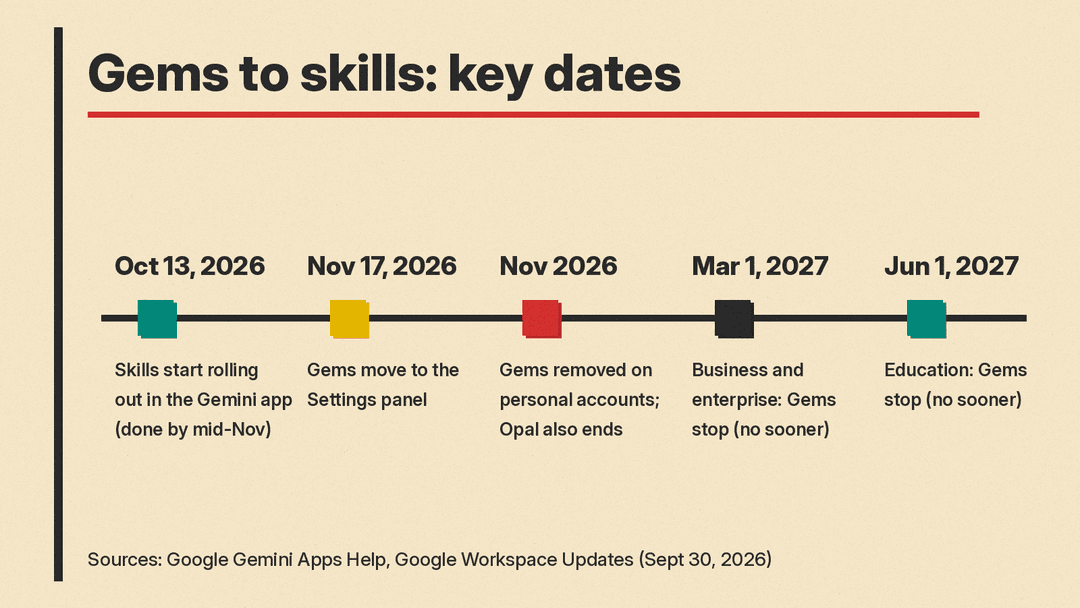
- November 2026: personal Google accounts.
- March 2027: Workspace business, enterprise, and non-profit accounts.
- June 2027: Workspace education accounts.
The Google Workspace Updates post from September 30 gives more exact dates. Skills began rolling out in the Gemini app on October 13, with completion expected by mid-November. On November 17, Gems move to the Settings panel of the Gemini app, and users can still create, edit, and use them there. For business and enterprise accounts, Gems stop working no sooner than March 1, 2027. For education accounts, the date is no sooner than June 1, 2027. Any remaining Gems are then auto-migrated to draft skills. Google says it will share details of the auto-migration with admins at least 30 days in advance.
Android Police reports that Google will begin automatically converting Gems on personal accounts into skills on November 17. The safe plan is to treat November 17 as your deadline.
Two more things leave with Gems. Google's transition page says Opal, its experiment for building mini apps, and Gems by Google Labs will also go away in November.
What skills do differently
A Gem was a separate bot. You opened it from the sidebar and chatted with it in its own window. A skill works inside your normal chat. According to Google's help page:
- You use a skill by typing
/(Google says this will soon be@) and then the skill's name. - Gemini can apply a skill on its own when it decides the skill fits your prompt.
- You can stack several skills in one chat. The Workspace post's example pairs a "vendor evaluator" skill with an "executive email drafter" skill to analyze vendors and draft a recommendation in one step.
- You can create as many skills as you want, but only 100 can be active at a time.
- Skills use the open, Markdown-based
SKILL.mdformat. You can import skills made on other platforms by uploading theirSKILL.mdfiles. Upload works only in the Gemini app on Mac and the web app for now.
To use skills, you must be 18 or over, be signed in, and have Keep Activity on. For now, skills work in the Gemini mobile app, the Gemini app on Mac, and the web app at gemini.google.com. The help page lists no paid plan requirement.
What skills cannot do yet
This is the part to check before November. Google's help page says most default tools available in Gems do not work with skills yet, including:
- Create video
- Create music
- Canvas
- Deep Research
- Guided Learning
Google also says sharing a skill and adding files from Google Drive or notebooks from Gemini Notebook will arrive "in the coming weeks." GitHub files are not supported in skills for now. If a Gem you rely on uses any of these, test it as a skill now so you are not surprised later.
There is also a split for work users. The Workspace post says skills do not sync between the Gemini app and Workspace apps, so you must create a skill in each place if you want it in both. An October 13 update to that post says the launch of skills in Workspace Studio and Workspace apps is delayed.
Scheduled actions: prompts on a timer
Scheduled actions run a prompt daily, weekly, or monthly and have the answer ready at your chosen time. Google's examples include a daily news digest and weekly creative inspiration.
The limits, from Google's help page:
- Up to 10 active schedules at a time.
- Gemini prepares the result within the hour before the delivery time. Fast-changing data, such as stock prices, will not be current when you read it. Google says schedules work best for daily summaries and wrap-ups.
- You need a personal Google account or a qualifying Workspace account, and Keep Activity must be on. Google is still rolling the feature out to personal accounts.
Android Police adds one quirk: if a scheduled action depends on location, such as a weather report, Gemini uses the location you were in when you set it up.
Tasks: the agent that keeps working
Tasks are the heavy option. You start one from the Task option below the text box, describe a goal, and Gemini works through the steps. Google's examples include decluttering an inbox by summarizing or archiving newsletters and unsubscribing from email lists, watching flight and hotel prices and alerting you when they drop within budget, and pulling cited research into PDFs, documents, spreadsheets, or presentations.
How tasks differ from scheduled actions:
- A task can be scheduled at a specific date and time or in response to an event. Google notes that schedules for tasks are different from scheduled actions in chat.
- A task can browse websites, using your local Chrome browser on desktop or a remote browser in the cloud. With the remote browser, work continues after you close your device. The task pauses at steps such as signing in to a website until you take over.
- You can have up to 15 tasks running at once. A schedule will not run if 15 tasks are already running.
The requirements are much stricter than for skills. You must be 18 or over, use a personal Google account (not work or school), have a Google AI Pro or Ultra subscription, have Keep Activity on, and opt in to Personal Intelligence. Tasks are not available in the European Economic Area, Nigeria, Switzerland, or the United Kingdom.
Google also warns users not to type sign-in or payment details into a task thread, and to avoid scheduling tasks that involve sensitive actions, because "Gemini is still learning and can make mistakes."
Which one should you use?
- You want Gemini to follow the same instructions every time (a brand voice, a meeting agenda format): make a skill.
- You want a briefing at the same time every day: use a scheduled action. Android Police says it no longer needs a Google AI subscription.
- You want Gemini to react to events or do multistep work in your apps and on the web while you are away: use a task. Of the three, it is the only one whose help page requires Google AI Pro or Ultra.
You can combine them. Google's help page says you can tell a task which skill to use, and Gemini can also pick a relevant skill on its own.
How to move a Gem to a skill yourself
Google will convert your Gems automatically, but doing it by hand lets you check the result first. The steps on Google's transition page:
- On a computer, go to gemini.google.com, open the sidebar, click Gems, and click Edit next to the Gem.
- If the Gem has files under "Knowledge," download each one. Put them in a new folder named like the skill, in lowercase with hyphens, for example
sample-skill-name. - In a new tab, open Settings, then Skills, and click Create manually. Copy over the Gem's name, description, and instructions, then click Create.
- If you need the files, download the new skill. You get a
.zipfile that containsSKILL.md. MoveSKILL.mdinto the folder with your Gem files. - Back on the Skills page, choose Replace skill for that skill and upload the whole folder. The folder name must match the skill name.
Even if you let Google do the conversion, Android Police suggests copying each Gem's instructions into a Markdown file and downloading its knowledge files before November 17. That costs a few minutes and protects work you would not want to rebuild.
Why it matters
Gemini now splits customization into three building blocks: reusable instructions, timed prompts, and an agent that acts. For the model side of Google's lineup, see our Gemini 4 Argon explainer. Google is also bringing agents into Workspace, which we covered in Gemini Agent for Work explained. For a personal account holder, the practical change is simple: your custom bots become slash commands in one chat, and Gems go away in November.
Sources
- About the transition from Gems to skills (Gemini Apps Help)
- Introducing skills in the Gemini app and Workspace, plus what's next for Gems (Google Workspace Updates)
- Create and manage skills for Gemini Apps (Gemini Apps Help)
- Manage your tasks and workflows in Gemini Apps (Gemini Apps Help)
- Schedules in Gemini Apps (Gemini Apps Help)
- Google is renaming Gemini again; here's what each feature does now (Android Police)
