
You ask an AI assistant the same thing every morning: what is in my inbox, what is on my calendar, what changed in my field. ChatGPT, Claude and Gemini can now do that on their own. Each one lets you save a prompt with a schedule, run it in the background, and send you the result. This guide shows how to set one up in each app, how to write the instructions so the result is useful every time, and 10 task prompts you can copy.
The short version: run the task once in a normal chat, fix the prompt until the answer is right, then add the schedule. OpenAI's own walkthrough gives that advice ("Do it once, then schedule it").
What a scheduled AI task is
A scheduled task is a saved prompt plus a trigger. The trigger is usually a time ("every weekday at 8 AM"). In some apps it can also be an event, such as a new email from a certain sender. When the trigger fires, the assistant runs your prompt with the tools you connected and posts the result in a chat, a task list or a notification.
All three big assistants have a version of this, as of October 2026:
- ChatGPT calls them scheduled tasks. It can run one-time or recurring tasks, monitor for changes, and respond to supported events, all managed from a page called Scheduled.
- Claude has scheduled tasks in Claude Cowork and in what Anthropic calls the new Claude experience, which merges chat and Cowork.
- Gemini has two kinds: schedules in chats (Google also calls these scheduled actions) and schedules for tasks, which can also react to Gmail messages and to topics such as news, finance and sports. Our explainer on Gemini skills vs tasks vs scheduled actions covers how the pieces fit together.
Why it matters: a scheduled prompt runs without you watching it. A vague prompt that gives a so-so answer once will give a so-so answer every day, and you may stop reading it. The work is in the prompt, not the schedule.
Who can use it
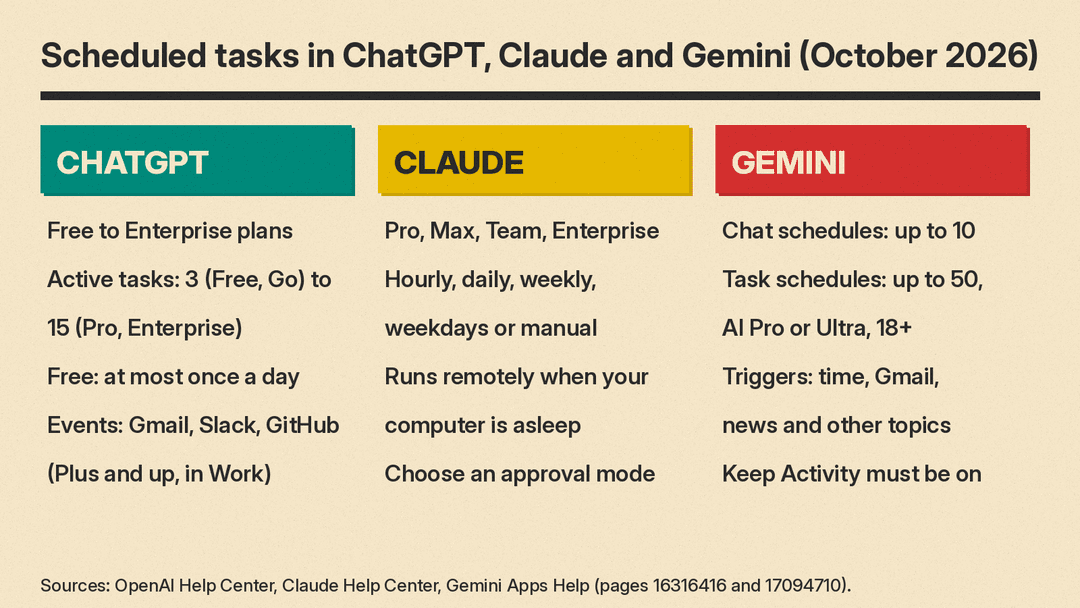
ChatGPT. Scheduled tasks are available to eligible Free, Go, Plus, Pro, Business, Enterprise and Edu users. Active task limits depend on the plan: 3 for Free and Go, 5 for Plus, 10 for Business and Edu, and 15 for Pro and Enterprise, per the OpenAI Help Center. Free users can schedule a one-time task or a recurring task no more than once per day, in flexible windows such as morning, afternoon or night. Hourly schedules and exact delivery times need an eligible paid plan. Tasks triggered by Gmail, Slack or GitHub activity need Work and a Plus, Pro, Business, Enterprise or Edu account; they are not available on Free or Go.
Claude. Scheduled tasks are available on all paid plans (Pro, Max, Team and Enterprise), according to the Claude Help Center. On Team and Enterprise, admins control Cowork access.
Gemini. Schedules in chats need a personal Google Account or a work or school account with a qualifying Google Workspace edition, and Keep Activity must be on. Google says it is gradually making the feature available to all personal Google Accounts, so you may not see it yet. You can have up to 10 active schedules in chats. Schedules for tasks have stricter rules: you must be 18 or over, use a personal Google Account, have a Google AI Pro or Ultra subscription, keep Keep Activity on and opt in to Personal Intelligence. For now, tasks are not available in the European Economic Area, Nigeria, Switzerland or the United Kingdom, per Google's help page. The limit there is 50 active schedules.
Step 1: Run the task once in a normal chat
Before you schedule anything, type the prompt into a regular chat and read the answer. Change the prompt until the answer is the one you want to get every day. OpenAI's scheduled tasks walkthrough puts it this way: first run the task in a regular chat and refine the result, then stay in the same chat and tell ChatGPT when to run it again.
If the task reads your email or calendar, connect those apps first. In ChatGPT, connected apps live under Settings > Apps. In Gemini, an app such as Google Workspace must be connected before a schedule can use it, per Google. In Claude, scheduled tasks can use the connectors, skills and plugins you set up in Cowork, per Anthropic.
Step 2: Write the instructions for an unattended run
A prompt for a scheduled task needs a few things that a one-off chat prompt does not. Write them into the prompt itself, because you will not be there to answer follow-up questions. These are our suggestions, built from what the vendors' help pages warn about:
- What and when. "Every weekday at 8 AM" or "every Monday at 9 AM". Gemini's help page says to put when and how often in the prompt.
- Which sources. Name the connected app, inbox label, Slack channel or website. OpenAI's example prompt names @Google Calendar and @Gmail directly.
- What to skip. Ads, newsletters, automated alerts. Say it plainly.
- The output shape. A fixed format (for example, "one line per item: Sender | What I need to do | Deadline") makes each run easy to scan and easy to compare with the last one.
- What to do when there is nothing. Give an exact line to return, such as "Nothing needs you today." Otherwise the assistant may pad the result.
- What not to do. "Do not send messages or change events." OpenAI's own scheduling prompt ends with "without sending messages or changing events."
Step 3: Schedule it in ChatGPT
- Run the task in a chat and refine it, as above.
- In the same chat, say when to run it. OpenAI's example: "Schedule this task to run every weekday at 9:00 AM." You can also go to the Scheduled page and create a task there.
- Turn on notifications: Settings > Notifications, then choose Push, Email or both. For phone push notifications, create the task in a supported ChatGPT mobile app and allow notifications.
- Open Scheduled to check the next run. From there you can review results, edit, pause, resume or delete a task. You can also reach it from Settings > Notifications > Manage tasks.
Details from the OpenAI Help Center worth knowing:
- A task created inside a project cannot access files uploaded to that project.
- Scheduled tasks do not work in voice chats, GPTs or locked chats.
- Deleting the chat linked to a task pauses the task. Inactive tasks may pause on their own.
- Monitoring tasks check for changes and notify you only when a relevant update occurs. They can stop when an end condition you set is met.
- For event-triggered tasks, connect Gmail, Slack or GitHub in Settings > Apps, open Work, describe the event and the action, then review the Trigger, Condition and Prompt. Event-triggered tasks can run up to 30 times per hour and 720 times per day across all of them. Slack tasks need @ChatGPT added to each monitored channel.
- If a task would send a message or change external data, it may need your approval. The task pauses until you review it.
The walkthrough also notes that a task needing local files or a skill saved only on your computer needs the computer on and the desktop app running. A task that only uses connected tools can run on the web.
Step 4: Schedule it in Claude
If your message box no longer shows separate "Chat" and "Cowork" options, you have the new Claude experience. There, per Anthropic's help page:
- Describe the task and how often it should run. Anthropic's example: "Every Monday at 9 AM, summarize last week's messages in my team's Slack channels."
- Answer any questions Claude asks about the schedule or the task.
- Review the task name, schedule and instructions Claude proposes, then click Schedule.
In Claude Cowork, click Scheduled in the left sidebar, then New task. Choose Create with Claude to have Claude ask you questions and draft the task, or Set up manually to fill in a form with:
- a task name
- the prompt
- the approval mode
- the frequency: hourly, daily, weekly, on weekdays, or manually
- the model (optional)
- the folder Claude should work in (optional)
Scheduled tasks run remotely, so they keep their cadence when your computer is asleep or the desktop app is closed. Two exceptions: if a task needs local files or apps, it only runs locally, and on Pro and Max plans, scheduled tasks created before October 6 that run on your computer keep running there. From the Scheduled page you can review past and upcoming runs, edit, pause, resume, delete, or run a task on demand. We suggest using run on demand to test a new task before its first scheduled run.
Anthropic lists daily briefings, weekly reports, recurring research, file organization and team updates as common uses.
Step 5: Schedule it in Gemini
Schedules in chats (the simple kind), per Google's help page:
- Go to gemini.google.com.
- Type your prompt and include when and how often it should run.
- Submit. Gemini replies with a summary of the schedule.
- Manage it from Scheduled in the sidebar: pause, resume, edit or delete. You can also ask Gemini to change the schedule in that schedule's chat.
Two things to know. Gemini prepares the content within the hour before your delivery time, so fast-changing data, such as stock prices, will not be the latest when you read it; Google says schedules work best for daily summaries and wrap-ups. And if a schedule uses your location (weather, for example), Gemini keeps using the location where you created it.
Schedules for tasks (part of tasks in Gemini), per this help page:
- On gemini.google.com (or the Gemini app on a Mac), click Task below the text box.
- Describe what Gemini should do and when. To use a saved skill, type
/and pick it. - Submit.
You can also build a time-based schedule by hand: Scheduled > Create a scheduled task, enter a name, write the instructions under "Plan," choose when it runs, then click Create. Google suggests testing it with More > Run now.
Task schedules come in three types: time-based (once, hourly, daily, weekly, monthly or yearly), Gmail monitors (run when an email matches a Gmail filter), and topic monitors (run when something happens in news, finance, sports, local events and more). Google says monitors are still not ideal for fast-moving data or time-critical jobs such as buying tickets the moment they go on sale. Run times are approximate, and a schedule will not run if you have hit your usage limit at that time. Time-based schedules stay on the time zone where you created them, even when you travel.
Step 6: Check the first few runs
Read the first three or four results closely. Look for items the task should have skipped, made-up details, and runs that came back empty when they should not have. Then tighten the prompt. All three apps let you edit the instructions without deleting the task.
Two safety points from the help pages. First, OpenAI warns that anyone who opens a shared task link can read the full instructions, so do not put health information, financial details, passwords or account numbers in a task's title or instructions. Second, keep actions that send or change things behind an approval step. ChatGPT pauses tasks that need approval, and Claude's manual setup asks you to choose an approval mode.
10 scheduled task prompts to copy
Replace the parts in brackets. Each prompt says what to skip, what format to use and what to return when there is nothing to report.
1. Morning email brief
Every weekday at 7:30 AM, check my Gmail inbox for emails from the last 24 hours.
List only emails that need an action from me or change my plans this week. Skip ads, sales and newsletters.
Format: one line per email: Sender | What I need to do | Deadline (write "none" if there is no deadline).
At most 5 lines. If no email needs action, reply with exactly: Nothing needs you today.
Do not draft or send any replies.
2. Meeting prep
Every weekday at 8 AM, look at today's meetings in my Google Calendar and find related emails.
For each meeting, give: time, who is attending, the goal in one sentence, and one open question I should ask.
Link the calendar event and the emails you used. If I have no meetings, reply with exactly: No meetings today.
Do not change any events.
3. Weekly news digest on one topic
Every Monday at 9 AM, find the 5 most important news stories from the past 7 days about [topic].
For each: headline, one-sentence summary, and the link to the original source.
Skip opinion pieces and press releases. If you find fewer than 5, list only what you found.
4. Price or page watch (a monitoring task)
Check [product page URL] once a day.
Notify me only if the price drops below [$ amount] or the item comes back in stock.
In the notification, give the new price, the date you checked, and the link. Otherwise do not notify me.
Stop checking after [date].
5. Friday status update draft
Every Friday at 3 PM, read my messages in [Slack channel] from this week.
Draft a status update with three headings: Done, In progress, Blocked. Max 3 bullets under each heading.
Use only facts from the messages. Show me the draft. Do not post it.
6. Daily study quiz
Every day at 6 PM, give me a 5-question quiz on [subject, level].
Mix multiple choice and short answer. Put the answers at the end, under a line that says ANSWERS.
Do not repeat a question from the last 7 days in this chat.
7. Weekend plan
Every Thursday at 5 PM, suggest 3 things to do in [city] this weekend for [who: me, a couple, a family with kids aged X].
For each: what it is, when, rough cost, and a link to the official page.
Skip anything that needs tickets bought more than a week ahead.
8. Bill and renewal reminder
On the 1st of every month at 9 AM, search my email for bills, renewals and subscription charges due in the next 30 days.
List each one: Company | Amount | Due date. Sort by due date.
If an amount is not in the email, write "check email" instead of guessing. Do not pay anything.
9. Job search alert (event-triggered or daily)
Every day at 8 AM, check new emails from [job boards or recruiters].
List roles that match: [job title], [location or remote], salary above [amount if known].
Format: Role | Company | Location | Link. Skip roles that do not match. If none match, reply with exactly: No matching roles today.
10. Weekly file clean-up (Claude Cowork)
Every Sunday at 6 PM, look at the files in [folder].
Suggest a new name and a subfolder for each file added this week, as a list: Old name -> New name -> Subfolder.
Show me the list first. Do not move or rename anything until I approve.
Prompts 1, 2 and 5 follow the pattern in OpenAI's meeting-brief example: name the tools, fix the sections and forbid side effects. Prompt 4 uses ChatGPT's monitoring idea of notifying only on a relevant change and stopping at an end condition. Prompt 10 uses one of the uses Anthropic lists for Claude, periodic file organization, and keeps an approval step.
What we tested
Scheduled tasks need the ChatGPT, Claude or Gemini apps and connected accounts, so we could not run them on our test machine. We did test the instruction part of the prompts. We used Gemma 3 1B, a small open model, running locally with llama.cpp at temperature 0, two rounds, on October 29, 2026. It is far smaller than the models behind the three assistants, so treat this as a stress test of the prompt, not a forecast of how ChatGPT, Claude or Gemini will do.
The input was five made-up emails: a landlord notice about a water shut-off, a sneaker sale, a doctor's office asking to confirm an appointment, a newsletter and a manager asking for slides.
- Vague prompt ("Summarize my emails"): it listed all five, including the sale and the newsletter, and ended by asking what to do next. A scheduled run has no one there to answer that question.
- Email brief with rules (prompt 1 above, in a shorter form): it still listed all five, broke the 3-line cap we set in that version, left out the deadline column, and made up actions, such as "Send plumber to fix pipe" for the landlord notice.
- Same prompt, no emails: it replied with exactly "Nothing needs you today." The empty-case rule worked.
- Price watch (alert only below $100): with the price at $129 it wrongly replied "ALERT: 129". With $94 it correctly replied "ALERT: 94".
- Round 2, rewritten as numbered steps with an example line: the brief came back mostly in the three-column format (one line had no deadline) but still kept the sale and the newsletter, dropped the manager's request and moved the slides task onto the landlord's line. The step-by-step price check printed "NO CHANGE" for $94, which is wrong.
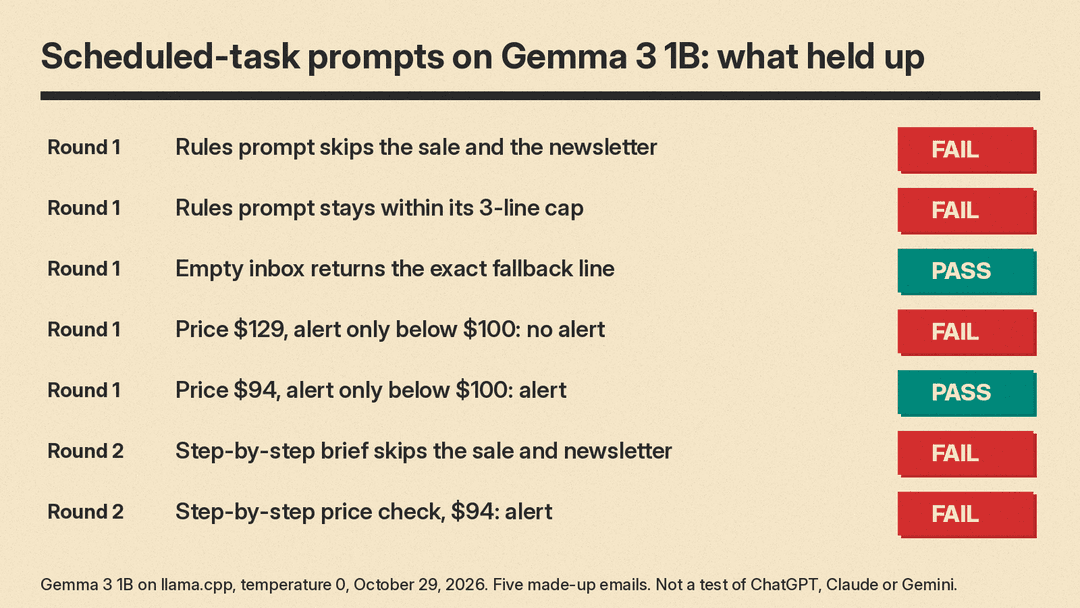
What we took from it: the explicit "reply with exactly ... when there is nothing" line is cheap and it worked even on a 1B model. Filtering rules and number thresholds are where the model slipped, so those are the parts to check in your first runs. This is the reason for Step 1 and Step 6: an unattended prompt gets no second chance, so read the output before you trust it.
Quick troubleshooting
- The task did not run. In ChatGPT, check Scheduled for a paused task or a pending approval, and confirm the connected app is still authorized. A task can also pause if it is inactive or its chat is archived or deleted. In Gemini, a task schedule will not run if you have hit your usage limit or already have 15 tasks running, and a chat schedule may have been turned off for inactivity.
- The result is stale. Gemini chat schedules are prepared up to an hour early. Use them for summaries, not live prices.
- You hit a limit. Pause or delete an old task. ChatGPT's active task limit ranges from 3 on Free and Go to 15 on Pro and Enterprise. Gemini allows 10 active schedules in chats and 50 for tasks.
- Wrong time after a trip. Gemini task schedules stay on the time zone where they were created. Ask Gemini to "edit the schedule based on my new timezone."
For more on writing prompts, see our Grok prompts guide and our guide to writing an agent skill. If you want an assistant that starts work on its own, see our explainers on Claude Duet and OpenAI dots.
