
You do not need a laptop or a cloud account to try an AI chatbot that runs on your own hardware. Free apps for iPhone and Android can download an open-weight AI model to your phone and run it there, with no internet connection after the download. This guide explains what that means, how to set up two free apps that do it, how to pick a model that fits your phone, and what to expect.
What does it mean to run an AI model on your phone?
Most chatbots run in the cloud. When you type into a cloud chatbot, your message goes to a company's servers, a large model there writes the answer, and the answer comes back to your screen.
A local model works differently. You download the model file itself to your phone. An app on the phone loads that file into memory and does all the work of writing the answer on the phone's own chips. Your prompt does not have to leave the device.
This is possible because many AI labs publish open-weight models: models whose files anyone can download, often from Hugging Face. Small versions of model families such as Gemma, Qwen, Phi and Llama can run on a phone, and the apps below can load them.
Can you run AI on your phone without internet?
Yes, after setup. You need a connection to install the app and to download a model. After that, the chat itself can run offline.
- The Google AI Edge Gallery README says "all model inferences happen directly on your device hardware" and that "no internet is required" (GitHub).
- The PocketPal AI README says your prompts, responses and documents stay on your device "unless you turn on an online feature such as web search or a remote server" (GitHub).
So "offline" is the default for the chat itself, but some optional features in these apps do use the network. More on that below.
Which free apps run AI models on a phone?
Two well-documented options work on both iPhone and Android.
Google AI Edge Gallery is an app from Google's AI Edge team. Its README calls it an "experimental Beta release." It is licensed under Apache 2.0, uses Google's LiteRT runtime, and uses Hugging Face to find and download models. The README also links the LiteRT community models on Hugging Face. It does more than chat. Features the README lists include:
- AI Chat, with on-device speech recognition and text-to-speech so you can talk instead of type
- Ask Image, to describe or answer questions about a photo or camera image
- Audio Scribe, to transcribe and translate voice recordings
- Prompt Lab, to test prompts and adjust settings such as temperature and top-k
- Agent Skills, which add tools such as Wikipedia lookups
- Mobile Actions, offline device controls powered by a fine-tune of FunctionGemma 270m
- Model management and a benchmark tool to test how each model performs on your phone
PocketPal AI is an open-source app under the MIT license. It runs GGUF language models with llama.cpp, an open-source engine for running models locally. The README says no account is needed. Its features include:
- Offline chat with GGUF models (the README names Gemma, Qwen, Phi and Llama)
- Search and download of GGUF models from Hugging Face, including gated models if you add your Hugging Face access token
- "Pals," custom assistants with their own model, system prompt and personality
- On-device voice input with Whisper, and on-device text-to-speech voices
- A benchmark that measures tokens per second and memory, with an optional public AI Phone Leaderboard
PocketPal says chat, models, voices and tools are free. Its store builds offer an optional one-time "PocketPal Plus" purchase that adds hands-free voice conversation.
How to set up Google AI Edge Gallery
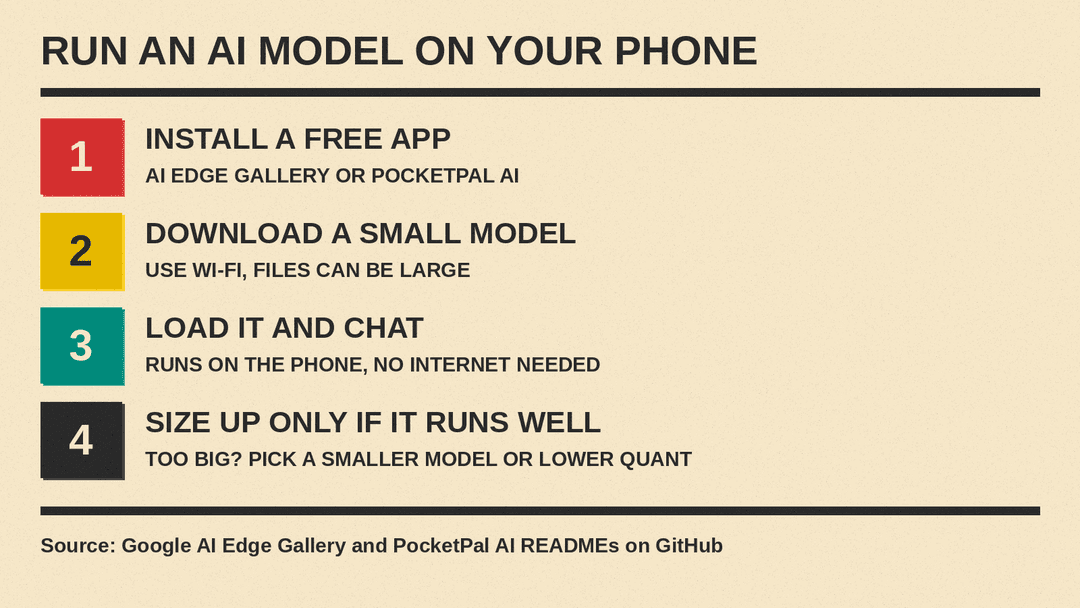
- Check your phone. The README lists Android 12 and up, and iOS 17 and up.
- Install the app from Google Play or the App Store. If your Android phone has no Google Play access, the README says you can install the APK from the project's GitHub releases page.
- Choose a model from the app's list and download it. The README says you can also load your own custom models. Use Wi-Fi, because model files can be large.
- When the download finishes, start chatting. Per the README, the model then runs on the phone with no internet needed.
The project keeps a wiki with a full user guide, including install notes for work phones.
How to set up PocketPal AI
The PocketPal README gives these steps:
- Install PocketPal from the App Store or Google Play.
- Tap the menu, then Models.
- Pick a model from the list and tap Download, or tap + to add one from Hugging Face or from your phone's storage.
- If you add one from Hugging Face, search GGUF models and choose a quantization that fits your device's memory and storage.
- After the download, tap Load.
- Open Chat and start typing.
How to pick a model that fits your phone
The main limit on a phone is memory. The whole model has to fit in the phone's RAM next to everything else that is running, and the model file also takes storage space.
Two choices control how big a model is:
- Size of the model. Models are described by their parameter count, such as 1B or 4B (billions of parameters). More parameters usually means better answers, but more memory and slower replies. On a phone, start with the smallest models in the app's list.
- Quantization. A quantized model stores its numbers with fewer bits, so the file is smaller and needs less memory, with some loss of quality. Labels such as Q4 and Q8 tell you how much it was shrunk. Our guide What Do Q4 and Q8 Mean? explains this in plain English.
A simple approach:
- Start with a small model the app suggests.
- Use the app's benchmark tool to see how fast it runs on your phone.
- If it runs well and you want better answers, try one size up.
- If a model will not load or the app closes, go back down a size or pick a lower quantization.
For the math behind memory needs, see How Much Memory Do You Need to Run an AI Model Locally? If you want to know what a GGUF file is, read GGUF vs Safetensors.
Google AI Edge Gallery vs PocketPal AI: which should you use?
Both are free to start and run models on the phone. They suit different people.
Pick Google AI Edge Gallery if you want to try more than text chat: asking about photos, transcribing recordings, or testing on-device tools. It runs models with Google's LiteRT runtime.
Pick PocketPal AI if you want a chat app that can load almost any GGUF model from Hugging Face, and you want custom assistants (Pals) and voice. It uses llama.cpp and the GGUF format.
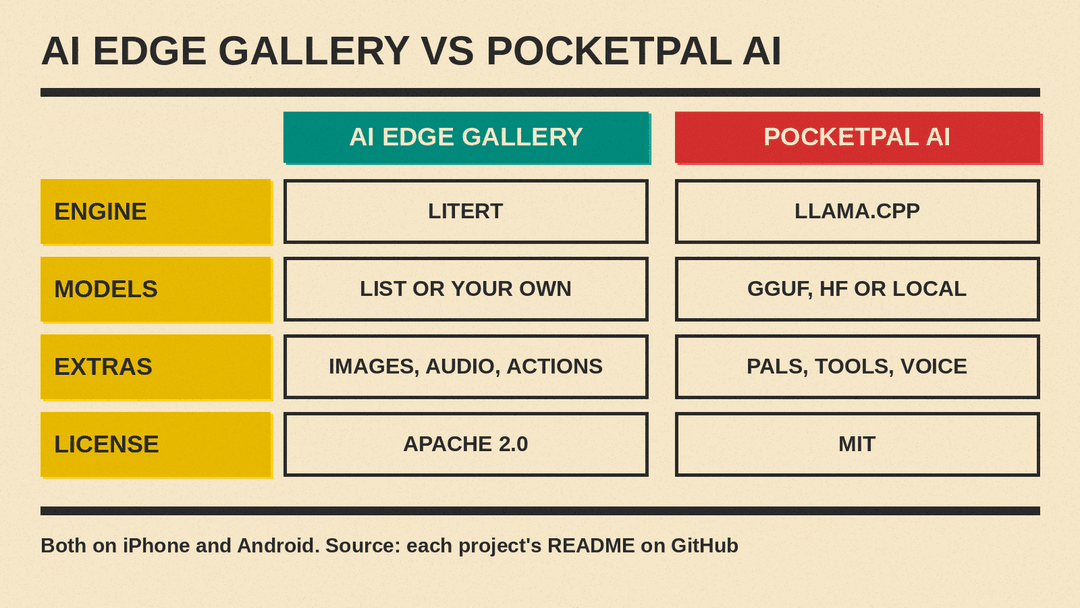
Key differences, from each project's README:
- Engine: LiteRT (Gallery) vs llama.cpp (PocketPal)
- Model files: models from its list via Hugging Face, or your own (Gallery) vs GGUF models from Hugging Face or local storage (PocketPal)
- Extras: image questions, audio transcription and device actions (Gallery) vs Pals, tool calls and voice chat (PocketPal)
- License: Apache 2.0 (Gallery) vs MIT (PocketPal)
You can install both and compare them on the same phone.
What are the limits of AI on a phone?
Local models are useful, but they are not the same as the biggest cloud chatbots.
- Answer quality. Models small enough for a phone are much smaller than the large models behind cloud chatbots. Expect weaker answers on hard questions, more factual mistakes, and less knowledge. Check important facts.
- Speed. Replies can be slower than a cloud chatbot, and bigger models are slower still.
- Battery and heat. The phone's chips do all the work, so long chats use battery and can make the phone warm.
- Storage. Each model you download takes space. Delete models you do not use.
- No live knowledge. A model only knows what it learned in training. Without a web search feature turned on, it cannot look up today's news.
How private is a local AI model?
Running a model locally means your prompts do not need to go to a company's servers. That is the main reason many people try it.
Read each app's notes, though. PocketPal's README says your chats and documents leave the device only through features you turn on: web search and page reading, a remote server, or a system voice that your phone runs online. It also lists other network use that it says never attaches your chats, such as model downloads and the opt-in benchmark leaderboard. If privacy is your goal, leave online features off.
What about running AI on a computer instead?
A laptop or desktop usually has more memory than a phone, so it can run larger models. If you want to try that next, our comparison Ollama vs LM Studio covers two free desktop apps that work much like the phone apps above.
The short version
- Install Google AI Edge Gallery or PocketPal AI from your app store.
- Download a small model over Wi-Fi.
- Chat offline. Move up a size only if your phone handles it.
- Expect simpler answers than a cloud chatbot, in exchange for privacy and offline use.
