
You found an open model you want to try. The model page says it has 8 billion parameters, or 32 billion, or 70 billion. Your laptop has 16 GB of memory. Will it run?
There is a simple way to work this out before you download anything. It takes one multiplication and one small safety margin. This guide explains the math in plain English, shows worked examples for common model sizes, and lists the things that change the answer.
The short answer
The memory a model needs depends on two numbers:
- How many parameters (weights) the model has.
- How many bits each parameter uses after the file is saved. This is the model's precision, or its quantization level.
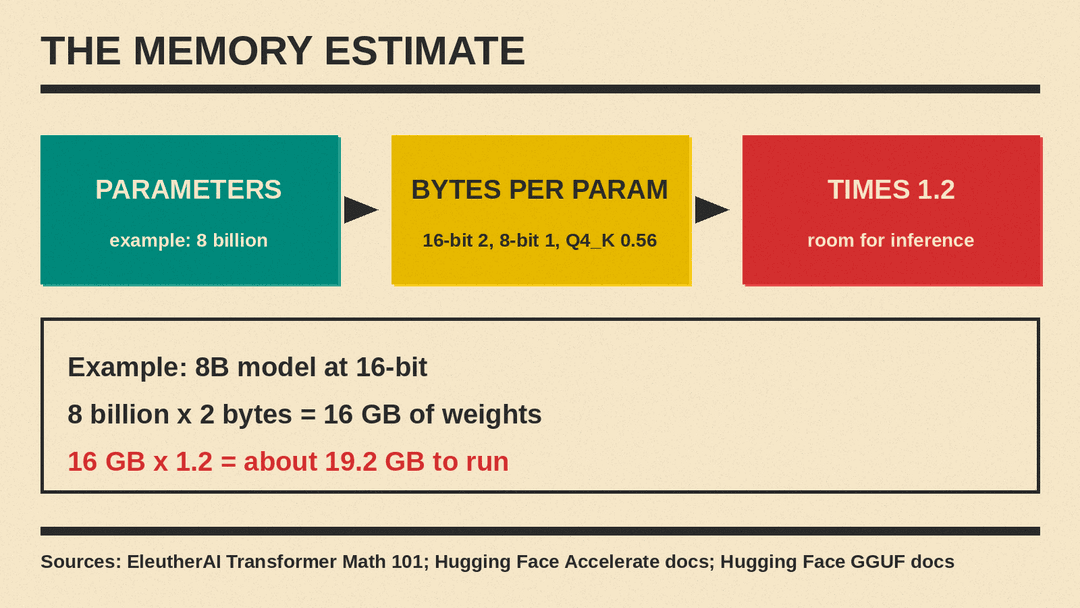
Multiply them, convert to bytes, and add about 20 percent for the extra work the model does while it answers. That gives a good first estimate of the memory you need.
Step 1: memory for the weights
A model is mostly a very large list of numbers. Each number takes up space. EleutherAI's Transformer Math 101 gives the basic rule: model memory equals bytes per parameter times the number of parameters.
The bytes per parameter depend on the format:
- 32-bit floating point (fp32): 4 bytes per parameter.
- 16-bit floating point (fp16 or bf16): 2 bytes per parameter.
- 8-bit integers (int8): 1 byte per parameter.
- 4-bit formats: about half a byte per parameter, since 8 bits make 1 byte. Real 4-bit file types use a little more, as the next section shows.
Many open models are released in 16-bit form (fp16 or bf16). So a model with 8 billion parameters needs about 8 billion times 2 bytes, which is about 16 GB, just to hold the weights.
That is why most people who run models at home use a quantized version. Quantization stores each weight with fewer bits. We explain it in more detail in our guide to what Q4 and Q8 mean.
If you download GGUF files (the format used by llama.cpp, LM Studio and Ollama), the file name tells you the quantization type. The Hugging Face GGUF documentation lists the average bits per weight for each type. For example, Q4_K uses about 4.5 bits per weight, Q5_K about 5.5 bits and Q6_K about 6.5625 bits. Divide the bits by 8 to get bytes. Q4_K is about 0.56 bytes per parameter.
Step 2: add room for running the model
Loading the weights is not the whole job. While the model generates text, it also stores temporary values. EleutherAI's guide gives a simple rule for this: total memory for inference is about 1.2 times the model memory.
The Hugging Face Accelerate team says the same thing in the documentation for its model memory estimator. Its calculator reports the memory needed to load a model, and the page says that for inference "you can expect to add up to an additional 20%", citing EleutherAI.
So the full rule is:
- Memory needed is about parameters times bytes per parameter times 1.2.
Worked examples
Here is the rule applied to common model sizes. These numbers are our own arithmetic using the rule above, not measurements. Real use can be higher or lower, as the next section explains.
At 16-bit precision (2 bytes per parameter, times 1.2):
- 3B model: about 7.2 GB
- 8B model: about 19.2 GB
- 14B model: about 33.6 GB
- 32B model: about 76.8 GB
- 70B model: about 168 GB
At 8-bit precision (1 byte per parameter, times 1.2):
- 3B model: about 3.6 GB
- 8B model: about 9.6 GB
- 14B model: about 16.8 GB
- 32B model: about 38.4 GB
- 70B model: about 84 GB
At Q4_K (about 4.5 bits per weight, times 1.2):
- 3B model: about 2.0 GB
- 8B model: about 5.4 GB
- 14B model: about 9.5 GB
- 32B model: about 21.6 GB
- 70B model: about 47.3 GB
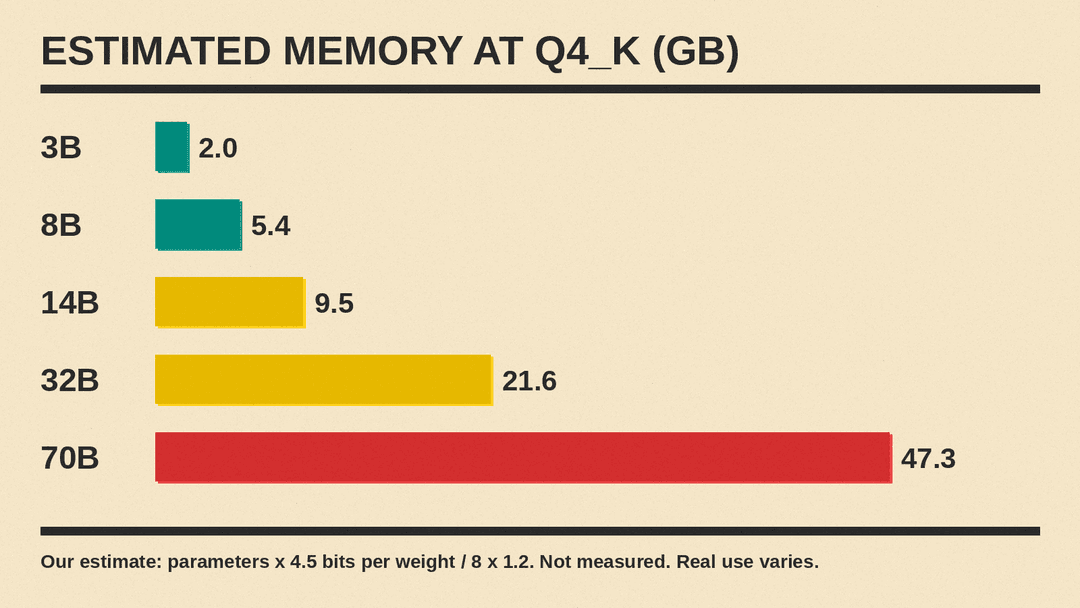
The pattern is clear. Going from 16-bit to a 4-bit format cuts the memory need to a bit more than a quarter. That is the difference between a model that needs a workstation and a model that fits on an ordinary laptop.
Remember that your computer also needs memory for the operating system, your browser and other apps. If your machine has 16 GB in total, you will not have all 16 GB free for a model. Leave some headroom.
What changes the answer
The rule is a starting point. Several things can push real memory use up or down.
Context length
The context window is how much text the model can read and keep track of at once. A longer context needs more memory while the model runs. Most of that extra memory is the KV cache, where the model keeps the keys and values it computed for earlier tokens so it does not have to compute them again. Our KV cache explainer covers how it grows. See our explainer on what a context window is for the basics.
Tools often limit the context by default to save memory. The Ollama FAQ says Ollama uses a default context window of 4,096 tokens, and you can raise it with a setting. The same FAQ explains that running several requests in parallel increases the context size and needs additional memory. For example, it says a 2K context with 4 parallel requests becomes an 8K context. Ollama can also shrink the KV cache. Its FAQ says that, with Flash Attention on, the q8_0 cache type uses about half the memory of the default f16 type, and q4_0 about a quarter, with some loss in precision.
If you raise the context to tens of thousands of tokens, expect memory use to grow beyond the simple estimate.
Mixture of experts models
Some open models use a design called mixture of experts (MoE). Only part of the model is used for each word it produces, which makes it faster. But the Hugging Face blog post on MoE notes that these models have high memory needs, because all the experts must be loaded in memory.
The post gives a concrete example. For Mixtral 8x7B, it says you need enough VRAM to hold a dense model of about 47 billion parameters. The name suggests eight experts of 7 billion each, but the experts share some layers, so the real total is lower than 56 billion. The point for you is simple: the model's speed may feel like a small model, but its memory need is set by the full size.
So for an MoE model, use the total parameter count in your estimate, not the smaller "active" count. Our guide to mixture of experts models explains the design.
GPU memory versus system memory
On a PC with a graphics card, the fastest setup puts the whole model in the card's own memory (VRAM). If the model does not fit, some tools split it between the GPU and normal system memory. This works, but it is slower.
Ollama shows you where a model is loaded. According to the Ollama FAQ, the ollama ps command shows "100% GPU" when the model is fully on the graphics card, "100% CPU" when it is fully in system memory, and a split such as "48%/52% CPU/GPU" when it uses both.
Training is a different story
Everything above is about running a model, which is called inference. Training or fine-tuning a model needs far more memory, because the computer must also store gradients and optimizer data. EleutherAI's guide gives the details. For example, it says the common AdamW optimizer needs 12 bytes per parameter for its states, on top of the model itself. Low-cost fine-tuning methods exist to reduce this, but they are a separate topic.
How to check a specific model
You do not have to do every estimate by hand.
- Look at the file size. For a GGUF file, the download size is close to the memory the weights need. Add about 20 percent, plus more for long contexts.
- Use a calculator. Hugging Face hosts a model memory usage tool built on Accelerate. The Accelerate docs say it is accurate within a few percent for loading a model. They also point to a community tool, Can You Run It? LLM, that checks a model against your GPU.
- Try a smaller quantization first. If a Q6_K file does not fit, a Q4_K file of the same model often will. Lower bit counts save memory but can reduce answer quality.
Why the estimate is worth doing
Downloading a large model takes time and disk space. A 70B model in 16-bit form is well over 100 GB of files. If it does not fit in memory, the tool may refuse to load it, or it may fall back to system memory and run much more slowly. A one-minute estimate tells you which size and which quantization to pick before you spend an hour on a download. It also helps you compare hardware. If you plan to buy a computer for local AI, the amount of memory is a key number to check, because it sets the largest model you can load at a usable quantization.
A quick decision checklist
Before you download an open model, ask these questions:
- How many total parameters does it have? For MoE models, use the total, not the active count.
- Which quantization will I use? Check the bits per weight.
- What is parameters times bytes per parameter times 1.2?
- How much memory is actually free on my machine after other apps?
- Will I use a long context? If yes, plan for more.
If the estimate is close to your limit, pick a smaller model or a lower quantization. A smaller model that runs fully in fast memory is often more useful than a larger one that barely fits and runs slowly.
For a step-by-step setup once you have picked a model, see our guide on how to run an AI model on your own laptop.
