
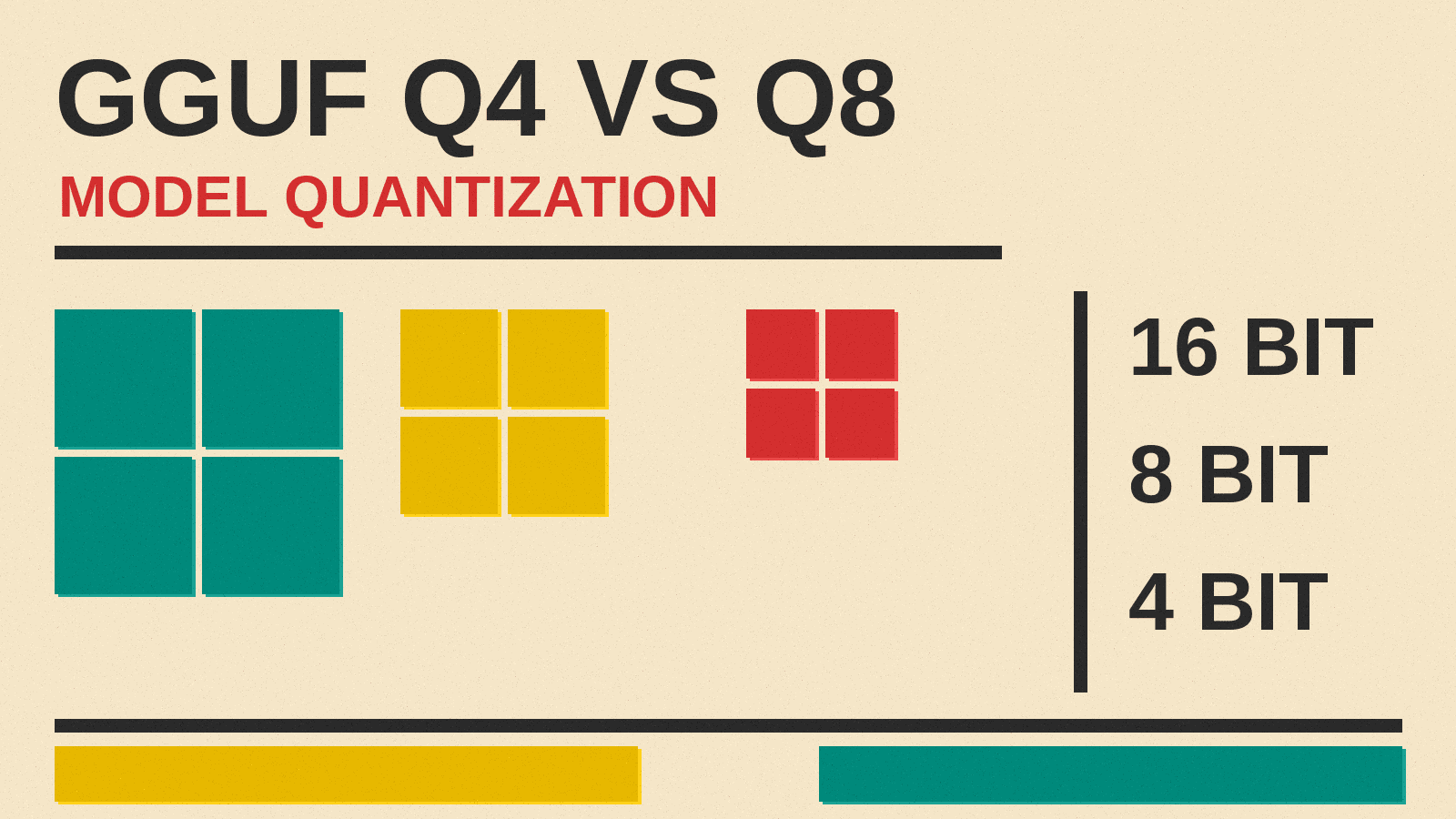
If you have ever tried to download an open-weight model to run on your own computer, you have probably met a page full of files with names like Q8_0, Q4_K or IQ2_XXS, all for the same model. They are not different models. They are the same model stored at different levels of precision, a process called quantization. This guide explains what those labels mean, why they exist, and how to think about picking one, in plain English.
If you have not run a model locally yet, start with our beginner guide on how to run an AI model on your own laptop with Ollama, LM Studio and llama.cpp, then come back here.
What a model file actually holds
An AI language model is, at its core, a very large list of numbers called weights. When you download a model, most of what you download is those numbers. The more weights a model has, and the more space each one takes, the bigger the file and the more memory your computer needs to run it.
Each weight is stored with a fixed number of bits. Hugging Face's quantization guide describes the usual starting point as 32-bit floating point (float32), with 16-bit formats such as float16 and bfloat16 as common lower-precision options. Quantization is the step of moving weights from a high-precision format to a lower-precision one, such as 8-bit integers.
What quantization is, in one sentence
In Hugging Face's words, quantization is "a technique to reduce the computational and memory costs of running inference by representing the weights and activations with low-precision data types like 8-bit integer (int8) instead of the usual 32-bit floating point (float32)."
Put simply: you store each number with fewer bits, so the whole model takes less space.
Why fewer bits means a smaller model
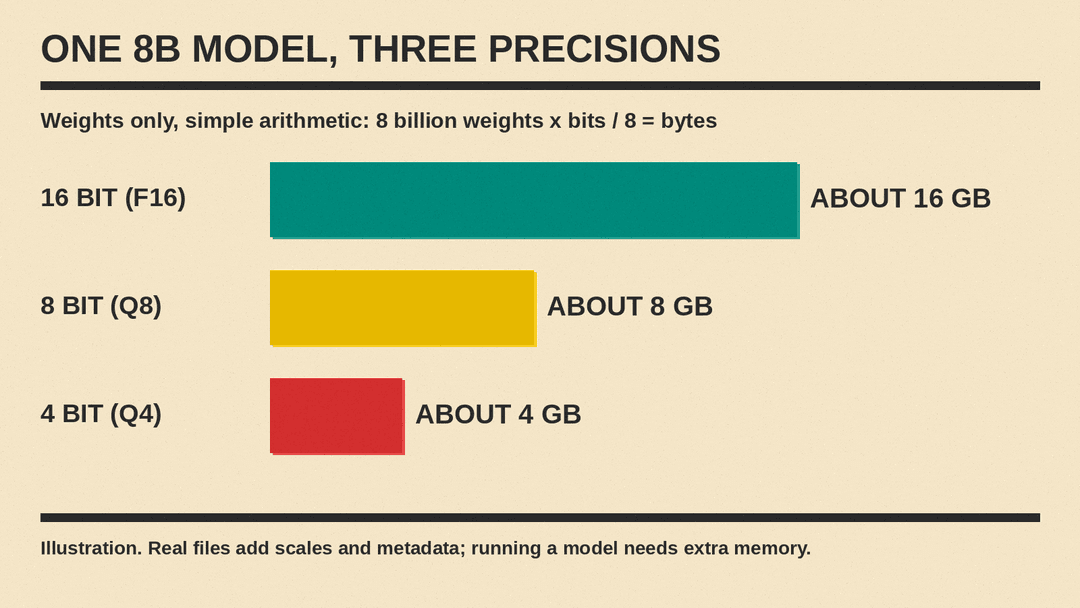
The arithmetic is simple. Eight bits make one byte. A weight stored in 16 bits takes 2 bytes. A weight stored in 8 bits takes 1 byte. A weight stored in 4 bits takes half a byte.
So, as a rough illustration that counts the weights only, a model with 8 billion weights would need about 16 GB at 16 bits per weight, about 8 GB at 8 bits, and about 4 GB at 4 bits. Real files differ a little, because they also carry extra data such as scales and metadata, and running a model needs memory beyond the file itself for the conversation it is working on.
Hugging Face lists the benefits of fewer bits: the model "requires less memory storage, consumes less energy (in theory), and operations like matrix multiplication can be performed much faster with integer arithmetic." It also notes that quantization makes it possible to run models on embedded devices, some of which support only integer data types. For local AI, the practical gain is size: a quantized file can fit on a laptop or desktop that could not hold the full-precision version.
How squeezing numbers works
You cannot fit every possible value into a few bits. An 8-bit integer can hold only 256 different values, while float32 can represent a very wide range, as the Hugging Face guide puts it. Quantization maps the original range of values onto those few slots, using a scale factor to translate back and forth. Some detail is lost in the rounding.
Modern formats reduce that loss by working on small groups of weights at a time. The GGUF formats described below split weights into blocks (for example 32 or 256 weights per block) and store a scale for each block, so each group gets its own best fit.
What GGUF is
Most quantized files you see for local AI use a format called GGUF. According to the Hugging Face Hub documentation, GGUF is "a binary format that is optimized for quick loading and saving of models." It was developed by @ggerganov, who is also the developer of llama.cpp, a popular C/C++ program for running language models.
Unlike tensor-only formats such as safetensors, a GGUF file holds both the weights and a standard set of metadata, the Hub docs say. Hugging Face lists llama.cpp, LM Studio, GPT4All and Ollama as open-source tools that work with GGUF. You can find GGUF models on the Hub by filtering for the GGUF library, and the Hub has a viewer that shows each file's metadata and the precision of its tensors.
Reading the labels: Q8, Q6, Q5, Q4 and the rest
The Hugging Face GGUF page has a table of quantization types. Here is how to read the common ones.
- F32, F16, BF16. These are full or half-precision floating-point numbers, not squeezed into integers. F16 and BF16 are 16 bits per weight. These are the largest files.
- The number after Q is the bit count. Q8 means 8-bit, Q6 means 6-bit, Q5 means 5-bit, Q4 means 4-bit, Q3 means 3-bit and Q2 means 2-bit.
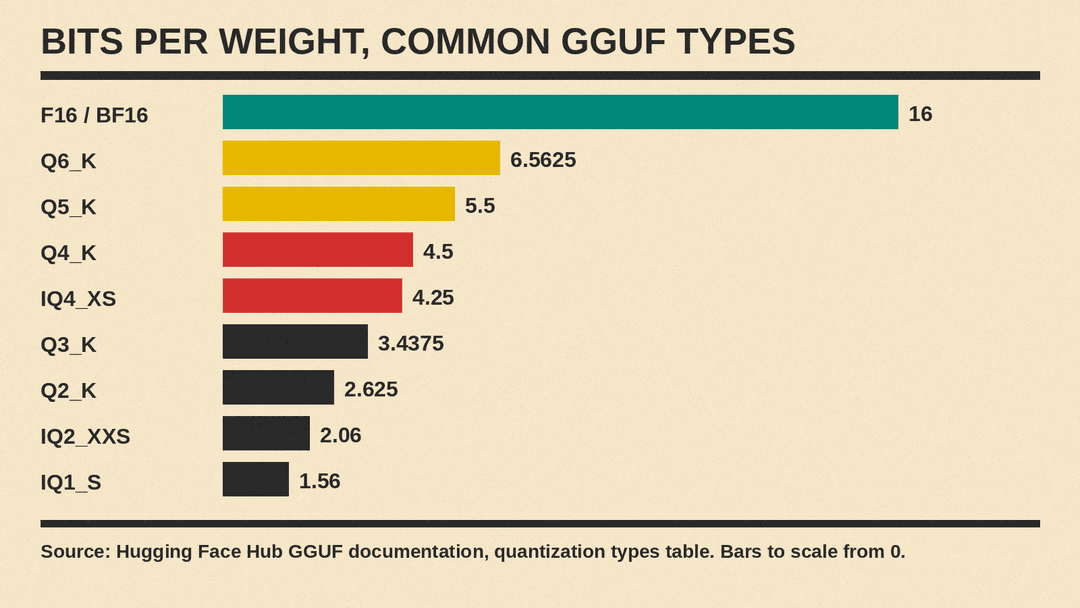
- The _K types (Q6_K, Q5_K, Q4_K, Q3_K, Q2_K). These use "super-blocks" of weights with their own scales. Because those scales take space too, the real cost per weight is a bit above the headline number. The Hub table gives 6.5625 bits per weight for Q6_K, 5.5 for Q5_K, 4.5 for Q4_K, 3.4375 for Q3_K and 2.625 for Q2_K.
- The IQ types (IQ4_XS, IQ3_S, IQ2_XXS, IQ1_S and others). These use what the table calls an "importance matrix" to decide how to store weights. They reach very low sizes, from 4.25 bits per weight for IQ4_XS down to 1.56 for IQ1_S.
- Q8_0, Q5_0, Q5_1, Q4_0, Q4_1. The Hub table lists these as legacy methods, "not used widely as of today."
- TQ1_0 and TQ2_0 are ternary types, and MXFP4 is a 4-bit "microscaling" block floating-point format, per the same table.
What you give up
Fewer bits means less detail, and less detail can mean worse answers. The Hugging Face guide is direct about this: post-training static quantization can be faster than dynamic quantization "but often with a drop in terms of accuracy," and its last step for anyone quantizing a model is to "evaluate the quantized model: is the accuracy good enough?"
Energy savings are not automatic either. The same guide summarizes benchmarks on NVIDIA RTX 4090D and RTX 5090 cards and reports that for small models (under 3 billion parameters), NF4 quantization can increase energy use by 25 to 56 percent even while it shrinks memory use, because unpacking the numbers costs more than it saves at that size. For models of 5 billion parameters or more it reports energy close to 16-bit with big memory savings. Its conclusion: quantization "remains beneficial for memory reduction," but the energy effect should be tested case by case.
How to pick a file
There is no single right answer, but a few plain rules follow from how quantization works.
- Start from your memory. Look at the file sizes on the model page and compare them to your computer's RAM (or your graphics card's memory, or unified memory on a Mac). Leave headroom: the model needs working memory beyond the file. Some model cards state a minimum. For example, the 4-bit GGUF of Recursive Flint asks for a Mac with at least 48 GB of unified memory, as we covered in our Recursive Flint explainer.
- Pick the largest file that fits comfortably. More bits keep more of the original detail. If an 8-bit or 6-bit file fits, it stays closer to the original than a 4-bit one.
- Treat very low bit counts with care. 2-bit and 1-bit types make files tiny, but they throw away the most detail. Some models are released by their makers in a low-bit form; NVIDIA's Nemotron 3.5 Bolt is one example of a model released for 2-bit use. For other models, test before you rely on a 2-bit file.
- Read the model card. A model card may say which file the uploader recommends, which tools support it, and any settings it needs.
- Try your own tasks. Benchmarks are general. Run the same few prompts you care about on two sizes and compare the answers yourself.
Where to go next
If you want a model to try, see our list of the best open-source LLMs worth using. Then pick a GGUF file that fits your machine, load it in a tool such as LM Studio or Ollama, and compare a couple of sizes on your own prompts.
