

Gemini is built into Google Slides as a side panel called Ask Gemini. Google's Collaborate with Gemini in Google Slides help page, as read on Nov 12, 2026, lists what you can do with it: generate images, generate new slides, summarize a presentation, write or rewrite content, and reference your Drive files as you write or create a new slide.
If you are new to the assistant, start with our explainer on what Gemini is. This page covers only Google Slides. The side panel in Gmail follows a similar pattern; see how to use Gemini in Gmail for that app.
Who can use Gemini in Google Slides?
The Collaborate page says the feature "requires an eligible Google Workspace or Google AI plan" and points to supported languages for Google Workspace with Gemini. That availability box does not mention Google Workspace Experiments, and it does not limit the feature to desktop or English.
The Generate and edit slides with Gemini in Google Slides page and the Generate presentations with Gemini in Google Slides page each add two lines, as read on Nov 12, 2026: the feature "is available in Google Workspace Experiments, which is a trusted tester program for users on personal accounts to try new AI features," and it "is currently available on desktop and in English only."
The Generate and edit images with Gemini in Google Slides and Vids page requires an eligible Google Workspace or Google AI plan and says the feature "is also available through our trusted tester program, Google Workspace Experiments." It links to supported languages. That box does not say "desktop and English only." The same page, as read on Nov 12, 2026, says you can generate and edit an image with "Gemini 3 Pro image" in Google Slides and Google Vids.
Google's Get started with Google Workspace with Gemini page says you must be 18 or over. A work or school account needs an eligible Google Workspace plan. A personal account can get access to AI-powered features with Google AI Plus, Google AI Pro, or Google AI Ultra. The page also says "Some AI features may not be available in your language" and, for Google AI plans, "usage limits apply." When you use Gemini in Gmail, Chat, Docs, Drive, Sheets, Slides, Meet, and Vids, it says "your data is under your control."
Its Google Slides catalog includes Generate an image, Generate and edit slides, Remove image backgrounds, and Create presentations ("Generate slide decks with Gemini in Slides"). The personal Google AI comparison, as read on Nov 12, 2026, shows the first three of those under Google AI Pro and Google AI Ultra. It does not list Google AI Plus on those three rows. Create presentations does not appear as a named row in that comparison, as read on that date.
The Workspace edition comparison, as read on Nov 12, 2026, shows those same three Slides features under Business Standard, Business Plus, Enterprise Standard, and Enterprise Plus. It does not list Business Starter or Enterprise Starter on those Slides rows. Some Google Vids rows on the same table do list Starter editions.
How do you open Ask Gemini?
From the Collaborate page:
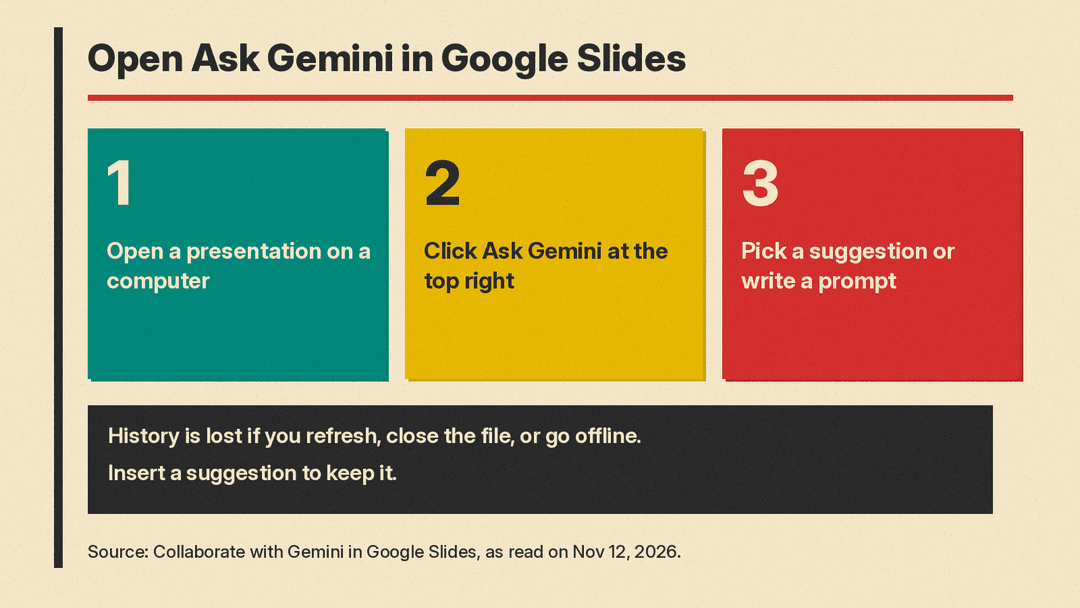
- On your computer, open a presentation in Google Slides.
- At the top right, click Ask Gemini.
- In the side panel, select a suggested prompt or write your own prompt.
You can pick from the suggestions (the page's tip is More suggestions for more options), replace the example text, and press Enter, or type a prompt and press Enter. Optional controls include More options and Clear history.
Google's tip is: "To avoid losing your history, insert a suggestion into your presentation." You lose conversation history when you refresh your browser, close and reopen the presentation, or your computer goes offline. If the output is off, add more descriptive details for images, or, for slides, add a Drive file with @ or use Match presentation style. The page also says that when you open a presentation that has text, you will find a summary in the Gemini side panel.
How do you generate a full presentation?
The Generate presentations page, as read on Nov 12, 2026, says you can generate fully editable presentations. Its availability box is the one above: an eligible plan, Google Workspace Experiments, and currently desktop and English only.
- On your computer, go to Google Slides.
- In the start screen, click "Presentation." Or, in a blank presentation with no existing slides, click Ask Gemini at the top right.
- In the side panel, describe the presentation. The page's example is: "Create a 5-slide presentation on quantum computing for a general audience with a modern design."
- Optional: click Add sources, then Add from Drive, select a file, and click Add. Optional: let Gemini search and reference content from the web, your Drive, Chat, or Gmail. The page points to source settings.
- Optional: click Match presentation style, then Add from Drive, select a file, and click Add.
- You can answer Gemini's follow-up questions or skip them.
- Click Next. Gemini generates a presentation plan with an overview; Sources, which the page describes as "the list of the documents used as reference"; and Steps, "the content outline of each slide."
- Optional: edit a slide title or content; hover over any title and click Add step; hover over a slide and click Delete; click Update plan to re-generate the outline.
- Click Approve.
- "Keep the tab open until Gemini generates your presentation; this may take a few minutes. You can switch to other tabs or windows but not close Google Slides or the Gemini side panel."
After that, the page says you can refine one slide at a time, generate additional slides, edit elements yourself, or ask Gemini to add or edit images.
How do you generate or edit slides in an existing presentation?
The Generate and edit slides page, as read on Nov 12, 2026, uses the same availability box: an eligible plan, Experiments, and currently desktop and English only. It says that, using prompts, you can generate fully editable presentations, add single or multiple slides, and edit specific, multiple, or all slides.
To add slides in an existing presentation:
- On your computer, open a presentation in Google Slides.
- At the top right, click Ask Gemini.
- In the prompt bar, describe the slide or slides you want. The page's example is: "Add 3 slides about project timelines, milestones, and team roles."
- Optional: click Match a presentation style, then Add from Drive, select a presentation, and click Add.
- Once the preview displays: beside "Replace," click Down arrow, then Insert, to insert the generated slide as a new slide; or click Replace to replace the selected slide.
- The page then lists one more step: click Submit.
To edit slides, open a presentation, click Ask Gemini, describe the edits across multiple slides or the entire presentation, and click Submit. Examples from the page: "Change bullet points across slides 2 and 4 into concise summaries."; "Adjust the tone of all slides to be more formal"; "Make all the titles font size 30".
To use specific files, the page's example is: "Create a summary slide based on @ProjectNotes." Click Add sources, then Add from Drive, or type @ and select from the menu. Select one or more files and click Add. Click Sources in the right side panel to review files Gemini used.
How is "Help me create a slide" different from a slide image?
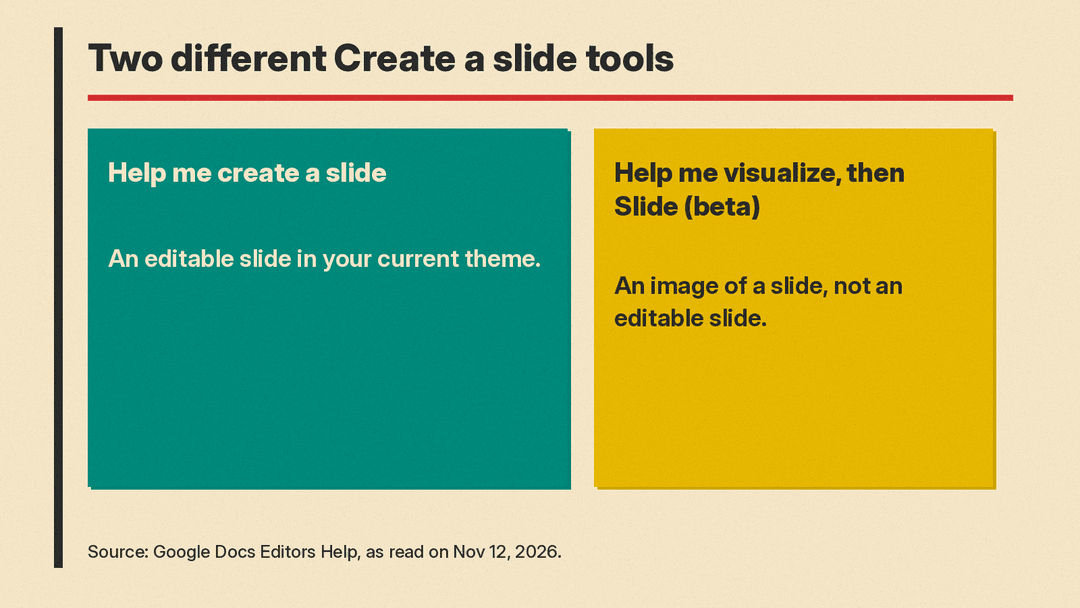
The Collaborate page describes generating a new slide in the side panel. "New slides will be generated using your current theme." You can click Ask Gemini, or use Help me create a slide in the toolbar, under Insert, or under Slide. Select or write a prompt, and reference Drive files with @. Examples from the page include "Create a slide about how to optimally train for a marathon." and "Create a slide about @Company 2023 Goals deck."
From the generated slide you can click Retry, Insert, Close and write a new prompt to refine it, or Good suggestion or Bad suggestion.
That flow is not the same as the beta tool on the images page. Under Create a slide in Google Slides (beta), that page says: "This functionality generates an image of a slide based on your active slide and presentation content. It's currently only available in Google Slides. Beta indicates that this feature is new and may make mistakes." The steps, as read on Nov 12, 2026, are: click a slide; click Insert, then Help me visualize, then Slide; enter a prompt; click Create; optionally edit the slide image with another prompt; then click Insert as new slide or Insert on this side. The page uses that last label, "Insert on this side," in this section. Its tip is: "To generate an editable slide, use the 'Generate a slide' feature."
The same page has a related beta tool, Create an infographic, that generates an image of an infographic. Those steps end with Insert on this slide or Insert as new slide.
How do you generate and edit images?
The images page, as read on Nov 12, 2026, gives this path in Slides:
- On your computer, open a presentation in Google Slides.
- Click the slide where you want the image. Click Insert, then Help me visualize, then Image.
- In the right panel, enter a prompt. An example from the page is: "A beautiful photograph of a Hawaiian beach at sunset with palm trees in the distance."
- Optional: click Add a style. Optional: click Aspect Ratio and select Square 1:1, Wide 16:9, or Tall 9:16.
- Click Create.
- To preview the image, click it. To insert it, click the image in the right panel, then click Insert in the preview window.
The page's tip is: "For better results, avoid figurative language in your prompt. When you create a prompt, you can include the subject, setting, distance to subject, materials, or background."
The Collaborate page describes a second path: open Ask Gemini, click Tools, then Create images, enter a prompt, and click Submit. When the image generates, you can select Preview or Generate more. In the preview window, click Insert. To edit the generated image, enter a prompt that describes the adjustment.
To edit an image already on a slide, the images page says: click an image, then Edit image. "If this action opens Google Pics instead, your account already has access to Google Pics." Enter a prompt, click Create, preview the image, then click Replace with image. Optional: next to that control, click the Down arrow for Insert as image or Insert as background, or click Close.
To remove a background, the same page's steps are: open a presentation, click an image, and click Remove background.
The images page, as read on Nov 12, 2026, also names a set of languages for this image feature, including English, Spanish, French, German, Japanese, and others. It does not apply that set to every Gemini tool in Slides. On that page, generated images are "for use only within Google Slides and Google Vids." The Collaborate page says generated images are "for use only within Google Slides." Both pages say Gemini-generated images "may not represent real-world situations."
How do you write, rewrite, and summarize?
The Collaborate page says that when you open a presentation and add text boxes, you can ask Gemini to generate a title or body text. "Your slide needs to have existing content in order to see this suggestion." Select an empty text box, then click Write a title (for a title box) or Help me write (for a body text box). The side panel opens and generates the text. Click Insert. If the text box is selected, the output goes into it.
You can also open Ask Gemini and enter a prompt. Examples from the page: "Summarize this presentation in 3 sentences."; "Create a slide that celebrates a colleague's work anniversary." Then click Insert, Retry, or Good suggestion or Bad suggestion.
To get answers from the web, the same page says to include phrases such as "Use Google Search" or "Using web search" in your prompt. One of its examples is: "Write a paragraph describing the weather today in Mountain View, California using web search."
How do you reference Drive files and set sources?
The Collaborate page's example is: "Create a slide outlining the next steps from @meeting notes and @core team sync." After a response, click Sources to see which files were used, then Insert, Retry, or send feedback.
Google's Learn how to use sources with Google Workspace with Gemini page says you can add Google Docs, Google Sheets, Google Slides, and PDFs from Drive. You need permission to access the file. A source remains active for the entire conversation. In Slides, go to slides.google.com, click Ask Gemini, click Add sources, then Add from Drive, select a file, and click Add.
To manage source settings, the same page's steps, as read on Nov 12, 2026, are: go to slides.google.com, click Ask Gemini, click Add sources, then Gemini search settings, and turn Drive search, Gmail search, Chat search, or Web search on or off.
That page's important note is: "Gemini only searches the sources you have selected, but may use any app data enabled by an administrator as well as activity from across Workspace apps to prioritize the most relevant information from available sources. Some sources are on by default, and you can disable them in your source settings at any time." Gemini can also reference sources from a previous turn. To exclude a source you had included earlier, start a new conversation and set source settings there.
Google's Deep Research help page, as read on Nov 12, 2026, includes Slides among the Workspace apps where you can use Deep Research. The steps for that tool are in our guide to how to use Gemini Deep Research, not in this walkthrough.
How do you use a Gem?
The Collaborate page marks this as important: "Not all languages support Gems." Click Ask Gemini; in the side panel, click Gems; click the Gem you want; select a custom or premade Gem; type a question or prompt at the bottom. The page's tip is that you can create a Gem at gemini.google.com and then use it in the Gemini app and the Gemini side panel.
The same page also describes using Ask Gemini from Slides to schedule, reschedule, or delete events on your primary calendar, draft an email or chat message, or create a Google Docs document or a Google Sheets spreadsheet. Those tasks are on that Slides help page. They are not the same as generating a slide.
What limits apply to suggestions and images?
The Collaborate page and the images page both say Gemini feature suggestions do not represent Google's views and should not be attributed to Google; you should not rely on Gemini features as medical, legal, financial, or other professional advice; and the features may suggest inaccurate or inappropriate information.
The Collaborate page adds that conversations with Gemini in Slides are not saved to Gemini Apps Activity, and that deleting your Gemini in Slides conversation history does not delete information saved to Gemini Apps Activity.
If you want to keep a result, insert it into the presentation before you refresh, close the file, or go offline. If you are generating a full deck, keep the Google Slides tab and the Gemini side panel open until generation finishes.
Sources
- Collaborate with Gemini in Google Slides
- Generate and edit slides with Gemini in Google Slides
- Generate presentations with Gemini in Google Slides
- Generate and edit images with Gemini in Google Slides and Vids
- Get started with Google Workspace with Gemini
- Learn how to use sources with Google Workspace with Gemini
- Use Deep Research in Gemini in Workspace apps
