
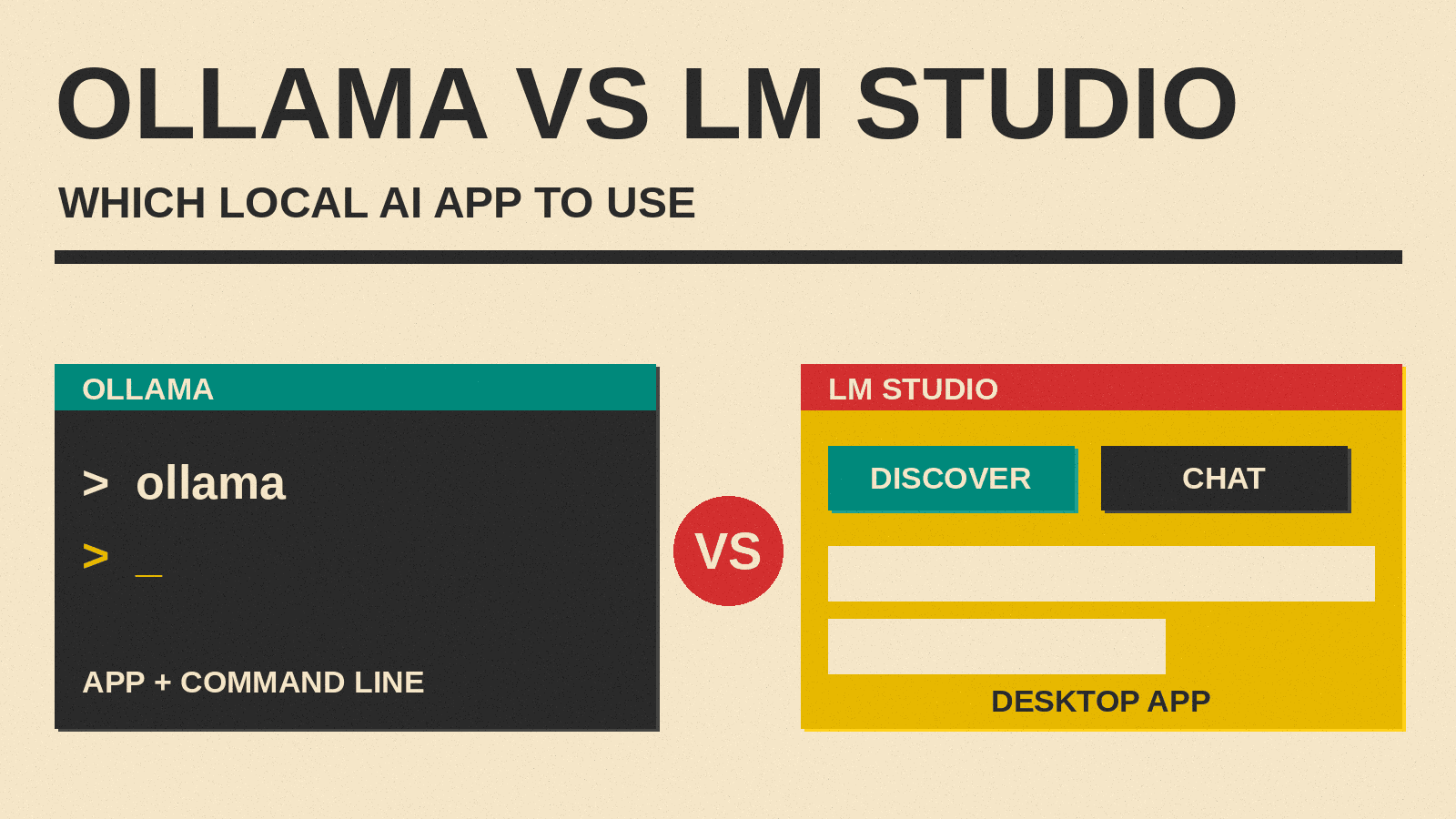
If you want to run an open model on your own computer, two options are Ollama and LM Studio. Both list the local app at no charge. Both run models on your machine. Both can also act as a local server for other apps. They feel different to use, though, and the right pick depends on how you like to work.
This guide compares the two side by side for beginners. It covers who each app suits, how to install it, what the interface looks like, where the models come from, how server mode works, what the license and price look like, what hardware you need, and what happens to your data. Every claim comes from the official sites and docs for each tool, listed at the end. Details are accurate as of November 2026, and both products change often, so check the linked pages before you decide.
The short answer
Pick LM Studio if you want a desktop app with windows, tabs and buttons, and you want to browse and download models without typing commands.
Pick Ollama if you are comfortable with a terminal, or you want a small tool that sits in the background and serves models to other apps.
You can try both. If you are brand new to the idea of running a model locally, start with our beginner guide to running an AI model on your own laptop, then come back here to choose between these two.
What each app is
Ollama describes itself as a way to run open models locally or in the cloud. Its home page says prompts are never stored or trained on when you use it. Ollama ships as an app and as a command line tool. After you install it, it runs in the background on your computer and answers requests on a local address. Its GitHub project describes it as a way to get up and running with open models.
LM Studio is a desktop app for running open models on your computer. Its docs say you can download and run local models, use a chat interface, connect MCP servers, search and download models through Hugging Face, and serve models on OpenAI-like endpoints. As of November 2026, the LM Studio home page also leads with a product called Bionic, which it describes as LM Studio's agent for open models. The download page also shows Bionic first, with the LM Studio app below it. This guide focuses on the core app for running models locally.
Both tools can also reach cloud models. That is optional in each case, and we cover it in the privacy section.
Who each app suits
Think about how you want to spend your first hour.
- A first-time user who wants a window and a chat box: LM Studio is built around that. Its docs walk you through three steps in the app: download a model from the Discover tab, load it from the Chat tab, then chat.
- Someone who likes a terminal: Ollama is built around a short set of commands, such as one to run a model and one to download a model.
- Someone who wants other apps to use a local model: both work. Ollama and LM Studio each expose an API that follows the OpenAI style, so tools that can point at a custom address can talk to either one.
- Someone setting up a small always-on machine or server: Ollama runs as a background service, and LM Studio has a separate headless version called llmster for machines where you do not need the window.
None of this is a hard rule. Either app can do most of these jobs.
Installing each app
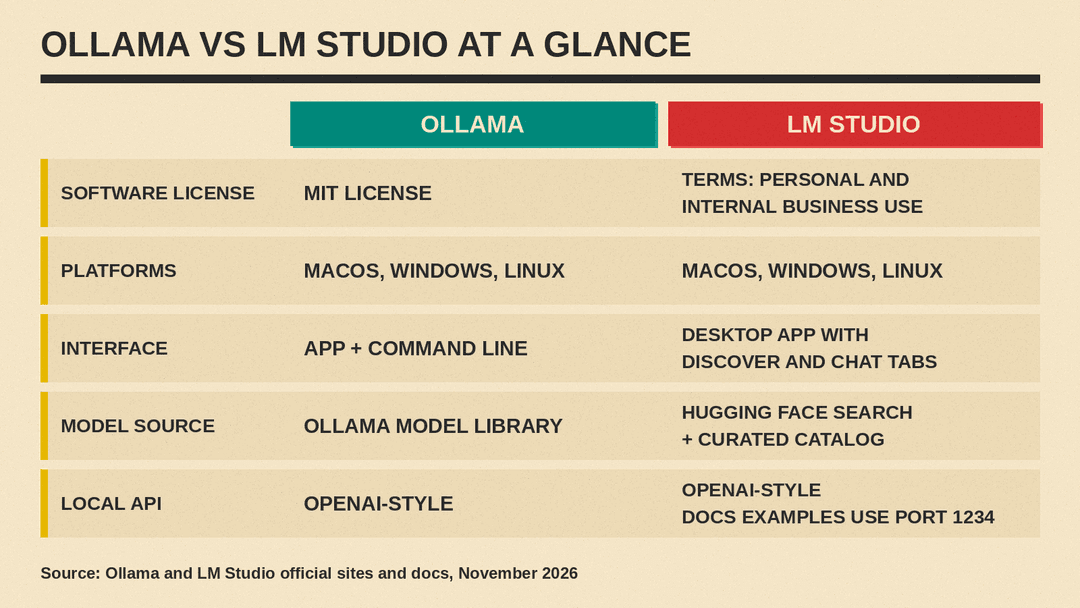
Both apps support macOS, Windows and Linux.
Ollama
Per the Ollama quickstart, you download Ollama for macOS, Windows or Linux, then open the app or start from your terminal by typing ollama. The setup prompts let you sign in to use cloud models or choose a local model.
Platform details from the Ollama docs:
- On macOS, you mount the downloaded disk image and drag the app to the Applications folder. The macOS page lists macOS Sonoma (version 14) or newer, with Apple M series chips (CPU and GPU) or x86 (CPU only).
- On Windows, the Windows page says Ollama runs as a native app, needs Windows 10 22H2 or newer, and installs in your home directory without Administrator rights by default. It asks for at least 4 GB of space for the program itself, and models need more room on top of that.
- On macOS, Linux and Windows, the download page also offers a one-line install command for the terminal. The quickstart notes that on Linux you may need to start the server with
ollama serveif it is not already running.
LM Studio
You download an installer for your operating system from the download page. The system requirements page lists:
- macOS: Apple Silicon (M1 to M4), macOS 14.0 or newer. Intel Macs are not supported.
- Windows: x64 or ARM (Snapdragon X Elite) systems. On x64, the CPU needs AVX2 support.
- Linux: x64 or ARM64. LM Studio for Linux is distributed as an AppImage, and Ubuntu 20.04 or newer is required.
One difference matters for Mac owners. As of November 2026, Ollama lists x86 Macs as CPU only, while LM Studio lists Intel Macs as unsupported. If you own an Intel Mac that runs macOS 14 or newer, Ollama is the one of the two you can try.
Interface: window versus command line
LM Studio is the more visual of the two. The docs describe a Discover tab for finding models, a Chat tab for talking to a loaded model, and a My Models area where you can change the models directory. You can attach documents to a chat and ask questions about them, which LM Studio calls chatting with documents. Its docs say the document stays on your machine and processing happens locally. The app also acts as an MCP client, so you can install MCP servers and use them with your local models. There are keyboard shortcuts too, such as one that jumps to the Discover tab.
Ollama puts the command line first. The quickstart shows that running one command with a model name downloads the model and starts a chat in your terminal, and you type /bye to leave. Ollama also has an app. On macOS, the quickstart describes an Apps section where you can connect Claude Desktop or ChatGPT Desktop and use your Ollama models from there. The docs list many other integrations, including editors and coding tools, so Ollama can work as the engine behind another program that you actually look at.
For a complete beginner, this is a major difference. In LM Studio you can do the whole job by clicking. In Ollama you will likely type a few commands, or pair it with another app that gives you a chat window.
Model catalog: where the models come from
Ollama has its own model library. Entries show a short description, tags such as tools, vision, thinking, embedding and cloud, and the sizes on offer. You pick a name from the library and Ollama downloads it for you. The library page also shows pull counts and when each entry was last updated. The docs also include an Importing a Model page for models you get elsewhere.
LM Studio searches Hugging Face through its built-in downloader. Per the download docs, you can search by keyword, type a specific user/model name, or paste a full Hugging Face URL into the search bar. LM Studio also keeps a curated model catalog on its site, with labels for tool use, reasoning and vision, and a split between local models and cloud models.
LM Studio runs models in the formats its engines support. Its docs say it uses llama.cpp for GGUF models on Mac, Windows and Linux, and Apple's MLX on Apple Silicon Macs. If those file format names are new to you, read our explainer on GGUF versus Safetensors model file formats.
LM Studio's docs also explain the download options you will see for each model, with names like Q3_K_S and Q_8. The Q stands for quantization, which compresses a model file and gives up some quality. The docs suggest choosing a 4-bit option or higher if your machine can run it. Our beginner piece on what Q4 and Q8 mean covers the idea in plain English. In the Ollama library, each entry lists size tags, such as 8b or 70b, that you can pick from.
Server and API mode
Both apps can serve a model to other programs on your computer. This is how a chat app, a note taking tool or a coding assistant can use your local model instead of a cloud service.
Ollama serves an API on your own machine at http://localhost:11434 by default. Its FAQ says it binds to 127.0.0.1 on that port, and you can change the address with the OLLAMA_HOST setting if you want other devices on your network to reach it. Its OpenAI compatibility page says Ollama supports a subset of the OpenAI API, including chat completions, embeddings and a Responses endpoint. Ollama's docs also include an Anthropic compatibility page. When you point an OpenAI client at a local Ollama server, the client asks for an API key, but Ollama ignores the value.
LM Studio can serve local models on localhost or the local network, per its docs. Its developer docs describe a REST API plus OpenAI-compatible and Anthropic-compatible endpoints, and a command line tool called lms that can start the server. The OpenAI compatibility page lists endpoints for models, responses, chat completions, completions and embeddings, and says you can reuse existing OpenAI clients by changing the base URL. Its examples use port 1234.
In short, both give you a local, OpenAI-style address. If a tool you want to use says it works with any OpenAI-compatible server, either choice is likely to work, though each lists only a subset of features, so check the compatibility pages for the exact options you need.
License and price
Ollama. The software in the Ollama GitHub repository is under the MIT License. The pricing page lists a pay as you go tier that includes running models locally with no subscription, and says that running models on your own hardware is always unlimited. Paid plans add usage credits for Ollama's cloud models. If you only want local models, you do not need any of that.
LM Studio. The structured data on its download page lists the app's price as zero. The terms of service grant a non-exclusive, non-transferable license to use the software for your personal and internal business purposes. They also say some features may be offered for a fee, including subscriptions, usage-based charges or usage credits. If you plan to use LM Studio at work, read those terms first. They apply to the app. The models you run in it have their own licenses.
That last point applies to both tools. The app license and the model license are separate. A model can carry a different license from the app that runs it, and the LM Studio terms say you are responsible for complying with the license of any third party model you use. Check each model's license before you use it for anything beyond personal experiments. Our guide on how to read an AI model card shows where to look.
Hardware: what your computer needs
Models are large files, and they need memory to run. Neither app can change that, so your hardware sets the limit on which models feel usable.
For a deeper look at the math, see how much memory you need to run an AI model locally. The official docs give these starting points:
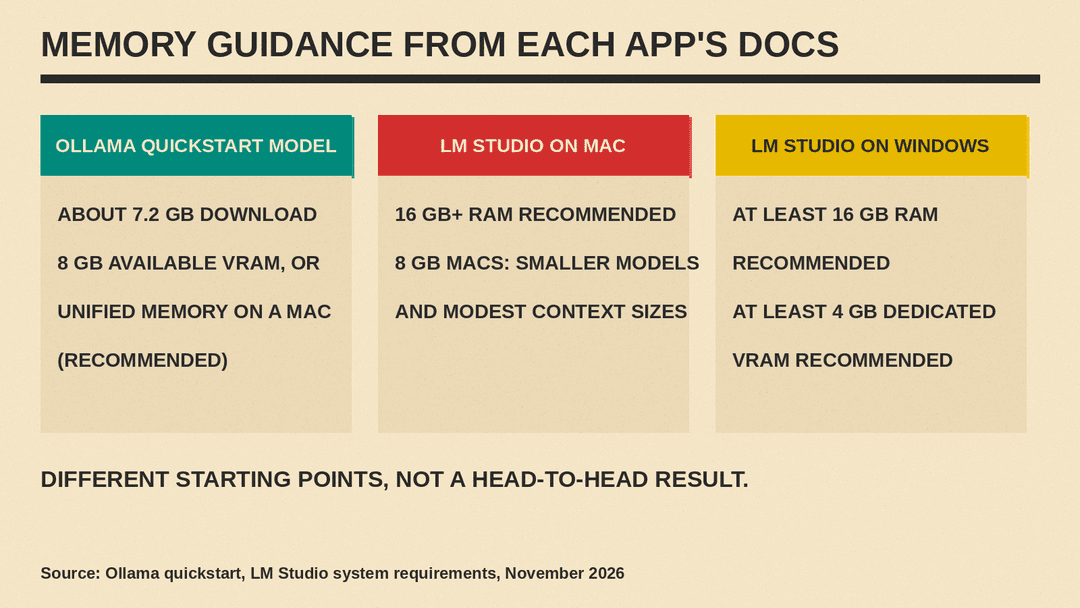
- Ollama: the quickstart uses Gemma 4 E2B as its local example. The download is about 7.2 GB, and the docs recommend 8 GB of available VRAM, or unified memory on a Mac. They add that larger context windows need more memory, and that with less VRAM Ollama can use system RAM, but responses may be slower.
- LM Studio on Mac: 16 GB or more of RAM is recommended. The docs say you may still use it on an 8 GB Mac if you stick to smaller models and modest context sizes.
- LM Studio on Windows: at least 16 GB of RAM is recommended, and so is at least 4 GB of dedicated VRAM.
These figures describe different starting points, so do not read them as a head-to-head result. They are not a promise that a given model will run well.
On graphics cards, the Ollama hardware page lists support for Nvidia GPUs, AMD Radeon GPUs through ROCm, Apple GPUs through Metal, and additional GPUs on Windows and Linux through Vulkan. LM Studio's docs list the supported processors and GPU types on its system requirements page, and note that it runs llama.cpp and MLX under the hood.
One more practical difference involves memory use after you stop chatting. The Ollama FAQ says models stay loaded in memory for 5 minutes by default, and you can unload one right away with the ollama stop command. LM Studio's docs describe loading a model as allocating memory for its weights, and its developer docs list idle timeout and auto-evict settings for the server. In both cases, a loaded model uses memory until it is unloaded.
Privacy: what stays on your computer
Privacy is one reason to run a model locally. Both companies state that local use keeps your chats on your device.
Ollama. The FAQ says Ollama runs locally and the company does not see your prompts or data when you run locally. For cloud-hosted models, it says it processes prompts and responses to provide the service but does not store or log that content and never trains on it. It also says it collects basic account information and limited usage metadata that does not include prompt or response content. If you want to be sure nothing goes to the cloud, the FAQ describes local only mode. You set OLLAMA_NO_CLOUD=1 or a setting in a config file, then restart. That turns off Ollama's cloud models and web search.
LM Studio. The privacy policy says LM Studio can run entirely on your device, and that if you download and run models locally, your messages, chat history and documents are never transmitted from your system. The policy lists the cases where the company does receive something: when you search for or download a model, when the app checks for updates, when you email the company, and when you use paid cloud features. The offline operation page adds that chatting with downloaded models, chatting with documents and running a local server do not need the internet, while model search, model downloads, runtime downloads and update checks do.
The pattern is the same for both. After you download a model, chatting is local. Downloading and updating need the internet. Cloud features are separate, and you choose whether to use them.
When to pick which
Use this as a quick checklist.
- Choose LM Studio if you want a point and click app, you like browsing a model list inside the app, or you want to chat with your own documents in a window.
- Choose Ollama if you are happy with a terminal, you want a light tool that runs in the background, or you use another app that already lists Ollama as a supported backend.
- Choose either if you only need a local OpenAI-style address for another tool. Both offer one.
- Check the license first if you plan to use LM Studio in a company setting. Ollama's software is MIT licensed. LM Studio's terms allow personal and internal business use.
- Check your hardware first with either tool. Start with a model that fits your memory.
Can you use both?
You can try both. The main thing to watch is disk space, because models are large. Ollama's docs say models can take tens to hundreds of GB, and both apps let you change where models are stored. Ollama uses the OLLAMA_MODELS setting for that, and LM Studio has a setting in its My Models area.
A simple plan for a beginner:
- Install LM Studio and download one small model from the Discover tab.
- Chat with it and see how fast it feels on your computer.
- If you later want a tool that talks to a local model, try Ollama or use LM Studio's server mode.
- Keep the app that fits how you work, and remove the other.
Bottom line
LM Studio and Ollama solve the same problem from different directions. LM Studio gives you a full desktop app with a model browser, a chat window and a server switch. Ollama gives you a compact tool, driven mostly by commands, that other apps can build on. Both run on macOS, Windows and Linux, both can serve an OpenAI-style API on your machine, and both keep local chats on your device. The differences covered above are the interface, the license terms and the Mac support. Pick the one that matches how you like to work, and start with a small model.
Sources
- Ollama home page
- Ollama download page
- Ollama pricing
- Ollama model library
- Ollama documentation index
- Ollama quickstart
- Ollama macOS requirements
- Ollama Windows requirements
- Ollama hardware support
- Ollama OpenAI compatibility
- Ollama FAQ
- Ollama GitHub repository
- Ollama MIT License file
- LM Studio home page
- LM Studio download page
- LM Studio docs overview
- LM Studio getting started
- LM Studio system requirements
- LM Studio offline operation
- LM Studio download a model
- LM Studio model catalog
- LM Studio developer docs
- LM Studio OpenAI compatibility
- LM Studio terms of service
- LM Studio privacy policy
