
OpenAI's Images 2.6 launch on November 4, 2026 came with animated GIFs in ChatGPT as its headline feature. The developer side adds more. The new GPT-Image-2.6 API models add a setting that controls how much the model plans, markup-guided edits, SVG output and GIF output, and OpenAI's documentation now spells out the limits for each.
This guide goes through those four features in plain terms, using OpenAI's launch post and its image generation guide. You do not need to write code to follow it. If you work with designers or developers who use these models, it explains what each setting is for.
Two models: Flare and Sunburst
OpenAI offers two API models under Images 2.6. According to the launch post, GPT-Image-2.6 Flare is the faster one: at low quality it can produce an image in as little as six seconds, and OpenAI says it also improves layout quality for posters, product images and other professional visuals. GPT-Image-2.6 Sunburst is aimed at detail and precision, with greater consistency across edits at medium or high quality.
OpenAI says Images 2.6 generates images 50% faster than before. The company also says people now create 4 billion images a week across ChatGPT, Codex and the API. Both are OpenAI's own figures.
The documentation says both models support complexity control, markup-guided edits, SVG output and animated GIF output through the Image API. One note from the docs: the example code in the guide still uses the older GPT Image 2.5 model names in many places, so read the 2.6 sections for the new features.
Complexity: how much the model plans
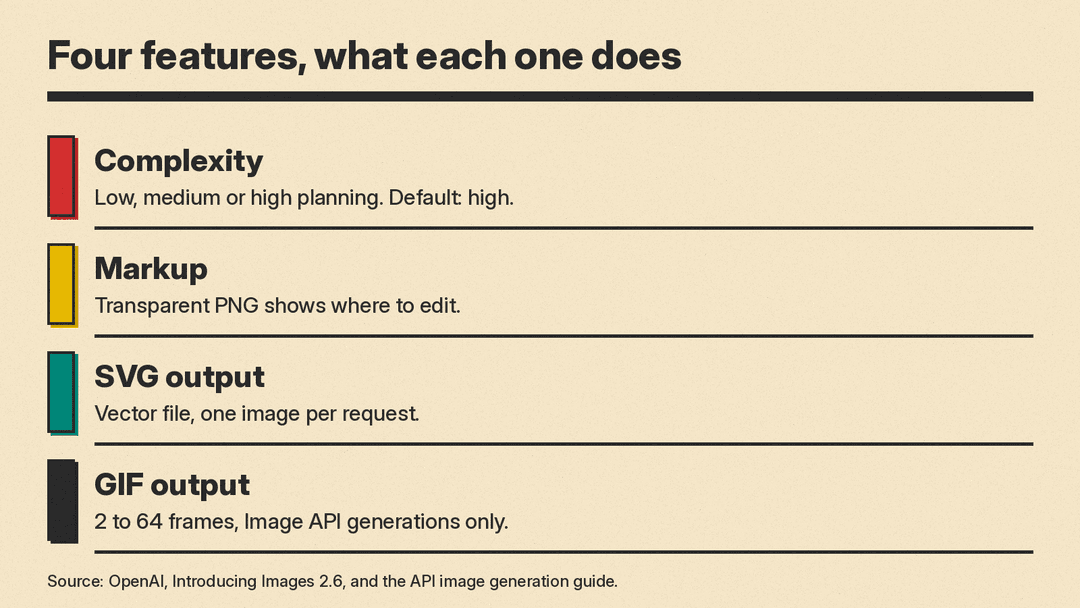
The new complexity setting controls how much the model plans before it draws. The allowed values are low, medium and high. If you leave it out, both models use high.
OpenAI's advice is simple. Low complexity suits focused edits, such as changing a background or a sign. Higher complexity can help with dense text, complicated layouts and the relationships between objects. The docs also warn that higher complexity can add waiting time and can introduce unwanted changes, so you should compare results on your own task. Changing complexity has no separate fee.
Complexity is not the same as quality. Quality controls visual detail and fidelity, while complexity guides how much goes into the scene. In the launch post, OpenAI recommends low complexity for most editing tasks, paired with whatever image quality your workflow needs, and medium or high complexity for scenes with many elements or constraints.
Markup: draw where the change should happen
Markup-guided edits let you show the model where to change something instead of describing it in words. You keep the original photo as the first input and add a second, transparent PNG that holds your circles or sketches. Then you describe the change in the prompt.
The docs list firm rules for this:
- The markup layer must be a transparent PNG with the same width and height as the first image. Do not flatten it onto the photo.
- The markup applies to the first input image only. Any other images act as references.
- The first image and the markup layer can each hold at most 16,777,216 pixels, and the markup file has a 50 MB limit.
- Markup cannot be combined with a mask or with the prompt rewriter.
OpenAI's example circles a striped vase in a kitchen photo and asks for a solid cobalt blue vase, telling the model to keep the rest of the room unchanged and to remove the red circle from the result. The prompt is as important as the circle: say what to change and what to keep.
A mask is the other way to mark a region. The docs note that masking with GPT Image is entirely prompt-based, so the model may not follow the exact shape of the mask, and they say markup cannot be combined with a mask. We first covered markup in October, when it showed up in OpenAI's API spec; see our post on the GPT Image 2.6 spec change.
SVG output: editable vector graphics
Set the output format to SVG on the image generation endpoint and the API returns a vector file instead of a pixel image. SVG suits icons, logos and illustrations, where you want editable paths, shapes and colors that stay sharp at any size.
There are limits. You can request only one image at a time. SVG does not work with streaming, partial images, compression settings or the prompt rewriter, and the edit endpoint does not support SVG output. OpenAI also explains how it works: the API first makes a reference image, controlled by the quality setting, and uses it to produce the SVG. The result is static vector content with no scripts, no external resources and no embedded raster images.
In OpenAI's example, Flare and Sunburst each drew a logo for a made-up bakery called Field & Flour from the same prompt. If you plan to use AI for logos, our step-by-step logo guide covers the design side, and Ideogram Vector 1.0 is another route to editable SVG.
GIF output: frames, timing and size
The API can also return an animated GIF from the image generation endpoint. You describe the subject, the motion and the loop in the prompt, then set a few fields:
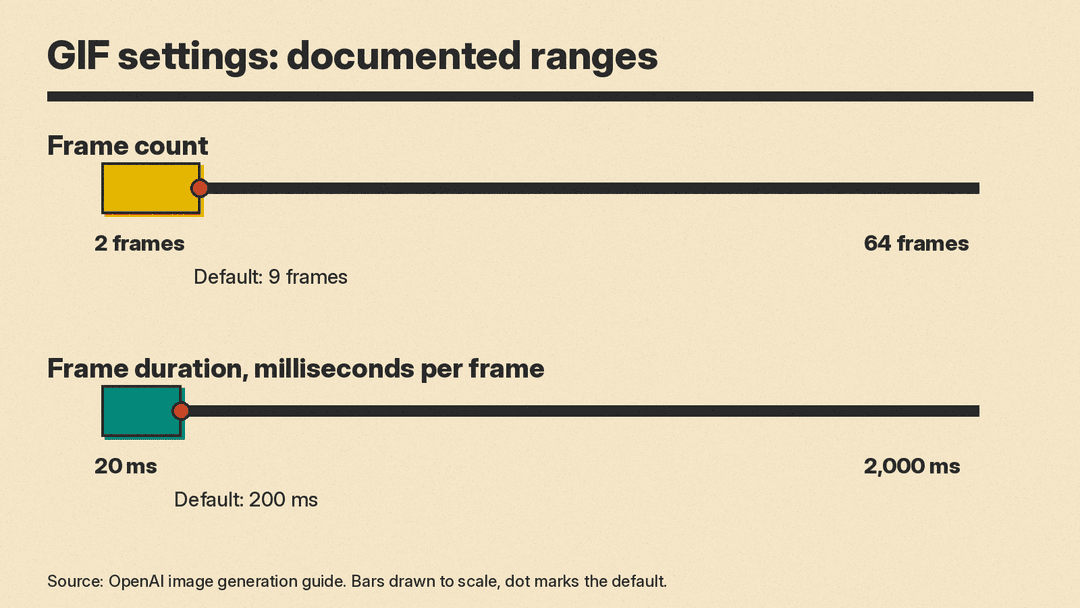
- Frame count: 2 to 64 frames, with a default of 9.
- Frame duration: 20 to 2,000 milliseconds per frame, rounded to 10 ms, with a default of 200.
- Size: auto, or a width and height that are multiples of 16 for each finished frame.
With the defaults, a GIF is nine frames of 200 milliseconds each, or 1.8 seconds. OpenAI's lantern example uses exactly that and returns the monkey to its starting pose at the end of the loop. The edit endpoint does not support GIF output, and GIFs do not work with streaming, partial images or custom compression. If a request is too large for the model's limits, the docs say to reduce the frame count, frame size or number of animations.
Our earlier post on the ChatGPT animated GIF launch covers the ChatGPT side. The limits above are for the API. OpenAI's launch post and guide do not give frame limits for the ChatGPT feature.
OpenAI's launch post shows one practical prompt style for GIFs: ask for a single animation sprite sheet with a fixed number of frames in a grid, the same character in every panel, a fixed camera and a last frame that leads back to the first. That kind of prompt gives the model a clear plan for a loop.
Who should care
If you make social posts, mascots or product visuals, the GIF and SVG options are the visible changes: they turn one prompt into a looping reaction or a logo file you can edit. If you edit photos, markup and a low complexity setting are the features to try first. If you build tools, the docs make clear that complexity, markup, SVG and GIF each have separate rules, so test each one on its own before you promise results to customers.
Figma is also lining up the model. In the launch post, Figma Weave creative director Itay Schiff says the team is excited to add GPT-Image-2.6 to Figma Weave. For background on Weave, see our Figma Weave explainer.
One more note from the guide: you may need to complete API Organization Verification in the developer console before using GPT Image models. On cost, the guide says GPT Image 2.6 image output costs $30 per million billable tokens, and that markup-guided edits use the same token rates as other edits with no extra fee. For SVG output you pay the image model's rate for the reference image plus the authoring model's rate for the tokens used to write the SVG, so the total depends on token use. The launch post links to OpenAI's pricing details for text and image input rates; check them before you budget.
