
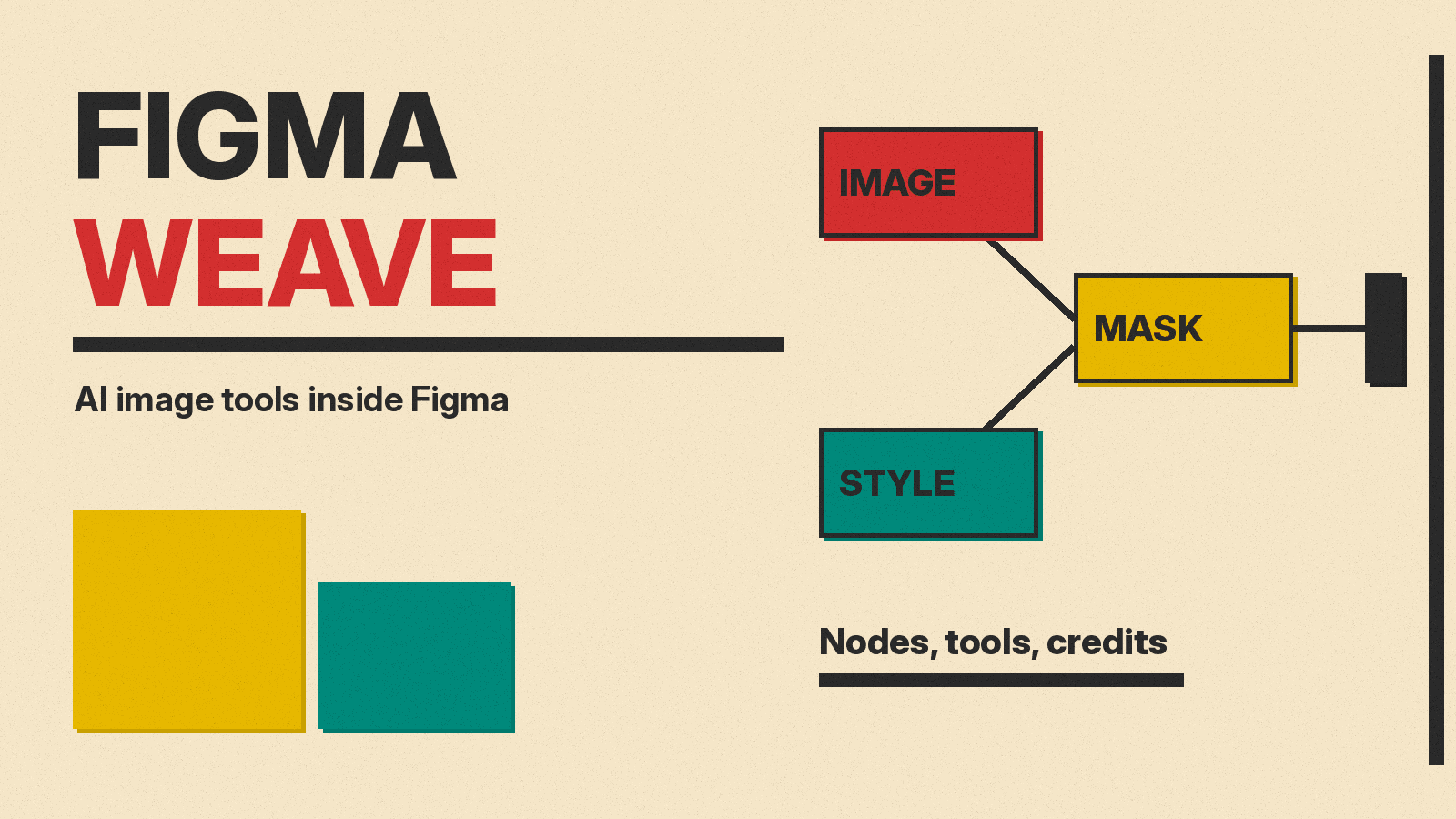
Figma Weave is Figma's AI tool for making and editing images, video, audio and 3D assets. It started as a separate company called Weavy, which Figma acquired, and it still lives in its own app at weave.figma.com. At the same time, some of its work now shows up inside regular Figma files as "Weave tools". The split is easy to miss, so this guide explains what each part does, how they connect and how credits work, as of November 2026.
What Figma Weave is
According to the Figma Weave FAQ, Figma Weave is the new name for Weavy, a creative platform for AI media generation and editing. Figma says Weave is available today as a standalone experience and that over time it will integrate into the rest of the Figma platform.
Figma describes Weave as a node-based canvas. Instead of typing one prompt and getting one picture, you place boxes (nodes) on a canvas and connect them. One node might generate an image, the next might mask part of it, and a third might change the color grade. Figma's Weave overview page says the editing steps include layers, masking, color grading, compositing, inpainting and relighting, and that generation and editing happen in the same place.
The same page lists models from Google, Kling, Runway, Luma, Stable Diffusion, Recraft, Bria and others, covering image, video, audio and 3D. The idea is that you pick a different model for each step of a workflow without paying for separate subscriptions. Figma also separates Weave from Figma Make: Make builds interactive apps from prompts, while Weave focuses on visual asset creation.
If you only want to know how image models differ from each other, our guide to writing AI image prompts is a better start. Weave matters when you want to chain several steps and repeat them.
Weave tools inside Figma Design
Inside a Figma file, Weave shows up as Weave tools. Figma's help page calls them AI-powered apps you can use on your design content. You select an image on the Figma Design canvas, pick a tool, and it runs on that image. The page says Weave tools in Figma Design are available on Professional, Education (not K-12), Organization and Enterprise plans, and that you need edit access to the file.
The help page lists these examples:
- Generate mockup, which places your design in a physical setting such as an out-of-home campaign or product packaging.
- Transfer style, which applies the look of one image to another.
- Replace background, where you describe a new background.
- Change lighting, where you choose a lighting option.
- Text to vector illustration, which turns a prompt into a minimalist vector illustration.
- Apply color palette, which takes the palette of one image and applies it to another.
You can choose tools built by Figma, tools published by the Figma Community, and, on Organization and Enterprise plans, tools your own organization published internally. Figma announced on October 30, 2026 that internal publishing is now available on those two plans, according to its release notes. Internally published tools appear in the Tools tab next to the ones from Figma and the Community.
For designers who already use AI for logos and brand work, these tools overlap with ideas in our guides to designing a logo with AI and editing photos with AI. The difference is that the step happens inside the file you are already working in.
How the two products connect
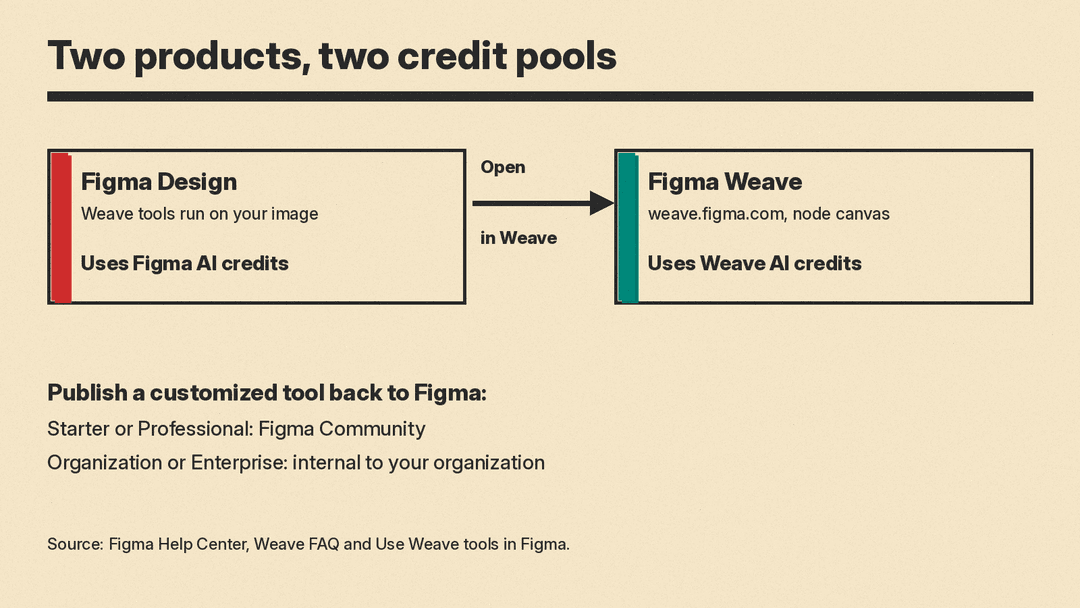
Each Weave tool is powered by a node-based workflow built in Figma Weave. Figma's help page says you can open any tool's underlying workflow to see how it works, duplicate it and build on it. To do that, you select Tools in the navigation bar, filter by the Weave resource type, hover over a tool, click the three dots and choose Open in Weave.
Once the workflow is open, you can change the models, prompts and settings behind it. You can then publish your version as a tool. Where it goes depends on the plan connected to your Weave account: Starter and Professional accounts publish to the Figma Community, and Organization and Enterprise accounts publish internally and cannot publish to the Community.
You need a Weave account to use the full platform. Figma says that if you already have a Figma account, you can sign in at weave.figma.com with the same credentials.
Using Weave models from an AI agent
On October 26, 2026, Figma added another way in. Its release notes say all of the video and image models in Figma Weave are now available in your AI agent through the Figma MCP. MCP, the Model Context Protocol, is a standard way for AI apps to connect to outside tools; our plain-English guide to MCP explains the idea.
In practice, this means that with a Weave account connected to your Figma account, you can ask an external agent to generate a video or an image while you chat with it. Figma names Seedance, Kling and Nano Banana as examples of models you can reach this way. Images and videos made this way use Weave credits.
How credits work
Credits are the part most likely to surprise a new user. Figma says Weave AI credits and Figma AI credits are separate pools, because Weave is not yet integrated into the Figma platform and each product tracks its own usage and billing.
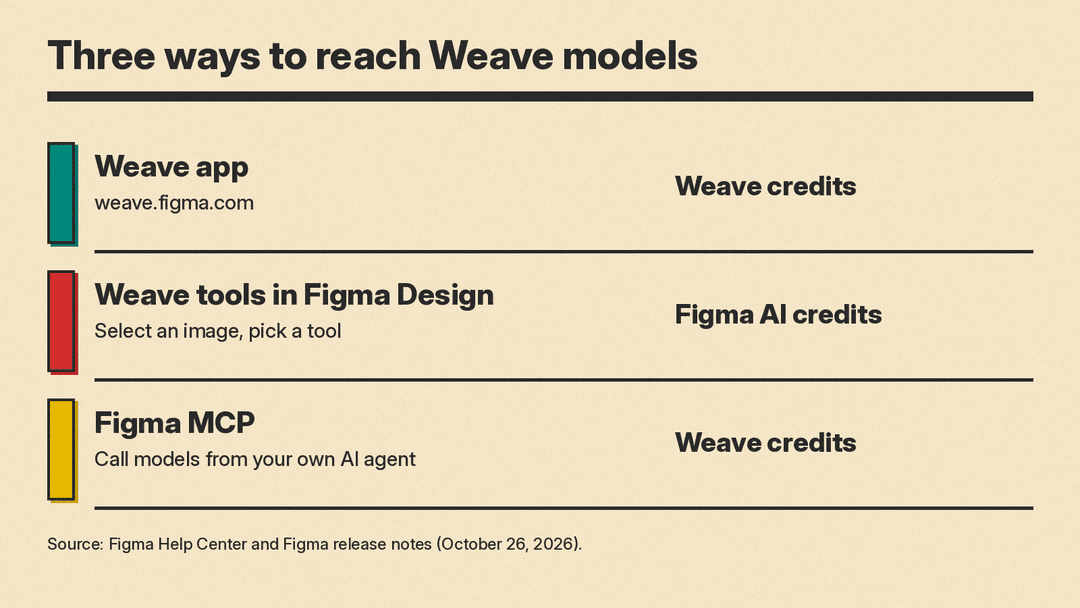
- Actions in Figma Weave use Weave AI credits.
- Running a Weave tool inside Figma uses Figma AI credits.
- Generating through the Figma MCP uses Weave credits.
Figma's page on how AI credits work says each first-party Weave tool in Figma Design has a fixed credit cost per run, and that the cost depends on the tool. Community-published tools are not listed there, because their use varies with the workflow, the models and the number of steps. Check that page for current amounts before you plan a large batch, since rates can change.
Who should use which part
The following rough guide is our reading of Figma's documentation, not a Figma recommendation.
- If you mostly work in Figma files and want a quick edit such as a new background or a different color palette, start with Weave tools. You do not need to learn the node canvas.
- If your team repeats the same multi-step image job, such as product shots in one style, the Weave app is where a workflow is built once and then shared as a tool.
- If you already work with a coding or chat agent and want it to produce images, the Figma MCP route lets it call Weave models from the same conversation.
One caution applies to all three. Figma's own documentation describes the product split and the credit rules as current, and says integration will change over time. Figma has not said how credits will work once the products merge, so treat today's setup as a snapshot.
For a wider look at the tools around this one, see our list of the best AI tools for graphic designers. If you are choosing between image models themselves, our comparison of Midjourney and GPT Image is a good next read.
