
An AI image generator can draft logo ideas from a short text prompt. But a logo is not just a nice picture. It has to work at small sizes, in one color, on a sign and on a phone screen, and it has to be something you can actually protect as your brand.
This guide walks through a practical way to design a logo with AI: write a short brief, turn it into a prompt, generate and narrow down options, refine one, and then finish it properly. It also covers the two legal points to check, copyright and trademarks.
The prompting advice comes from Google's Gemini image generation guide and OpenAI's image generation guide. The legal background comes from the U.S. Copyright Office and the U.S. Patent and Trademark Office (USPTO). This is general information, not legal advice.
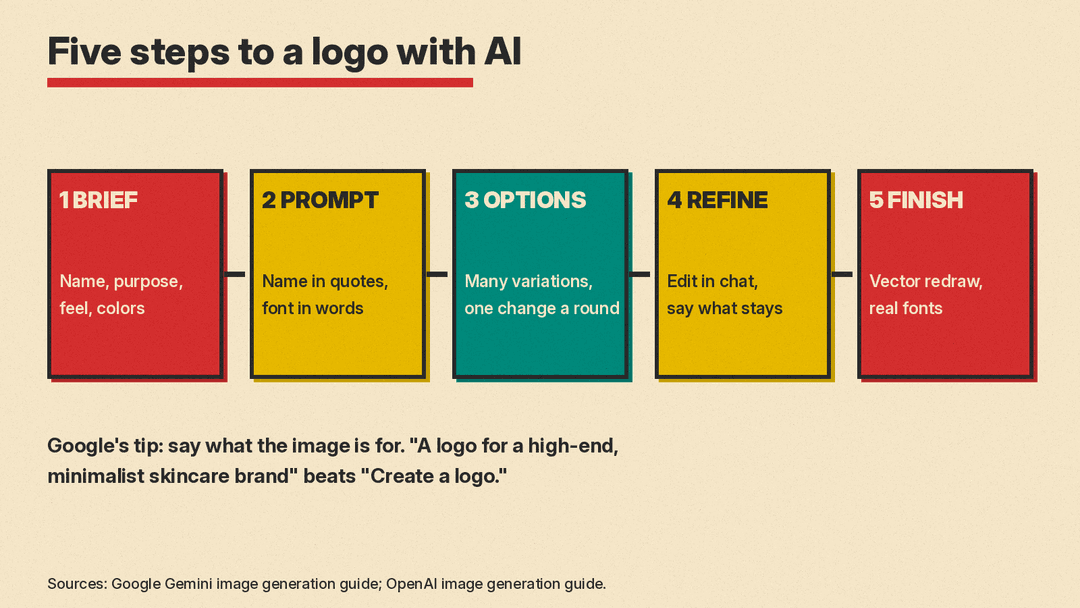
Step 1: Write a short brief before you prompt
Before you open any tool, write down five things:
- The exact name. Spelled the way it should appear, including capitals and punctuation.
- What the business does and for whom. One sentence is enough.
- Three words for the feel. For example: calm, premium, minimal. Or: loud, playful, bold.
- Colors. Two or three at most, or "black and white" to start.
- One idea for a symbol, or none. A single object (a leaf, a key, a wave) or a plain wordmark with no icon.
Google's guide explains why the purpose matters. Its example is that "Create a logo for a high-end, minimalist skincare brand" will yield better results than "Create a logo," because the model uses that context. A brief gives the model that context in a form you can reuse across many prompts.
Step 2: Turn the brief into a prompt
Google's guide has a template for images that contain text, which fits logos well:
Create a [image type] for [brand/concept] with the text "[text to render]" in a [font style]. The design should be [style description], with a [color scheme].
Its own logo example follows that shape: "Create a modern, minimalist logo for a coffee shop called 'The Daily Grind'. The text should be in a clean, bold, sans-serif font. The color scheme is black and white. Put the logo in a circle. Use a coffee bean in a clever way."
Notice what that prompt does. It names the business, puts the exact words in quotes, describes the font in plain words, limits the colors, gives one shape to work inside, and suggests one symbol. It does not pile on ten ideas at once. For prompt basics that apply to any image, see our beginner's guide to writing AI image prompts.
A few habits that help with logos:
- Put the exact name in quotes. OpenAI's examples do the same when they ask for a specific label in an image.
- Describe the font in plain words. Google's own example asks for "a clean, bold, sans-serif font."
- Ask for a plain background. A flat white or single-color background makes the mark easier to judge and to trace later.
- Ask for a square image. Google (1:1) and OpenAI (1024x1024) both offer a square size.
- Say "flat" and "simple". A logo has to survive being printed small or in one color, so ask for flat shapes and few details from the start.
Step 3: Generate many options, then narrow down
Your first batch is for exploring, not choosing. Run the same brief several times and change one thing per round: the symbol, the layout (icon above the name, icon beside the name, name only), or the style word.
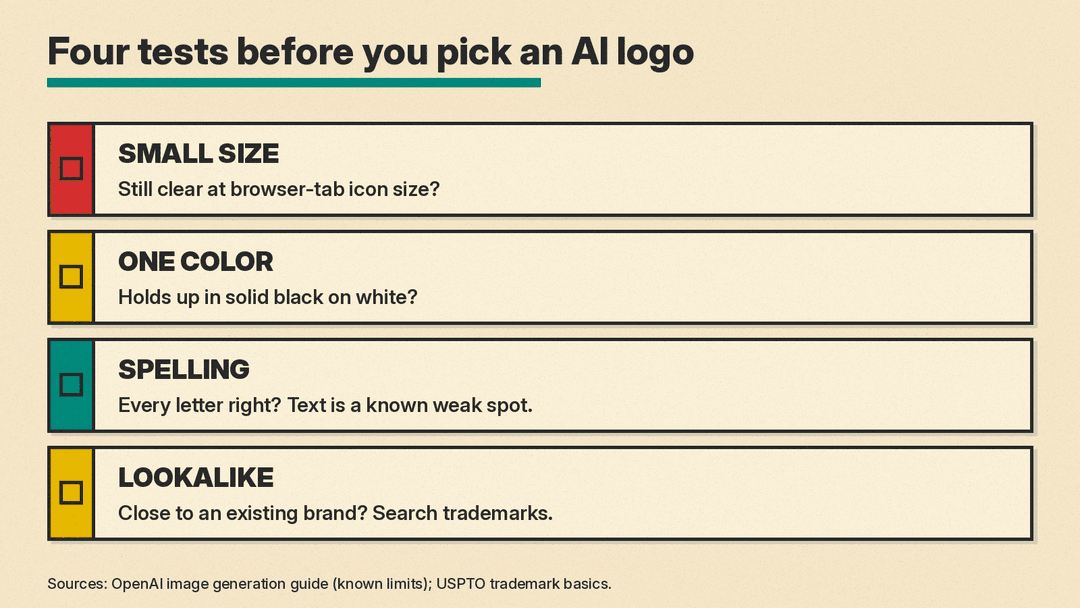
Then judge the options against tests that matter for a logo, not only whether they look good at full size:
- Small size. Shrink it to the size of a browser tab icon. Can you still tell what it is?
- One color. Imagine it in solid black on white. Does it still hold together?
- Spelling. Check every letter. OpenAI says its models "can still struggle with precise text placement and clarity", and lists consistent brand elements across images as a known limit.
- Sameness. Does it look like a logo you have seen before? If it reminds you of a well-known brand, drop it.
Google also suggests a way around shaky text: generate the wording first, then ask for an image that contains it. For a logo, that means settling the name and any tagline before you start on visuals, and keeping both short.
For how the models behind these two guides compare, see our GPT Image 2.5 vs Nano Banana 2.1 comparison.
Step 4: Refine one direction in conversation
Once you have a favorite, stop starting from scratch. Google calls multi-turn conversation "the recommended way to iterate on images", and OpenAI's tools also support multi-turn editing where you refine an image across turns.
Change one thing per message, and say what must stay the same. Google's edit template reads: "Using the provided image, change only the [specific element] to [new element/description]. Keep everything else in the image exactly the same, preserving the original style, lighting, and composition."
Useful follow-ups for a logo:
- "Keep everything the same, but make the lines thicker so it reads at small sizes."
- "Keep the icon exactly the same, but put the name beside it instead of below it."
- "Make a version in solid black on a white background, with no other colors."
- "Remove the small details inside the icon. Keep the outline."
When one detail must not change, Google says to describe it "in great detail along with your edit request."
You can also test the mark in context. Google's guide shows a prompt that places an existing logo on a product: "Put this logo on a high-end ad for a banana scented perfume. The logo is perfectly integrated into the bottle." The same idea works for a mockup of a shop sign, a coffee cup or a business card, which is a quick way to see whether the logo works in the real world.
Step 5: Finish it properly
An AI image tool gives you a picture made of pixels. Google's code examples, for instance, save the logo as a regular image file. That is fine for a first look, but a working logo usually needs more:
- A clean vector version. Have a designer or a vector tool redraw the mark so it scales to any size without blur. This is also the moment to fix small flaws the model left behind.
- Real type. Set the name in an actual font you have the right to use, instead of keeping letters the model drew.
- A small set of versions. Full color, one color, and a version that works on a dark background, plus a square icon for apps and social profiles.
- Simple usage notes. Your colors and a minimum size, so the logo looks the same everywhere.
This finishing step also matters for the legal points below, because it is where human design work goes into the final mark.
The legal points: copyright and trademark
Two different kinds of protection apply to logos, and AI affects them in different ways.
Copyright
The U.S. Copyright Office looked at AI-generated outputs in Part 2 of its report on copyright and artificial intelligence. It concludes that "the outputs of generative AI can be protected by copyright only where a human author has determined sufficient expressive elements." That can include a human-made work that shows in the output, or "a human makes creative arrangements or modifications of the output, but not the mere provision of prompts."
In plain terms: in the U.S., typing a prompt alone does not make you the copyright owner of the image. Using AI as one part of the process does not rule out copyright. The Office says using AI "to assist in the process of creation" does not bar it. Real human changes to the design are what count, which is one more reason to finish and redraw your logo rather than use a raw output.
Trademark
A logo can also be protected as a trademark. The USPTO says a trademark "can be any word, phrase, symbol, design, or a combination of these things that identifies your goods or services."
Three points from the USPTO's basics are worth knowing before you pick a logo:
- Rights come from use. You become a trademark owner as soon as you start using the mark with your goods or services, but those rights are limited to the area where you do business. Registering with the USPTO gives broader, nationwide rights.
- Rights are tied to what you sell. You do not own a word or design in general, only its use with your specific goods or services.
- Distinctive beats descriptive. The USPTO says "creative and unique trademarks are more effective and easier to protect" than ones that merely describe what you sell.
An AI tool gives you no guarantee that its design is unlike marks already in use. Search the USPTO trademark database for similar names and designs in your field before you commit, and consider talking to a trademark attorney if the brand matters to your business.
Example prompts to copy and adapt
Each of these follows the brief from Step 1. Swap in your own name, symbol and colors.
Wordmark only
Create a minimalist wordmark logo for a design studio called "North & Pine". The text should be in an elegant, thin, all-caps sans-serif font with wide letter spacing. No icon. Black text on a plain white background. Square image.
Icon plus name
Create a modern, flat logo for a dog-walking business called "Happy Trails". Use a simple paw print inside a circle as the only icon, with the name below it in a rounded, friendly sans-serif font. The color scheme is teal and white. Plain white background. Square image.
Badge or emblem
Create a vintage-style badge logo for a small coffee roaster called "Ember Roasting Co.". The name should curve around the top of a circular badge in a bold serif font. Put a simple flame in the center. Two colors only: dark brown and cream. Flat design, no gradients. Square image.
Single-letter mark for an app
Create a bold, geometric app icon logo using only the letter "M" for a meditation app. Flat shapes, no text other than the letter, no fine details. Deep blue letter on a soft white rounded square. Square image.
One-color test
Using the provided image, create a version of this logo in solid black on a white background. Keep the shapes and layout exactly the same. Remove all other colors and any shading.
Quick checklist
- The name is spelled exactly right, every letter.
- It reads at icon size and in one color.
- It does not look like a well-known brand.
- You have a clean vector version and real fonts.
- You searched for similar trademarks in your field.
