
AI image generators and video generators now make pictures and clips that look like real photos and real footage. That is fine for art, memes and ads that say what they are. It is a problem when a fake photo of a disaster asks for donations, or a fake image of a celebrity promotes a counterfeit product.
There is no single trick that catches every fake. The MIT Media Lab team behind the Detect Fakes research project says it plainly: "there's no single tell-tale sign of how to spot a fake." What works is a short routine with several layers: check the context, look closely, read the platform labels, run a provenance check, and search for the original.
This guide walks through each step in plain language, with the free tools that Google, OpenAI, Adobe and the social apps offer for this job.
Step 1: Stop and check the context first
Before you zoom in on fingers and shadows, ask who is showing you this and what they want.
The FBI's public warning on criminals using generative AI for fraud lists the ways scammers use fake images. They include profile photos for fake social media accounts, fake ID documents, photos sent in private chats "to convince victims they are speaking to a real person," images of celebrities promoting counterfeit products, and images of natural disasters or global conflict used to collect money for fake charities.
A deepfake fraud infographic from the American Bankers Association Foundation, hosted by the FBI's IC3, gives a simple first rule: "Stop and think. Is someone trying to scare you or pressure you into sending money or sharing personal information?" It also says to never repost videos or images without checking the source.
Context questions to ask:
- Who posted it first? A known news outlet, an official account, or an account created last week?
- Does the image ask you to do something now: donate, invest, click, pay, share?
- Do trusted news outlets you already know report the same event?
- Is it trying to scare you or rush you? The ABA infographic flags fear and pressure as warning signs.
If the answers look bad, you may not need any more checks. Do not send money or personal details, and do not share it.
Step 2: Look closely at the image
Visual clues are not proof, but they are worth a look.
The FBI's tip list says to look for "subtle imperfections in images and videos, such as distorted hands or feet, unrealistic teeth or eyes, indistinct or irregular faces, unrealistic accessories such as glasses or jewelry, inaccurate shadows, watermarks, lag time, voice matching, and unrealistic movements."
In practice, zoom in and check:
- Hands and feet. Look for hands or feet that look distorted.
- Teeth and eyes. Look for teeth or eyes that look unrealistic.
- Faces. Look for faces that are indistinct or irregular.
- Glasses and jewelry. Look for accessories that look unrealistic, such as glasses or jewelry.
- Shadows and light. Look for inaccurate shadows. Google's Gemini help page also lists inconsistent shadows and lighting.
- Watermarks. A visible logo from an AI tool in a corner is a direct clue.
One clue alone does not prove much. A real photo can be blurry, and a well-made fake can get every finger right. Treat visual clues as reasons to keep checking, not as a final answer.
Step 3: Watch the video for face, voice and timing problems
Video fakes often change a real person's face or voice. The MIT Detect Fakes project says high-end deepfake manipulations "are almost always facial transformations" and gives eight things to check:
- The face. Start here, since high-end deepfakes almost always change it.
- Cheeks and forehead. Is the skin too smooth or too wrinkly? Does the age of the skin match the hair and eyes?
- Eyes and eyebrows. Do shadows appear where you would expect them?
- Glasses. Is there glare, too much glare, or glare that does not change angle when the person moves?
- Facial hair. Does a beard, mustache or sideburns look real?
- Moles. Does a mole look real?
- Blinking. Does the person blink too little or too much?
- Lips. Do the lip movements look natural?
The ABA Foundation infographic adds questions about sound: "Are the audio and video out of sync?" and "Is the voice tone flat or unnatural?" It also asks whether the clip shows "odd or unnatural shadows or lighting."
MIT also notes that "high-quality DeepFakes are not easy to discern," and that people can build intuition with practice. The Detect Fakes site lets you test yourself on real and manipulated clips.
Step 4: Read the AI labels on social apps
YouTube, Meta's apps and TikTok all add AI labels to some content. They are not perfect, but they are free information.
YouTube. YouTube requires creators to disclose realistic content that is AI-generated or meaningfully altered. That includes content that makes a real person appear to say or do something they did not do, alters footage of a real event or place, or generates a realistic scene that did not happen. For photorealistic AI content, a label may appear on the video player. Other labels appear in the expanded description. YouTube says it may also apply a label on its own for content made with its own AI tools, content with C2PA metadata, and content its systems detect as AI-generated or altered. To read the details, open the description and look for the "How this content was made" section.
Facebook, Instagram and Threads. Meta adds an "AI info" label when it detects industry standard AI image indicators or when people disclose that they are uploading AI-generated content. Meta says that for content it detects was only modified or edited by AI tools, the label sits in the post's menu. For content it detects was generated by an AI tool, the label stays visible, and Meta shares whether it came from industry signals or self-disclosure. So if you suspect an edit, tap the post's menu as well as looking at the post itself.
TikTok. TikTok requires creators to label AI-generated content that shows realistic-appearing scenes or people. It automatically labels content made with TikTok AI effects, and it labels AI content from certain other platforms by reading Content Credentials.
The limit: a missing label does not mean a post is real. Labels depend on creators being honest or on technical signals that survive the upload. Treat a label as a strong clue and the lack of one as no information.
Step 5: Run a watermark and Content Credentials check
Some AI companies put hidden signals into what their tools make. This step covers two kinds.
Invisible watermarks. SynthID, from Google DeepMind, embeds a watermark in AI-generated images, audio, text or video. Google says the watermark is imperceptible to people but can be detected by its technology. OpenAI's help center says images made with ChatGPT, Codex or the OpenAI API include both SynthID watermarks and Content Credentials. It adds that coverage may vary, and that API outputs from models planned for imminent deprecation, including gpt-image-1 and gpt-image-1.5, are not covered. For a deeper look at how SynthID works, see our explainer What Is SynthID?.
Content Credentials. Content Credentials are metadata based on an open standard from the Coalition for Content Provenance and Authenticity (C2PA). OpenAI describes them as information about "a file's origin and history, such as which tool created it and when." They are not only for AI. Camera makers and news organizations use the same standard to record where their media came from.
Free tools that check these signals:
- Gemini app. Signed-in users can upload one image, video or audio file and ask a question such as "Is this AI-generated?" or "Was this image/video/audio created or edited by Google AI?" Gemini checks for SynthID and, where available, Content Credentials. Google notes that Gemini "can currently only recognize content created by Google AI tools," even though other companies have started to adopt SynthID. Google's help page says files must be 100 MB or less, videos under 90 seconds and audio under one hour. If you check a screenshot, crop tight around the image and do not upload a collage.
- SynthID Detector. Google says it is expanding its SynthID Detector to everyone, so anyone can check if an image, video or audio file was made with AI from Google or its partners. It names OpenAI, NVIDIA and Kakao as partners, and says Apple is coming soon.
- OpenAI's verify page. At openai.com/verify, you can upload an image or audio file to check for OpenAI signals. The page says it looks for C2PA metadata and SynthID watermarks and is designed to detect content generated with ChatGPT, the OpenAI API or Codex. It does not currently check text.
- Content Credentials Inspect. The Content Credentials Inspect tool reads C2PA data from images, video, audio and PDFs. You can drag a file onto the page. The page notes that Content Credentials are still rolling out, so a file may have no information to view. The Content Authenticity Initiative's documentation for Adobe's Inspect tool says that checker shows the app or device used, the actions taken and the ingredients, plus an AI-generated note when a generative AI tool made the image.
- Google Lens "About this image." In the Google app, tap Lens, pick the image from your gallery, and open the "About this image" tab. Google says it can show an image's metadata and can identify a SynthID watermark when one is in the pixels.
For best results, use the original file if you can. OpenAI's help center says Content Credentials "can be lost through everyday actions, such as taking a screenshot or converting a file," while SynthID is designed to withstand common changes such as light edits, cropping or screenshots. OpenAI adds that more extensive changes, such as heavy image cropping or file compression, can make a watermark undetectable.
What a check result means, and what it does not
Google and OpenAI both explain what their results can and cannot tell you.
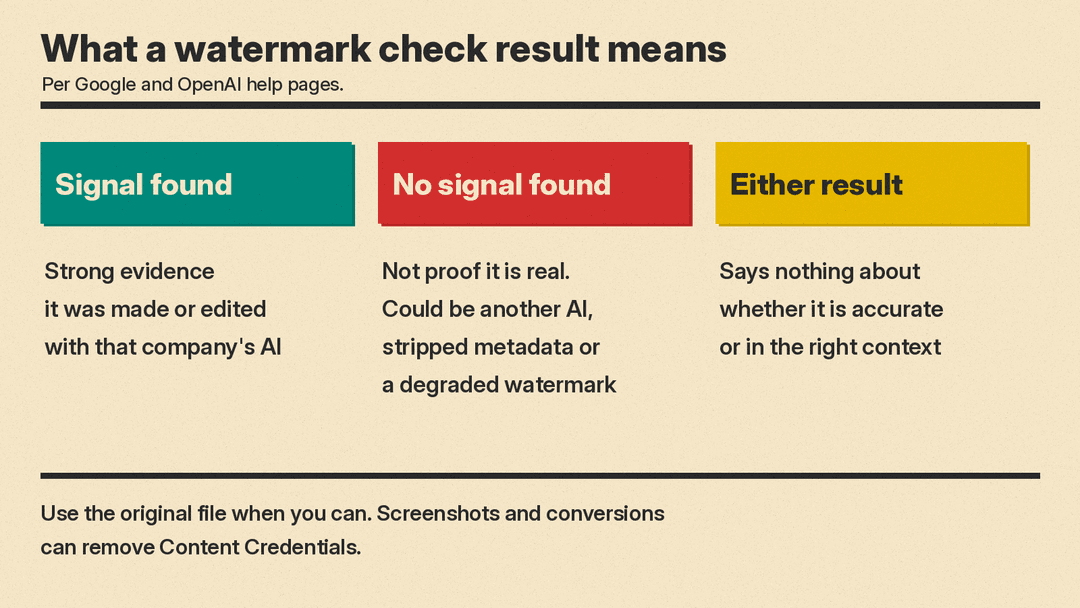
A signal found is strong evidence. If Gemini finds a SynthID watermark, Google says all or part of the image or video was created or edited by Google's AI models. OpenAI's verify page says a detected signal means the content likely came from OpenAI tools, and that false positives are rare.
No signal found is not proof the content is real. Google says that if no SynthID watermark is found, the image or video was not made or edited by Google AI, "but it could have been created by other AI systems." OpenAI lists the reasons its tool can miss its own content: the content was made before signals existed, it came from an unsupported product or file type, metadata was stripped during upload, download, editing, conversion or sharing, the watermark was degraded by compression, cropping or edits, or an audio clip was too short or heavily modified. OpenAI also says its tool is not designed to detect content from other AI models, so content from another tool can come back with no signal.
A signal says nothing about truth. OpenAI says its tool does not confirm that content is accurate, unedited, legally owned, or presented in the correct context. A real photo can still be used with a false caption.
Some results are unclear. Google says the Gemini check can be unclear when there are "not enough details to watermark," such as very simple images, or when an edit is likely too small.
Step 6: Search for the original
A reverse image search finds where else an image appears online. This can help in two cases: an AI image passed off as news, and a real older photo reused with a new false story.
On a computer, go to google.com, click Search by image, and upload a file, drag the image into the search box, or paste an image link. In Chrome, you can right-click an image and choose Search with Google Lens. Google's help page says results can include websites with the image or a similar image.
On a phone, use Google Lens "About this image". Google says it shows how other sites use and describe the image, including what news and fact-checking sites say about it. Its example: a photo that looks like a UFO turns out to be a cloud formation, which you learn from the other sources that show it.
What to look for in the results:
- An earlier copy with a different caption, date or place.
- A fact-check article about the same image.
- The image on an AI art site or an AI creator's account.
A special case: scam calls and video chats
Fakes are not only in your feed. The FBI warns that criminals use AI-generated photos in private chats and cloned voices on calls. The CFTC says criminals also use AI to create fake live-streaming video chats. Some tools now add identity checks to calls. Our post on World ID for Zoom explains one, a badge meant to show that the person on a video call is a verified human, not a deepfake.
The FBI's advice for these cases is practical:
- Create a secret word or phrase with your family to verify identity.
- If someone calls claiming to be your bank or another organization, hang up, look up its number yourself, and call back directly.
- Never share sensitive information with people you have met only online or over the phone.
- Do not send money, gift cards or cryptocurrency to people you do not know or have met only online or over the phone.
- Make social media accounts private and limit followers to people you know, so scammers have less of your image and voice to copy.
The short checklist
Save this for the next time something looks off:
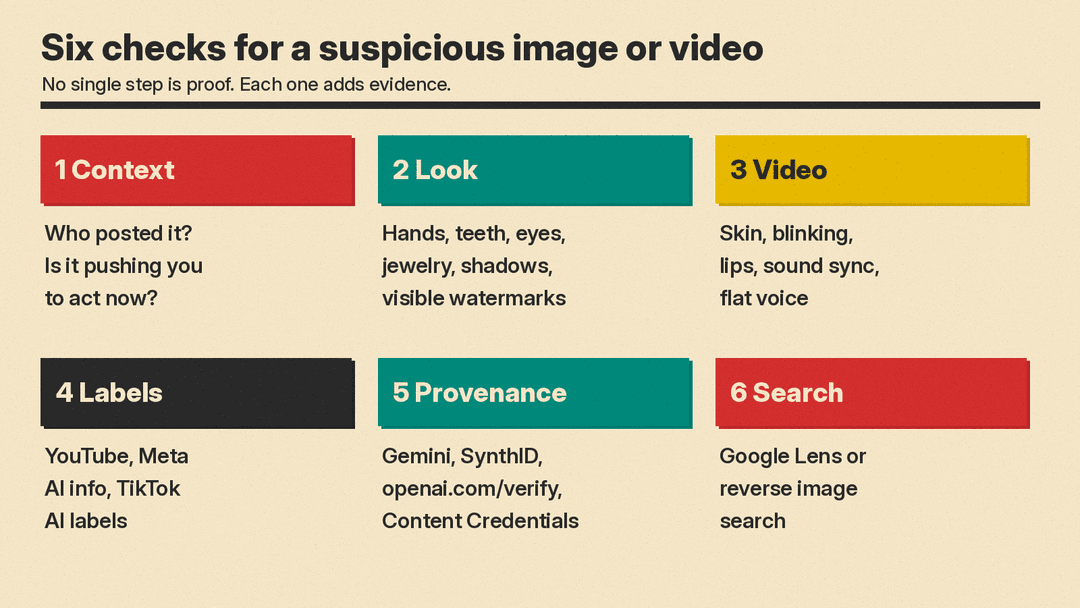
- Context. Who posted it, and is it pushing you to act now?
- Look. Hands, teeth, eyes, jewelry, shadows, visible watermarks.
- Video. Face, skin, blinking, lips, sound sync, flat voice.
- Labels. YouTube description, Meta's AI info, TikTok's AI-generated label.
- Provenance. Gemini app, SynthID Detector, openai.com/verify, Content Credentials Inspect.
- Search. Google Lens or reverse image search for older copies and fact-checks.
No single step is proof. A found watermark is strong evidence of AI. Everything else adds up. When the stakes are real, such as money, health or a breaking news event, trust a source you already know over the image in front of you.
Sources
- FBI IC3: Criminals Use Generative Artificial Intelligence to Facilitate Financial Fraud
- ABA Foundation deepfake infographic (FBI IC3)
- CFTC: Office of Customer Education and Outreach Releases New Advisory on Fraud Using Generative AI (Mar 2025)
- MIT Media Lab: Detect DeepFakes project overview
- YouTube Help: Disclosing use of GenAI content
- YouTube Help: Understanding "How this content was made" disclosures
- Meta: Our Approach to Labeling AI-Generated Content and Manipulated Media
- TikTok: Supporting responsible, transparent AI-generated content
- Gemini Apps Help: Verify AI-generated images, videos, and audio
- Google AI: Advancing AI safely and responsibly (SynthID Detector)
- OpenAI Help Center: Provenance signals in OpenAI-generated content
- OpenAI: Verify OpenAI-generated content
- Content Credentials Inspect tool
- Content Authenticity Initiative: Using the Inspect tool
- Google: How to access About this image with Circle to Search or Google Lens
- Google Search Help: Search with an image on Google
