

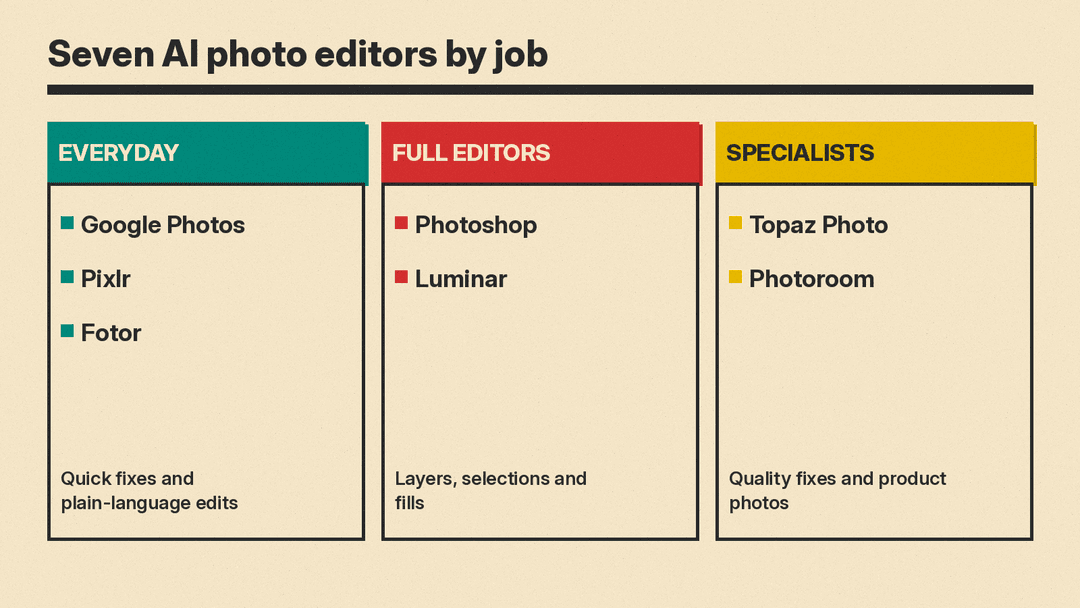
An AI photo editor can remove a stranger from a vacation shot, swap a dull sky, sharpen a blurry face or cut a product out of its background in a few clicks. The hard part is choosing, because the tools do very different jobs. This guide covers seven editors as of November 2026, what each one does, who it suits, and one limit taken from the vendor's own pages.
Plans and credits change often. Where a vendor page printed a plan price, this guide copies the wording. Where it did not, this guide says "see the vendor's pricing page" instead of guessing. If you want to understand the methods behind these tools first, read our guide to editing photos with AI: inpainting, outpainting and image-to-image.
What AI photo editors actually do
Most AI features in these tools fall into four jobs.
- Generative fill and object removal. You select an area and the tool fills it or erases what is inside.
- Enhancement. The tool sharpens, removes noise or enlarges a photo.
- Background work. The tool cuts out a subject or builds a new backdrop.
- Plain-language editing. You describe the change and the tool applies it.
Some tools do all four. Others do one job well. Knowing which job you need is the fastest way to a good pick.
The seven editors
Adobe Photoshop (Generative Fill)
Adobe's help page for Generative Fill, last updated September 15, 2026, describes the steps. You open an image, select the area with a tool such as the Selection Brush, choose Generative Fill, and pick a model from the model picker. You can type a prompt or leave it blank to let Photoshop fill the selection from the surrounding pixels. Photoshop then offers variations to choose from.
The page lists Adobe models (Firefly Fill & Expand, Firefly Image 5, Firefly Image 1) and partner models (FLUX.2 pro, FLUX Kontext pro, Gemini 3.1 with Nano Banana 2, and Gemini 3 with Nano Banana Pro). Adobe also offers a Generative Fill page where you can upload a photo.
Best for: people who want the most control, with layers, selections and fine retouching next to the AI tools.
Limit: the model list moves. Adobe's own note says Google would deprecate Gemini 2.5 (with Nano Banana) starting October 2, 2026, and that Photoshop would begin removing support for it with the September 2026 build (v27.11) and later versions. The web upload box on Adobe's Generative Fill page accepts JPEG, JPG or PNG files up to 40MB and images no larger than 8,000 x 8,000 pixels. For Photoshop plan pricing, see Adobe's pricing page.
Google Photos
Google Photos lets you describe an edit. Google's Ask Photos help page says you can "simply describe the changes you want" and Gemini models apply them. The edit help page lists tools such as Portrait light, Blur, Sky and Color pop, and the Pixel features page lists features that work only on Pixel devices, such as Best Take and Zoom Enhance.
Best for: everyday phone photos you already store in Google Photos.
Limit: access is narrow. Google's pages say Ask Photos is an experimental feature that may give unexpected or inaccurate results, and that it is rolling out to a select number of countries and regions. Google's Gemini features in Photos requirements say you must be 18 years old or older, be an eligible user in a launched location, have Face Groups turned on with your own face selected, and have location estimates enabled. The Pixel page says some features need a specific Pixel model, for example Best Take on Pixel 8 and later. The pages did not state a price, so check Google's own plan pages.
Luminar (Skylum)
Skylum's Luminar page describes a photo editor for macOS and Windows. The All Platforms license adds Luminar Mobile. It lists an Enhance slider, an AI Assistant that applies an edit you describe in your own words, sky replacement, object removal and replacement, and image-quality tools for sharpening, noise and upscaling. It also works as a plugin for Lightroom Classic and Photoshop.
Best for: hobby and enthusiast photographers who want a full editor with a perpetual license option.
Limit: read the license wording. The page says the Desktop Only perpetual license includes one year of access to the AI tools (Restoration, GenErase, GenSwap, GenExpand and AI Assistant), and a note says AI tools and the Library of Assets operate on an auto-renewal model with Luminar Prime after 365 days. The system requirements list 8 GB of RAM or more, with 16+ GB recommended. For the current price, see Skylum's page.
Topaz Photo
Topaz Photo is a finishing tool. The page lists Denoise, Sharpen, Recover Faces, Adjust Lighting, Balance Color and Upscale, among others. It runs on Mac and Windows as a standalone app or as a plugin for Photoshop, Lightroom Classic, Capture One, Apple Photos and Affinity Photos (the Affinity plugin needs a manual install).
On privacy, the page says local rendering keeps your files on your computer, and it also offers cloud rendering. Check Topaz's privacy policy before you upload private photos to the cloud option.
Best for: fixing noisy, soft or low-resolution photos from a real camera.
Limit: the cheaper plan has a commercial-use cap. The pricing section lists Personal at "$39/mo" with "Cancel anytime," "$25/mo" with an annual commitment, and "$199/yr" billed annually. Pro is listed at "$63/mo" billed every month for 12 months, or "$50/mo" with "$599 billed annually." The page footnote says the Personal plan covers "Personal and commercial use for orgs under $1M USD annual revenue," while Pro includes full commercial use.
Photoroom
Photoroom is built for product photos. Its pricing page says core tools such as Background Remover, Product Fixer, Retouch, AI Fill, AI Expand/Resize and Image Enhancer are included on every paid plan with no credit cost, while tools for video ads, product videos, model shots and AI backgrounds draw from a monthly AI credit pool.
Best for: online sellers who need clean product images in bulk.
Limit: exports are capped. The page lists Pro at "$7.50" per month, billed yearly, with "8,000 AI credits" and "1,000 exports." It says that once you hit your export limit, exports pause until the next billing cycle unless you upgrade, and that export limits apply to assets up to 2K resolution. On the Pro plan, the card lists 4K images as not included. The Ultra plan is listed at "$82.50" per month, billed yearly.
Pixlr
Pixlr is a browser editor with a free version. Its home page lists Generative Fill, Generative Expand, Remove Object, Remove Background, an AI Assistant that edits from a plain description, and Super Scale for upscaling up to 25 megapixels. The FAQ says the free version works without an account or charges, and that premium and plus options add advanced features, AI-powered tools and an ad-free experience.
Best for: quick edits in the browser or on a phone without installing anything.
Limit: AI use runs on credits, and credits do not carry over the way many people expect. The pricing page says subscription credits are topped off at each renewal, so an unused balance resets to the plan amount, and that if you cancel, subscription credits reset to 0. It also says Pixlr cannot process refunds once a payment has gone through. The home page says plans start at $1.99 per month. The pricing page lists Plus at $2.49 per month, or $1.99 per month with yearly billing, with 80 AI credits a month.
Fotor
Fotor is an online editor aimed at beginners. Its home page lists an AI photo enhancer, an AI background remover, an AI object remover, a brush-and-describe tool to add or replace objects, image expansion, batch editing and AI avatars. The FAQ says the free plan lets you edit as many images as you want and export without watermarks.
Best for: casual users who want one site for fixes, collages and simple AI edits.
Limit: the heavier AI features use credits. The pricing page shows "Limited Free credits" on the free plan and lists a per-image credit cost for each image model. It says unused credits roll over as long as you are subscribed, up to 5 months of accumulation. The plan prices did not print in the page text, so see Fotor's pricing page for current amounts.
How to choose
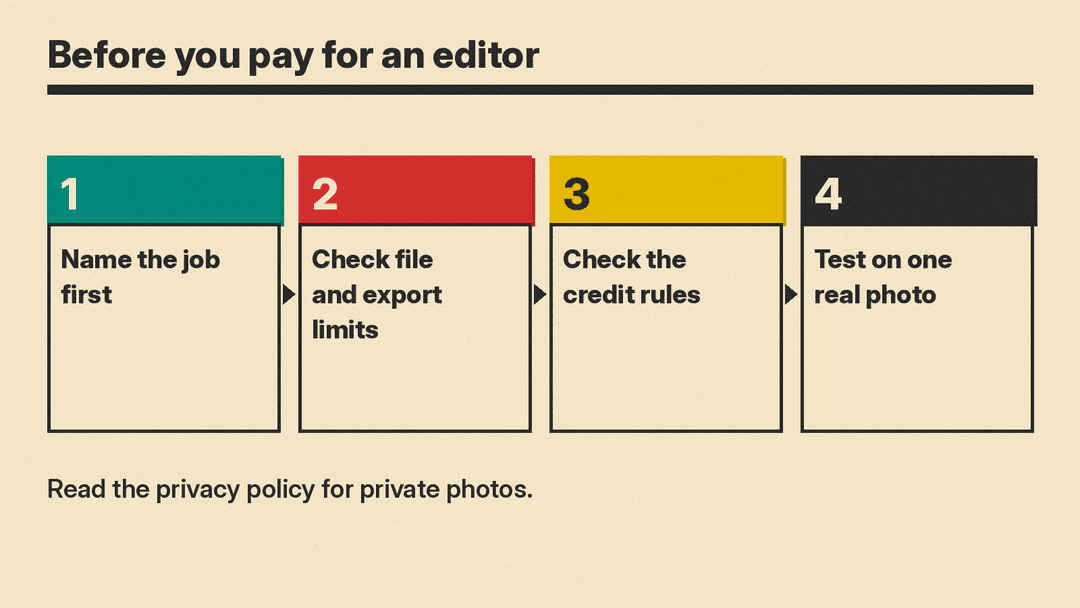
Start with the job, not the brand.
- Fixing a blurry or noisy photo: Topaz Photo is built for that job.
- Removing an object or changing part of a scene: Photoshop, Pixlr or Fotor all offer a select-and-fill tool. Photoshop gives the most control.
- Phone snapshots you already back up: try Google Photos first, if your account and region qualify.
- Product photos for a shop: Photoroom is the one built around that task.
- Full editing with a one-time license option: look at Luminar, and read the AI tools wording first.
Then check three things before you pay.
- File and plan limits. Look for export caps, file size limits and commercial-use terms.
- Credit rules. Find out what the AI tools cost in credits, and what happens to unused credits.
- Privacy. If the photos are private, read the vendor's privacy policy and prefer local processing where the vendor offers it.
Test each tool on one real photo before you commit. If a tool cannot fix your own picture in a few tries, no feature list will change that.
Two related guides may help. If your photo is low resolution, see how to upscale images with AI. If you want to make new images instead of editing existing ones, see the best free AI image generators and their limits.
If you shoot for clients, our best AI tools for photographers guide covers culling, batch editing and portrait retouching.
A short word on honest use
AI edits can change what a photo shows. Removing an object from a family photo is fine. Changing the facts in a news or insurance photo is not. Keep the original file, and tell people when an edit changes what happened.
Sources
- Use Generative Fill in Photoshop on desktop (Adobe Help)
- Photoshop Generative Fill (Adobe)
- Use Ask Photos to search, edit and get assistance (Google Photos Help)
- Edit your photos (Google Photos Help)
- About Google Photos features for Pixel devices (Google Photos Help)
- Gemini features in Photos privacy hub, with eligibility requirements (Google Photos Help)
- Luminar (Skylum)
- Topaz Photo (Topaz Labs)
- Photoroom
- Photoroom pricing
- Pixlr
- Pixlr pricing
- Fotor
- Fotor pricing
