
ChatGPT Voice lets you talk to ChatGPT out loud and hear it answer. It is not a separate app or a separate chat. According to OpenAI's ChatGPT Voice help page, Voice "works within a chat, so you can listen while following the response in text, type when you cannot speak, and review earlier messages without starting over."
This guide explains the Voice options you may see, how to start a conversation on your phone or computer, how to pick a voice and language, what happens to your audio, and how to fix the most common problems. Everything here comes from OpenAI's ChatGPT Voice help page. Menus and options can vary by plan, region, app version and workspace settings, so treat the steps as a guide and check your own Settings.
 Voice" loading="lazy">
Voice vs Dictation: which one do you want?
ChatGPT has two ways to use your voice, and they do different jobs.
- Voice is a live, back-and-forth conversation. You speak, ChatGPT speaks back, and you can keep going.
- Dictation turns a single recording into editable text. OpenAI's advice: use Dictation "when you want to record a prompt, review and edit its transcription, and then send it as text."
OpenAI also notes that Voice transcripts "are not verbatim records and may not exactly match what was said." If you need the exact words of your prompt, Dictation is the better tool. If you want to think out loud or talk through an idea, use Voice.
The three Voice options: Live, Advanced and Standard
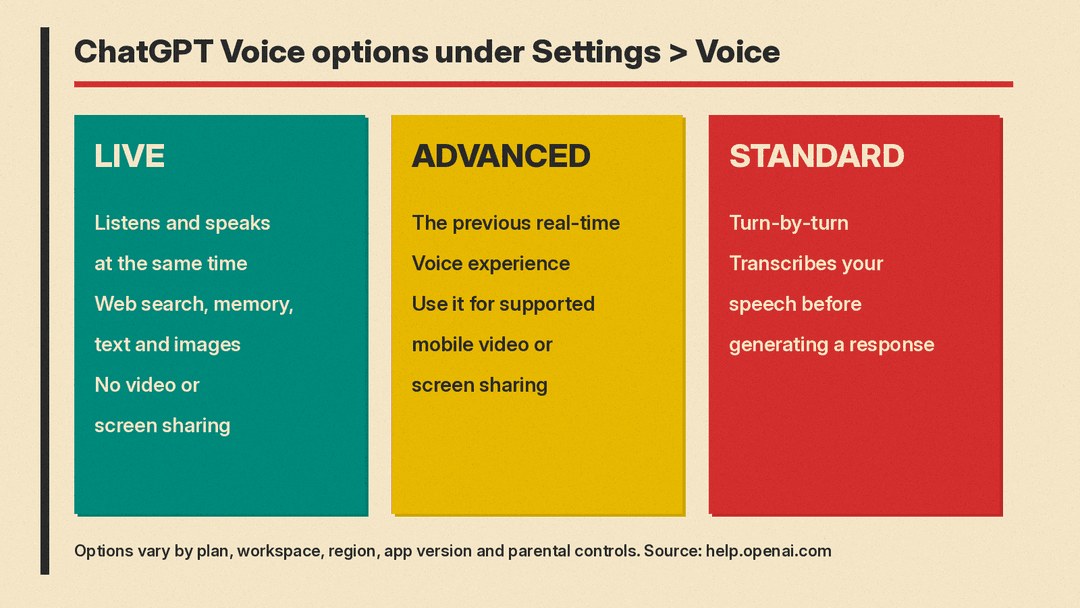
OpenAI's help page says you may see these options under Settings > Voice:
- Live. Designed for natural back-and-forth conversation. OpenAI says Live "can listen and speak at the same time, making turn-taking and interruptions feel more natural." It can use web search and memory, show visual results through supported widgets, and work with text and images in the same chat. It can also use the plugins and connected apps available to your account. Live does not support video or screen sharing.
- Advanced. OpenAI calls this "the previous real-time Voice experience." Use it when you need supported mobile capabilities such as video or screen sharing.
- Standard. "A turn-by-turn Voice experience that transcribes your speech before generating a response."
Which options you see "may depend on your plan, workspace settings, region, app version, and parental controls." To switch, open Settings > Voice and select Live, Advanced or Standard.
A simple way to choose: pick Live for everyday conversation, Advanced if you want to show ChatGPT something through your phone's camera or screen, and Standard if you prefer a turn-by-turn exchange in which your speech is transcribed first.
How to start a Voice conversation
On iPhone and Android
OpenAI lists these steps:
- Select the Voice icon in the message bar.
- If prompted, allow the ChatGPT app to access your microphone.
- If this is your first Voice conversation, choose a preferred voice.
- After Voice opens, begin speaking to start the conversation.
On the web
- Go to ChatGPT.com.
- Select the Voice icon in the prompt window.
- If prompted, allow your browser to access your microphone.
- After Voice opens, begin speaking to start the conversation.
On both, select the microphone control to mute or unmute yourself, and select the exit control to end the conversation. OpenAI says you can have one Voice conversation at a time.
Typing and adding images while you talk
With Live, you do not have to choose between talking and typing. OpenAI says Live "can accept text and images in the same chat as your Voice conversation." While Voice is active, use the add button in the message bar to attach an image, or type a message instead of speaking. ChatGPT can respond in Voice without starting a separate chat.
There are limits. Available image types depend on your plan and account, and OpenAI says Live "cannot currently find or add files from your ChatGPT Library." You may still be able to attach a supported file to the chat manually. If you work with files often, our guide to ChatGPT file uploads and data analysis covers that side.
Sharing video or your screen
Live does not support video or screen sharing. OpenAI says these remain available "to eligible subscribers in the ChatGPT iOS and Android apps when using Advanced." In Advanced:
- To share live video, select the camera button during a Voice conversation. Select it again to stop.
- To share your screen, select the more options menu (•••), then select Share Screen and follow your device's prompts.
- To stop sharing your screen, return to ChatGPT and select the screen-sharing control again, or use your device's own screen-sharing controls.
Using apps and plugins by voice
During a Live conversation, you can ask ChatGPT to use a plugin available to your account. You may need to connect the app and sign in first, and "your existing app permissions and workspace restrictions still apply."
One detail matters for safety: if an action needs your approval, Voice will ask you to review it on screen. OpenAI says to "use the on-screen controls to approve or decline; spoken approval is not supported." Saying "yes" out loud will not approve an action.
Choosing a voice
Open Settings > Voice, then select Voice. OpenAI's help page lists these voices and descriptions:
- Arbor: easygoing and versatile
- Breeze: animated and earnest
- Cove: composed and direct
- Ember: confident and optimistic
- Juniper: open and upbeat
- Maple: cheerful and candid
- Sol: savvy and relaxed
- Spruce: calm and affirming
- Vale: bright and inquisitive
OpenAI also lists additional Live voices: two each under Brazil, French, German, Hindi, Japanese, Korean and Mexican Spanish, plus one more English voice. "The voices shown may vary by region and account." Changing the voice during a conversation starts a new voice call in the same chat.
Setting your language and style
If Voice keeps hearing the wrong language, set the one you speak most often:
- Open Settings.
- Select Voice, then Language.
- Choose your preferred language.
You can also ask ChatGPT during a conversation to speak a different language.
On tone, OpenAI says preset ChatGPT personalities "do not currently apply to Live." You can still ask ChatGPT to change its tone, pace or response style during a conversation. You can ask it to speak faster or slower, but "precise playback-speed controls are not currently available." If you want lasting preferences in text chats, see our explainer on ChatGPT custom instructions.
Background mode, Start with Voice and CarPlay
A few settings make Voice easier to use on the go:
- Background conversations. You can keep talking while using other apps or while your phone is locked. Control this under Settings > Voice. A background conversation ends when you end it, force close the app, reach a usage limit, or reach the maximum session length.
- Start with Voice. On supported mobile app versions, turning this on under Settings > Voice means opening ChatGPT to a new or empty conversation starts Voice automatically.
- CarPlay. ChatGPT is available in Apple CarPlay on supported iPhones, where you can start a Voice conversation, continue a recent or pinned chat, or start a conversation in a project. OpenAI's safety note: set up the app before driving and "avoid interacting with your device while the vehicle is in motion."
What happens to your audio
OpenAI handles audio differently depending on which Voice option you use.
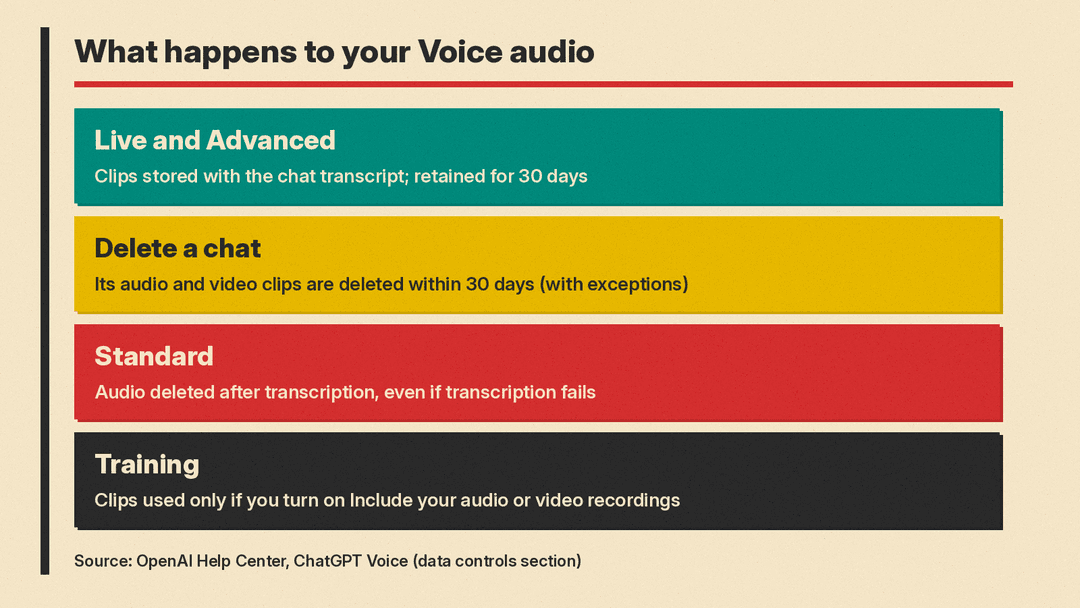
- Live and Advanced. OpenAI says audio clips from Live and Advanced conversations, and video clips from Advanced, "are stored with the transcript that appears in your chat history. Clips are retained for 30 days."
- Deleting a chat. When you delete a chat, OpenAI says it also deletes the associated audio and video clips within 30 days, unless it needs to keep them for security, safety or legal reasons, or you previously chose to share clips for training and they were already disassociated from your account. Deletion cannot be undone. Archiving does not delete anything; it only removes the chat from your sidebar.
- Standard. Audio is transcribed first, then deleted after transcription, unless you chose to share audio for training. OpenAI says "audio is deleted even if transcription fails."
For our full walkthrough of deleting and hiding chats, see ChatGPT Temporary Chat, locked chats and delete.
Is your voice used to train models?
OpenAI separates the transcript from the audio.
- If Improve the model for everyone is on, OpenAI "may use transcripts and other files from your Voice conversations to train our models, depending on your plan and settings."
- The audio and video clips themselves are not used for training unless you choose to share them. On Free, Plus and Pro personal workspaces, that means opening Settings > Data Controls, turning on Improve the model for everyone, and then turning on Include your audio recordings or Include your video recordings.
If you do share clips, OpenAI says its teams "may review shared clips," and that it takes steps to reduce personal information in a clip before using it for training. If you stop sharing, new clips are no longer used, but clips already disassociated from your account may continue to be used. The choice applies to every device where you are logged in. Our guide to ChatGPT data controls explains the training toggle step by step.
Common problems and fixes
ChatGPT interrupts me or stops talking. OpenAI says interruptions can still happen "especially with background noise, long pauses, or audio from another speaker." Try headphones, a quieter room, or a higher device volume. On iPhone, open Control Center during a Voice conversation, select Mic Mode, and turn on Voice Isolation.
I want it to wait while I think. At the start, tell Live something like "Wait until I ask you to respond." OpenAI notes long pauses or background sounds may still trigger a reply.
Several people are talking. Live "is designed primarily for one-on-one conversation" and is "not yet optimized for conversations with multiple speakers." It may respond when people are talking to each other.
The transcript does not match. Transcripts may differ from what was said, especially with overlapping speech, noise or fast talk. With Live, ChatGPT's replies also appear as text while they are spoken. With Advanced on iOS and Android, select the cc button for captions.
The conversation ended on its own. OpenAI says this can happen when you reach a usage limit, the maximum session length, or when a long conversation reaches its context limit. You can continue in text or start Voice again.
Answers about "today" are wrong. Voice uses your device or browser time zone. If an answer seems off, check your time zone or include the exact date, time zone or location in your question.
Who can use it
Voice is available on web, iOS and Android, and OpenAI says it is available in eligible Business, Enterprise, Edu and Healthcare workspaces, subject to workspace settings. In Chat, Live usage is limited by plan and measured over a rolling 24-hour period; ChatGPT tells you when you reach a limit. Check OpenAI's help page for your plan's current allowance. For teen accounts, a parent or guardian can manage Voice access through parental controls, which we cover in our parental controls guide.
As with any ChatGPT answer, OpenAI's advice applies: ChatGPT can make mistakes, so check important information, especially anything date, time or location sensitive.
