
If you open ChatGPT and type the same preferences at the start of every chat, custom instructions are the setting that ends that. You write your preferences once, and ChatGPT considers them in your conversations from then on. The feature is easy to turn on, but people often fill it in badly, or forget that it exists when answers feel off.
This guide explains what custom instructions are, where to find them, what to write in them, how they differ from Memory, personality and Projects, and what to know about privacy. It uses only OpenAI's own pages. Limits and menu names change, so the guide points to the official page where exact details matter.
The short version
- Custom instructions let you "share anything you'd like ChatGPT to consider in its response," in OpenAI's words. They apply immediately to all chats.
- OpenAI's Help Center says they are available on all plans on Web, Desktop, iOS, and Android.
- On web and desktop, they live under Settings, then Personalization. On iOS and Android, the menu is called Customize ChatGPT.
- Use them for stable preferences such as your role, tone and preferred format. Put the task itself in the chat.
- You can edit, switch off or delete them at any time. Changes affect future conversations.
- Information from your use of custom instructions can also be used to improve model performance, and you can opt out through your data controls.
What custom instructions are
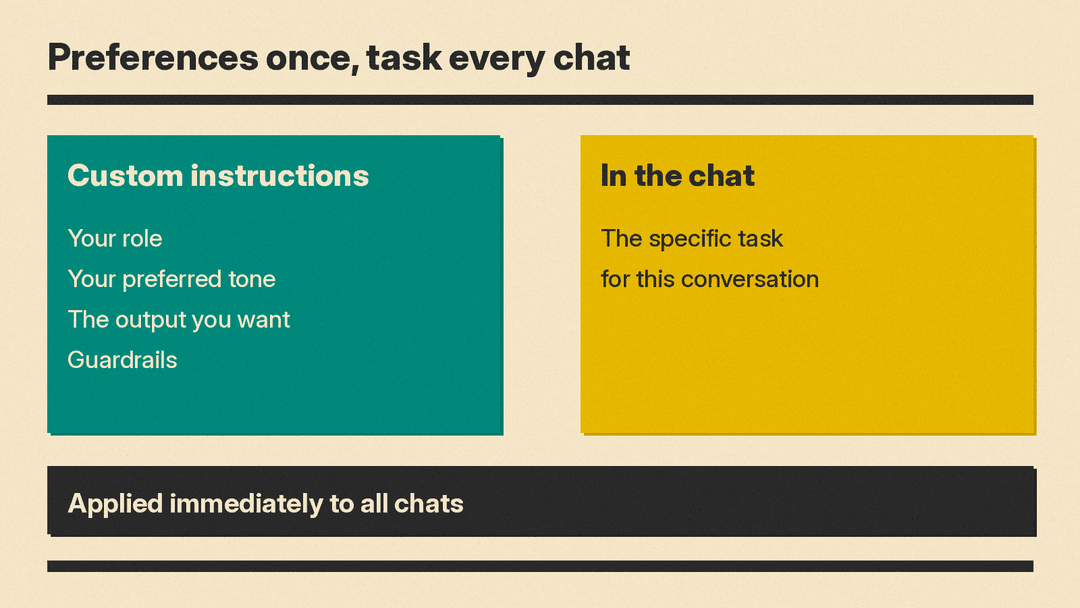
Custom instructions are text you save in your ChatGPT settings. ChatGPT takes them into account when it answers. OpenAI's ChatGPT Custom Instructions page says that updates to the settings are applied immediately across all chats, including existing conversations.
OpenAI first announced the feature in July 2023. The announcement post explained the problem it was meant to solve: the friction of starting each ChatGPT conversation afresh. Its examples included a teacher who no longer has to repeat that they teach 3rd grade science, and a developer who prefers efficient code in a language other than Python and can say so once.
Think of custom instructions as a default working style. OpenAI's Personalizing ChatGPT guide gives the same advice: use custom instructions for stable preferences, and use the chat prompt for the specific task at hand.
How to turn them on
OpenAI lists separate steps for each kind of device.
On web and desktop:
- Open your Settings and select Personalization.
- Make sure that Enable customization is toggled on.
- Enter your instructions in the Custom Instructions field.
On iOS and Android:
- In your Settings, select Customize ChatGPT.
- Make sure that Enable customization is toggled on.
- Enter your instructions in the Custom Instructions field.
Menu labels can change between app versions, so if you do not see these names, check the Help Center page above for the current wording.
How to turn them off or remove them
You do not have to delete your text to stop using it. OpenAI's page describes two options.
- Turn Enable customization off. On web and desktop, go to Personalization, select Custom Instructions, then turn Enable customization off. On iOS and Android, go to Customize ChatGPT and turn it off.
- Optionally, delete your instructions from the relevant fields.
Keeping the text and switching customization off is a handy way to test whether your instructions are the reason ChatGPT is behaving in a certain way. Switch it off, run the same prompt, and compare.
What to put in them
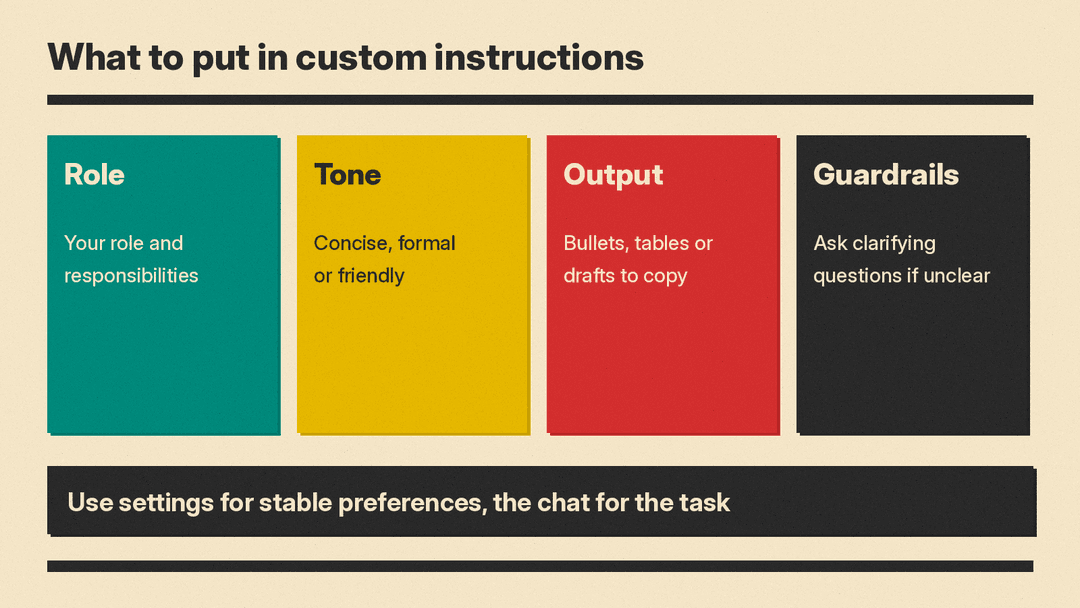
The OpenAI Academy guide says that even small details can meaningfully improve results. It gives four examples:
- Your role and responsibilities, for example "I lead customer onboarding" or "I'm a finance manager."
- Your preferred tone, such as concise, formal or friendly.
- The types of output you want, such as bullets, tables, or drafts you can copy and paste.
- Guardrails, for example "Ask clarifying questions if requirements are unclear."
Those four categories work well as a checklist. Here is an example of how a general reader might combine them. It is an illustration written for this guide, not text from OpenAI:
- Who I am: a small business owner with no technical background.
- Tone: plain, friendly and direct.
- Format: short paragraphs, with bullets only when I ask for a list.
- Guardrails: if my request is unclear, ask one question before answering. Say when you are unsure.
Notice what is missing: nothing about today's task. Instructions such as "write a product description for a candle" belong in the chat, because they change from one conversation to the next. Instructions such as "keep answers short" belong in settings, because you want them every time.
Why length and wording matter
Your instructions are saved in text fields, and the fields have a limit on how many characters they can hold. OpenAI's FAQ says that the limit depends on your plan, so check the Help Center page for the current numbers rather than relying on a figure from a blog post. In practice, a short list of clear, specific lines tends to be easier to maintain than a long block of text, and it is easier to see which line is causing a problem.
Some habits help:
- Be specific. "Short answers" is clearer than "be helpful."
- Write what you want, not only what you do not want.
- Keep one idea per line so you can edit lines one at a time.
- Review the text now and then. Your job, projects and preferences change.
OpenAI's 2023 announcement also carried a caution. Especially during the beta period, it said, ChatGPT won't always interpret custom instructions perfectly, and at times it might overlook instructions or apply them when not intended. That caution came from the beta, but a sensible habit follows from it: if a preference matters for one answer, repeat it in the chat.
Custom instructions versus Memory, personality and Projects
ChatGPT has several ways to adapt to you. They overlap, so it helps to know what each one does.
Memory holds details that ChatGPT remembers about you. The Academy guide says it can store information you explicitly ask it to remember, and, if enabled, use recent conversation context. You can manage it in Personalization, then Memory. For a full walkthrough, see our guide to ChatGPT memory and how to view, edit or turn it off. A simple way to separate them: custom instructions are what you wrote on purpose, and Memory is what ChatGPT has saved.
Personality is the style and tone ChatGPT uses when responding. OpenAI's Customizing Your ChatGPT Personality page says that changing your personality does not change what ChatGPT can or cannot do, or the safety rules it follows. It only guides how ChatGPT communicates. You pick it with the Base style and tone dropdown in Personalization.
Characteristics fine-tune that style further. OpenAI's Characteristics in ChatGPT page says they work alongside your selected personality, custom instructions, and any saved memories. It describes characteristics for warmth, enthusiasm, formatting and emoji use, each of which you can nudge in a more or less direction.
Projects are a different layer. They group chats and files under one topic. Our guide to ChatGPT Projects explains how projects, files and instructions fit together. As a rule of thumb, use custom instructions for how you want to be answered everywhere, and a project for one body of work.
What happens when settings disagree
OpenAI's personality page warns that these layers interact. It says your selected personality works alongside any saved memories or custom instructions you have set, and that this can add nuance to any personality you choose. If a saved memory contains guidance that conflicts with a personality's style, such as a preference for serious and professional responses, it may override or reduce the visible traits of that personality. Instructions you give during a conversation can also adjust or obscure a personality's behavior.
The practical takeaway: if ChatGPT does not sound the way you expected, look at all of the layers. Check your custom instructions, your saved memories and your characteristics before you decide that a setting is broken.
The personality page adds one more detail. Personality does not control every type of content you ask ChatGPT to create. If you request an email draft, a code snippet, a social media post or a résumé, ChatGPT matches the tone and style to your instructions and the context, not necessarily to the personality you selected.
Privacy: what to know before you type
Custom instructions are personal text, so it is worth reading what OpenAI says about how they are used. From the Help Center page:
- You can edit or delete custom instructions at any time for future conversations.
- Your instructions won't be shared with shared link viewers.
- Custom instructions are included in your ChatGPT data export.
- When you delete your OpenAI account, custom instructions tied to your account are also deleted within 30 days as part of that process.
- OpenAI says that information from your use of custom instructions will also be used to improve model performance, like teaching the model how to adapt its responses to your instructions without overdoing it. You can opt out of your content being used to improve model performance. Our guide to ChatGPT data controls and how to opt out of model training walks through the setting.
- If you use third-party plug-ins, the model may provide plug-in developers with relevant information from your instructions. OpenAI advises you to use only plug-ins you trust and not to share information you don't want to give to third-party plug-in developers.
The simplest privacy habit is also the best one: do not put anything in your instructions that you would not be comfortable having stored in your account. Describe your role and your preferences. Leave out passwords, account numbers and private details about other people.
Edits only affect future chats
One more point from the FAQ catches people out. If you update or remove your custom instructions, previous versions of your instructions can still appear in your chat history. OpenAI says updates are reflected only in future conversations. To remove custom instructions from previous conversations, you can clear those conversations from your chat history.
Custom instructions and the API
Custom instructions are a feature of the ChatGPT apps. OpenAI says there will be no API for custom instructions, because in the Chat Completions API, system messages should be used for a similar effect. If you build with the API, a system message is the equivalent tool.
A quick way to test your instructions
A good set of instructions should change answers in a way you can see. Try this:
- Write your instructions in the Custom Instructions field and save them.
- Open a new chat and ask for something ordinary, such as a summary of a short article.
- Check whether the tone, format and length match what you asked for.
- Edit one line, then try the same request again.
- If something is ignored, say so in the chat. If a preference matters for that one answer, repeat it there.
Make one change at a time. Then you will know which line did what.
Common problems and fixes
- ChatGPT ignores a preference. Check that Enable customization is toggled on. Then look for conflicts in saved memories or in what you said earlier in the same chat.
- Answers sound the same as before. Remember that edits apply to future conversations. Start a new chat to test.
- The tone changes depending on the task. This is expected for some content. OpenAI says drafts, code and similar outputs follow your instructions and the context, not necessarily your personality.
- You do not want to store anything personal. Keep the text to role, tone and format, or leave customization off.
Where to go next
Custom instructions are the quickest personalization setting to learn. Once you have them working, review Memory to see what ChatGPT has saved, and consider Projects for ongoing work. For the exact current wording of settings and limits, always check the OpenAI Help Center page.
