
ChatGPT gives you four different ways to deal with a conversation you would rather not leave sitting in your history: temporary chat, locked chats, archiving and deleting. They sound similar, but they do very different things. One keeps a chat out of your history from the start. One hides a saved chat behind a PIN. One only tidies your sidebar. One removes the chat from your account.
This guide explains each option in plain English, using only what OpenAI's own help pages say. It covers how to use each one, what it does and does not protect, and how to pick the right one. Locked chats are rolling out gradually, so you may not see every option on your account yet.
The short version
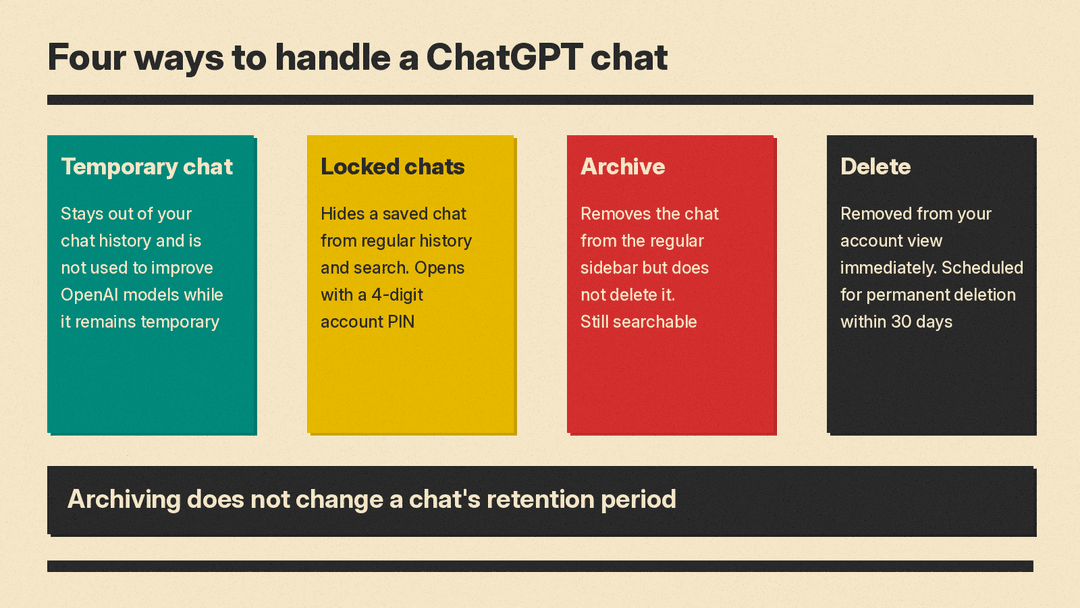
- Temporary chat is for a conversation you do not want saved to your history unless you choose to keep it.
- Locked chats are for a conversation you want to keep, but hide from your regular history and open only with a PIN or supported device unlock.
- Archive removes a chat from the regular sidebar. It does not delete it and it does not change how long it is kept.
- Delete removes the chat from your account view right away and schedules it for permanent deletion.
If you want to control what OpenAI does with your chats for model training, that is a separate setting. We cover it in ChatGPT Data Controls: How to Opt Out of Model Training.
Temporary chat: a conversation that stays out of your history
OpenAI's Temporary chat in ChatGPT page gives the core idea in one sentence: "A temporary chat stays out of your chat history and is not used to improve OpenAI models while it remains temporary."
The words "while it remains temporary" matter. As the next sections show, saving the chat changes the rules.
How to start one
The help page lists four steps:
- Open a new chat.
- Select Temporary.
- Choose Personalized or Unpersonalized before you send your first message.
- Enter your message.
Personalized or Unpersonalized
Before the conversation begins, you pick how the chat should respond.
- Unpersonalized "Does not use memory, custom instructions, or plugins."
- Personalized "Can use your existing memories, custom instructions, and plugins."
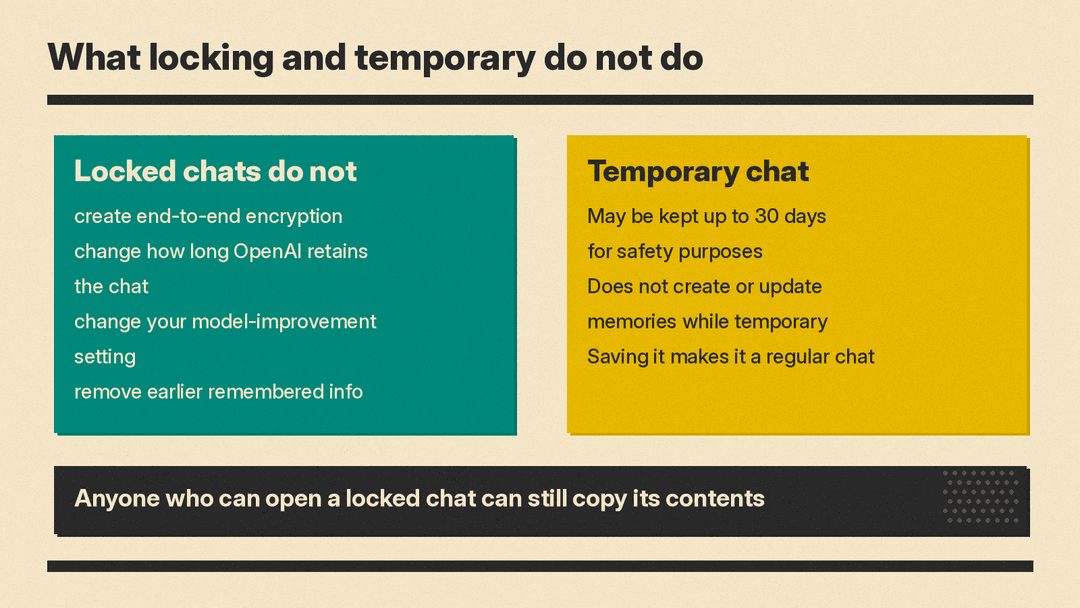
The page adds that "Neither option creates or updates memories while the chat remains temporary." It also says "You cannot change personalization after the conversation starts." So make the choice before you type anything.
If you want to know how ChatGPT memory works in the first place, see our guide to ChatGPT Memory: How to View, Edit or Turn It Off.
One more detail: "Your account and workspace restrictions take priority over the personalization choice for an individual temporary chat." If you use ChatGPT through work or school, the settings your workspace sets come first.
What happens if you save a temporary chat
You can save a temporary chat if you want to return to it later. According to the page, saving "converts it into a regular chat, including when it started without personalization." From then on, the saved chat "follows your account's personalization and model-improvement settings." If Memory is on, the saved conversation may be used to personalize future responses.
If you do not save it, the chat will not appear in your history and "cannot be reopened from history after you leave it." If the chat included uploaded files, eligible files may also be saved to Library or Space when you save the chat, subject to availability and storage limits.
Temporary does not mean gone immediately
This is the detail most people miss. The help page says: "OpenAI may keep a copy of a temporary chat for up to 30 days for safety purposes." Once you save it as a regular chat, the conversation follows the retention rules for saved chats.
The page also notes that ChatGPT "may still use information from prior conversations for limited safety and security purposes." It says that turning off memory and personalization features "does not disable safety features that may use limited, safety-relevant context in rare, high-risk situations to help ChatGPT respond more safely."
Temporary chat with GPTs and actions
You can use temporary chat with GPTs. If a GPT uses actions, the page says that data sent to a third party through an action "is governed by the recipient's privacy policy." It adds that the recipient "may retain that data for longer than 30 days and may use it for other purposes." In other words, a temporary chat does not control what an outside service does with data you send it.
Locked chats: a saved chat behind a PIN
Temporary chat is for conversations you do not want to keep. Locked chats are for the opposite case. OpenAI's Using locked chats in ChatGPT page says they "let you keep selected conversations in your account while hiding them from your regular chat history, pinned chats, and regular conversation search."
OpenAI says this "can help keep sensitive conversations out of view when you share your screen or use a shared device." You find your locked chats under Projects, then Locked chats. Opening them requires a 4-digit account PIN. On supported mobile devices, you can also use Face ID, Touch ID, or your device unlock method.
The help page opens with a hedge: "Locked chats are rolling out gradually. If you don't see Lock chat in an eligible chat's more options menu (•••), the feature may not be available for your account yet."
What locking does not do
OpenAI is direct about the limits. Locking a chat does not:
- create end-to-end encryption or a separate encrypted vault
- change how long OpenAI retains the chat
- change your Improve the model for everyone setting
- remove information that ChatGPT remembered before you locked the chat
- override applicable workspace policies, safety requirements, or legal and compliance obligations
So a locked chat is about who can see the conversation on your screen and devices. It is not a way to change what OpenAI keeps or how it uses the chat.
Where locked chats are available
According to the page, locked chats are available on ChatGPT Free, Go, Plus, Pro, Business, Enterprise, and Edu. They are not available on ChatGPT for Healthcare. On desktop, you use the new ChatGPT app for macOS or Windows. You can lock eligible cloud ChatGPT conversations in Chat or Work mode. Codex conversations, including cloud Codex conversations, and local Work conversations, can't be locked.
How to lock an existing chat
If ChatGPT is still responding, wait for the response to finish first. Then:
- Open the more options menu (•••) for the chat.
- Select Lock chat.
- Select Lock chat again to confirm.
- Create or enter the account PIN when prompted.
The first time, ChatGPT prompts you to create a PIN: select Create a PIN, enter a 4-digit PIN, then enter it again to confirm. The same PIN works on supported devices when you are signed in to the same OpenAI account.
To start a new locked chat once you have used the feature before, select Projects, then Locked chats, enter your PIN or use supported device authentication, and type a message. The conversation is saved in locked chats and does not appear in regular history or regular conversation search.
How access works
Opening a locked chat gives you temporary access. On web and desktop, access applies to the browser tab or desktop app window where you entered your PIN, and it relocks automatically after you have been away from that tab or window. On the web, access also ends when you refresh the page or close the tab. On iOS and Android, access ends automatically after 1 minute away from a locked chat or the Locked chats area, or after 1 minute in the background. You can select Lock now to end access right away.
Things to know before you lock a chat
- Memory still works. When Memory is enabled, locked chats can use relevant information from regular Memory. Information remembered only within locked chats does not carry into regular chats.
- Files are protected with the chat. Files uploaded or created in a locked chat are protected, and they stay hidden from Space and its search results. Files added from elsewhere in Space remain available there.
- Shared links stay live. You can lock a chat that already has a shared link. Locking it does not delete the link, so delete the link separately if you want to stop access to its shared content.
- Project chats leave their project. If you lock an eligible chat from a project, it leaves that project and no longer uses its instructions, files, or memory. For more on projects, see ChatGPT Projects Explained.
- Anyone who can open it can copy it. The page says "Anyone who can open a locked chat can still copy its contents."
- Workspace access still applies. Locked chats do not override your organization's access to workspace data. Administrators cannot unlock your chats or reset your PIN, and locked chats in Enterprise and Edu workspaces are still included in conversation message logs available through the OpenAI Compliance Platform.
Chats that cannot be locked
Some conversation types can't be locked, even if the Lock chat option appears. OpenAI lists:
- temporary chats
- archived chats
- group chats
- chats in the earlier Health experience
- chats created from a shared link
- chats created by branching from another conversation, including with Continue in a new chat
- chats with scheduled tasks
- chats with meeting recordings
- chats associated with background tasks
- chats with responses saved as project sources
If a chat has a scheduled task, delete the task before locking, including paused tasks.
Forgetting your PIN is the risky part
Forgetting your PIN does not by itself delete your locked chats. You can leave them locked. But resetting the PIN is permanent. OpenAI says resetting "permanently deletes all locked chats, remembered information stored only within locked chats, and files or other content protected only by your previous PIN." It says this cannot be undone, and that OpenAI Support cannot unlock your chats or bypass your account PIN.
If you know your current PIN, you can change it without losing anything. Open Settings, select Security and login, select Account PIN, and use the Change option under Change PIN.
Archive: tidy, not private
Archiving is the lightest option. OpenAI's Deleting and archiving chats in ChatGPT page says "Archiving removes the chat from the regular sidebar but does not delete it. Archived chats remain searchable."
To archive a chat, open your chat history, select the more options menu (•••), and select Archive. No confirmation is required. To manage archived chats later, open Settings, select Data controls, then select Archived chats or View archived chats, depending on your device. From there you can unarchive or delete.
Archiving does not change retention. In the words of the help page, "Archiving a chat does not change its retention period." So archiving is a way to clear clutter, not a way to hide a chat from search or limit how long it is kept.
One caution: archiving a chat used for scheduled-task results can cause the task to pause on a later run.
Delete: the permanent option
To delete a chat, open your chat history, select the more options menu (•••) for the chat, select Delete, and confirm. On iOS or Android you can also open the menu, press and hold the conversation title, and select Delete.
OpenAI describes what happens next:
- ChatGPT removes it from your account view immediately.
- OpenAI schedules it for permanent deletion from its systems within 30 days, unless the chat was already de-identified and disassociated from your account or OpenAI must retain it longer for security or legal obligations.
- You cannot restore a deleted chat in ChatGPT or through OpenAI Support.
To archive or delete chats in bulk, open Settings, select Data controls, and select Archive all chats or Delete all chats. The help page says these actions can affect chats in your current account or workspace, including chats in projects, and that Delete all chats cannot be undone.
Files and connected apps are separate
Deleting a chat does not delete files saved separately. OpenAI's Chat and file retention in ChatGPT page says "Deleting a chat does not delete a separately saved file. Delete the file from Library or Space if you also want to remove that saved copy."
Files in GPTs and projects follow their own rules. Files uploaded as knowledge to a custom GPT are retained until the GPT is deleted. Files added to a project are retained until the project or file is deleted or an applicable workspace retention policy removes them.
Connected apps work the same way. If a conversation used data from a connected app, deleting the chat removes the conversation and the connected-app data retained within it from your account, subject to standard retention and legal obligations. It does not delete the original data from the connected app, and disconnecting an app does not delete past conversations that already used app data.
Which one should you use?
- You want a one-off conversation that is not saved to history: use a temporary chat. Remember the copy that may be kept for up to 30 days for safety purposes.
- You want to keep a conversation but hide it from your screen and regular search: use a locked chat, if it is available to you. Remember it is not encryption and does not change retention or model improvement.
- You just want a cleaner sidebar: archive the chat. It stays saved and searchable.
- You want a chat gone from your account: delete it, then delete any separately saved files in Library or Space.
OpenAI's own comparison is useful here. Its locked chats page says to "use temporary chat when you want a conversation to stay out of history and not be used to improve OpenAI's models while it remains temporary," and to "use locked chats when you want to save a conversation and protect access with an account PIN or supported device authentication." Temporary chats cannot be locked while they remain temporary, and saving one converts it into a regular chat.
Frequently asked questions
Does a temporary chat use my memories?
It can, if you choose Personalized. Unpersonalized does not use memory, custom instructions, or plugins. In both cases, a temporary chat does not create or update memories while it remains temporary.
Is a temporary chat used to train OpenAI models?
OpenAI says a temporary chat "is not used to improve OpenAI models while it remains temporary, whether or not you choose personalization." If you save it, your model-improvement setting applies.
Can I lock a temporary chat?
No. Temporary chats cannot be locked while they remain temporary. Saving one turns it into a regular chat first.
What if I forget my locked chats PIN?
Your locked chats stay locked, and OpenAI Support cannot unlock them. Resetting the PIN deletes all locked chats and the other protected content permanently, so reset only if you accept that.
Does archiving a chat hide it from search?
No. OpenAI says archived chats remain searchable.
If I delete a chat, is it gone from OpenAI immediately?
It disappears from your account view immediately. OpenAI schedules it for permanent deletion from its systems within 30 days, with the exceptions listed above.
