
ChatGPT can do more than hand you finished answers. Study mode changes the conversation into a guided learning session where ChatGPT asks you questions and checks what you understand. This guide explains what study mode is, how to turn it on and off on web, iOS, and Android, how to write an opening message that gets useful results, and what to do when something does not work.
What is ChatGPT study mode?
Study mode is a learning experience in ChatGPT that helps you build a deeper understanding of a topic. Instead of only giving a final answer, ChatGPT can ask questions, guide your thinking, explain ideas step by step, and check your understanding as you go.
As of November 9, 2026, OpenAI's help article says study mode is available across ChatGPT plans globally, on the web and in the iOS and Android apps. It is available for all ChatGPT models, so it works with any model available to you.
One caution for students: for graded work, follow the AI-use policies of your school, instructor, or organization.
What can study mode help with?
OpenAI lists several ways study mode can help:
- Learn a new concept from the beginning
- Work through homework or practice problems step by step
- Prepare for a quiz, test, or exam
- Review class notes, slides, readings, or a syllabus
- Create practice questions or flashcard-style review
- Understand why an answer is correct or incorrect
- Break a large topic into smaller sections
Study mode works through a few simple behaviors.
Guiding your thinking. Study mode can guide you with questions instead of giving the answer right away. This is a Socratic-style approach. ChatGPT may ask what you already know, where you got stuck, or what step you would try next.
Explaining in layers. Study mode can start simple and add detail when you are ready. You can ask it to slow down, use simpler language, give an analogy, or go deeper.
Checking your understanding. Study mode can ask open-ended questions, give feedback on your answers, and correct misunderstandings. You can ask it to quiz you one question at a time, wait for your answer, and explain what to review next.
If voice dictation is available to you, you can also use it to ask questions in study mode.
Some accounts or apps may show learning shortcuts such as Quizzes. If you do not see them, you can simply ask study mode to quiz you, create practice questions, or build flashcard-style review.
How do I turn on study mode on web, iOS, and Android?
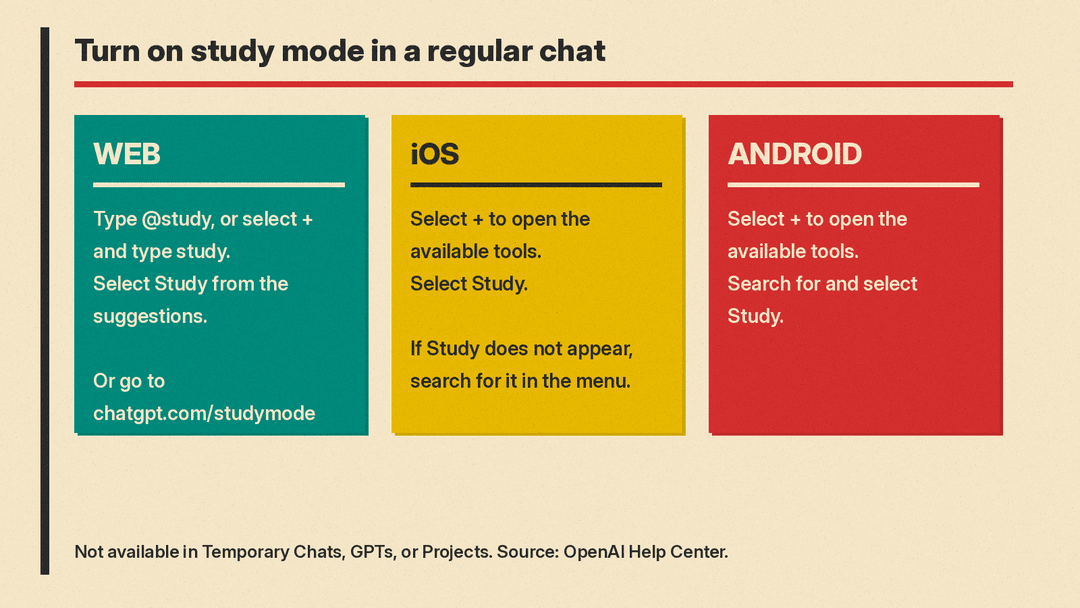
Start a new chat or open a regular ChatGPT conversation, then follow the steps for your device. On the web, sign in first.
Web
- Type
@studyin the message composer, or select + and typestudyto search the menu. - Select Study from the suggestions.
You can also go directly to chatgpt.com/studymode.
iOS
- Select + to open the available tools.
- Select Study. If Study does not appear, search for it in the menu.
Android
- Select + to open the available tools.
- Search for and select Study.
Menu layouts may vary by app version, so the Study option may not appear exactly where these steps describe.
Study mode is used in a regular ChatGPT conversation. The Study option is not available in Temporary Chats, GPTs, or Projects. If you want to use it, start a normal conversation. For background on those other features, see our guides to Temporary Chat and Projects.
How do I turn off study mode?
To turn study mode off, remove the selected Study icon from the message composer.
- On the current desktop web composer, place the cursor next to the Study token and press Backspace or Delete.
- On layouts with a remove control (×), select it.
- If Study appears selected in a menu, selecting it again may turn it off.
As with turning it on, the exact control may vary depending on the app and layout you are using.
How do I write a good first message?
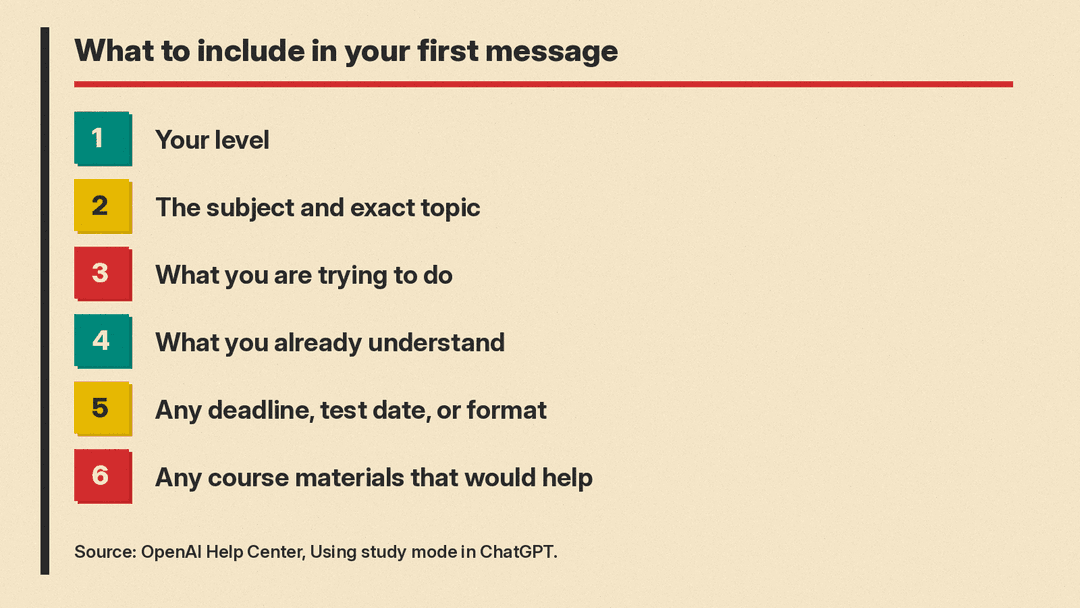
Your opening message shapes the whole session. OpenAI suggests including:
- Your level, such as middle school, high school, college, beginner, or advanced
- The subject and the exact topic
- What you are trying to do
- What you already understand
- Any deadline, test date, or format
- Any course materials you have
OpenAI says you will usually get better help when your message includes these details.
OpenAI's example prompts:
- "I am in my first year of college and taking introductory biology. Help me study for my exam next week on enzymes. Quiz me one question at a time and explain anything I miss."
- "I am learning algebra and keep getting stuck on factoring quadratics. Walk me through one example, then give me a similar one to try myself."
- "I uploaded my class notes. Help me turn them into a study plan for a test on Friday."
- "I know the answer is B, but I do not understand why. Help me reason through the problem without just repeating the answer."
- "I have 20 minutes to review this topic. Give me the most important ideas, then test me with a few questions."
Notice what these examples have in common. Each one states a level, names a specific topic, and asks for a specific study behavior, such as quizzing one question at a time, working through an example, or building a study plan around a deadline. For more ready-made prompts, see our 25 ChatGPT prompts for studying.
How do I use my notes, PDFs, and photos?
Study mode can work with your own course materials. You can upload course materials, images, or PDFs, such as:
- Class notes
- A syllabus
- A worksheet
- Slides
- A textbook excerpt
- A photo of a math or science problem
If ChatGPT misses something in an upload, you have options. Upload a clearer version of the file, paste the relevant text directly into the chat, or tell ChatGPT which page, section, or question to focus on.
Study mode can use your files and images when uploads are available in your chat. For more on uploads in general, see our guide to ChatGPT file uploads and data analysis.
If you want visuals along with your explanations, keep in mind that diagrams and other visuals depend on the tools available in your chat.
Does study mode use memory?
If memory is available and enabled on your account, ChatGPT may use saved memories or past chats to personalize study mode, depending on your settings. For example, it may draw on your learning goals, your preferred explanation style, or topics you studied before.
You can review these settings in Settings > Personalization, under Memory. Depending on your account, the options may include Enable memory, Reference saved memories, or Reference chat history.
Study mode still works when Memory is off. Responses may just be less personalized.
Why might study mode already be on?
There are two situations where study mode may already be active without you turning it on.
Teens. With the ChatGPT for Teens experience, study mode may already be on because Study hours is set for that time. Study hours is an optional schedule that can start eligible new conversations in study mode during selected times. OpenAI's ChatGPT for Teens article says the teen or a linked parent or guardian can choose Study hours. Study hours does not block access to ChatGPT, and it does not apply to existing conversations, GPTs, or Projects. Quiet hours are different: those are times when a linked teen cannot use ChatGPT. Both schedules are managed in Settings > Parental controls, not in a conversation. OpenAI's parental controls article also lists a separate Study mode setting, off by default, that makes new conversations start in study mode, while the study mode article says Study hours replace that older setting. The labels you see may differ. For setup steps, see our guide to AI chatbot parental controls.
Schools and workspaces. In some eligible ChatGPT Edu workspaces, an admin may require study mode for regular conversations. When that happens, study mode is applied automatically and the Study selector does not appear. This does not apply to GPT or Project conversations.
What limits should I know about?
- Study mode can make mistakes. Double-check important information, especially for homework, exams, health, legal, financial, or other high-stakes topics.
- The same plan, model, message, and rate-limit rules apply as outside study mode. It does not add extra messages, bypass rate limits, or make unavailable models available. File and image uploads can have their own per-chat limits.
- It may sometimes give a direct answer. When it does, you can ask for hints, quizzes, or step-by-step guidance instead.
- Diagrams and visuals depend on the tools available in your chat.
- Study mode does not replace your teacher, tutor, course materials, or academic requirements.
For graded work, follow the AI-use policies of your school, instructor, or organization.
Troubleshooting: what do I do if study mode is not working?
I do not see the Study option. Try these steps:
- Start a new regular conversation. Study is not available in Temporary Chats, GPTs, or Projects.
- Use the search path: select + and type study to search the menu.
- On web, try chatgpt.com/studymode.
- Update or restart the app, or sign out and back in.
- On web, do a hard refresh, clear site data for chatgpt.com, or try a private window with extensions disabled.
- Try disabling a VPN, proxy, ad blocker, or script blocker, or use another network.
Remember that menu layouts may vary by app version, so the option may be in a different place than you expect.
If Study still does not appear, contact OpenAI Support. Include your device, app version, browser, where you looked for Study, and a screenshot. On the web, also say whether chatgpt.com/studymode opens with Study selected.
Responses feel too fast. Ask study mode to adjust the pace:
- "Explain this like I am new to the topic."
- "Pause after each step and ask if I understand."
- "Use a simpler example before the real problem."
Responses feel too basic. Ask for more challenge:
- "I understand the basics. Give me a more advanced explanation."
- "Test me with harder questions."
- "Explain the edge cases or common traps."
A file was not used correctly. Upload a clearer image or PDF, paste the key text into the chat, say which page, question, or section to use, or ask ChatGPT to summarize what it sees before answering.
Sources
- Using study mode in ChatGPT, OpenAI Help Center
- Managing parental controls in ChatGPT, OpenAI Help Center
- ChatGPT for Teens, OpenAI Help Center
All facts in this article come from the OpenAI Help Center articles linked above, read on November 9, 2026. Features and menus may change over time, so check the help articles for the current details.
