
When you chat with ChatGPT on a personal account, your conversations can be used to help train OpenAI's models. On Free, Plus and Pro, that is the default. Turning off training does not cost you your chat history.
This guide explains ChatGPT's data controls in plain English, using only what OpenAI's own help and policy pages say. It covers the model training switch, the Privacy Portal, Temporary chat, data export, account deletion, and what is different for work accounts.
One caution first. OpenAI's Data controls help page says "available controls depend on whether you are signed in, your plan, and your workspace settings." If you do not see a setting described here, it may not apply to your account.
What "data controls" means in ChatGPT
OpenAI describes data controls as settings that "let you choose whether your conversations help train OpenAI models." The same menu also lets you export your data, manage shared links, and manage other data settings available to your account.
You find them in one place: open Settings and select Data controls. OpenAI also runs a privacy center and a Privacy Portal that explain your privacy options, but the help page notes you can still manage those settings from the Settings menu in ChatGPT.
Why does OpenAI train on chats at all? Its page on how your data is used to improve model performance says that "ChatGPT, for instance, improves by further training on the conversations people have with it, unless you opt out." The same page says OpenAI takes "steps to reduce the amount of personal information in our training datasets before they are used to improve and train our models."
The main switch: "Improve the model for everyone"
The setting that matters most has a long name: Improve the model for everyone.
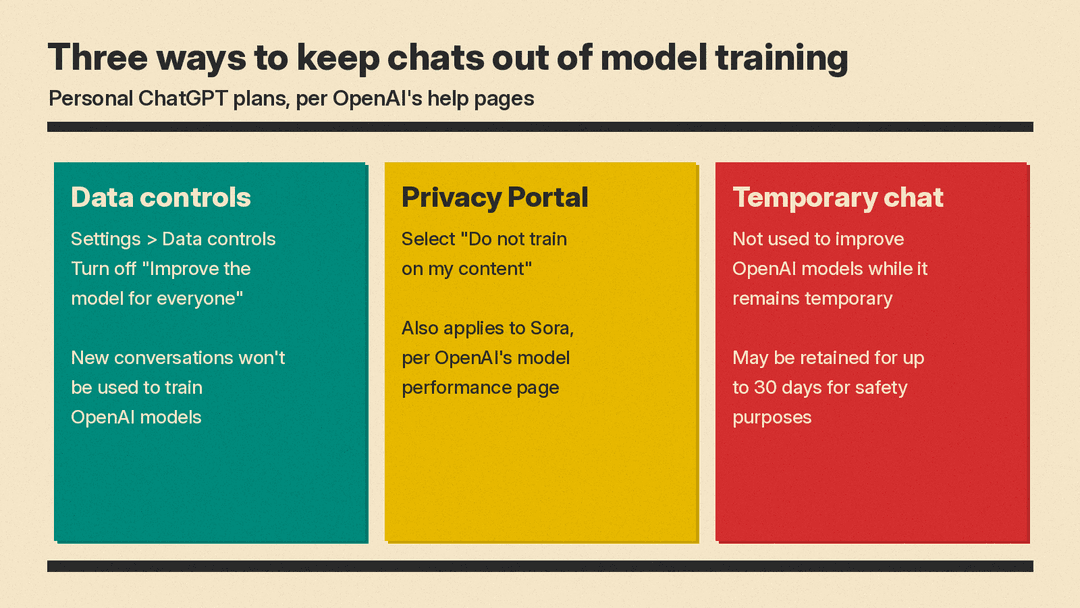
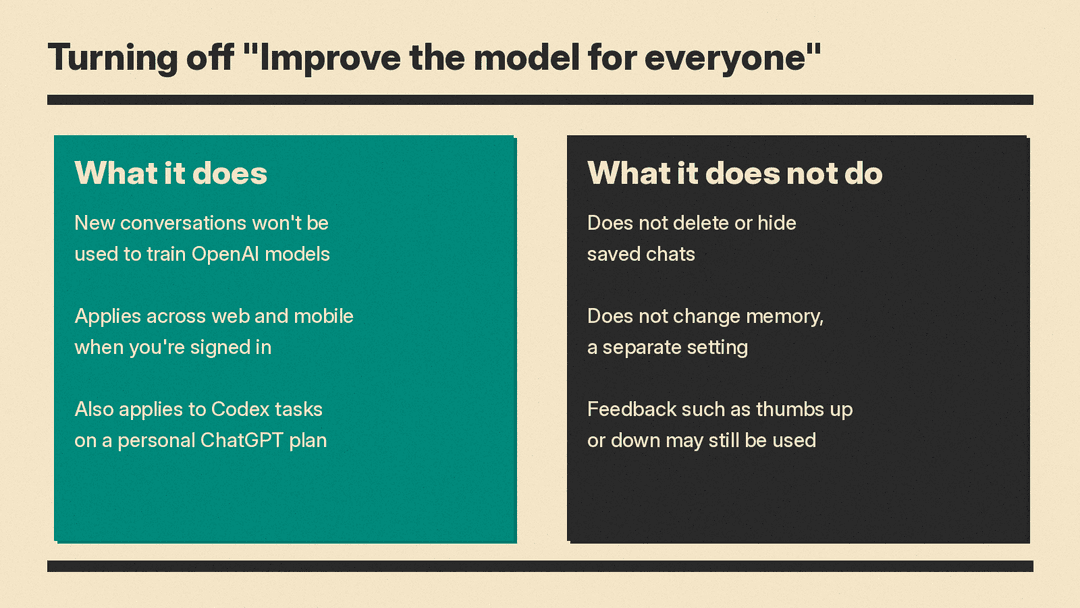
According to the help page, on personal workspaces with ChatGPT Free, Plus, or Pro, data sharing is enabled by default. When you turn Improve the model for everyone off, "your new conversations won't be used to train OpenAI models." They can still appear in your chat history.
That last part is the key point. You do not have to give up history to opt out of training. OpenAI says you can turn the setting off "and keep your chat history."
How to turn it off on the web
The help page lists these steps for signed-in web use:
- Open your account menu.
- Select Settings.
- Select Data controls.
- Select Improve the model for everyone, turn it off, and select Done.
How to turn it off on iOS and Android
- Open the sidebar.
- Select your profile icon to open Settings.
- Select Data controls.
- Turn off Improve the model for everyone.
When you are signed in, the setting applies to your account across web and mobile devices.
If you use ChatGPT without signing in
You can still turn off Improve the model for everyone from Settings. The difference, according to OpenAI, is that "your choice is saved in that browser." If you switch browsers, check the setting again.
Voice mode is separate
The help page says voice mode "has a separate control for sharing data for model training." If you use voice conversations, look for that control as well.
ChatGPT Finances, the U.S. feature that reads linked bank and credit data, follows the same training settings, according to OpenAI's Help Center. Our post on ChatGPT Finances voice has the details.
The other route: the Privacy Portal
OpenAI also lets you opt out through its Privacy Portal. Its model performance page says you can opt out of training there "by clicking on 'do not train on my content.'" Once you opt out, new conversations will not be used to train OpenAI's models.
The portal reaches a little further than the ChatGPT switch. OpenAI's model performance page says Sora has separate controls, and that if you opt out of training through the privacy portal, "this will apply to Sora too." It also notes that adjusting your settings in the ChatGPT interface will not affect your Sora settings.
If you previously opted out by contacting OpenAI Support or through a privacy request, the help page says "OpenAI continues to honor the opt-out associated with the account."
Codex tasks follow the same setting
If you use Codex on a personal ChatGPT plan, the help page says Improve the model for everyone also applies to your Codex tasks. You can turn it off in ChatGPT, or select Do not train on my content in the Privacy Portal. OpenAI says either option is enough for both ChatGPT conversations and Codex tasks, so you do not need to do both.
There is one exception to know about. Codex has a separate Include environments setting in Codex settings. It controls whether additional context from your Codex environments can be used to train OpenAI models, and the help page says changing your ChatGPT setting or opting out through the Privacy Portal does not change it.
What turning off training does not do
OpenAI's help page lists a few limits of the training switch.
It does not delete anything. Turning off Improve the model for everyone "does not delete or hide saved chats." Regular chats remain in history, archived chats remain archived, and project chats remain in their projects. If you want content gone, OpenAI says to delete a chat or your account separately.
Archiving is not an opt-out. The help page says "archiving a chat does not change whether it can be used to train OpenAI models." Your Improve the model for everyone setting continues to apply.
Feedback is an exception. If you choose to give feedback, such as selecting thumbs up or thumbs down on a response, OpenAI says "the entire conversation associated with that feedback may be used to train OpenAI models." If you have opted out and want a conversation kept out of training, skip the thumbs.
It is not the same as memory. OpenAI separates the two. Memory controls how ChatGPT personalizes responses, while model training controls decide whether eligible content can be used to improve OpenAI models. "These are separate settings," the help page says. For how memory works and how to manage it, see OpenAI's help page on ChatGPT memory.
Temporary chat: a one-off private conversation
Sometimes you want one conversation to stay out of everything. That is what Temporary chat is for.
OpenAI's Temporary chat help page says a temporary chat "stays out of your chat history and is not used to improve OpenAI models while it remains temporary." According to the Data controls page, while they remain temporary, these chats:
- do not appear in your chat history
- do not create or update memories
- are not used to improve OpenAI models
- may be retained for up to 30 days for safety purposes
How to start one
- Open a new chat.
- Select Temporary.
- Choose Personalized or Unpersonalized before you send your first message.
- Enter your message.
The choice in step 3 matters. Unpersonalized "does not use memory, custom instructions, or plugins." Personalized "can use your existing memories, custom instructions, and plugins." Neither option creates or updates memories while the chat remains temporary, and OpenAI says you cannot change personalization after the conversation starts.
Saving a temporary chat changes the rules
You can save a temporary chat if you want to come back to it. Saving converts it into a regular chat. From that point, OpenAI says, the saved chat "follows your account's personalization and model-improvement settings." If you do not save it, it will not appear in your history and cannot be reopened from history after you leave it.
One more caution from the help page: if you use a GPT that uses actions, data sent to a third party through an action "is governed by the recipient's privacy policy," and the recipient may retain that data for longer than 30 days. Temporary chat does not change what the third party does.
How to download a copy of your data
Signed-in ChatGPT Free, Go, Plus, and Pro users can request a copy of their data from ChatGPT settings, according to the Data controls page. You can also use the OpenAI Privacy Portal.
Self-service data export is not available for ChatGPT Business, Enterprise, or ChatGPT for Healthcare workspaces; those requests go to the workspace owner. OpenAI says eligible ChatGPT Edu workspaces may allow exports when an administrator enables them.
How to delete your account
Signed-in ChatGPT Free, Go, Plus, and Pro users can delete their account from their ChatGPT settings. OpenAI warns that deleting your OpenAI account "is permanent and affects its associated data and subscriptions." Before you delete, it is worth exporting your data first, and checking OpenAI's account-deletion instructions for the billing details the help page points to.
If you use ChatGPT through work or school, self-service account deletion is not available. The help page says to contact your workspace owner or organization.
Work, school and API accounts are different
If your ChatGPT account comes from an employer or school, the defaults are not the same as on a personal plan.
The Data controls help page says that by default, OpenAI does not use content from ChatGPT Business, Enterprise, Edu, or ChatGPT for Healthcare workspaces to train its models. It also says that by default, OpenAI does not use inputs and outputs provided through the API Platform to train its models.
OpenAI's model performance page adds that API customers can opt in to share data, for example by providing feedback in the Playground, and that "unless they explicitly opt-in, organizations are opted out of data-sharing by default."
Managed workspaces can also have their own retention, Memory, compliance, and access settings, and your organization's policies still apply. If you are not sure what applies to your work account, ask your workspace admin.
A quick privacy checklist
If you want ChatGPT on a personal plan to stop training on your chats, here is the short version, based on OpenAI's help pages:
- Go to Settings, then Data controls, and turn off Improve the model for everyone.
- If you use voice mode, check its separate model training control.
- If you also use Sora, opt out in Sora's settings or through the Privacy Portal.
- If you use Codex, check the separate Include environments setting.
- Skip thumbs up and thumbs down on conversations you want kept out of training.
- Use Temporary chat for one-off conversations you do not want in your history.
- Delete chats you no longer want saved. Turning off training does not remove them.
Privacy settings are one part of using AI tools carefully. Checking what the tool tells you is another; our 5-minute routine for fact-checking AI answers covers that side. And if you see ads in ChatGPT, OpenAI's help page notes that separate controls can determine how ads are personalized; our explainer on how ChatGPT ads work has more.
Gemini handles this differently for personal accounts: the setting that keeps chat history also allows training. For the debate that followed, see what people are saying about Gemini chat training.
