
You can attach a file to a ChatGPT conversation and ask questions about it. That sounds simple, but a lot depends on the file type, how the file is laid out, and what you ask for. A tidy spreadsheet and a scanned PDF of a table are very different jobs, even though both are "a file".
This guide explains how file uploads and data analysis work in ChatGPT, based on what OpenAI's own Help Center pages say. It covers what you can upload, what ChatGPT can do with it, how to prepare a spreadsheet, how to check the results, and where uploads can go wrong. Exact limits change and vary by plan, so this guide points to the official page for numbers instead of repeating them.
The short version
- ChatGPT can work with documents, spreadsheets, presentations, images and audio files that you attach to a conversation.
- Ask it to summarize, compare, extract or transform the content. For spreadsheets, it can also create tables and charts.
- For data analysis, give it clean, structured data: clear column names and one record per row.
- Review the generated code, outputs and assumptions before you rely on an answer.
- When exact values matter, upload a spreadsheet or text-based file, not a scan or a screenshot.
- Deleting a chat and deleting a saved file are separate actions.
What you can upload
OpenAI's Uploading files and audio to ChatGPT page says ChatGPT can work with "documents, spreadsheets, presentations, images, and audio files you attach to a conversation." Here are the formats the page lists:
- Documents and text: DOCX, PDF and TXT. You can't upload a .gdoc file directly. Export it as PDF or DOCX first, then upload the exported file.
- Spreadsheets: XLSX, XLS, CSV and TSV.
- Presentations: PPTX.
- Audio: WAV, MP3/MPEG, OGG/OGA, audio-only WebM, PCM, FLAC, AAC, M4A and audio-only MP4. WebM and MP4 files identified as video are not supported by audio uploads.
Images are also supported. The page notes that document, spreadsheet, presentation, text and image uploads are available on Free and paid ChatGPT plans, subject to plan-specific limits and account settings, on the web and in supported mobile apps. Audio uploads are available with paid ChatGPT subscriptions and workspaces, including Enterprise, and are not available on the Free plan at this time. Availability can also vary by workspace settings, region, client version and selected model.
The API is a separate product. OpenAI says it has its own file-upload requirements, supported purposes and limits, so this guide covers only the ChatGPT app.
How to use a file in a conversation
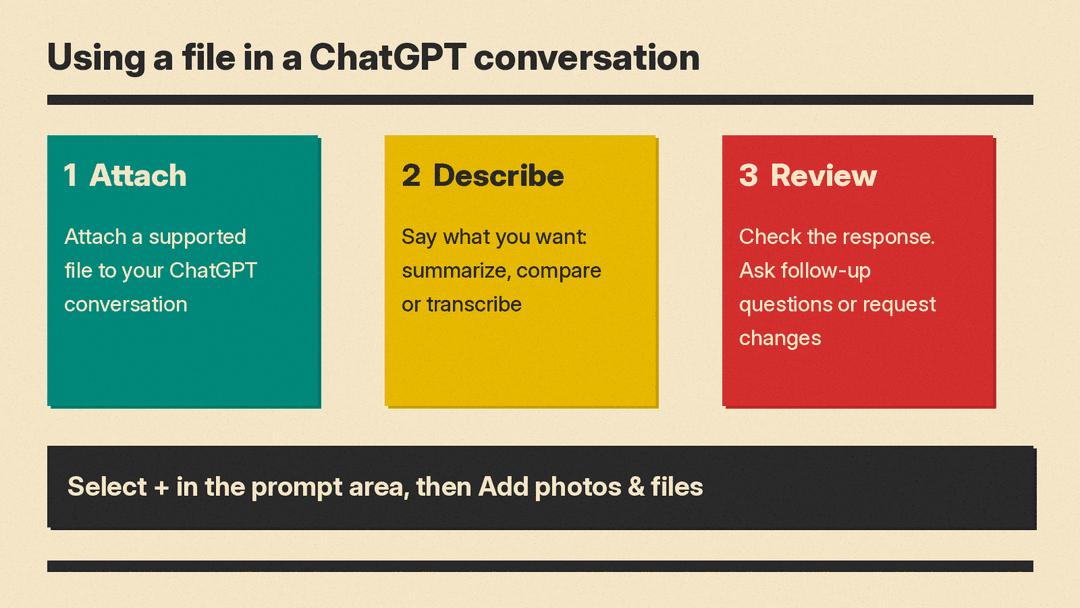
OpenAI describes three steps:
- Attach a supported file to your ChatGPT conversation.
- Describe what you want ChatGPT to do with it, such as summarize a document, compare two files or transcribe an audio recording.
- Review the response and ask follow-up questions or request changes.
On the web, the page says to select + in the prompt area, then choose Add photos & files. That is the path it gives for uploading a PDF. The same path works when you attach a file directly in a chat with a GPT or in a project chat.
The third step is easy to skip. A file upload is the start of a conversation, not a one-shot command. If the first answer is too broad, ask for a narrower one. If it picks the wrong section, tell it which section to use.
What to ask for: summarize, find, transform
OpenAI groups the common uses into three buckets. They are a useful way to think about prompts.
Summarize, compare and analyze
- Summarize a research paper or another document in simpler terms.
- Compare two documents, or apply a framework from one document to another.
- Analyze the sentiment or tone of a document.
- Get feedback on a presentation's content.
- Upload a spreadsheet with qualitative and quantitative information to explore trends or create visualizations.
- Summarize a meeting recording, highlighting decisions, open questions and next steps.
A good prompt names the audience and the output. For example: "Summarize this report for a manager who has two minutes. Give me five bullets and one risk." That is more useful than "summarize this".
Find specific information
- Find references to a topic or extract relevant quotes.
- Extract document metadata, such as an author or creation date.
- Count spreadsheet rows that have a particular attribute.
- Extract sections, headings or lists from a document.
- Ask questions about a recording. OpenAI's example is "What did they say about the launch deadline?"
Extraction tasks are easy to check. If ChatGPT pulls a quote, search for it in the original file. If it counts rows, filter the spreadsheet yourself and compare.
Transform content
- Rewrite a short document in a different style.
- Turn a presentation into a document.
- Ask for a transcript of an audio recording, then ask follow-up questions about its contents.
- Turn a recording into structured notes, a meeting recap or a follow-up email draft.
Read any transformed output against the source before you use it.
Data analysis: what ChatGPT can do with a spreadsheet
For numbers, OpenAI has a separate page, Data analysis with ChatGPT. It says ChatGPT can analyze uploaded files, answer questions about the data, and create tables or charts when the output benefits from a structured view.
The page lists these supported file types for data analysis:
- Spreadsheets, such as .xls, .xlsx and .csv files
- PDFs
- Text and data files, such as .json, .xml, .yaml, .txt and .md files
It adds that available file types can vary by model, plan, workspace settings and account capabilities. When plugins are available for your account or workspace, you can also attach files from connected sources such as Google Drive, OneDrive and SharePoint.
Here is what OpenAI says ChatGPT can help with:
- Summarizing rows, columns, trends and outliers
- Creating tables for row-by-row review
- Creating charts from uploaded data
- Running Python-based calculations, transformations and statistical analysis
- Explaining assumptions, results and possible next steps
For some data-analysis tasks, ChatGPT writes and runs Python code in a stateful Jupyter notebook environment. The environment can use files made available to the session and can display pandas DataFrames as interactive tables when that format is useful. OpenAI says to review the generated code when Python is used.
If you want to compare ChatGPT with other tools for this job, see Best AI Tools for Data Analysis.
Prepare your spreadsheet first
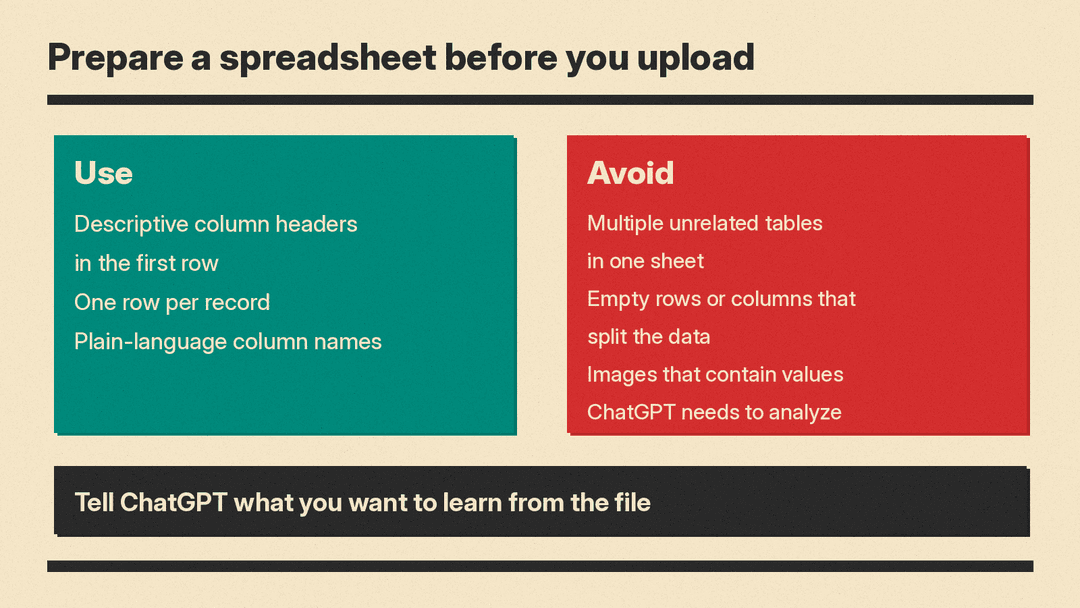
OpenAI says that for best results you should upload structured data with clear column names and one record per row. It also asks you to tell ChatGPT what you want to learn from the file, and to specify any columns, calculations, groupings or chart types you want it to use.
The page gives a short checklist for spreadsheets.
Use:
- Descriptive column headers in the first row
- One row per record
- Plain-language column names
Avoid:
- Multiple unrelated tables in one sheet
- Empty rows or columns that split the data
- Images that contain values ChatGPT needs to analyze
Cleaning the file first costs a few minutes and gives ChatGPT clearer input. If your sheet has a summary table at the top and the raw data below it, move the summary to another sheet. If one column is called "Q3 v2 FINAL", rename it to something a stranger could read.
A prompt that works well
A prompt that follows OpenAI's advice names the question, the columns and the output. For example:
"Using the Region and Revenue columns, group the data by region and show total revenue for each one. Then make a bar chart. Tell me if any rows are empty or look wrong."
That prompt does four things. It says which columns to use. It names the calculation. It names the chart type. It asks ChatGPT to flag data problems instead of hiding them.
Charts: static and interactive
According to the data analysis page, ChatGPT can create static charts as image outputs. Some charts can also be shown as interactive charts. When an interactive chart is available, select Switch to interactive chart. To return to the image version, select Switch to static chart.
Interactive charts are supported for bar, line, pie and scatter charts. Other chart types may be returned as static images.
ChatGPT may also choose a chart type that does not match your intent on the first try. OpenAI's advice is to ask it to use a specific method, chart type, grouping or column when you need a particular approach. If you want a line chart, say "line chart".
Check the work before you rely on it
This is the most important section of the guide. OpenAI's page says that when ChatGPT uses Python for analysis, you should "review the generated code, outputs, and assumptions before relying on the result." It adds that if the answer depends on a specific method, you can ask ChatGPT to show or adjust that method.
In practice, that means:
- Ask what method it used and what it assumed about missing values, duplicates and dates.
- Spot-check a few numbers against the original spreadsheet.
- Ask it to show the steps for any figure that will go into a report, a budget or a decision.
- Treat a surprising result as a reason to check, not a finding.
For audio, the Help Center is just as direct: "Transcripts may contain errors, and speaker identification may be unreliable." Its advice is to review important details against the original recording.
Where file analysis goes wrong
OpenAI's pages describe several limits. They are worth knowing before you trust a result.
Scans, screenshots and image-based tables
The FAQ on the data analysis page says: "ChatGPT may not reliably extract exact values from image-based tables, scanned files, or files with complex visual layouts." When exact values matter, OpenAI says to upload a spreadsheet or text-based file instead.
If you only have a scanned report, treat any extracted number as a draft. Check each one by eye.
A file that uploads but is not fully analyzed
A file can upload without errors and still be too large, complex, image-heavy or poorly structured for complete analysis. For spreadsheets, the number and complexity of formulas can also affect processing, even when the file is within the upload size limit.
If the result looks incomplete, OpenAI suggests asking ChatGPT to inspect specific sheets, rows, columns or sections, or splitting the file into smaller files. A good habit is to ask early: "How many rows did you read?" Then compare the answer with the real row count.
No outside data
The Python environment used for data analysis cannot make external web requests or API calls. If your analysis depends on outside data, upload it or connect an available source first.
Charts and images inside PDFs
The uploads page says ChatGPT can analyze both text and images in PDFs, including charts and diagrams. There is a catch. Files saved as GPT knowledge or project files are handled differently from direct chat attachments, and embedded images may not be included automatically. To ask about a specific chart or image, attach the PDF directly to the chat or upload the image separately.
If embedded images are not supported for your file, upload the images separately as PNG, JPEG or non-animated GIF files.
Limits and what to do when you hit one
OpenAI publishes size limits, upload-rate limits and storage caps on the uploads page. It also says OpenAI may lower the limits during peak hours, and that the exact number of files per conversation can vary by upload type, model, plan, workspace settings and remaining file-upload allowance. Because these figures change, check the official page for the current numbers on your plan.
Some points are stable:
- Two kinds of limits. There is an upload-rate limit and a separate shared storage cap. Saved-file storage is separate from the upload rate.
- Storage check. On the web, open Settings > Storage to see saved-file storage usage. OpenAI says ChatGPT does not currently show how much of your rolling upload-rate quota has been used or remains.
- Projects and GPTs. Project file limits depend on your plan, and a GPT has its own limit for knowledge files. These are separate from conversation upload limits. For more on projects, see ChatGPT Projects Explained: How to Organize Chats, Files and Instructions.
If you see an "upload limit reached" message when you have uploaded few or no files, OpenAI suggests these steps:
- Confirm that you are signed in to the correct account and subscription plan.
- If the error message shows a retry time, wait until that time before uploading again. Failed upload attempts can sometimes count toward the upload-rate limit.
- On the web, open Settings > Storage to check saved-file storage usage.
- Check OpenAI Status for incidents that may affect uploads.
- If the problem continues, contact OpenAI Support.
For an audio upload that fails, check that the file uses a supported format and contains a valid, decodable audio stream. If you contact support, OpenAI asks you to include your account email, a screenshot of the issue, the timestamp and time zone, the platform or browser you used, and the request ID if available.
Longer recordings may be processed in smaller sections when Data Analysis is available. OpenAI says processing is best-effort and very long recordings may time out. Audio understanding and transcription performance may also vary across languages.
Privacy: what happens to your files
Files can hold sensitive material, so it helps to know the basics. OpenAI's pages make a few points.
Saved files and chats are separate. Deleting a chat does not delete a file saved separately in Library or Space. If you want that copy gone, delete it separately. If your Library includes Recently deleted, you can restore a file there until it is permanently deleted, or select Delete forever or Delete all to remove it sooner. If you added a file to a custom GPT's knowledge, you remove it in the GPT builder.
Retention depends on where the file lives. OpenAI says retention depends on where the file is stored and on any workspace retention policy that applies. Saved files available through Library or Space can be retained separately from the conversation that used them. Content from a file that was brought into a conversation can remain in that conversation. For details on chat deletion, files in GPTs and projects, temporary chats and legal exceptions, OpenAI points to its Chat and file retention page.
Model improvement depends on your service and settings. OpenAI says how uploaded documents and images may be used to improve models depends on the service you use and your data settings. It also says it does not use content submitted by customers to business offerings, such as the API and ChatGPT Enterprise, to improve model performance. To manage the consumer setting, see ChatGPT Data Controls: How to Opt Out of Model Training.
Permissions carry over from connected apps. When you use connected apps, OpenAI says ChatGPT uses the connected account and app permissions, and workspace admins may control which apps are available.
A simple rule follows from all this. Before you upload a file with personal, financial or client data, decide whether you need to. If you can remove names or account numbers first, do that.
A simple workflow you can reuse
Here is a routine that matches OpenAI's guidance.
- Choose the right format. For numbers, use a spreadsheet or text-based file. For a document, use DOCX, PDF or TXT. For a Google Doc, export it first.
- Clean the file. Add clear headers. Keep one record per row. Remove empty rows and extra tables.
- Attach and ask. Select + in the prompt area, then Add photos & files. Say what you want to learn, and name the columns, calculation or chart type.
- Ask for checks. Ask what method it used and what it assumed.
- Spot-check. Compare a few results with the original.
- Narrow the scope if needed. If the answer looks incomplete, ask about specific sheets, rows, columns or sections, or split the file.
- Clean up. Delete the chat if you want, and delete any saved copy of the file separately.
What to remember
File uploads turn ChatGPT into a reader, a summarizer and, for structured data, an analyst. The quality of the answer depends on the quality of the file and the clarity of the request. Clean data and a specific question get the best results. Scans and messy sheets get the weakest ones.
OpenAI's own advice comes down to two habits. Prepare the file so the tool can read it, and review the output before you use it. Everything else is detail, and the Help Center pages below are the place to check that detail as plans and limits change.
