
If your child or teen uses an AI chatbot, the controls you get depend on which app it is. ChatGPT lets a parent link accounts and switch individual features on or off. Gemini, for kids under 13, is a single on or off switch inside Google Family Link. Character.AI no longer offers open-ended chat to users it verifies as under 18, and its parent feature shows screen time only.
This guide walks through each one: what you can control, how to set it up, and what none of these tools do. Every step below comes from the companies' own help pages, linked throughout. Menus can move between app versions, so if a label looks different on your screen, check the linked page.
The short version
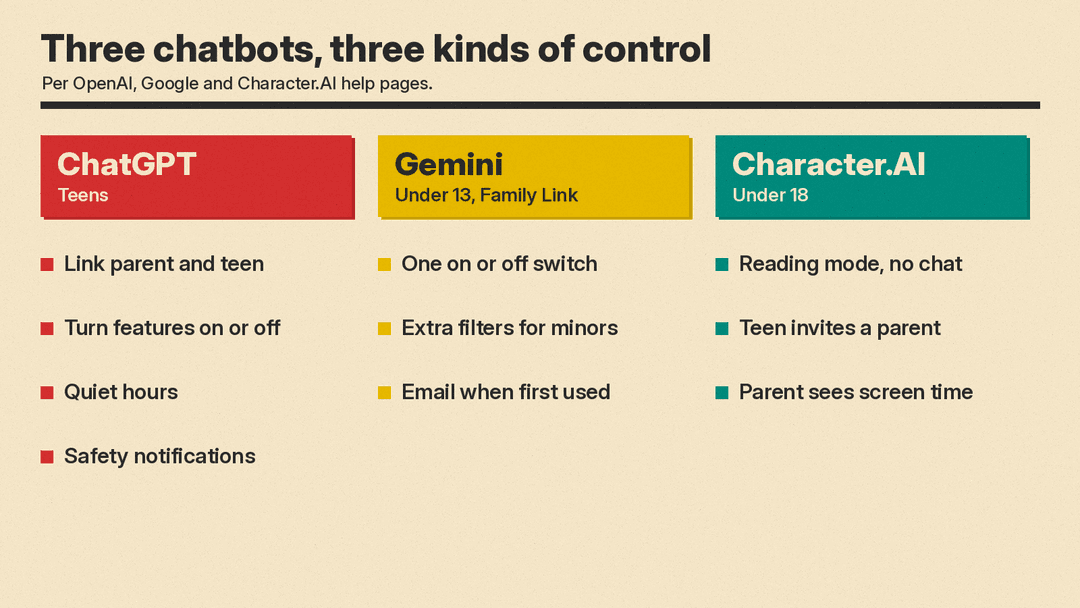
- ChatGPT: link your account to your teen's. You can turn features such as Voice Mode and image generation off, set quiet hours, and get safety notifications in limited cases. You cannot read their chats.
- Gemini: for a child under 13 with a supervised Google account, you turn Gemini Apps on or off in Family Link. Google adds extra content filters for minors.
- Character.AI: users verified as under 18 are in "reading mode" with no chat. A teen can invite a parent to see their screen time. You cannot read messages or set limits there.
ChatGPT: linked accounts and feature switches
OpenAI's parental controls help page describes the setup. A parent or guardian links their ChatGPT account to a teen's account. One parent can link with several teens, but each teen can link to only one parent or guardian at a time.
How to link accounts
Either side can send the invite. On the web, as a parent:
- Open Settings from your profile menu.
- Select Parental controls.
- Select Add family member.
- Choose Use phone or Use email, enter your teen's number or address, and select Send.
Your teen gets a text or email with a link. Once they accept, select their name under Family members to change their settings. A teen can also start it from Settings, Parental controls, Invite a parent.
If the link opens ChatGPT without an accept button, OpenAI says to sign in on the web to the account that received the invite, go to Settings, Parental controls, and accept the pending invitation there.
What you can turn on or off
After linking, these are the settings OpenAI lists, with their defaults:
- Reduce sensitive content (on by default): extra safeguards against sensitive or age-inappropriate content.
- Improve the model for everyone (on): whether your teen's chats can help train ChatGPT models. Our guide to ChatGPT data controls explains this setting.
- Reference saved memories (on where available): whether ChatGPT uses saved memories to personalize answers.
- Health (on where Health is available): whether your teen can use Health in ChatGPT and connect health data.
- Voice Mode (on) and Image generation (on).
- Codex network access and Cloud browser (both on): these cover what ChatGPT Work can reach online.
- Study mode (off): whether new chats start in study mode.
- Study hours (off): a schedule when new chats start in study mode. It does not block ChatGPT.
- Quiet hours (off): times when your teen cannot use ChatGPT at all, including ChatGPT Work. You pick a start and end time and can add more than one block.
Your teen can see these settings but cannot change the ones you manage while the accounts are linked. OpenAI notes that some changes may apply only to new conversations.
Linking itself also adds protections. OpenAI says a linked teen account gets safeguards that help reduce graphic content, viral challenges, sexual or romantic roleplay, violent roleplay and extreme beauty ideals. Turning off Reduce sensitive content changes only that one safeguard. It does not make the account an adult account.
You can also ask ChatGPT in a chat to change a supported setting for your linked teen. It shows you the change and you select Allow or Deny. Quiet hours and study hours can only be changed in Settings.
Safety notifications
When accounts are linked, ChatGPT may notify you in limited situations. OpenAI lists three: trained reviewers identify a serious self-harm concern; trained reviewers identify behavior that may be linked to disordered eating (in Chat only, not in Work or Codex); or your teen's account is deactivated for conversations about acts of violence under OpenAI's usage policies.
A notification can include a short description of the concern and support resources. It does not include the conversation. OpenAI is direct about the limits: notifications "are not real-time monitoring," may not catch every concern, and do not replace professional care or emergency services. It also says it may take up to a few hours after linking before notifications can be sent.
What ChatGPT's controls do not do
- They do not let you read your teen's conversations, chat history or live activity.
- Your teen can unlink at any time. You are notified if they do.
- When ChatGPT identifies a linked account as belonging to someone 18 or older, parental controls are removed, teen protections turn off and notifications stop. Both of you are told.
Gemini: one switch in Family Link
Google's controls for Gemini work through Google Family Link, its parental control app for children's Google accounts. Google's Gemini guide for parents covers children under 13 (or the applicable age in your country) with a supervised account.
How to turn Gemini on or off
A parent must turn access on before a supervised child under 13 can use Gemini Apps. Google says:
- Go to familylink.google.com or open the Family Link app.
- Select your child.
- Tap Controls, then Gemini, then Gemini Apps.
- Turn Gemini Apps on or off.
In older versions of Family Link the path is Controls, Content restrictions, Gemini, Gemini Apps. Google says you get an email when your child first activates the app, and that a change can take a few hours to take effect.
What Google adds for minors
Google says Gemini already tries to block harmful content for everyone, such as violence, sexually explicit material and harassment. For minors signed in to their Google account it adds more filters, including ones meant to stop Gemini from claiming to be a person or to have human emotions, or role-playing as a harmful character.
A few more details from the same page:
- The Keep Activity setting is not available to users under 13.
- "Hey Google" and Voice Match do not work with Gemini Apps for users under 13.
- Some Gemini features have age requirements and are not available for supervised users.
- Access is rolling out gradually, so your child may not have it yet even with the switch on.
- Gemini Apps are not available for supervised accounts in the European Economic Area, Switzerland and the UK.
Limits to know
Family Link has its own limits. Google's Family Link page says iPhones, iPads and computers other than Chromebooks cannot be supervised with Family Link, and Google Workspace for Education accounts cannot be managed by it. So a school account or a child's iPhone falls outside this switch.
Google also says its filters are "not perfect" and your child "may encounter content you don't want them to see." It asks parents to explain that Gemini "isn't a person," to tell children not to share their address, school name or family information, and to double-check answers, because Gemini can present wrong information as fact. Our 5-minute routine for fact-checking AI answers is one way to teach that habit.
Character.AI: no chat for under-18s, screen time for parents
Character.AI is a different case because it is built around chatting with AI characters. In late 2025 the company announced it would remove open-ended chat for users under 18, effective no later than November 25. Australia's eSafety Commissioner puts the date at 25 November 2025. Its help page on the change says similar changes for other countries would roll out over the following months.
Reading mode and age checks
Users verified as under 18 are now in what Character.AI calls reading mode. They can browse characters and view content, but chat is not available. They keep their past chats and can still create characters, scenes and videos, use the Imagine Chat and AvatarFX features, and react on the Feed.
To sort users, Character.AI says all users must complete an age assurance check. The app usually prompts for it; it can also be started from Settings, Advanced, Verify Age, and runs through a service called Persona. Users verified as 18 or older keep full chat access.
Parental Insights
Character.AI's parent feature is called Parental Insights. Per its FAQ, it works the other way around from ChatGPT: the teen sends the invite.
- The teen goes to Settings and chooses Parental insights.
- They enter a trusted adult's email address and send the invite.
- The adult gets an email link and must prove they are an adult to finish the connection.
Once connected, the adult sees the teen's screen time in a dashboard called Family Connect, with daily totals and a weekly digest. The FAQ says parents cannot see messages or in-app content, and cannot set screen time limits through this connection. Either side can disconnect at any time, and the parent is notified if the teen unlinks. An unanswered invite is deleted after 14 days.
What none of these controls do
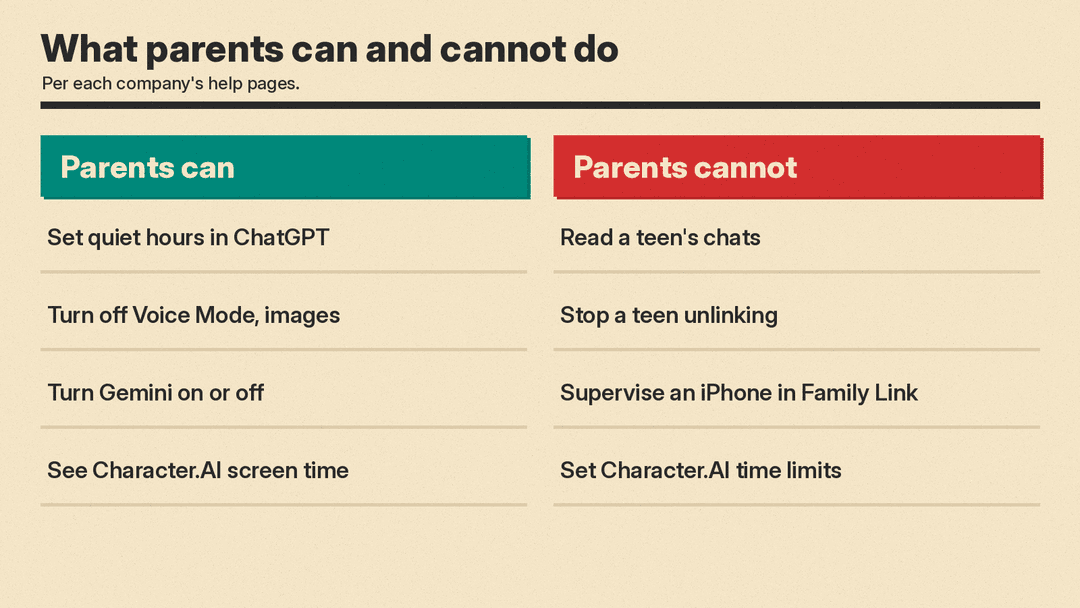
In all three apps, parents get some control over access or a view of use, but cannot read the conversations.
- No chat transcripts. OpenAI and Character.AI both say parents cannot read a teen's messages. Google's Gemini guide for parents describes no way to view a child's chats either.
- Teens can often opt out. ChatGPT and Character.AI both let the teen unlink, with a notice to the parent.
- They only cover that one app. A switch in ChatGPT does nothing for Gemini, and Family Link does not supervise an iPhone. A child can also use a different chatbot entirely.
- Filters miss things. Google says its filters are "not perfect." OpenAI says its safety notifications "may not identify every concern."
A practical setup for parents
- Find out which apps your child actually uses. Each one needs its own setup. Apple has also said that App Store apps with romantic or sexual AI companions will carry a minimum 18+ rating, as covered in our post on Apple's AI companion age rating.
- Link or switch on the app's own controls. ChatGPT linking, Gemini in Family Link, Parental Insights on Character.AI.
- Use the time controls. Quiet hours in ChatGPT and screen time limits in Family Link (Google lists bedtime and daily limits on supervised devices) are the closest thing to a hard stop.
- Talk about what a chatbot is. Google's own advice is to remind children that it is an app, not a friend to share secrets with, and that its answers can be wrong.
- Know what a notification means. A ChatGPT safety alert is a prompt to check in, not a full record. If someone may be in immediate danger, OpenAI says to contact local emergency services.
Sources
- OpenAI Help: Managing parental controls in ChatGPT
- Google Gemini Apps Help: Guide your child's Gemini Apps experience
- Google For Families Help: Set up parental controls for your child
- Character.AI blog: Taking Bold Steps to Keep Teen Users Safe on Character.AI
- C.AI Help Center: Important Changes for Teens on Character.ai
- C.AI Help Center: What is Reading Mode?
- C.AI Help Center: What is Age Assurance?
- eSafety Commissioner: Character.AI guide
- C.AI Help Center: Parental Insights FAQ
