
If you use ChatGPT for the same kind of work again and again, such as a class, a client, a trip or a side business, your chats can pile up fast. Projects are OpenAI's answer to that. A project is a folder-like space in ChatGPT that keeps related chats, files and instructions together, so ChatGPT can use the same background each time you come back.
This guide explains what Projects are, how to set one up, how memory works inside them, how sharing works, and what happens to your data. Everything here comes from OpenAI's own Projects in ChatGPT help page. OpenAI notes that Projects and project sharing are available to signed-in users "subject to plan availability and workspace settings," so if a button described here is missing, your plan or workplace settings may be the reason.
What a ChatGPT project is
OpenAI describes Projects as a way to "keep related chats, files, and instructions together." ChatGPT can then use that context to support ongoing work, such as writing, research or planning.
The help page lists three main benefits:
- Related chats, files and instructions live in one place, so ChatGPT can use the same context.
- You can start on one device and continue on another.
- You can reuse a project for recurring tasks, such as weekly research or content drafts.
OpenAI's own examples are a good guide to when a project makes sense:
- School: add class materials and ask ChatGPT to create a study guide or practice questions.
- Work: collect project details and use ChatGPT to draft briefs, plans or other materials.
- Personal: track vendors, budgets and timelines for an event or other personal project.
Projects do not cost extra. OpenAI says access is "included with every qualifying ChatGPT plan," and any credits or usage charges for models or tools apply to project chats the same way they apply to regular chats. You can create an unlimited number of projects.
How to create a project
Creating one takes two steps:
- Select New project in the sidebar.
- Enter a project name, then select an icon and color.
After that, you fill the project with context. There are four main ways to do it.
Add files
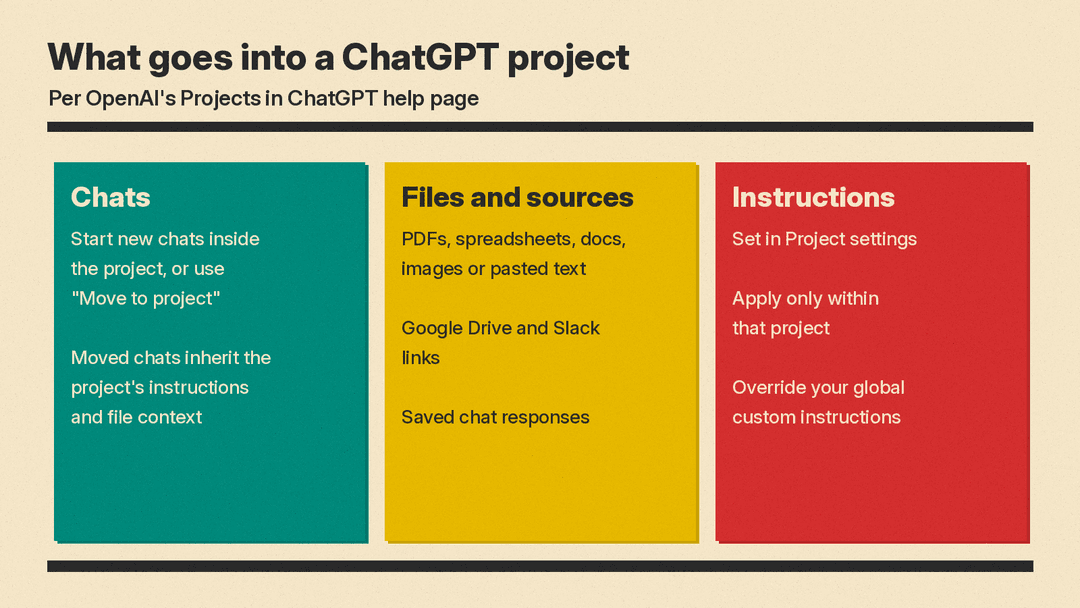
You can upload PDFs, spreadsheets, docs or images, or paste text. ChatGPT can use what you add "to provide more informed answers." The number of files you can upload depends on your plan: 5 files per project on Free, 25 on Go and Plus, and 40 on Edu, Pro, Business and Enterprise. OpenAI also notes that only 10 files can be uploaded at the same time.
Once a file is in the project, you can open it from the project sources list to preview, download or delete it. If you upload a file with the same name as one already in the project, you can choose Upload anyway or Skip.
Add project instructions
Open the more options menu (•••) and select Project settings to write instructions for the project. OpenAI's example: "Act like my marketing mentor. Be concise. Use bullet points. Ask clarifying questions."
The key detail is scope. Project instructions "apply only within that project and override your global custom instructions." That means you can keep your usual ChatGPT style for everyday chats and give one project a very different voice or format.
Add links from apps
In a private project, you can paste links from supported apps as project sources. The help page lists Google Drive (files and folders) and Slack (channels). Open the project's sources area, select Add sources, pick Slack or Google Drive, connect the app if asked, then paste the link and select Add.
One limit to know: the Google Drive app "does not support sync when added within a project." ChatGPT can still search and access relevant files, but the content is not synced in advance.
Save a good answer as a source
If ChatGPT writes something you want to reuse, such as a summary, decision note, draft or analysis, you can keep it. Open the message menu on that response and select Add to project sources. It then shows up in your project sources for future chats.
Moving chats in and out
You do not have to start from scratch. To bring an old chat into a project, drag it onto the project, or open the chat's menu and select Move to project. After moving, the chat "inherits the project's instructions and file context."
There are limits. Chats created with a GPT cannot be moved into a project. If Move to project does not appear, the chat may not be eligible, and OpenAI suggests starting a new chat inside the project instead. When the option is available, Remove from project moves a chat back to your regular chat history.
Temporary chats are a special case. You cannot add a chat to a project while it is temporary. Saving it turns it into a regular chat that follows your account's personalization and model-improvement settings.
What tools work inside a project
OpenAI says you can use the same tools you use outside projects, including Canvas for drafting documents, code or layouts, image generation, voice, and web search. Paid plans may include more tools, such as agent mode and deep research, depending on your subscription.
You can also use connected apps in project chats through the tools menu (+), or by referring to the app by name. Before an app searches outside the project, ChatGPT may ask you to confirm.
Two exceptions are worth knowing. Study mode and scheduled study hours "do not apply to project conversations." And in projects set to project-only memory, ChatGPT Work is not available.
How memory works in projects
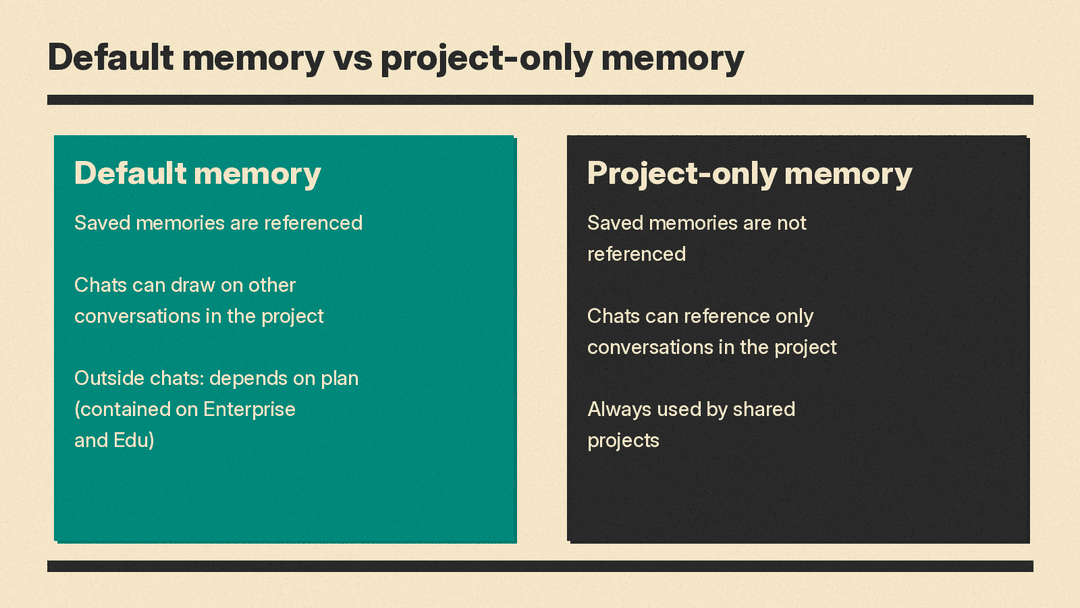
Memory in Projects has several rules, so it helps to go slowly. Each project uses one of two settings: default memory or project-only memory. You pick one when you create the project and can change it later.
Project-only memory
This setting walls the project off from the rest of your ChatGPT. According to OpenAI:
- Your previously saved memories are not referenced in project chats.
- Chats can reference other conversations within the same project.
- Chats cannot reference conversations outside the project, such as general ChatGPT conversations or conversations in another project.
- Chats outside the project cannot reference conversations from the project.
This is useful when you want a clean, focused space, for example a client project that should never pick up details from your personal chats.
Default memory
With default memory, your saved memories are referenced, and chats can draw on other conversations in the same project. Whether conversations outside the project are involved depends on your plan:
- Enterprise and Edu: chats stay contained within the project. They cannot reference conversations outside it, and conversations outside cannot reference them.
- Other plans, including Business: chats can reference both project and non-project conversations, unless the other project is set to project-only memory, and they can be referenced by conversations outside the project.
For Plus and Pro users, OpenAI adds that when you ask a question in a project, "ChatGPT prioritizes the project chats and files."
Changing the setting
- Open the project.
- Select the more options menu (•••), then Project settings.
- Under Memory, select Default memory or Project-only memory.
- Select Save.
OpenAI warns that changes "may take a few hours to take effect." There is no global switch to make every project project-only; each project must be set on its own.
A few more details from the help page:
- When you switch a project to project-only memory, information from that project is removed from memory used outside the project. The chats and files stay in the project.
- Project memory does not show a list of memories the way personal memory does. To stop ChatGPT from using a specific conversation, delete the chat or, when the settings permit, move it to another project.
- For project-only memory to work, your memory settings must be on. On most plans that means turning on Reference saved memories and Reference chat history. On Enterprise, only Reference saved memories is listed, and memory must also be enabled in workspace settings.
For a deeper look at the memory settings themselves, see our guide to ChatGPT memory and how to view, edit or turn it off.
Sharing a project with other people
Projects are not only for solo work. OpenAI says project sharing is available on ChatGPT Free, Go, Plus, Pro, Business, Enterprise and Edu, on the web and in the mobile apps. When you share a project, ChatGPT can draw on anything in it, "including chats, uploaded files, and custom instructions," so the group works from the same background.
Select Share to open the sharing pane. Depending on your plan and settings, you can invite people one by one, invite a group, or share a link. Each person gets one of two access levels:
- Edit access lets members update instructions, upload or remove files, and invite others, but not remove existing members.
- Chat access lets members see and interact with the project's chats, files and instructions, but not invite others.
The owner can do everything: create chats, update instructions, add files, invite and remove members, set permissions, rename the project and delete it.
Link sharing has two modes, "Only those invited" and "Anyone with a link." With the second, any logged-in ChatGPT user who has the link can join. Only the owner can open a link that way, and the owner can switch back to invite-only at any time.
What to know before you share
- Shared projects always use project-only memory. They "cannot access an individual member's memories or context from outside the project," and cannot be switched to default memory.
- Everyone sees the files. All members can view and download files added to the project, and members can see each other's names and email addresses in the sharing pane.
- What you add, others may see in answers. If a member adds a file or context, ChatGPT may use it in responses visible to other members.
- Deleting a file removes it for everyone, though it can be added again later.
- Chats are branched, not co-edited. Members cannot work on the same chat at the same moment. Instead, they can branch a chat to try a new direction without changing the original.
- Leaving is clean. If you leave a shared project, you can copy your chats first. The copies go to a new project named after the original with "Copy" in front.
If you only want to show someone one conversation, you can share a single chat instead. People with that link see only that chat, not the project's other chats, files, instructions or history.
Projects vs GPTs
OpenAI's help page draws a clear line between the two. It describes a GPT as "a custom version of ChatGPT," "single player (just you and chat)," with static content curated by an expert, and "best for reusable knowledge that spans functions and contexts." A shared project is "a shared space for teams to organize chats, files, and instructions" that evolves over time as members add files, chats and instructions. OpenAI's example for a project is a Q4 planning hub where a team analyzes quarterly data together.
You can use a custom GPT inside an existing project chat. But if the first message in a chat uses a custom GPT, the conversation starts as a chat with that GPT and appears outside the project. If you are deciding what to do with an older GPT, our guide on moving a custom GPT to a ChatGPT plugin covers that change.
Privacy, training and deleting a project
Projects follow the same data rules as the rest of ChatGPT, with a few specifics.
- Personal accounts: for ChatGPT Free, Plus and Pro, OpenAI says it "may use information accessed from projects to train our models" if your Improve the model for everyone setting is on. For shared projects on personal accounts, shared data may be used only when the owner and every contributor have that setting on. Our guide to ChatGPT data controls and opting out of training walks through that switch.
- Work accounts: by default, OpenAI does not use content from ChatGPT Business, Enterprise, Edu or ChatGPT for Healthcare workspaces to train its models. Projects also inherit the workspace's tool settings, retention windows, data-residency locations and memory settings.
- Deleting: open the more options menu (•••) and select Delete project. This permanently removes its chats and instructions, along with files stored only in the project. Files saved separately in Library are not deleted. Members of a shared project lose access, and the action cannot be undone. OpenAI says deleted projects and their data are removed from its systems within 30 days unless it must keep them for legal or security reasons.
Tips for getting more out of Projects
These follow from how OpenAI says the feature works:
- Write project instructions once. Since they override your global custom instructions, put the tone, format and role you want for that topic in the project, not in every message.
- Pick the memory setting on day one. Changes can take a few hours, and project-only is the safer choice for anything you want kept apart.
- Save your best answers as sources. A good summary or decision note saved with Add to project sources gives future chats a head start.
- Trim files when you hit the limit. OpenAI suggests removing older uploads, combining file data, or splitting work into several projects.
- Think before you share. Anything in a shared project, including files, is visible to every member.
