
Most AI website builders now accept a plain-language description and return a working page you can preview and publish. The tools differ, but their own prompting guides agree on one point: a vague request gets you a generic template. This guide turns that shared advice into a sequence of copy-ready prompts, from the first planning question to the last fix before publishing.
A note on testing: the prompts below are built from the official prompting guides published by Lovable, Bolt, v0, and Replit, and from how ChatGPT, Claude, and Gemini describe their own preview features. We did not run them against a model for this article, so there are no sample outputs quoted here. Treat them as templates you fill in, then judge the result in your tool's preview.
All product details are as of October 2026 and are taken from each vendor's own documentation.
Pick where you will build
The prompts work in any of these tools. What changes is how far the tool takes you after the first draft.
- Lovable describes itself as a full-stack AI development platform. Its docs list websites and marketing pages, including landing pages, portfolios, and event sites, among the things you can build, with publishing to a live URL and code sync to GitHub, GitLab, or Bitbucket.
- Bolt builds websites and apps, including marketing sites, portfolios, and online stores. It has a Plan Mode for talking through an idea before it writes code, and an Enhance prompt option in the chatbox that asks you questions and drafts a better prompt.
- v0 from Vercel generates UIs and full-stack apps, works with Next.js, Tailwind, and shadcn/ui, and deploys to Vercel infrastructure. Its docs say you can queue up to 10 prompts while it is still generating.
- Replit Agent builds web apps and other projects from plain language, has a Plan mode that produces an ordered task list before any code changes, and creates checkpoints you can roll back to.
- ChatGPT places code in code blocks, and supported blocks have a Preview option that can render HTML pages and React components inside the chat.
- Claude artifacts can be single-page websites. The Design template covers mockups, prototypes, and landing pages, and designs export as a .zip, PDF, PowerPoint, or standalone HTML.
- Gemini Canvas can create apps and code in a side panel, with a Code view, a console for errors and logs, and a Select and ask tool for editing one part of the page.
- Cursor is a coding agent that works on a real codebase. It suits people who already have a project folder and want to plan, build, and review changes with Plan Mode.
A simple rule: if you want a hosted site with the fewest steps, start in Lovable, Bolt, v0, or Replit. If you want a quick single page to look at or hand to a developer, a chat assistant with a preview is enough. If you already have code, use Cursor.
The workflow in five steps
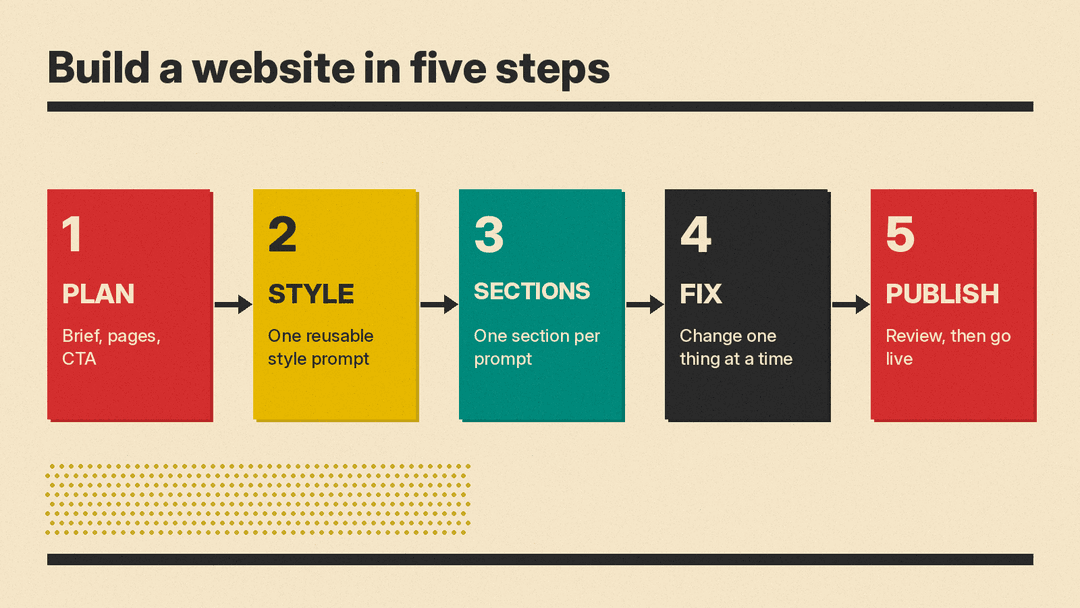
Every vendor guide we read describes some version of the same loop. Lovable says to plan before you prompt and to build by component rather than by page. Bolt says to add components and features one by one and to be explicit about what should and should not change. v0 says to start simple, plan complex projects first, and break large tasks down. Replit offers a Plan mode that maps the project before code is written.
So the sequence is: plan the site, fix the visual style, build one section at a time, fix problems with narrow prompts, then publish. The prompts below follow that order.
Step 1: Plan before you build
Lovable's guide suggests answering four questions before you open the builder: what the product is, who it is for, why they will use it, and what one action the visitor should take. You can have any chat assistant interview you instead of answering cold.
I want to build a website. Before writing any code, interview me.
Ask me one question at a time, and stop after 8 questions.
Cover: what the business or project is, who the visitors are,
why they would come to the site, the one action I want them to take,
the pages I need, the tone I want, any sites I like the look of,
and what content I already have (logo, photos, text).
When you are done, write a one-page brief I can paste into a website builder.
If you are using a builder with a planning feature, ask it to plan first. Replit's docs give "Create a plan to build a project tracker for my team" as an example of switching to Plan mode. The same idea works for a site:
Create a plan for a 4-page website for [business]. Pages: Home, Services, About, Contact.
List the sections on each page in order, the main call to action,
and anything that needs a backend, such as a contact form that stores submissions.
Do not write code yet. Wait for me to approve the plan.
Lovable also recommends adding one line to the end of a prompt so the tool fills gaps before building. Its exact wording:
Ask me any questions you need in order to fully understand what I want from this feature and how I envision it.Step 2: Write the first build prompt
v0's guide contrasts "Make a website" with a specific request: a portfolio site for a freelance designer with a hero section, a projects showcase, a contact form, and responsive design. The difference is that the second version names the audience and the sections. A useful first prompt does the same and adds tone and the call to action.
Build a one-page website for [business name], a [what it is] in [city].
Audience: [who visits and what they want].
Main call to action: a button that says "[exact button text]" and goes to the contact form.
Sections in order: hero, three services, how it works in 3 steps, testimonials, FAQ, contact form, footer.
Use the real copy below instead of placeholder text.
[paste your headline, service descriptions, and contact details]
Make it responsive and readable on a phone first.
Two details matter here. First, the exact button text. Lovable's own example prompt for a budgeting app names the CTA ("Start Saving Smarter") rather than leaving it to the tool. Second, real copy. Lovable's guide says placeholder text like "lorem ipsum" gives the tool nothing to respond to, and that real headlines reveal layout problems early, such as a headline that needs two lines.
Step 3: Set the visual style once
Lovable's docs say style words like "minimal", "expressive", "cinematic", "playful", and "premium" affect typography, spacing, shadow, border radius, and color palette, and that specific wording works better: "bold, saturated colors" gets you further than "colorful". Write one style prompt and reuse it.
Apply this design direction to the whole site:
Calm and editorial. Off-white background, charcoal text, one accent color [hex code].
Large serif headlines, sans-serif body text at a comfortable reading size.
Generous spacing between sections, rounded corners on cards and buttons, subtle shadows.
No stock-photo collages, no gradients behind text.
Keep this style for every section you build from now on.
Lovable and Bolt both have places to store instructions that persist across prompts. Lovable suggests saving your style keywords to project knowledge so new sections stay consistent. Bolt has account, project, and team knowledge settings for the same purpose. If your tool has this, paste the style prompt there instead of repeating it.
If you have a reference, say what you like about it rather than asking for a copy:
I like the layout of [describe the reference]: a short headline on the left,
an image on the right, and a single button. Use that structure for the hero,
in my design direction above. Do not copy any text, logos, or images from the reference.
v0's docs also note that it can create UIs from wireframes or mockups, so uploading a sketch of your own layout is another option there.
Step 4: Build one section at a time
Both Lovable and Bolt warn against asking for too much at once. Lovable calls full-page prompts "noise" compared with section prompts. Bolt's troubleshooting advice for a build that did not finish is to make one change, check that it works, and then move on.
Use small, atomic UI words. Lovable's guide says "add a form with an input field for email and a rounded CTA button" works better than "a section with a signup".
Create the services section: a centered headline "[headline]",
then three cards in a row on desktop and stacked on mobile.
Each card has a simple line icon, a title, two sentences of description, and a "Learn more" link.
Cards lift slightly on hover.
Create the FAQ section as an accordion with these 6 questions and answers:
[paste questions and answers]
Only one answer is open at a time. The first one is open by default.Create a contact form with name, email, and message fields, and a "Send" button.
Validate that email looks like an email address.
After a successful submit, show a short confirmation message in place of the form.
Show a clear error message if sending fails, and keep what the visitor typed.That last prompt follows v0's advice to ask for error handling, loading states, and empty states explicitly. Tools tend to build the success path and skip the rest unless you ask.
Step 5: Change one thing without breaking the rest
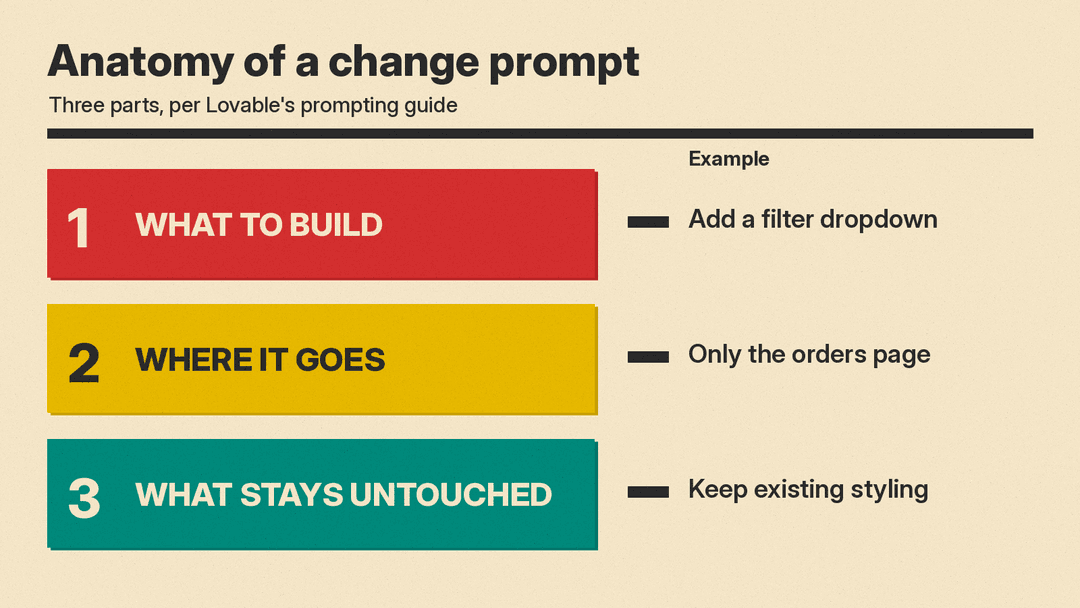
Lovable's guide says a good change prompt has three parts: what to build, where it goes, and what must stay untouched. Its example adds a filter dropdown to an orders table, says to only change the orders page, and asks to keep the table's existing styling. Bolt gives the same advice, and adds file-level controls: in Code view you can target specific files or lock files so Bolt does not edit them.
Change the hero headline to "[new headline]" and make the button text "[new text]".
Only change the hero section. Keep the current colors, fonts, spacing,
and every other section exactly as they are.
The testimonials section looks cramped on phones.
Fix the mobile layout only: stack the cards vertically with more space between them.
Do not change the desktop layout or the testimonial text.When you can point at the element instead of describing it, do. Lovable has a preview toolbar for selecting an element, Gemini Canvas has Select and ask, and Claude lets you highlight text in a document and choose "Edit with Claude". Lovable recommends verbs like "replace", "update", or "adjust" instead of "make this better".
Step 6: Check it before you publish
Ask the tool to review its own work against a list. This catches the gaps that show up after launch.
Review the site and give me a list of problems, without fixing anything yet. Check:
1. Every link and button goes somewhere real.
2. The page works at phone, tablet, and desktop widths.
3. Text has enough contrast against its background.
4. Every image has alt text that describes it.
5. There is a page title and a meta description under 155 characters.
6. No placeholder text or fake data is left anywhere.
Then ask me which problems to fix.
Write the page title, meta description, and Open Graph text for each page.
Base them on the real content of the page. Keep titles under 60 characters
and descriptions under 155 characters. Do not invent claims, prices, or reviews.If something breaks, give the tool the error rather than a description of it. Claude shows a "Try fixing with Claude" button on artifact errors, Gemini Canvas has a console for errors and logs, and Lovable's docs say to ask it in the project chat first when a project shows an error.
The page shows this error: [paste the exact error text].
Explain in one sentence what caused it, then fix only that problem.
Do not refactor or restyle anything else.
Prompts for a single page in a chat assistant
If you only need one page, a chat assistant can be enough. ChatGPT can preview HTML pages and React components in a supported code block, Claude can make a single-page website as an artifact, and Gemini Canvas can create an app or web page you can share by link.
Write a single self-contained HTML file for a landing page for [business].
Put all CSS in a style tag in the head. No external libraries, fonts, or images,
so the file works when opened directly in a browser.
Sections: hero with headline and button, three features, FAQ, footer with contact email.
Use this copy: [paste copy]
The "no external resources" line is practical. OpenAI's help page says previews that need outside resources may ask for permission before connecting, and workspace admins can turn network access off. A self-contained file avoids that and is easier to hand to a host or a developer.
Mistakes the vendor guides keep warning about
- Asking for the whole site in one message. Bolt and v0 both recommend smaller, sequential prompts. Bolt also notes that its memory of the chat is not infinite and suggests summarizing and starting fresh when it forgets earlier instructions.
- Leaving placeholder content in. Lovable's guide says real copy produces better layouts.
- Not saying what to leave alone. This is the most common cause of a small fix changing parts that already worked.
- Skipping version control. Lovable saves every change to version history and suggests bookmarking working states. Replit Agent creates checkpoints you can roll back to. Before a big redesign, know which version you will return to.
- Assuming the tool has common sense. Bolt's quick tips say this directly: do not expect the model to have it. Spell out the behavior you want.
A reusable prompt skeleton
Once you have built one section, most later prompts fit the same shape:
Goal: [what to add or change]
Location: [page and section]
Content: [real text, links, or data]
Style: follow the saved design direction
Behavior: [what happens on click, submit, empty, error]
Leave unchanged: [everything else, named specifically]
Before building: ask me any questions you need.
The skeleton is a summary of the advice in the guides above, not a feature of any one tool, so it works the same in Lovable, Bolt, v0, Replit, Cursor, or a chat assistant.
Sources
- Lovable: Welcome to Lovable
- Lovable: Prompting best practices
- Bolt Help Center
- Bolt: Prompt effectively
- v0 documentation
- v0: Text prompting
- Replit Agent documentation
- OpenAI Help: Working with writing blocks and code blocks in ChatGPT
- Claude Help: What are artifacts and how do I use them?
- Gemini Apps Help: Create docs, apps and more with Canvas
- Cursor documentation
