
A small or blurry image is a common problem in design work. A product photo from a supplier is too small for a banner. An old family photo looks soft when you print it. An AI-generated image comes out at a size that is fine for a phone screen but not for a poster. AI upscaling is one fix, and it now ships inside mainstream tools like Photoshop as well as in free, open-source models.
This guide explains what AI upscaling actually does, the main kinds of upscalers, how to use them, and where they go wrong.
What upscaling means
Upscaling makes an image larger, measured in pixels. A 2x upscale doubles the width and the height. A 4x upscale makes each side four times longer.
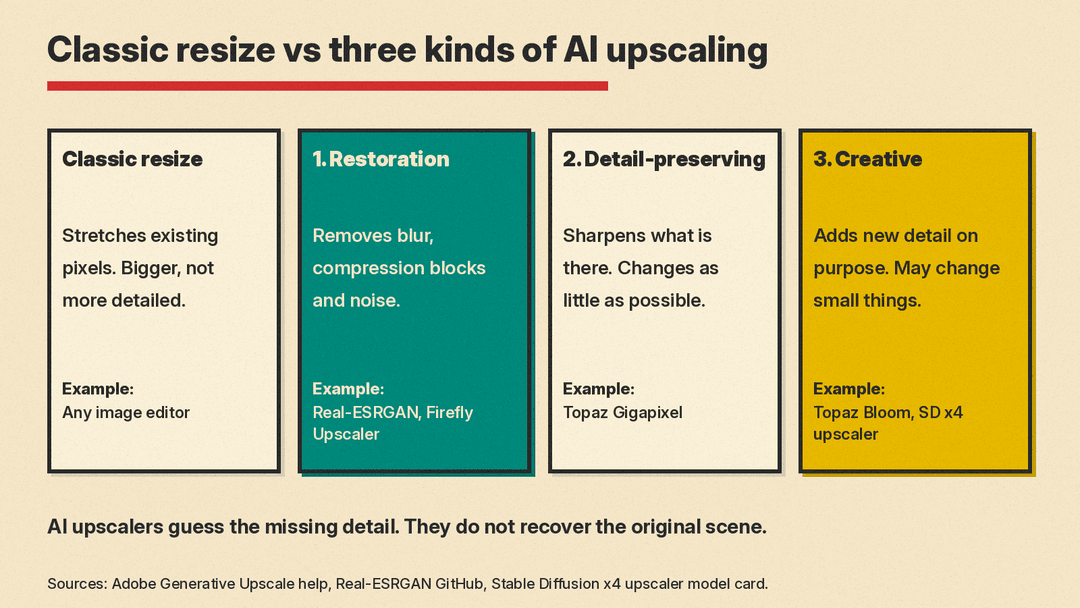
Classic resizing, the kind every image editor has had for decades, only stretches the pixels that already exist and blends between them. The image gets bigger, but it does not get more detailed. Edges go soft and small textures turn to mush.
AI upscalers work differently. They learn from low-resolution and high-resolution examples what fine detail usually looks like, and they add it back. Photoshop Essentials, describing Adobe's Generative Upscale, puts it this way: the feature does not simply make the image bigger, it "re-generates the entire image from scratch to create new detail."
That is the key idea to keep in mind. An AI upscaler is not recovering the true detail of the original scene. It is making an informed guess about what that detail probably looked like.
The three kinds of AI upscaling
A useful way to sort AI upscalers is by what they try to do. Adobe's three Generative Upscale models line up with three groups: one restores, one preserves and one creates.
1. Restoration upscalers
These aim to make a low-quality image look like a clean, sharp version of itself. They remove blur, compression blocks and noise while enlarging.
One open-source example is Real-ESRGAN. Its authors describe it as a project for "practical algorithms for general image/video restoration." It extends an earlier model, ESRGAN, and it was trained with pure synthetic data. Its paper describes simulating complex real-world damage to build the low-resolution and high-resolution training pairs.
2. Detail-preserving upscalers
These try to change as little as possible. They enlarge the image and sharpen what is already there instead of inventing new texture. In Photoshop's Generative Upscale, Adobe describes the Topaz Gigapixel option as the one that "preserves existing detail."
This is usually the right pick for real photos of real products and people, where faithfulness matters more than drama. Topaz also sells Gigapixel outside Photoshop, in its Topaz Studio bundle; our guide to the best AI tools for photographers covers Topaz's apps.
3. Creative upscalers
These add new detail on purpose. They can make a flat, low-detail image look rich and textured, but they may also change small things in the picture. Adobe describes the Topaz Bloom option in Generative Upscale as one that "adds new, creative detail."
Diffusion-based upscalers can fall in this group. The open Stable Diffusion x4 upscaler is a "text-guided latent upscaling diffusion model." You give it the small image and a short text prompt that describes it, and it generates a 4x larger version. Its model card also lists a noise_level setting, which adds noise to the low-resolution input. The diffusers documentation says a higher value increases variation but reduces fidelity to the source image. The model card says the model is intended for research purposes, lists artwork and design among those uses, and gives its license as CreativeML Open RAIL++-M, so read the license before commercial use.
Photoshop Essentials says Topaz Bloom is better for upscaling AI-generated images, which "often need the added detail it creates," and that Bloom "tends to re-imagine the image, especially at higher Creativity values."
How to upscale an image in Photoshop
If you already use Photoshop, Generative Upscale is built in. Photoshop Essentials says it arrived in Photoshop 2026 (version 27.0), released in October 2025. Adobe's help page lists these steps:
- Open the low-resolution image with File > Open.
- Choose Image > Generative Upscale.
- Pick the output scale, 2x or 4x.
- Pick the AI model. Firefly Upscaler restores low-resolution images, Topaz Gigapixel preserves existing detail, and Topaz Bloom adds new, creative detail.
- Select Upscale. Photoshop creates the upscaled image in a new document with an updated name.
A few practical notes from Adobe and from Photoshop Essentials:
- Adobe says the two Topaz models are available to users with a premium subscription.
- Photoshop Essentials says you do not need a separate Topaz subscription. Adobe's generative AI features page lists Generative Upscale with Topaz Labs as a premium feature, which uses more generative credits per use, and says the Firefly Upscaler version uses more than one credit, based on output size.
- Each model has its own maximum output size. Adobe lists up to 6144 x 6144 px for Firefly Upscaler, 56 megapixels for Topaz Gigapixel and 9 megapixels for Topaz Bloom. Photoshop Essentials says Photoshop alerts you if your settings go past the limit, so you can adjust them, for example by choosing 2x instead of 4x.
- Photoshop Essentials says it is best to view the result at 100% zoom (View > 100%).
How to upscale with free, open-source tools
If you want to run an upscaler yourself, or batch many images, open models are a good option.
Real-ESRGAN is one free option. Its GitHub page lists several features that matter for everyday use:
- A tiny model for general scenes, with a
-dnoption (denoising strength) that balances noise to avoid over-smooth results. - A model optimized for anime images.
- Optional face enhancement through a separate model, GFPGAN.
- A tile option, which processes an image in pieces.
- Support for images with transparency (an alpha channel), grayscale images and 16-bit images.
- An
--outscaleoption for sizes other than the model's native scale. The project notes that this step uses classic LANCZOS4 resizing on top of the AI result.
There are also portable executables for Intel, AMD and Nvidia graphics cards (Real-ESRGAN-ncnn-vulkan) and a web demo on Hugging Face Spaces, so you can try it without writing code.
Stable Diffusion x4 upscaler is a creative option. The Hugging Face diffusers documentation says it enhances the resolution of input images "by a factor of 4." The prompt guides what it generates: the documentation's example pairs a small photo of a cat with the prompt "a white cat." Our guide to writing AI image prompts covers how to describe an image clearly.
A simple upscaling workflow
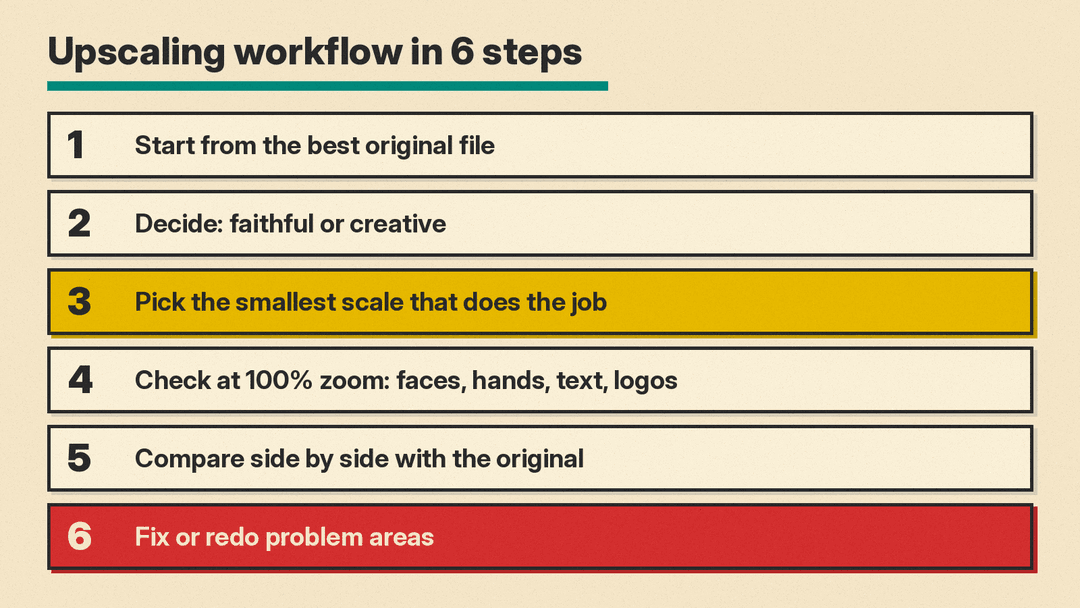
- Start from the best original you have. An upscaler cannot fix detail that was never there. Use the largest, least-compressed file, not a screenshot of a screenshot.
- Decide what you need: faithful or creative. A product listing, a document, or a photo of a real person needs faithfulness. A fantasy illustration or a mood board can take creative detail.
- Pick the smallest scale that does the job. If 2x gets you to the size you need, do not jump to 4x. A 4x upscale has 16 times as many pixels as the original, so more of the result is generated.
- Check at 100% zoom. Look closely at faces, hands, text, logos, fine patterns and edges.
- Compare against the original. Put the two side by side and look for anything that changed: a different expression, extra letters, a reshaped logo.
- Fix or redo problem areas. If one region looks wrong, try a more faithful model, a lower scale, or a lower creativity or noise setting.
Where AI upscaling goes wrong
AI upscaling is guesswork, so it has predictable failure modes:
- Faces. Upscalers can smooth skin or change a person's features. In Photoshop Essentials' test on an old family photo, Topaz Gigapixel with Face recovery made skin look "a bit plastic" and hair "crunchy." Check the eyes, teeth and mouth.
- Text and logos. The Stable Diffusion x4 upscaler model card says the model "cannot render legible text." A generative upscaler may turn blurry text into crisp letters that spell the wrong thing.
- Repeating patterns. Fabric, brickwork and foliage can come back with invented or uneven patterns. In the same test, Gigapixel oversharpened the stripes on a shirt, "creating visible artifacts."
- Too much smoothing. Upscalers can remove grain and texture you wanted to keep. In the same test, Gigapixel removed most of the film grain. Real-ESRGAN's -dn option exists to avoid over-smooth results.
- Changed content. Creative upscalers can add objects or alter details. That is fine for art and a problem for anything that needs to be accurate.
Because the added detail is invented, do not use an AI-upscaled image as proof of what was in the original. For records, evidence, or identification, keep the original file and label any upscaled copy as enhanced.
Which approach should you choose?
- You have Photoshop and want the easiest option: Generative Upscale, starting with the Firefly Upscaler or Topaz Gigapixel for photos.
- You want something free that runs locally: Real-ESRGAN, using the general model for photos and the anime model for illustrations.
- You are upscaling AI art and want extra detail: a creative upscaler, such as Topaz Bloom in Photoshop or the Stable Diffusion x4 upscaler with a good prompt.
- You need the result to stay true to the original: a detail-preserving model at the lowest scale that works, checked at 100% zoom.
AI upscaling is a useful everyday image tool, as long as you treat it as a skilled guess and not a recovery of lost information. Pick the type of upscaler that matches your goal, keep the jump in size small, and always check the details.
Sources
- Adobe: Enhance image quality with Generative Upscale in Photoshop
- Photoshop Essentials: How to use Generative Upscale in Photoshop
- Adobe: Creative Cloud generative AI features (standard and premium)
- Real-ESRGAN on GitHub
- Wang et al.: Real-ESRGAN paper on arXiv
- Stable Diffusion x4 upscaler model card on Hugging Face
- Hugging Face diffusers: Super-resolution
- Topaz Labs: Pricing (Topaz Studio)
