
Some of the most useful AI on a phone was not built to write essays or make pictures. It reads a menu out loud to someone who cannot see it, puts captions on a phone call, or turns a dense page into text that is easier to follow. This guide covers the main AI accessibility tools as of November 2026, grouped by need: seeing, hearing, reading and dyslexia, and focus.
Many of these tools are free or already on your phone or computer. Start there, and only add a paid app if the free one falls short. These tools help with daily tasks. They do not replace a diagnosis, a support plan from a school or employer, or professional advice.
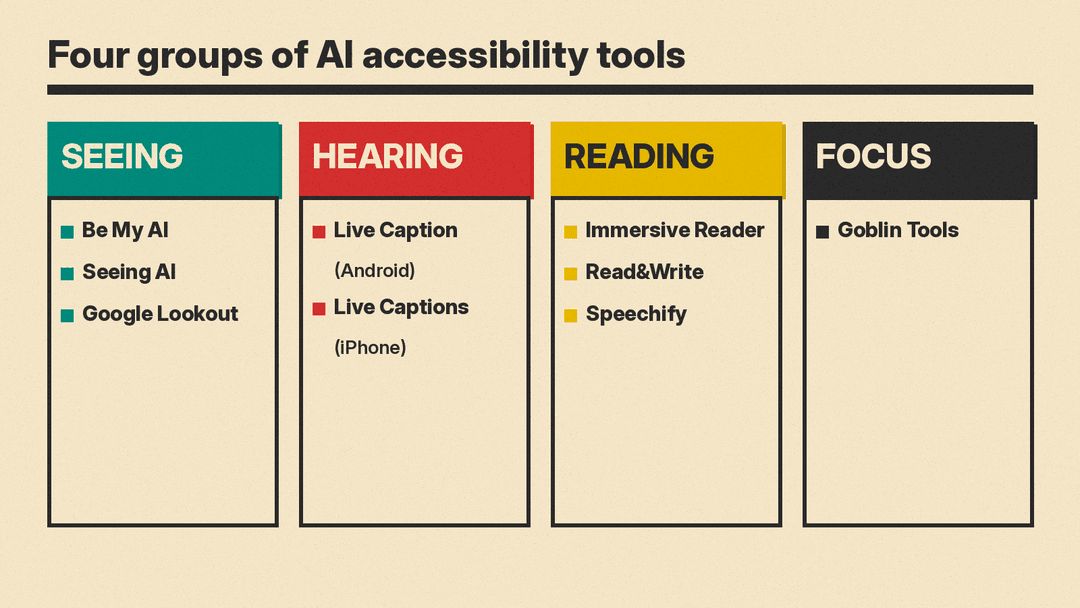
Tools for blind and low-vision users
These apps use your phone camera and AI to describe what is in front of you.
Be My AI (in the Be My Eyes app)
Be My AI is "built into the Be My Eyes app" and gives "AI-powered descriptions of the world around you", according to Be My Eyes. The company lists reading labels, exploring new places, and getting through a menu, a document or "a tricky interface" as everyday uses.
- Best for: quick, detailed descriptions of photos, labels and screens.
- Worth knowing: Be My Eyes says "human support is on hand for tougher requests", so you can move from the AI to a person when the AI is not enough. Be My Eyes says it is "all available for free" in the app.
Seeing AI
Seeing AI calls itself "a free app that narrates the world around you". Its site says it was "designed with and for the blind and low vision community" and helps with "reading, to describing photos, to identifying products, and more". It also describes itself as an "ongoing research project", so features can change as it develops.
- Best for: a free, all-in-one camera reader built with blind and low-vision users.
Google Lookout
Lookout is Google's Android app "for people who are blind or have low vision". Google's help page lists seven modes:
- Text: point the camera at text to hear it.
- Documents: read full pages, with spoken guidance to frame the page.
- Food labels: scan barcodes or the front of a food product (some countries only).
- Currency: read US dollars, euros or Indian rupees, one banknote at a time.
- Images: get a description of a photo. In English in the US, UK and Canada, you can ask follow-up questions.
- Find: locate things such as seating, doors, cups or a bathroom.
- Explore (beta): hear about objects and text around you. Google says this mode is "less accurate than other modes".
Lookout also has reading tools that change font, text size, contrast, letter spacing and line height. Google says recent items are deleted when you close the app.
- Best for: Android users who want a Google-made camera assistant with many modes. Google says it needs Android 6.0 or later.
Tools for deaf and hard-of-hearing users
Live captions turn speech on your device, or in the room, into text in real time.
Live Caption on Android
Google's Live Caption "automatically captions speech on your device", including videos, podcasts, phone calls, video calls and audio messages. Google says "all captions are processed locally, never stored, and never leave your device", and that it does not use mobile data once the language pack is downloaded.
- Expressive captions (English only, Android 14 and later) can show tone and sound labels such as laughter, applause and music.
- On Pixel 6 and later, you can type replies during a call and have them read aloud.
- Limits from Google: it does not work on music, is not meant for calls with more than one other person, and works best with clear speech and little background noise. Language support depends on the phone, and Google says Live Caption works on Pixel and selected Android phones.
Live Captions on iPhone
Apple's Live Captions give "a real-time transcription of spoken audio" in apps such as FaceTime and Podcasts, and for "live conversations around you". Turn it on in Settings, then Accessibility, then Live Captions. You can choose the microphone for an in-person talk, or iPhone audio for an app.
- Apple says it needs iPhone 11 or later and is not available in all languages, countries or regions.
- Apple also warns that accuracy "may vary and shouldn't be relied upon in high-risk or emergency situations".
- If you keep call captions for 1 hour, everyone on the call hears a short notice that the call is being transcribed.
If you need a saved transcript of a meeting rather than live captions, see our guide to AI transcription tools.
Tools for reading and dyslexia
These tools read text aloud, change how text looks, or rewrite it in simpler words.
Immersive Reader (Microsoft Word and Microsoft 365)
Immersive Reader is built into Word. In Word on the desktop, open it from the View tab. Microsoft's help page lists:
- Read Aloud, which highlights each word as it reads.
- Column width, page color and text spacing, to make lines shorter and easier to scan.
- Line Focus, which shows one, three or five lines at a time.
- Syllables, which shows breaks inside words.
- In Word for the web: parts-of-speech highlighting, a Picture Dictionary, translation, and Reading Coach, which has you read aloud and then practice the five words you struggled with most.
- Best for: anyone who already uses Word or Microsoft 365 and wants help without a new app.
Read&Write
Read&Write from Everway is literacy support software for schools, colleges and individuals. Its product page lists text-to-speech with word highlighting, a Screenshot Reader that reads text from images and scanned PDFs, picture and text dictionaries, and a Simplify tool where "AI simplifies complex text without changing its meaning" (in Chrome and Edge). For writing, it has speech-to-text, word prediction, and a spelling and grammar check that handles phonetic errors.
- Everway says Read&Write includes "dyslexia-friendly fonts" and a screen mask or reading spotlight for focus.
- It runs on Windows, Mac, Chromebook, iPad, iPhone and Android, and works in Google Docs, Word, PDFs and web pages.
- Everway says K-12 teachers can get a premium subscription for free.
- Best for: students, especially where a school already provides it.
Speechify
Speechify is a text-to-speech app. Its founder, Cliff Weitzman, says on the site that he is dyslexic and built Speechify as his own text-to-speech tool. You can upload a PDF or document, listen with text highlighting, change the speed, and scan a printed page with your camera to hear it. Speechify says it reads PDF, EPUB, DOCX and TXT files, plus web links and scanned pages, and offers more than 1,000 voices in over 60 languages.
- It also has voice typing (dictation), summaries and a voice assistant that answers questions about what you are reading.
- Speechify says its Voice Typing feature is on the free plan, and that offline listening needs Premium.
- Best for: people who want to listen to long documents and books on any device.
Tools for focus and everyday tasks
Goblin Tools
Goblin Tools is "a collection of small, simple, single-task tools, mostly designed to help neurodivergent people with tasks they find overwhelming or difficult". Most of the tools use AI in the background.
- The website is free with no ads or paywalls. The mobile apps cost a small amount, and some advanced features are in a paid Pro plan, according to its About page.
- Its maker warns that output is "only guesswork" and that you should check results with your own judgment.
- Best for: breaking a big task into steps (Magic ToDo), changing the tone of your text (Formalizer) or reading a text for emotion (Judge), from the tool list on its home page.
Dictation for writing
If typing is hard, speaking can be faster. Our guide to AI dictation apps covers the free dictation built into phones and computers, and AI apps that tidy up what you say.
How to choose
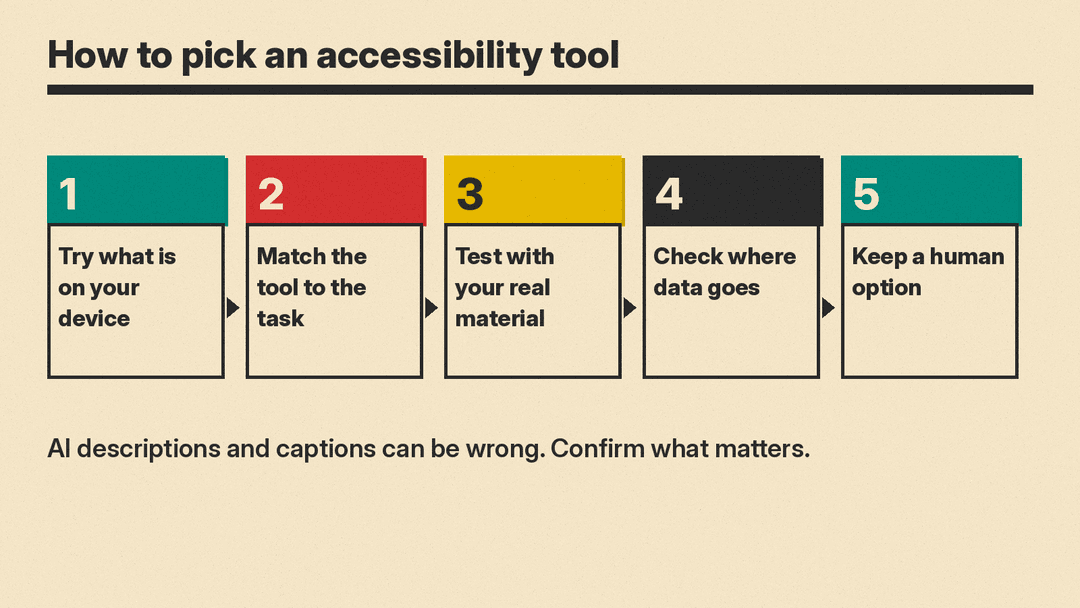
- Start with what is built in or made by your phone or software maker: Live Caption or Live Captions, Immersive Reader in Word, and Lookout from Google Play on Android.
- Match the tool to the task. A camera app for print and objects, captions for speech, a reader for long text.
- Test with your real material: your school PDFs, your work calls, your local currency.
- Check where data goes. Some tools say they process on the device, such as Google Live Caption. For any app that sends photos or audio to the cloud, read its privacy policy first.
- Keep a human option. AI descriptions and captions can be wrong. For medicine labels, legal papers or an emergency, confirm with a person or another source.
For more tools by audience, see our list of AI tools for students.
