
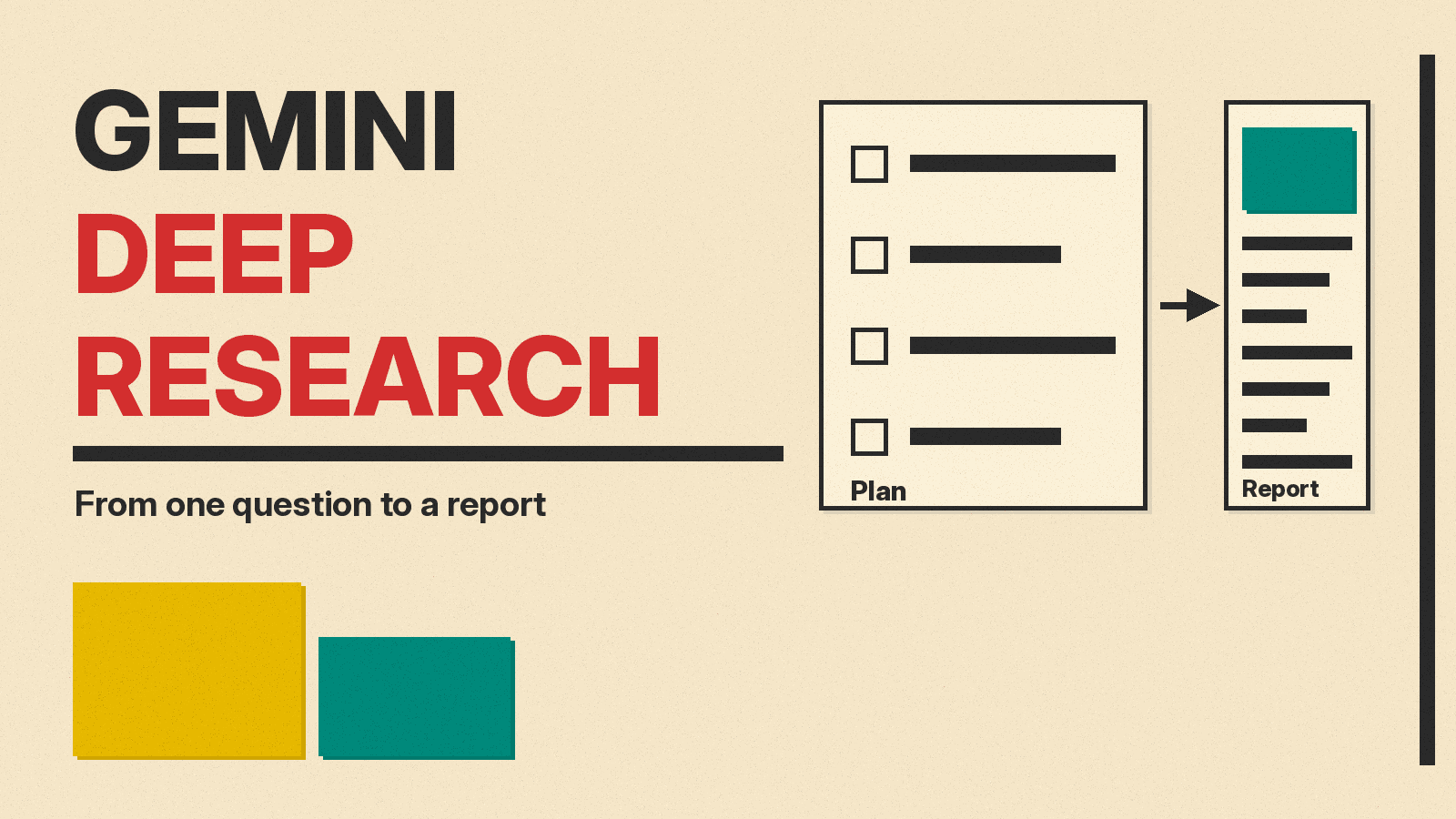
Gemini Deep Research is a mode in the Gemini app that turns one question into a multi-page report. Google describes it as an agentic feature that can browse up to hundreds of websites, and optionally your Gmail, Drive and Chat, then write a report in minutes. It takes a few clicks to start, but a few choices before you press the button decide whether the report is useful.
This guide walks through the steps on the web version of Gemini, how to pick sources, how to edit the plan, what to do with the finished report, and what to check before you trust it. Details are as of November 2026. Google can change limits, plans and models, so the linked help pages are the final word.
What Deep Research does
Google's Deep Research overview breaks the work into four stages: planning, searching, reasoning and reporting. First, Gemini turns your prompt into a multi-point research plan. Next, it searches and browses the web, and your Gmail, Drive and Chat if you choose that. It then reasons over what it found, and finally writes a report.
Google's help page says Gemini includes Google Search as a source by default, and that you can change or add other sources. You can also upload files and add NotebookLM notebooks. Google has renamed NotebookLM to Gemini Notebook, and we explain it in What Is Gemini Notebook?
What you need
The help page lists two requirements: you must be 18 or over, and you must be signed in to the Gemini app. It also says there are limits on daily research requests and on how many requests you can run at the same time. Gemini notifies you when you are close to your limit. Google AI Pro and Google AI Ultra users get higher limits. The help page also says all users can use the Thinking model for reports, and Pro and Ultra users can choose Pro for higher quality. Google's limits page rates Deep Research as a high-usage feature and says it may be unavailable without a Google AI plan when demand is high. For the numbers that apply to your plan, check Google's limits and feature availability page.
How to start a report
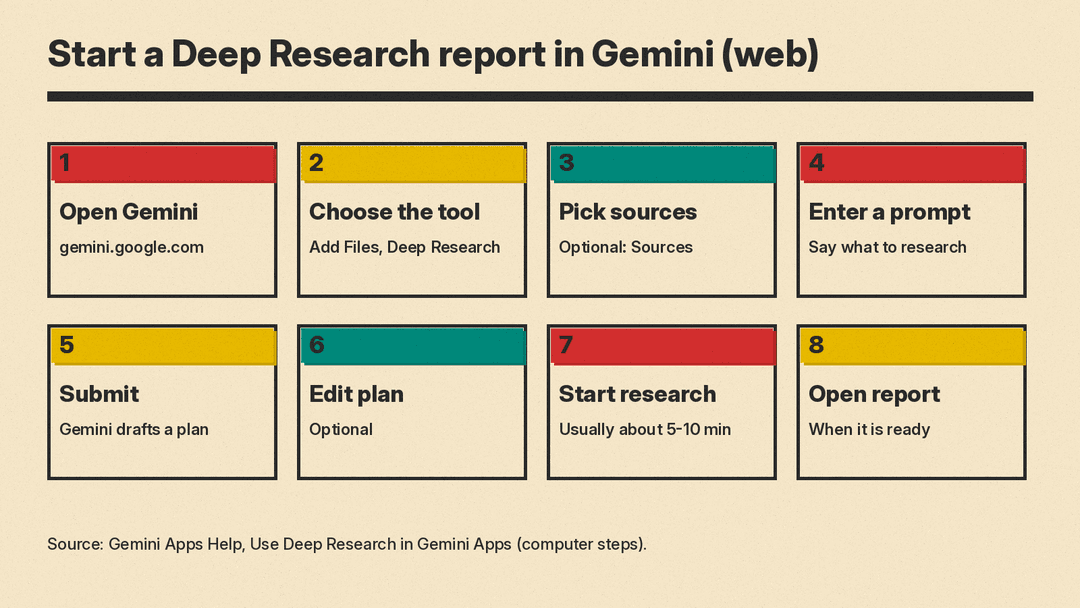
These steps come from Google's help page for computers.
- Go to gemini.google.com.
- In the text box, click Add Files, then Deep Research.
- Optional: upload files or an image with your prompt.
- Optional: click Sources and choose what to include, such as Gmail or Drive.
- Type a question or prompt that explains what you want to research.
- Click Submit. Gemini creates a research plan.
- Optional: click Edit plan to change the plan before the report starts.
- Click Start research.
- When the report is ready, click Open.
Google says the report usually takes about 5 to 10 minutes because Gemini analyzes many sources, and complex reports may take longer. You can leave the chat while you wait. On the web, a notice appears next to the chat thread. In the mobile app, you get a device notification.
Choose your sources first
Sources are one of the optional settings. Google Search is included by default. The help page says that to limit research to other selected sources, you deselect Google Search.
Gmail and Drive are only available if the Google Workspace app is connected to Gemini Apps. Google's overview page gives examples of why you might mix sources: a competitor report that combines public web data with internal strategy memos, or due diligence that merges public information with your own notes on a client. If you add Gmail or Drive, you are choosing to let Gemini draw on that content for the report.
One limit to know about: the help page says visuals and animations in reports are not available if you include Google Workspace services such as Gmail and Drive as a source. Those visuals, which can include charts, diagrams and interactive simulators, require a Google AI Ultra plan.
Write a prompt Deep Research can work with
Google's own tips post, published Mar 19, 2025 and written when Deep Research opened to more people, gives six pointers. The post predates the current help page, so use the help page for the steps.
- Decide whether the task needs it. Google's example is that a quick definition of "fintech" fits the normal chat, while catching up on industry trends before a meeting fits Deep Research.
- Start with simple questions. The post says you do not need to labor over the first prompt, because the plan lets you adjust before research begins.
- Ask follow-up questions after the report. Google says Deep Research can answer from what it already gathered or go back to the web.
- Watch the sites it browses. The post says "Show thinking" and "Sites browsed" show what it is using while it works.
- Try local questions. The post quotes a Gemini product manager saying Deep Research is good at hyper-local searches.
- Export the report. In that post, Google says exporting to Docs includes the citations in a works cited section.
For prompt wording in general, see our Gemini prompt templates. For a business use case, see How to Use AI for Market Research.
Edit the plan
After you submit, Gemini shows its plan before it starts. The help page says to click Edit plan to update it. The tips post says you can ask in natural language to add something or go in a different direction. Check the plan before you click Start research, because that is when Google says you can change it.
What to do with the finished report
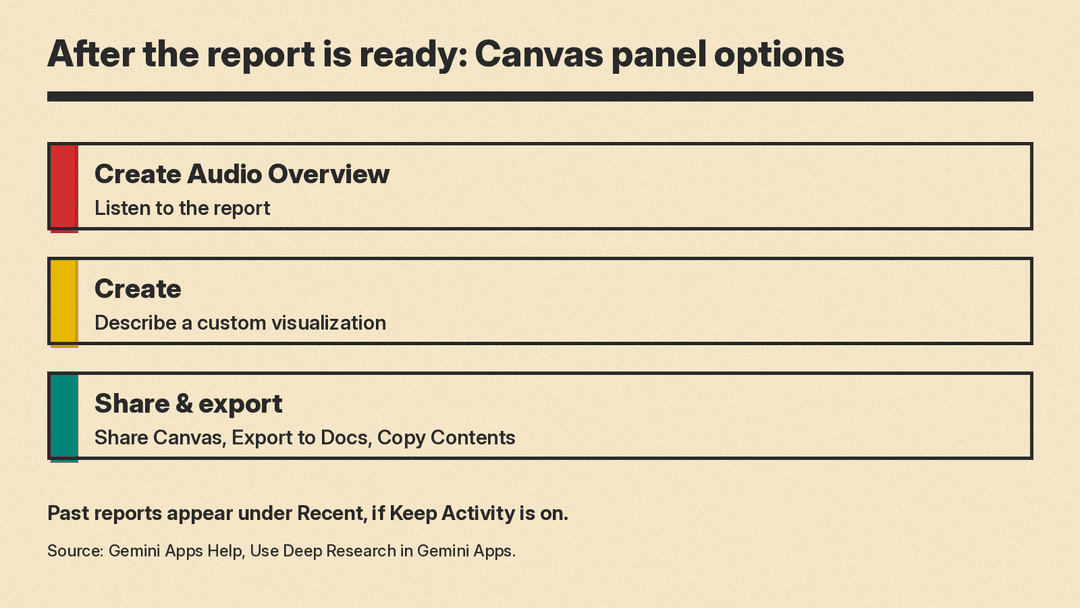
The help page lists these options in the Canvas panel on the right of the report:
- Create Audio Overview to listen to the report.
- Create, then describe a custom visualization based on the report.
- Share and export, then Share Canvas, Export to Docs or Copy Contents.
To find a past report, go to gemini.google.com, open the menu at the top if your chats are hidden, and look under Recent. The help page says you can only find past research reports if your Keep Activity setting is on.
What to check before you rely on it
These are our suggestions, not Google's. A Deep Research report is AI-generated text, and it comes with sources you can open.
- Open the cited pages for any number, date or quote you plan to reuse.
- Compare two or three of the strongest claims against the original page.
- Check that the sources match your question, since the default includes Google Search and the plan may have taken a different angle than you meant.
If you export to Docs, the citations come with the report, per Google's tips post, so a colleague can check them too. For the assistant behind the feature, see What Is Gemini?
