
Google AI Mode is a part of Google Search where you type or say a question in plain language and get a written, AI-generated answer with links to web pages, then keep asking follow-up questions. Google's Search Help page calls it "Google's most powerful AI search experience." This explainer covers what it is, how it differs from AI Overviews, how it works, how to open it, and what to check before you trust an answer. Details below are as of November 2026 and come from Google's own help page and blog.
What AI Mode is
On its help page, Google says you can ask anything in AI Mode and get an AI-powered response, with the ability to go deeper through follow-up questions and helpful links to the web. It is built for questions that are longer or have several parts. Google's own examples include exploring a new concept or comparing options, the kind of question that might previously have taken multiple searches.
Google's June 2025 blog post on how AI Mode was designed describes the interface as a search experience with a bar at the bottom that encourages longer inputs and makes follow-up questions easy. It says the design uses links to encourage exploration and dynamic elements to show that Google is "thinking." In the same post, a Google UX research director, Claudia Smith, said the team saw people asking longer, more complex questions, such as planning a kid-friendly vacation with a quiet hotel for a family with two infants.
How AI Mode differs from AI Overviews
AI Overviews are the AI-generated snapshots that appear at the top of some search results. Google's design post says they show up when its systems determine that a generative response would be helpful. AI Mode is a separate, dedicated experience.
Google's help page says AI Mode "expands what AI Overviews can do with more advanced reasoning and ways of interacting." The design post adds the history: the road to AI Mode began with AI Overviews, and user research showed that some people were actively trying to trigger more AI responses and wanted them to be more predictable.
Google also describes a path between the two: when a search begins with an AI Overview, you can choose "Dive deeper in AI Mode." For how AI Overviews work and how to see only web links, see our explainer on Google AI Overviews.
How it works: query fan-out
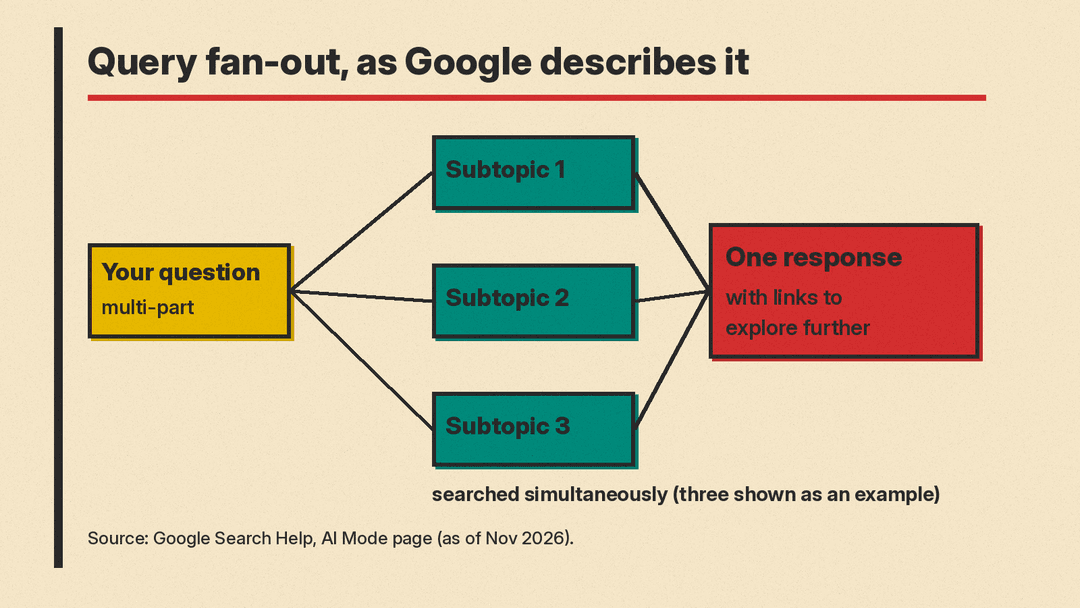
Google says AI Mode uses a "query fan-out" technique. It divides your question into subtopics and searches for each one simultaneously across multiple data sources. It then brings those results together into one response that is easier to understand.
The help page says this lets AI Mode explore the web to find more relevant content that matches your question. It also says AI Mode relies on Google Search's understanding of web information, so that responses are supported by high quality web content to improve factuality.
Google also describes a fallback. In some cases, AI Mode provides a set of web links when there is not high enough confidence in the quality or helpfulness of an AI response. In other words, you may sometimes see links instead of a written answer.
How to open AI Mode
Google's help page lists three ways to reach AI Mode:
- Go to google.com/ai.
- Go to www.google.com, enter a question in the Search bar, and tap AI Mode.
- In the Google app, tap AI Mode on the home screen.
Availability varies by country and language, and the help page keeps the current list. The page also notes that Google is updating settings for Search services, so the steps on your screen may not match the help page exactly. For the best experience, Google recommends enabling history and personalized recommendations. Without that setting you can still use AI Mode, but you cannot pick up where you left off in earlier searches.
What you can ask with
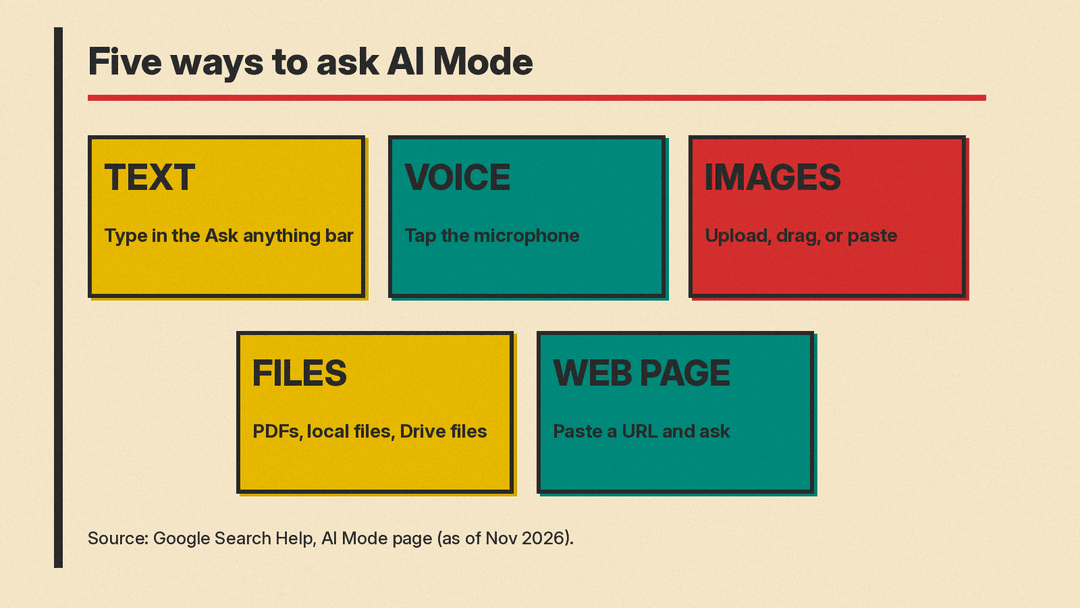
Google says you can ask a question with text, voice, images or files. The help page describes each route:
- Text. Type into the "Ask anything" bar near the bottom of the screen. Use the same bar for follow-up questions.
- Voice. Tap the microphone in the bar and say your question.
- Images. Use the menu in the bar to upload one or more images. Google says you can also drag and drop or copy and paste.
- PDFs and other files. Use the menu to upload one or more files, including PDFs, local files and Drive files.
- A web page. Paste a page's URL into the bar and ask a question about it. In Chrome, Google says you can also add Chrome tabs to your AI Mode questions.
Features Google lists on the help page
As of November 2026, the help page describes several additions. Availability for each depends on your country, account and plan, so check the page for your situation.
Gemini 4 Argon in AI Mode
Google says Gemini 4 Argon brings improvements to nuanced, multi-step tasks in Search and is better at understanding intent and following instructions in back-and-forth conversations. You select it from the menu in the "Ask anything" bar. The "Auto" or "Fast" model remains available for fast, all-around help on most questions. Google says Gemini 4 Argon in AI Mode is available to Google AI Pro and Ultra subscribers aged 18 and above in listed countries, requires a personal Google Account you manage yourself, and has daily usage limits that may change based on capacity, demand and your plan.
Interactive visuals
Google says AI Mode can turn complex concepts into interactive experiences, combining generative UI with custom-coded interactive diagrams, charts and simulations. You can adjust variables with sliders and toggles. The help page says this is currently available to signed-in users in English. To get one, Google says to explicitly ask for a simulation, interactive visual, diagram, calculator or interactive model, and you can use follow-up questions to edit it.
Personal Intelligence
Google says AI Mode personalization is available if you are 18 or older and have history and personalized recommendations enabled. It references previous searches and activity saved in your Search Services History to tailor suggestions. You can tell AI Mode to remember specific details, or to forget information you no longer want considered. Google also notes that AI Mode might not always get personalization right.
Optionally, you can connect Google content apps, starting with Workspace apps (Gmail and Google Calendar) and Google Photos. Google says consenting means all Search services are permitted to access Workspace and Google Photos, and that you can disconnect the apps at any time. Search services include Google Search (including AI Mode and Discover), Maps, Shopping, News, Flights, Hotels and Translate.
Search Labs
Google says you can opt into the "AI Mode" experiment in Search Labs, its testbed for innovation, to get early access to experimental capabilities. AI Mode in Search Labs is available to users 13 and above, according to the help page.
Accuracy: what Google says and what to check
Google is direct about limits. The help page says that, as with any early-stage AI product, AI Mode does not always get it right, and that it may misinterpret web content or miss context. It lists three ways to double-check a response:
- Check important information in more than one place. Click the links for AI sources and try other Google Search results too.
- Ask several versions of your question, such as asking for different opinions or more detail.
- Send feedback to Google with the thumbs up and thumbs down icons at the bottom of each response.
Ars Technica reported on October 28, 2026 that AI Mode gave an indirect answer to a question about who won the 2020 US presidential election, and a Google spokesperson said at the time that the company was fixing the issue. See Ars Technica's report and our post on the AI Mode 2020 election answer. For how Google has changed the way AI Mode shows links, see our explainer on AI Mode link changes.
Your data and history
Google says it uses people's interactions with Search and its AI experiences, such as what people search for and the feedback they give, to develop and improve generative AI in Search. When trained reviewers work on quality, Google says the data they see and annotate is disconnected from users' accounts and automated tools help remove identifying and sensitive personal information.
You can delete AI Mode history. On a computer, open AI Mode, choose AI Mode history on the left, and delete one search or use "Delete all." You can also delete AI Mode activity from your Search History page. Google says deleted searches may still appear in My Activity for some time, and that items are auto-deleted in less than 24 hours. If a search began with an AI Overview and you chose to dive deeper in AI Mode, you might see two entries in your Search history, and the original query entry stays until you delete it from Search history as well.
When to use AI Mode
Based on the use cases Google describes, AI Mode is built for open-ended questions with several parts: comparing options, exploring an unfamiliar topic, and asking follow-ups until you have what you need. Google's design post says its research found people are increasingly turning to AI for exploratory advice, how-to guides and local shopping assistance.
Google's own advice is to check important information in more than one place and to click the links for AI sources. For a related tool, our guide to Gemini prompts shows how to structure requests to Google's assistant.
