
Google Flow is Google's AI filmmaking tool. You describe a scene, and Flow generates a short video clip. You can then extend it, edit it, and arrange several clips into a sequence. This guide explains what Flow is, what it can do, who can use it, and what to check before you start.
Every claim here comes from Google's own pages: the Google Flow Help Center and Google's launch post for Flow. The Help Center says model costs are evolving fast, and it tells users to check the active model, resolution and credit costs in the prompt box settings before they generate. Check the product for current details. The details here are as read on Google's pages on November 4, 2026.
What Google Flow is
Google's Help Center describes Flow as its AI filmmaking tool for creating cinematic clips, scenes and stories with consistency. It also says: "Google Flow was built with and for creatives and uses Google's most capable generative models."
Flow uses more than one model. The Help Center says Flow offers features powered by various Veo models, in addition to Gemini Omni and Gemini. Veo is Google's video generation model family. Gemini Omni models also generate video in Flow. Google's Help Center lists the Nano Banana models as the image models in Flow, used to create frames and ingredients for projects.
Google announced Flow on May 20, 2025. Its launch post, written by Tom Hume (Director of Product Management, Google DeepMind), Matthew Carey (Director, Google Creative Lab) and Thomas Iljic (Director of Product Management, Google Labs), called Flow a new AI filmmaking tool. The post says Flow is the evolution of VideoFX, a Google Labs experiment that launched the year before.
The main parts of Flow
Projects and assets
Work in Flow happens inside projects. Generated clips, uploaded media and images all live in the project as assets. The Help Center says that when you edit a video, you do not lose the original. The History panel keeps all previous versions of the clip and the prompts you used to generate them.
Google's launch post lists asset management as a key feature, described as a way to manage and organize your ingredients and prompts. The Help Center adds that you can select several generations at once and group them into a Collection.
Text to video
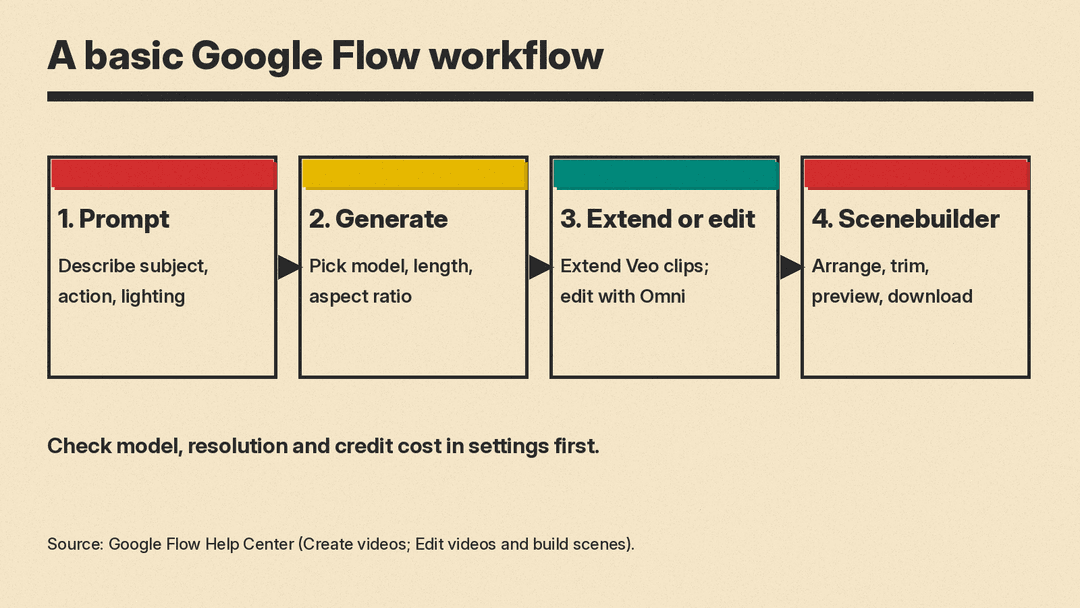
One path is a text prompt. In the standard prompt box you describe the scene, click the model name, choose Video, set your preferences, and click Generate. The preferences are aspect ratio, the number of outputs, the model, and the generation length.
Google's advice on the prompt: be specific about the subject, action, environment, lighting and style.
Frames to video
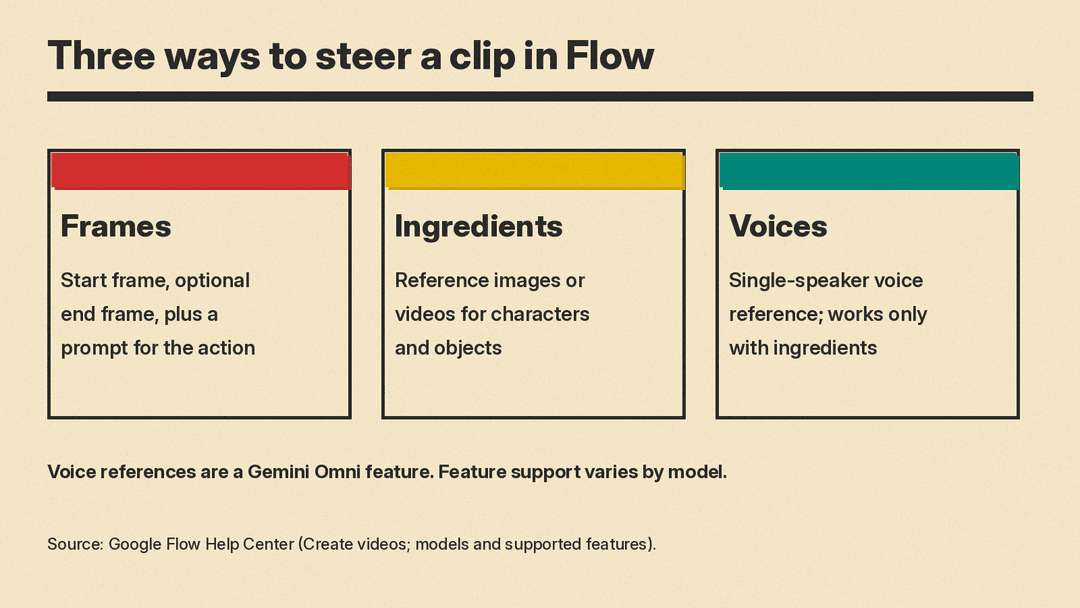
Frames let you control where a clip starts and ends. The Help Center says you can create transitions, animate images, or generate a video that starts and ends with specific images. You drag an image into "+ Add start frame" and, if you want, a second image into "+ Add end frame." Then you describe the action or transition between them in the text prompt.
The Help Center's models page lists which models support which frame options, and it says some features may be limited by model. It also says the first-and-last-frame feature of one Gemini Omni model is currently available only in Flow on the web.
Ingredients
Ingredients are reference images or videos. Google says they let you use the same images for a character and key objects from one clip to the next, so the look stays consistent. You add them by dragging media into Flow, by typing @ to search for an asset in your project by name, or by using the Add button under the prompt.
The Help Center gives this example of how to refer to them: with ingredients of a woman, a lava lamp and a foggy street, you can enter the prompt "The woman, whose torso is the lava lamp, walks down the foggy street."
The Help Center also describes characters. You type @ followed by a character's name to add that character to a prompt, and @me adds your avatar.
Voices
Some Gemini Omni features cover audio. The Help Center says you can add a single-speaker voice reference to keep a character's voice across several clips. You choose a voice, and you can create a custom voice by picking a base voice and describing how to change it. The page's example instruction is "Make the voice sound slightly raspy with a New York accent."
The page sets a limit: voice references work only on video generations that use ingredients. For other kinds of generations, you get an error.
Extend and edit
Flow has two tools for changing clips you already have.
- Extend adds footage to the end of a clip. Google's page says you can currently only extend Veo generated videos. It also says you cannot apply other edit modes, such as insert, remove and camera, to extended clips. The models page adds that extending covers 8-second Veo 3.1 videos, and that you must use Veo 3.1 Lite to extend them. It lists extending for Gemini Omni Flash as coming soon.
- Edit and refine uses a Gemini Omni Flash model. You upload a video, select a segment, and describe the change in text. The page gives these examples: "Change the lighting to a cinematic sunset" and "Add a text overlay that says 'Coming Soon'". You can continue for up to 3 conversational turns without losing the context of your previous edits. The page says this feature is available only in certain countries.
For uploads, the Help Center states the limits: a video up to 60 seconds long and 1 GB, in .mov, .mp4, .avi or .wmv format. If the upload is longer than 30 seconds, you must trim it to 30 seconds in Flow, and you can select up to a 10-second segment to edit.
Scenebuilder
Scenebuilder is where clips become a sequence. Per the Help Center, you can arrange multiple clips in order, rearrange them, trim the start and end of each clip with handles, preview the whole sequence, and download a scene. To add a clip, you hover over it and choose Add to Scene.
Google's launch post also describes Scenebuilder as a way to edit and extend existing shots.
Flow TV
Flow TV is a showcase of clips, channels and content generated with Google's Veo model. The Help Center says you can browse channels and see the prompt behind a clip. Google's launch post says this gives a practical way to learn and adapt new styles. The Help Center adds that Flow TV does not collect your data.
The Flow Agent
Flow also has a built-in assistant, the Google Flow Agent. Google's Help Center describes it as a creative collaborator you talk to in plain language. To use it, you click Agent in the prompt box. Turning it off returns you to the standard prompt box.
According to the Agent help page, you can ask it to:
- Brainstorm and plan, including storyboards and mood boards, and turn high-level concepts into prompts.
- Generate videos or images and select the best model to generate with.
- Edit selected media from your project.
- Create multiple variations of an asset at once. Google's example is "Give me 5 variations of this video with different lighting."
- Organize assets, such as renaming files, grouping media into a Collection, or deleting unused assets.
Three details matter for cost and control, all from the Agent help page. Media the Agent generates uses your Flow credits. Agent queries do not currently cost credits, but each Google AI plan has a daily limit on queries. And by default, the Agent asks for your permission before taking any action that uses credits. If you set "Confirm before generating" to Never, the Agent can generate media and use credits without pausing for approval.
The Agent is currently available on web and PC only, and its conversations are saved as sessions that belong to the project.
Who can use Flow
The Help Center lists requirements that you must all meet:
- Your age is verified and you are 18 or older.
- You are in one of Google's supported regions.
- You are subscribed to a Google AI plan. The page names Google AI Plus, Google AI Pro and Google AI Ultra.
The page also says users on qualifying Workspace plans get access at no extra charge, and it lists the plans. It says Pro subscribers get the full Flow experience, and Ultra subscribers get more credits and first access to the newest experimental models and advanced features.
Here Google's two pages differ. The launch post from May 2025 says Flow was available to Google AI Pro and Google AI Ultra subscribers in the U.S., with more countries coming. The current Help Center names three plans, adds Workspace access, and refers to a list of supported regions. The Help Center describes the requirements as they apply "Currently," so check its supported region list before you buy a subscription. The Help Center warns that VPNs will not enable access in unsupported regions.
On devices, Google recommends Flow on a desktop computer with a Chromium-based browser such as Chrome for the most powerful editing features. There is also a Flow app for creation on the go. The Help Center says other browsers and mobile devices are not yet fully optimized.
Credits and limits
Flow uses AI Credits. The Help Center says model costs are evolving fast, and the latest costs are shown in the product when you select a model. This post does not list prices or credit counts because they change.
Some rules from the Help Center are worth knowing:
- Credits are deducted when a generation begins. If it fails or hits a safety filter, credits are returned within one hour.
- If Veo produces low-quality audio, the video is not generated and credits are refunded. A project setting called Return silent videos lets Flow return the video without audio and charge credits as usual.
- Flow may rate-limit how many generations you can make, particularly for zero-credit models. After a large number in a day, the number you can make within a minute decreases.
- If you try a feature the selected model does not support, Flow defaults you to a compatible model, and you can check the model and credit costs in settings before you confirm.
Watermarks, policies and commercial use
The Help Center says all outputs generated in Flow using Veo, Omni or Nano Banana include invisible SynthID watermarks. SynthID identifies AI-generated content by embedding digital watermarks directly into it. For more on that technology, read our explainer on what SynthID is and how to check content.
A visible watermark can be added to generated images and videos. You control it with the "Visible watermarking" toggle under your profile picture. The Help Center says a visible watermark is applied automatically for users in India, South Korea and Vietnam who are not on the Google One AI Ultra 20x Plan.
On content rules, Google says it prohibits knowingly generating harmful, illegal or inappropriate content. It says Flow has precautions to protect minors and uploaded photos of people, and certain queries might not be generated. Details are in Google's Generative AI Prohibited Use Policy.
On commercial use, the Help Center points to the Terms of Service and says they must be consulted and followed in their entirety. Read those terms before you publish Flow output in paid work. This post does not summarize them.
Tips from Google's own pages
Google's Help Center gives these best practices:
- Prepare clean ingredients. Use subject or product references on a plain or segmented background. Keep location and style references free of extra subjects unless you want them.
- Avoid conflicting guidance. Your text prompt should complement your visual inputs, not contradict them, and it should refer to the frames or ingredients you provided.
- Keep a consistent look across ingredient images, which helps the model blend them.
- Iterate with Gemini. The page suggests sending Gemini your prompt, an image or a video and asking it to write new prompts.
How Flow fits with other tools
Other tools exist for AI video. Our guide to the best AI filmmaking tools for indie creators compares others, and a separate post compares Gemini Omni Flash with Kling 4.0 as video models. Those posts are separate from this explainer, which relies only on Google's pages.
What to check before you start
- Confirm that your region and age requirements are met, and that you hold a qualifying plan.
- Open the prompt box settings and read the active model, resolution and credit cost.
- Start with one short clip, using a specific prompt, before you commit credits to a long project.
- Decide whether you want the Agent to confirm before it spends credits.
- Read the Terms of Service if the output is for commercial work.
Sources
- Get started with Google Flow (Google Flow Help)
- Learn about Google Flow models and supported features (Google Flow Help)
- Create videos in Google Flow (Google Flow Help)
- Edit videos and build scenes in Google Flow (Google Flow Help)
- Use the Google Flow Agent (Google Flow Help)
- Introducing Flow: Google's AI filmmaking tool designed for Veo (Google, May 20, 2025)
- Flow TV FAQ (Google Labs)
