
If you search on Google and see a block of AI-written text on the results page, that is an AI Overview. Google describes it as "an AI-generated snapshot with key information and links to dig deeper." This guide covers the basic questions: where does the text come from, why does it appear on some searches and not others, how much should you trust it, and can you make it go away.
The answers below are in plain English and use Google's own Search Help page on AI Overviews and its Search Central guide for site owners. This guide is written for everyday searchers first, with a short section at the end for people who run websites.
What an AI Overview is
An AI Overview is a short summary that Google's AI writes in response to your search, shown inside the normal search results page. It sits alongside the regular results, not in place of them. Each overview includes links to web pages, so you can open the sources it drew on and read more.
Google's help page frames the purpose simply: AI Overviews "can take the work out of searching" by pulling key information together in one place. The page gives an example of when this helps: "when you want to quickly understand information from a range of sources."
Google treats AI Overviews as part of Search itself, not as a separate app. Its help page calls them "a core Google Search feature, like knowledge panels." That matters for whether you can turn them off, which we come back to below.
AI Overviews are different from two other Google AI products that are easy to mix up with them:
- AI Mode is a separate, conversational search experience. Google's AI Mode help page says it "expands what AI Overviews can do with more advanced reasoning and ways of interacting," and that you can ask follow-up questions. We covered recent changes to how AI Mode and AI Overviews show links in our explainer on Google's AI Mode link changes.
- The Gemini app is Google's general AI assistant. It is a chatbot you open on purpose, not a box that appears on a results page. For background on one Gemini model, Gemini 4 Argon, see our Gemini 4 Argon explainer.
How AI Overviews work
Google's help page says AI Overviews use generative AI, which it defines as "a type of artificial intelligence that learns patterns and structures from the data it is trained on and uses that to create something new." In other words, the summary is written fresh for your search. It is not a quote copied from one website.
Google's guide for site owners adds a few more details about what happens behind the scenes:
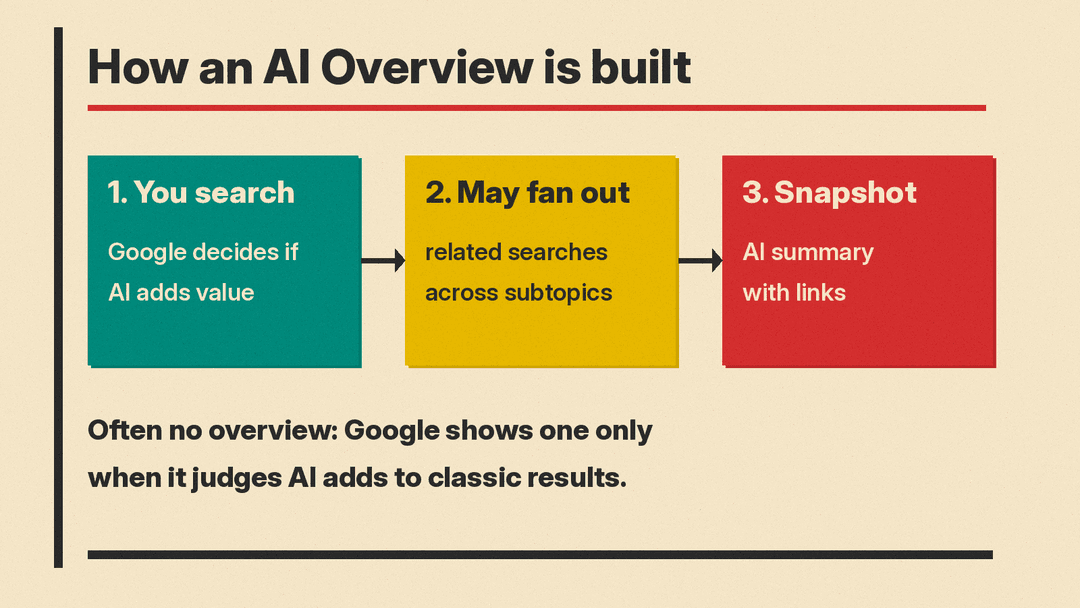
- Google decides whether to show one. AI Overviews "were designed to show up on queries where they can add additional benefits beyond what people might already get on Search." The same guide says they "are only shown when our systems determine that it is additive to classic Search, and as such, often don't trigger." So if you do not see an overview on a search, that is expected behavior, not a bug.
- It may run several searches for you. Google says both AI Overviews and AI Mode "may use a 'query fan-out' technique," which it describes as "issuing multiple related searches across subtopics and data sources." Note the word "may": Google does not say every overview is built this way.
- The links are found while the answer is written. According to the same guide, "While responses are being generated, our advanced models identify more supporting web pages," which lets Google show "a wider and more diverse set of helpful links" than a classic web search.
- AI Overviews and AI Mode can give different answers. Google says the two "may use different models and techniques, so the set of responses and links they show will vary." If you ask the same question in both places, do not be surprised if the wording and the sources differ.
Where you might see them
Google's help page lists the countries, territories and languages where AI Overviews are available to all users. The list is long, so check the help page itself rather than relying on a copy. The same page says you "may find AI Overviews in your search results when you search with an image or use Circle to Search" in places where AI Overviews are available.
One caution before you rely on any settings described here: as of October 2026, the top of Google's help page carries a notice that Google is "currently updating settings for Google Search services," and that the settings it describes "may not match your current experience." If a menu looks different on your device, that notice is the likely reason.
How accurate are AI Overviews?
Google is direct about this. Its help page says the technology "may provide inaccurate or offensive information" and states plainly: "AI Overviews can and will make mistakes." A separate line on the page repeats that "AI responses may include mistakes."
That does not make AI Overviews useless. It means they work best as a starting point, which is how Google itself describes them in its site-owner guide: a way to "get to the gist of a complicated topic or question more quickly" and "a jumping off point to explore links to learn more."
Google's help page gives four ways to double-check a response. In short:
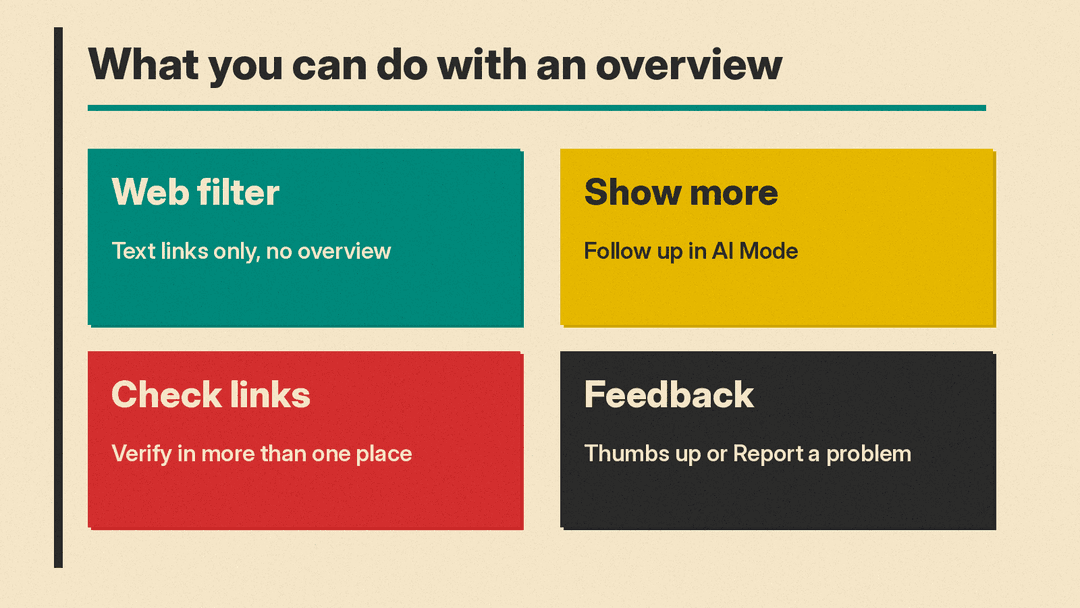
- Check important information in more than one place. Google's wording is "Always check important info in more than one place."
- Click the links. Open the supporting pages shown with the overview and look at other search results too.
- Rephrase your question. Google suggests you "Ask multiple versions of your question," including asking for different opinions or more details.
- Send feedback if something looks wrong.
A practical rule of thumb follows from this. For low-stakes questions, such as a definition or a quick fact you can confirm later, an overview can save time. For anything where a mistake costs you money, health or a deadline, treat the overview as a pointer to sources and read those sources. Our five-minute routine for fact-checking AI answers works the same way for AI Overviews as it does for chatbots.
Can you turn off AI Overviews?
Google's answer is no. Its help page says AI Overviews are "a core Google Search feature" and that "Features cannot be turned off."
There is a supported way to see results without them, though. The same page says: "you can select the Web filter after you perform a search. This filter displays only text-based links without features like AI Overviews."
How to use it:
- Search on Google as usual.
- On the results page, select the Web filter.
Google describes this as something you select "after you perform a search," not a saved setting. It also removes other features, not just the AI Overview, because it shows only text-based links.
What the Labs toggle does and does not do
Google's help page also describes an "AI in Search" setting in Labs, but it is a testbed for new experiments, not an off switch for AI Overviews. Google says you can turn off "AI in Search" in Labs to opt out of those experiments. The steps on the help page are:
- On your computer, open a browser and sign in to your Google Account, with Incognito mode turned off.
- Open a new tab.
- At the top of the page, select Labs, then Manage.
- Toggle "AI in Search" off or on.
Google's page describes this toggle in terms of new experiments and email notifications about them. It does not say this removes AI Overviews from your regular results, so do not expect it to.
How to go deeper: from an AI Overview to AI Mode
If an overview is close to what you need but you want to ask a follow-up, Google lets you continue in AI Mode. The help page says this works "on mobile devices in all regions and languages where AI Overviews and AI Mode are supported."
Per the help page:
- Select Show more at the bottom of the AI Overview to open the detailed view.
- Type your follow-up in the Ask anything bar. Google says "The context from your original search carries over so you don't have to start over."
- To return to the results page with the AI Overview, select Close, or long press and swipe inward from either side of the screen.
How to report a bad AI Overview
Google asks for feedback on overviews, and says it uses that feedback to improve them. The help page describes the process:
- At the bottom of each overview, find the thumbs up and thumbs down icons.
- If the overview helped, select thumbs up. You can select Share more feedback to add detail.
- If it was "unhelpful, inaccurate, biased, or otherwise problematic," select thumbs down, then Report a problem and choose the category that fits. Google recommends adding details in the text field.
- Select Submit.
You can also reach feedback through the three-dot menu at the top right of each overview. One thing to know before you send it: Google says "The feedback you submit includes your most recent search query and its search results."
What Google does with your searches
Google's help page explains that "To develop and improve generative AI experiences in Search and the related machine learning technologies, Google uses people's interactions with Search and these AI experiences," which "can include interactions like what people search for and what feedback they provide to Google."
The page also describes privacy steps for human review. When trained reviewers work on Search's machine learning models, Google says "Data that reviewers see and annotate are disconnected from users' accounts," and "Automated tools help recognize and remove a broad range of identifying info and sensitive personal information."
For site owners: how pages end up in AI Overviews
If you run a website, Google's Search Central guide is the official reference. Its main points:
- No special steps are required. Google says "There are no additional requirements to appear in AI Overviews or AI Mode, nor other special optimizations necessary." It adds that you "don't need to create new machine readable files, AI text files, or markup," and there is "no special schema.org structured data that you need to add."
- The basic requirement is normal indexing. To be eligible as a supporting link, "a page must be indexed and eligible to be shown in Google Search with a snippet."
- Normal SEO still applies. Google lists fundamentals such as allowing crawling in robots.txt, internal links, a good page experience, important content in text form, and structured data that matches the visible text.
- Traffic is counted in Search Console. Clicks from AI Overviews and AI Mode are included in the Performance report under the "Web" search type.
- Controls use existing tools. To limit what is shown from your pages in Search, Google points to
nosnippet,data-nosnippet,max-snippetornoindex. For limiting AI training and grounding in some of Google's other systems, it points to Google-Extended.
Google also makes a claim about traffic quality that site owners will want to test against their own analytics: "when people click from search results pages with AI Overviews, these clicks are higher quality (meaning, users are more likely to spend more time on the site)." That is Google's statement, not an independent measurement.
The short version
- AI Overviews are AI-written summaries with links that Google shows on some searches, when its systems judge they add something to classic results.
- Google says they "can and will make mistakes." Check important information in more than one place.
- You cannot turn them off, according to Google. The Web filter shows text links without them.
- Show more lets you continue into AI Mode on mobile, and thumbs down plus Report a problem lets you flag a bad answer.
- Site owners do not need special files or markup; normal indexing and SEO basics apply.
