
Hugging Face hosts a very large number of open models, and local apps such as Ollama and LM Studio can run the ones saved as GGUF files. The gap for beginners is the middle: which repo to pick, what to check on the page, which file to download, and what to type. This guide covers those steps for two free apps, Ollama and LM Studio, as of November 4, 2026.
If you have not installed either app yet, start with our guide to running an AI model on your own laptop. It covers installs, hardware and a first model from each app's own library. This guide picks up after that and focuses on one thing: taking a model from Hugging Face instead.
What we tested: on November 4, 2026 we ran Ollama 0.40.14 on a Linux machine and pointed ollama pull at Hugging Face repos. We saw the real error messages shown in the errors section. The model download itself did not finish, because our sandbox network resolves Hugging Face's download host to a private address that Ollama refuses. So we did not chat with a model through this route. We did not test LM Studio. Every command below comes from the official docs, which we link at the end.
The short version
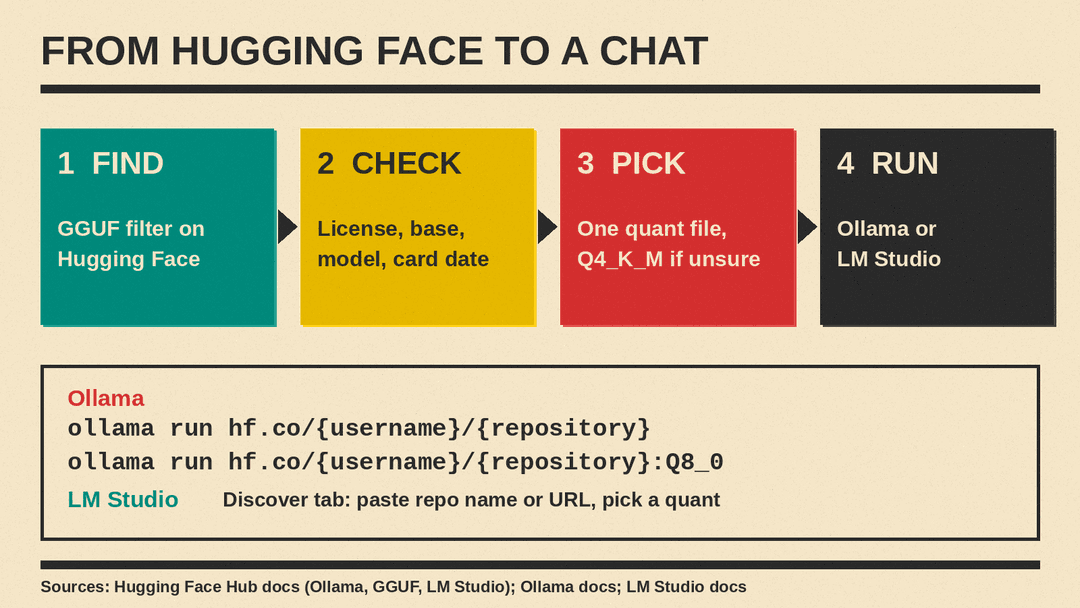
- Find a repo that holds GGUF files. Use the GGUF filter on Hugging Face.
- Open the model card. Check the license, the base model and the date.
- Pick a quant. If you are unsure, take the Q4_K_M file.
- Run it. In Ollama:
ollama run hf.co/{username}/{repository}. In LM Studio: open Discover, paste the repo name or URL, and download.
Step 1: Find a GGUF repo on Hugging Face
The one-line commands in this guide need a repo that holds GGUF files. Many Hugging Face repos hold other formats, such as safetensors. If you are not sure about the difference, read our guide to GGUF vs safetensors.
Hugging Face's GGUF page says you can browse all models with GGUF files by filtering on the GGUF tag at hf.co/models?library=gguf. Its LM Studio page also points to a trending view at huggingface.co/models?library=gguf&sort=trending.
Two things to know about who made the file:
- Many GGUF files come from community members, not from the lab that trained the model. Someone converts and shrinks the model and uploads a "quant" repo. Hugging Face's Ollama page calls these quants created by the community and names bartowski and MaziyarPanahi as examples. Its LM Studio page points to the LM Studio Community page on Hugging Face.
- A repo name usually shows the model, then "GGUF". In
bartowski/Llama-3.2-1B-Instruct-GGUF,bartowskiis the uploader,Llama-3.2-1B-Instructis the model andGGUFis the format.
If you are new to the site itself, our beginner's guide to Hugging Face explains accounts, model pages and gated models.
For the rest of this guide we use that Llama 3.2 1B repo as the example. It is small, and Hugging Face's own Ollama page uses it too. We checked the repo on November 4, 2026. Nothing here says it is the best model for you. It is a safe one to practice with.
Step 2: Check the model card and the license
Do this before you download anything. A GGUF repo is a copy of someone else's model, so you need to look at both the copy and the original.
On the repo page, check these items:
- The license. The card's metadata for our example says
license: llama3.2. Hugging Face's license list defines that identifier as the Llama 3.2 Community License Agreement. Click through and read it. The card's metadata carries the full agreement text. Among other things, it says that anyone who distributes the model, or a product that contains it, must display "Built with Llama," and that a licensee whose products had more than 700 million monthly active users on the Llama 3.2 release date must request a license from Meta. If you only run the model for yourself, check whether the terms and the Acceptable Use Policy fit what you plan to do. - The base model. The card lists
meta-llama/Llama-3.2-1B-Instructas the base model. Open that page too. If the two pages show different licenses, read the original's terms first. - Who made the quants, and how. This card says the files were made with llama.cpp release b3821 and an "imatrix" dataset. The uploader describes the choices.
- The date. Hugging Face's API listed the repo as last modified on October 8, 2024. That is old for AI. Some advice on an older card, such as notes on special ARM files, may be out of date. Check the original model's page for newer versions.
- Gating. Some repos ask you to accept terms and share your username and email with the authors (unless they chose not to collect them) before you can download. Hugging Face's gated models page says you must be logged in, and that the authors can remove access at any time.
For a longer checklist, read our guide to reading an AI model card. The model card is also where the uploader may tell you which prompt format the model expects. Our example card shows a prompt template with system, user and assistant parts.
Step 3: Pick a quant file
Open the Files and versions tab. A GGUF repo usually has many files for one model. Each file is the same model saved at a different size, which is what the "quant" code in the name tells you. Our explainer on Q4 and Q8 covers what quantization trades away, and Hugging Face's GGUF page lists the types and their bits per weight.
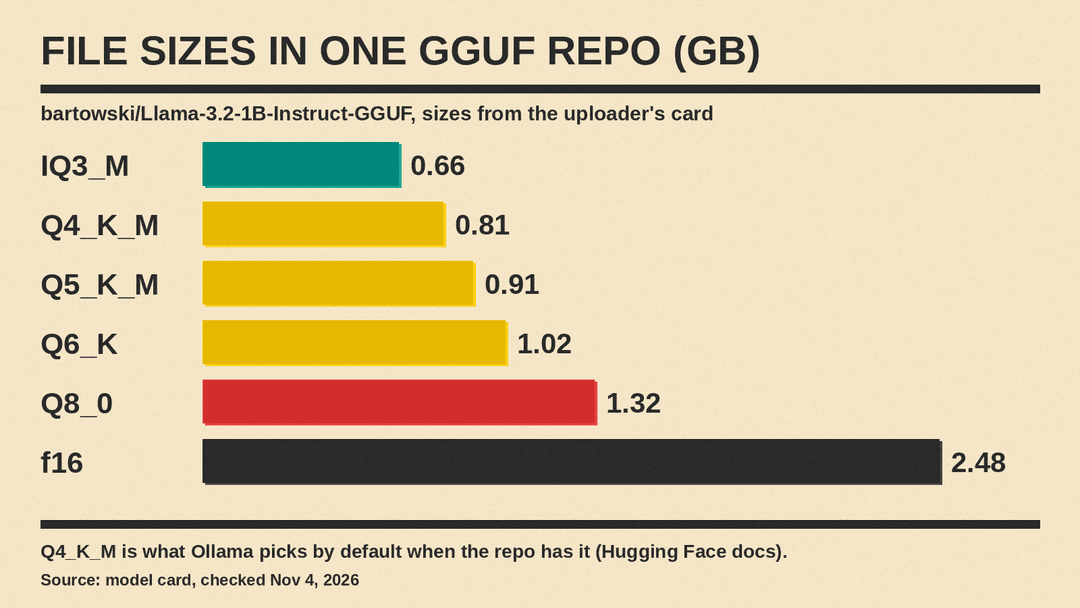
Here are some files from our example repo, with sizes as the uploader's card lists them:
- IQ3_M: 0.66 GB. The card calls it medium-low quality.
- Q4_K_M: 0.81 GB. The card calls it good quality and a default size for most uses.
- Q5_K_M: 0.91 GB. The card says high quality.
- Q6_K: 1.02 GB. The card says very high quality, near perfect.
- Q8_0: 1.32 GB. The card says "Extremely high quality, generally unneeded but max available quant."
- f16: 2.48 GB. The full 16-bit weights.
How to choose:
- Start with Q4_K_M. Ollama uses it by default when the repo has it. If not, Ollama picks "one reasonable quant type present inside the repo," per Hugging Face's Ollama page. LM Studio's download guide says to choose "a 4-bit option or higher if your machine is capable enough for running it."
- Fit the file in your memory. The uploader's card advises this: "Aim for a quant with a file size 1-2GB smaller than your GPU's total VRAM." Our guide on how much memory a local model needs explains the rest of the budget, such as context.
- Skip unfamiliar names. Our example repo also has files such as Q4_0_4_4. The card says those are optimized for ARM chips and are not for Apple's Metal. The card calls plain Q4_0 a legacy format that is generally not worth using over similarly sized formats. If a file name looks odd, read the card's table.
- One file is enough. You do not need to download the whole repo. Our example repo holds 18 GGUF files, and you need only one of them.
Step 4: Run it in Ollama
Install Ollama first if needed. Then run this in a terminal:
ollama run hf.co/bartowski/Llama-3.2-1B-Instruct-GGUFThe pattern from Hugging Face's Ollama page is ollama run hf.co/{username}/{repository}. You can use hf.co or huggingface.co as the domain.
To choose a quant, add a colon and the quant name:
ollama run hf.co/bartowski/Llama-3.2-1B-Instruct-GGUF:Q8_0Per the same page, the quant name is not case sensitive, so :q8_0 works. You can also use the full file name as the tag, for example :Llama-3.2-3B-Instruct-IQ3_M.gguf for a file in the 3B repo. On a model page you can also pick Ollama from the "Use this model" menu, and the page writes the command for you. To see that option, first enable Ollama under Local Apps in your Hugging Face settings.
Ollama downloads the file the first time, then opens a chat. Type /bye to leave, as Ollama's quickstart says. Other commands from the Ollama CLI reference:
ollama lslists the models on your disk.ollama psshows which models are loaded and whether they sit on the CPU or the GPU.ollama stop <model>unloads a model.ollama rm <model>deletes it. Use the name thatollama lsshows.ollama pull <model>downloads without starting a chat.
Ollama's FAQ says models are stored in ~/.ollama/models on a Mac, and in C:\Users\%username%\.ollama\models on Windows. On Linux with the standard installer the folder is /usr/share/ollama/.ollama/models. Set OLLAMA_MODELS to use a different folder.
Chat templates. Hugging Face's page says Ollama picks a template automatically from the tokenizer.chat_template data stored inside the GGUF file. If a file has no template, the repo owner can add a file named template to the repo. That template must be in Go template format, not Jinja. If answers look broken or contain stray tags, a missing or wrong template is one cause to check.
Private repos. For a private GGUF in your own account or organization, the page says to copy your Ollama public key (cat ~/.ollama/id_ed25519.pub | pbcopy on a Mac) and add it as an SSH key in your Hugging Face account settings. Then the same ollama run hf.co/{username}/{repository} command works. The page does not describe gated repos, so for a gated model use the manual route near the end of this guide.
Step 5: Run it in LM Studio
LM Studio has a built-in downloader that gets models from Hugging Face. Hugging Face's LM Studio page gives three routes.
Route 1: the Use this model button. First enable LM Studio under Local Apps in your Hugging Face settings. On a GGUF or MLX model page, open the "Use this model" menu and choose LM Studio. Hugging Face says this runs the model in LM Studio if you already have it, or shows a download option if you do not.
Route 2: search inside the app. Open the Discover tab. LM Studio's docs give the shortcut as Cmd+2 on a Mac and Ctrl+2 on Windows and Linux. Hugging Face's page names Cmd+Shift+M, or Ctrl+Shift+M on a PC, for the model search. Try one, and use the tab if neither works. LM Studio's docs say you can search by keyword, such as llama or gemma, or give a specific user/model string. You can also paste a full Hugging Face URL into the search bar.
For each model, expand the dropdown to see the quant options. Hugging Face says LM Studio highlights the recommended choice for your hardware and shows which options are supported. Pick one, download it, then open the model loader, select the model and wait for the progress bar. Then chat.
Route 3: the terminal. LM Studio ships with a command line tool, lms. Run LM Studio at least once before you use it. From Hugging Face's page and LM Studio's CLI docs:
lms get https://huggingface.co/bartowski/Llama-3.2-1B-Instruct-GGUF
lms get https://huggingface.co/lmstudio-community/Ministral-3-8B-Reasoning-2512-GGUF@Q6_K
lms get llama-3.1-8b@q4_k_m
lms ls
lms chat
The @ picks a quant. lms get --gguf limits search results to GGUF models. lms ls lists what you have on disk, and lms chat starts a chat and asks you to pick a model if you do not name one. The first command above is our own use of the URL form from Hugging Face's page. The second is that page's example, and the third is from LM Studio's lms get page.
Already have a GGUF file? Import it by hand
Sometimes you have a file already: a manual download, a gated repo or a file from a friend.
To download one file from Hugging Face in a terminal, use the hf tool from the huggingface_hub package (pip install -U "huggingface_hub", per its docs). It supports hf download <repo> <file> --local-dir <folder>. Its docs show this form with a different repo, and say that gated or private repos need a token from hf auth login. Our example would be:
hf download bartowski/Llama-3.2-1B-Instruct-GGUF Llama-3.2-1B-Instruct-Q4_K_M.gguf --local-dir modelsThen, in Ollama, create a text file named Modelfile that holds one line:
FROM /path/to/file.ggufand run these two commands:
ollama create my-model
ollama run my-model
Ollama's import guide gives these steps. It adds one warning: Ollama does not quantize GGUF models during import. Prepare and quantize them first with a tool such as llama.cpp's llama-quantize. A file that is already the size you want imports as is.
In LM Studio, run lms import <path/to/model.gguf> and follow the prompts. The docs mark lms import as experimental. By default it moves the file. Add --copy to keep the original file, or --dry-run to see what would happen. LM Studio expects models in a folder pattern of publisher/model/model-file.gguf inside its models directory, which it says is ~/.lmstudio/models/ in its example.
Common errors and fixes
These first three are real messages from our Ollama 0.40.14 test on November 4, 2026.
Error: pull model manifest: 400: {"error":"Repository is not GGUF or is not compatible with llama.cpp"}. We got this when we pointed Ollama at hf.co/Qwen/Qwen3.5-0.8B, a repo for the original weights. Fix: find the GGUF repo for that model. Search for the model name and "GGUF," or use the GGUF filter from step 1.
Error: pull model manifest: 400: {"error":"The specified tag is not a valid quantization scheme. Please use another tag or \"latest\""}. We got this after adding a made-up quant tag (:Q9_Z). Fix: copy the quant name from the file list, or use the full file name as the tag.
Error: pull model manifest: 401: {"error":"Invalid username or password."}. We got this for a repo name that does not exist, written as huggingface.co/bartowski/does-not-exist-GGUF. With hf.co in place of huggingface.co, the same typo gave a different message: realm host "huggingface.co" does not match original host "hf.co". Both mean the same thing for a beginner: check the spelling of the user and repo. A private repo can look the same until you add your key, as described above.
max retries exceeded ... redirect target not allowed ... resolves to non-public. We got this in our sandbox when Ollama tried to download the file. Ollama refused because the download host resolved to a private address. If you see this on a work network, a proxy or DNS filter may be the cause. Ask your IT team or try another network. Our October 19 test saw the same limit.
It is slow or runs out of memory. Run ollama ps. Ollama's docs say to avoid offloading the model to the CPU and to check the PROCESSOR column. Pick a smaller quant or a smaller model. Ollama's context length docs say a bigger context needs more memory, and that the default is 4k tokens on less than 24 GiB of VRAM.
LM Studio will not offer the file you want. Hugging Face's page says LM Studio indicates which options are supported. It also says the Use this model button works for GGUF or MLX models. Check that the repo is GGUF, then pick a supported option.
Answers look broken. Check the card for the expected prompt format. In Ollama, a missing chat template is one cause, as described in step 4.
A gated repo will not download. Open the page in a browser while logged in, agree to the terms, and wait if approval is manual. Then download the file by hand, or with hf auth login and hf download, and import it as shown above.
FAQ
Which should I use, Ollama or LM Studio? If you like a window and buttons, use LM Studio. If one terminal command suits you, use Ollama. Both read the same GGUF files from Hugging Face.
How do I judge an uploader I do not know? Read the card, check the date and the license, and compare with the original model's page. Hugging Face's Ollama page names bartowski and MaziyarPanahi as community quant makers, which is a starting point, not a guarantee.
Can I use any model I find? Not without checking. Read the license first, then compare its terms with your plan, such as personal use or a business.
Sources
- Hugging Face: Use Ollama with any GGUF model
- Hugging Face: GGUF
- Hugging Face: GGUF usage with LM Studio
- Hugging Face: Licenses
- Hugging Face: Gated models
- Hugging Face: hf command line interface
- Example repo: bartowski/Llama-3.2-1B-Instruct-GGUF
- Ollama: Importing a model
- Ollama: CLI reference
- Ollama: Quickstart
- Ollama: FAQ
- Ollama: Context length
- LM Studio: Download an LLM
- LM Studio: lms get
- LM Studio: lms chat
- LM Studio: lms ls
- LM Studio: lms import
- LM Studio: Import models
