
Claude Code is Anthropic's coding agent that runs in your terminal. You talk to it in plain English, but a lot of control sits behind short commands that start with a slash: /clear, /compact, /model, /rewind and dozens more. The full list in Anthropic's commands reference runs past 100 entries, and a beginner can start with far fewer.
This cheat sheet groups those commands by when you use them, explains each one in a line, and then shows how to make your own slash command. We also tested the prompt inside a custom command on a second model to see how much the wording matters. Everything below comes from Anthropic's Claude Code docs as of November 11, 2026.
If you are new to coding agents, start with our explainer What Is a Coding Agent? and come back here.
How slash commands work
Type / in a Claude Code session and a menu of available commands appears. Keep typing to filter it. Three rules from the commands page save confusion:
- A command only counts at the start of a message. Any text after the command name is passed to it as arguments, as in
/plan fix the login bug. - If you send a command while Claude is still working, Claude Code queues it and runs it after the current turn. A few, such as
/status,/tasksand/usage, run right away. - Not every command shows for every user. Anthropic says availability depends on your platform, plan and environment.
In the lists below, <arg> means a required argument and [arg] means an optional one, the same notation Anthropic uses.
Start a project
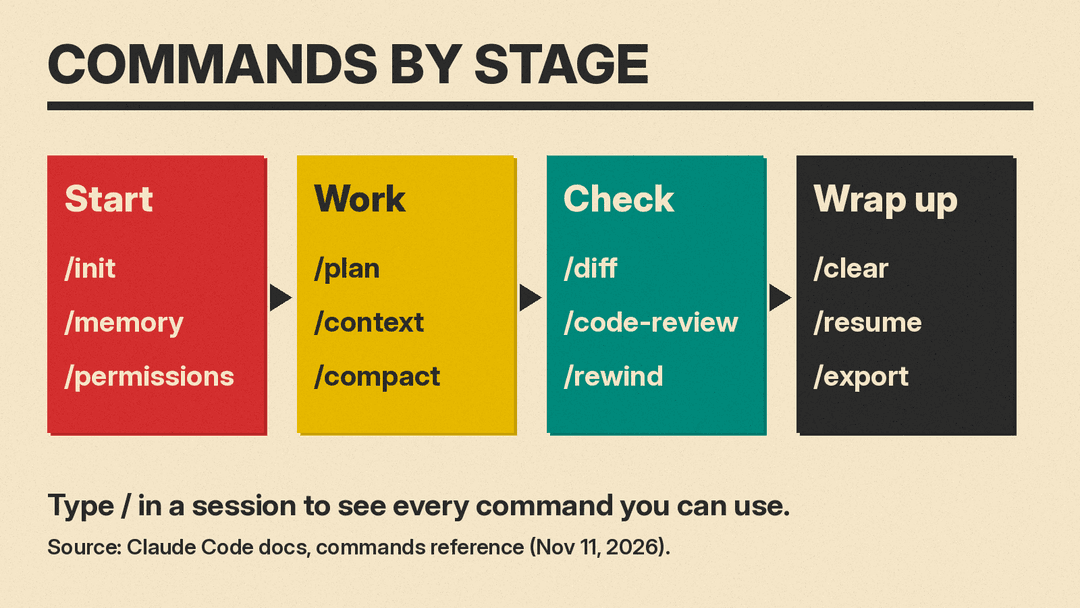
/init: creates a starterCLAUDE.mdfile, a guide to your project for Claude./memory: edit yourCLAUDE.mdfiles, turn auto memory on or off, and view what auto memory has saved./permissions: manage allow, ask and deny rules for the tools Claude can use. Alias:/allowed-tools./mcp: manage MCP server connections and sign-ins. MCP servers connect Claude to outside tools./add-dir <path>: give Claude access to another folder for the current session./help: show help and the commands available to you.
Anthropic's suggested first session in a repo is short: run /init, refine the result with /memory, set up servers with /mcp, then set approval rules with /permissions.
While you work
/plan [description]: switch into plan mode before a large change. Add a description to start planning a task at once, for example/plan fix the auth bug./model [model]: switch the model and save it as your default for new sessions. With no argument it opens a picker, where pressingson a row switches for the current session only./effort [level]: set how much reasoning Claude applies, fromlowtoxhigh,max, orauto./effort statusprints the current level./context: show what is filling the context window as a colored grid, with suggestions./compact [instructions]: summarize the conversation so far to free up space. You can add focus instructions for the summary, such as/compact keep the database decisions./btw [question]: ask a side question without adding it to the conversation history./usage: show session cost, plan usage limits and activity./costis an alias./status: show version, model, account and connection status. It works while Claude is responding.
In long sessions, use /context and /compact together: the first shows what fills the window, the second frees space.
Check work before you ship
/diff: review the changes in your working tree, including the edits Claude has made./code-review: check the current changes for correctness bugs. You can pass a pull request number, branch or path, and add--fixto apply the findings./reviewis an alias./security-review: check the changes on your branch for security problems such as injection, auth issues and data exposure. It needs anoriginremote.
Undo and recover
/rewind: roll the conversation, the code, or both back to an earlier point. Aliases:/checkpointand/undo./doctor: run a setup checkup for installation, settings andCLAUDE.mdproblems. It proposes fixes and applies them after you confirm./debug [description]: turn on debug logging for the session and look into problems from the log./feedback: send feedback about Claude Code, with a consent step before anything is sent./bugopens the same dialog.
Between sessions
/clear [name]: start a new conversation with empty context. Aliases:/resetand/new. Anthropic's commands page says it keeps project memory./resume [session]: go back to an earlier conversation by ID or name, or pick one from a list./branch [name]: branch the conversation at this point to try another direction. The original stays, and/resumegets you back to it./rename [name]: rename the current session. With no name, Claude Code makes one from the conversation./export [filename]: export the conversation as plain text./exit: leave the CLI.
Run work in parallel
These are for later, once the basics feel easy:
/tasks: view background work in the session, including subagents that have finished./background [prompt]: detach the session so it keeps running as a background agent. Alias:/bg./batch <instruction>: a bundled skill for large changes. It splits the work into 5 to 30 units and, once you approve the plan, runs each in its own worktree. It needs a git repository or a worktree hook.
Make your own slash command
Any prompt you keep pasting can become a command. Anthropic has merged custom commands into skills: a file at .claude/commands/deploy.md and a skill at .claude/skills/deploy/SKILL.md both create /deploy and work the same way, and old command files keep working. If skills are new to you, start with our explainer on what agent skills are.
Where you save the file decides who gets the command:
- Personal:
~/.claude/skills/<name>/SKILL.mdworks in all your projects on that machine. - Project:
.claude/skills/<name>/SKILL.mdworks in that repository. Commit it and your team gets it too.
A skill file has two parts: a short header between --- lines, and the instructions. The folder name becomes the command you type. The description tells Claude when the skill applies, and disable-model-invocation: true stops Claude from running it on its own, so it runs only when you type the command. Anything you type after the command name replaces $ARGUMENTS in the instructions.
Here is a commit message command. Save it as ~/.claude/skills/commit-msg/SKILL.md, then type /commit-msg:
---
description: Write a git commit message for the staged changes
disable-model-invocation: true
argument-hint: "[extra context]"
---

Read the staged diff with git diff --staged, then write a git commit message.

Rules:
- First line: imperative mood, 50 characters or fewer, no period.
- Then one blank line, then 1 to 3 short lines that say why the change was made.
- Describe only what the diff shows. Do not guess at tickets, tests or files that are not in the diff.
- Output only the commit message. No preamble, no code fences.

Extra context from the user, if any: $ARGUMENTS
The skills page also lists optional header fields such as allowed-tools, model and context: fork, which runs the skill in its own subagent. You do not need any of them to start. Only description is recommended. Our guide to writing a SKILL.md file covers the format in more depth.
We tested the prompt inside the command
A slash command is only as good as the prompt in it. To see how much the rules matter, we sent two versions of a commit message prompt to DeepSeek V4.1 Flash through OpenRouter on November 11, 2026. This was not a test of Claude Code itself: we pasted a small made-up diff (a shopping cart coupon fix) where Claude would read the staged changes.
- Plain prompt: "Write a commit message for these changes." plus the diff.
- Rules prompt: the four rules from the skill above, plus the diff.
That is 2 prompts x 4 runs = 8 calls, with reasoning effort set to low.
What we saw:
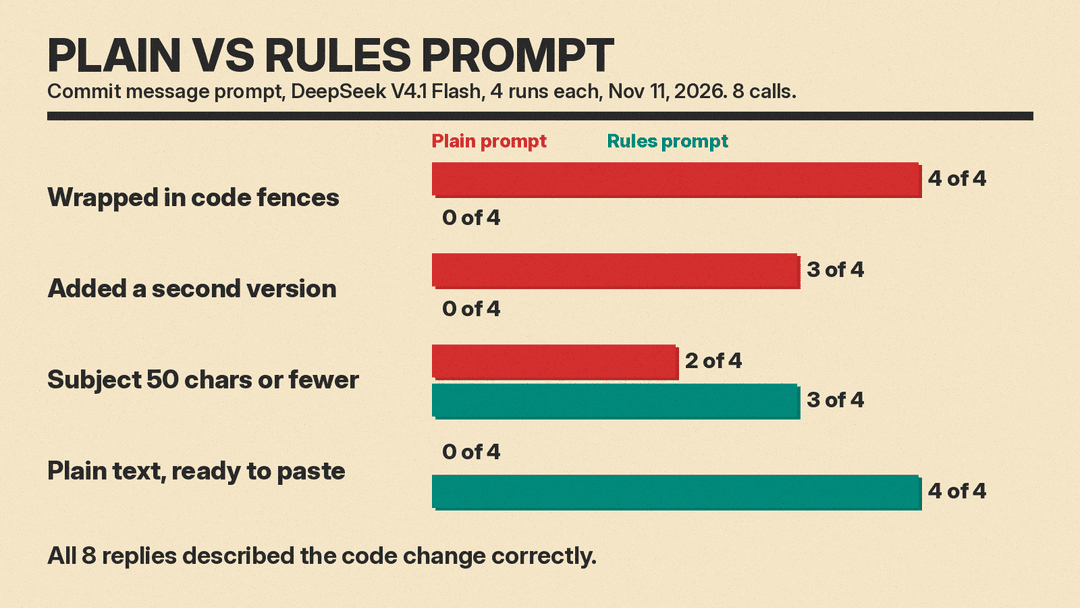
- All 4 plain prompt replies came wrapped in code fences, and 3 of 4 added a second, one-line version to choose from. One also added a
Fixes #<issue> (if applicable)line, though the diff names no ticket. - All 4 rules prompt replies were plain text you could paste straight into git, with no extra versions.
- The 50 character subject rule held in 3 of 4 rules replies. The fourth subject was 53 characters. Plain replies kept to 50 characters in 2 of 4.
- All 8 replies described the code change correctly.
The lesson for your own commands: a short, vague body works, but you clean up the output every time. Spell out the format and what to leave out, then still read the first line before you commit.
Tips for beginners
- Learn five first:
/init,/plan,/compact,/rewindand/clear. They cover setup, big changes, long sessions, mistakes and fresh starts. - Use
/btwfor quick questions so they do not crowd the context. - Run
/diffand/code-reviewbefore you accept a large change. - When a command is missing from the menu, check your plan and platform. Anthropic notes, for example, that
/desktoponly shows on macOS and x64 Windows with a Claude subscription. - Turn a prompt into a skill when you paste it more than twice.
For a full beginner workflow with prompts, see Vibe Coding With Claude: Prompts and a Step-by-Step Workflow and What Is Vibe Coding?.
Sources
- Claude Code docs: Commands reference
- Claude Code docs: Extend Claude with skills
- Test method: DeepSeek V4.1 Flash (deepseek/deepseek-v4.1-flash-1017) via OpenRouter, November 11, 2026, 8 calls, reasoning effort low.
