
An "AI second brain" sounds like a product you buy. It is not. It is a folder of notes you own, plus an AI model that can read that folder and help you sort, link and question it. Obsidian and Claude are a good pair for this because Obsidian keeps every note as a plain text file on your own computer, and Claude can be given access to a folder of plain text files.
This guide walks through the full setup: the vault, the folders, daily notes, links, three ways to connect Claude (from no setup to full file access), a rules file for the vault, and five copy-paste prompts. We tested the prompts on a small local model and report what broke, so you know what to check for.
What you are building
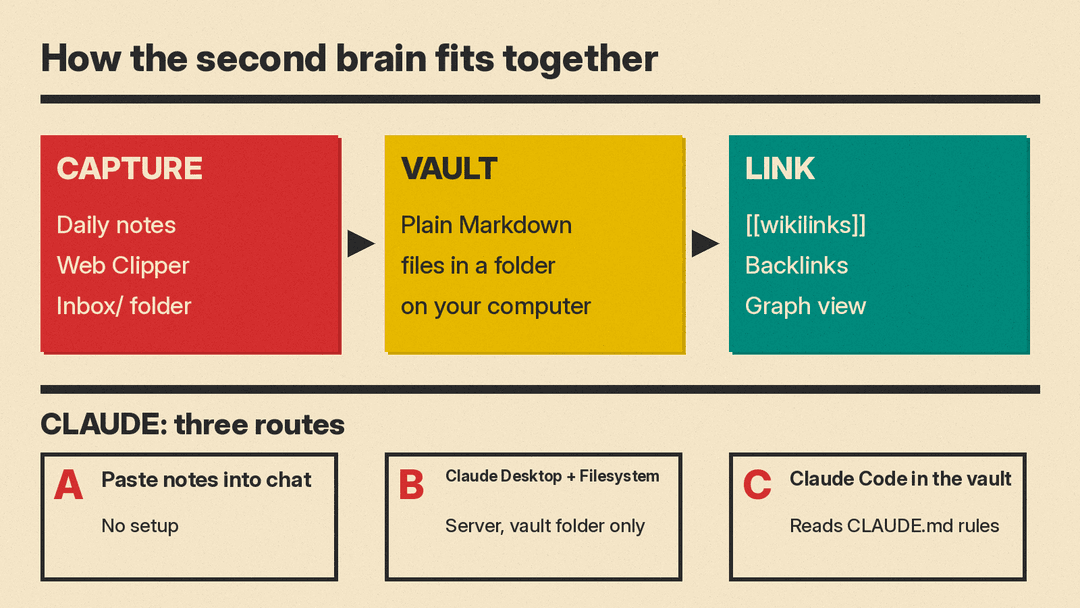
The setup has three parts.
- The vault. Per Obsidian's help docs, Obsidian stores notes as Markdown plain text files in a vault, and "a vault is a folder on your local file system, including any subfolders." Because they are plain files, other apps can read and edit them, and Obsidian refreshes when files change outside the app.
- The links. Obsidian connects notes with internal links like
[[Spanish Vocab]]. Links are what turn a pile of notes into something you can navigate, and they give Claude a map too. - The assistant. Claude reads notes you give it, answers questions from them, and writes new notes or edits in your format.
What you need
- Obsidian on your computer.
- A Claude account. Which one depends on the route you pick in step 4: plain chat works with any account; Claude Code needs a Claude subscription (Pro, Max, Team or Enterprise), a Claude Console account or access through a supported cloud provider, per its quickstart.
- For the Claude Desktop route: the Claude Desktop app and Node.js. The MCP guide for local servers says the Filesystem Server requires Node.js to run.
- About an hour for the first setup.
Step 1: Create the vault and a simple folder layout
Open Obsidian, create a new vault, and pick where it lives. Obsidian's docs say you can create a vault anywhere your operating system allows, and it syncs with Obsidian Sync, Dropbox, iCloud, OneDrive, Git and other services. The docs also warn against putting a vault inside another vault, because internal links may not update correctly.
Folder layouts are personal. Here is a small one that works well with AI help, because each folder has one job:
Inbox/for raw captures you have not sorted yet.Daily/for daily notes.Notes/for finished, single-topic notes.Templates/for note templates.
Keep it this small at the start. Claude can help you split and file notes later, so you do not need a perfect system on day one.
Step 2: Turn on daily notes and templates
Daily notes give you one place to dump everything from a day. According to Obsidian's Daily notes docs, Obsidian creates a new note named after today's date in YYYY-MM-DD format by default, and you can set a "New file location" so they land in a separate folder such as Daily/.
Then set up the Templates core plugin. In Settings, under Core plugins, Templates, Template folder location, point it at your Templates/ folder. The Templates docs list three variables: {{title}}, {{date}} and {{time}}. A simple daily template:
# {{date}}

## Log

## Tasks
- [ ]

## Ideas
Daily notes can be created from a template, so every day starts with the same headings. Consistent headings make the AI prompts below work better, because the model can rely on where tasks and ideas live.
For web articles, the free Obsidian Web Clipper browser extension saves highlights and page content into your vault. Obsidian says it saves content locally and does not collect usage metrics.
Step 3: Link notes as you go
Links are the part most people skip and later regret. Obsidian supports wikilinks such as [[Three laws of motion]] and standard Markdown links, per its internal links docs. A link can point to a note that does not exist yet, which is a handy way to mark a topic you want to write up later. Obsidian can also update links automatically when you rename a file.
Two built-in views make links useful:
- Backlinks. The Backlinks plugin shows every note that links to the one you are reading.
- Graph view. The Graph view draws notes as circles and links as lines. The more notes that reference a note, the bigger its circle gets.
You do not have to link by hand forever. Prompt 2 below asks Claude to suggest links, and you approve them.
Step 4: Connect Claude (three routes)
Pick the lightest route that does what you need.
Route A: Paste notes into chat (no setup)
Copy one or more notes into a Claude chat and use the prompts below. Nothing on your computer changes, and nothing outside what you paste is shared. This is the right start if you want to try the workflow before giving any app file access.
Route B: Claude Desktop with the Filesystem Server
This lets Claude read and write files in folders you choose, through a Model Context Protocol (MCP) server. The steps below follow the official MCP guide:
- In Claude Desktop, open Settings from the Claude menu in your system menu bar, go to the Developer tab and click Edit Config.
- Replace the file contents with a config that names your vault as the only allowed folder. On a Mac it looks like this (change the path to your vault):
{
  "mcpServers": {
    "filesystem": {
      "command": "npx",
      "args": [
        "-y",
        "@modelcontextprotocol/server-filesystem",
        "/Users/yourname/Documents/MyVault"
      ]
    }
  }
}- Quit Claude Desktop completely and reopen it.
- In a chat, open "Add files, connectors, and more" at the bottom left, then Connectors, Manage connectors, and check that "filesystem" is listed.
The guide is direct about the risk: the server "runs with your user account permissions, so it can perform any file operations you can perform manually." List only your vault folder, not your whole home folder. The guide also says Claude asks for approval before each file system operation, so read each request before you accept it. If the server does not show up, the guide's troubleshooting steps say to check the JSON syntax and use absolute paths, not relative ones.
Route C: Claude Code inside the vault folder
Claude Code runs in a terminal (it is also available as a desktop app and in some editors). Install it, open a terminal in your vault folder and start it there. It can then read, search and edit your notes, and it reads a rules file from that folder, covered next. If you already use Claude for coding, our vibe coding with Claude guide covers the same tool from the coding side.
Step 5: Give Claude house rules for your vault
Without rules, every session starts from zero and Claude guesses your conventions. Claude Code's memory docs describe CLAUDE.md files as Markdown files with persistent instructions that Claude reads at the start of every session. It loads CLAUDE.md from the folder you start in and every folder above it. The docs advise keeping it to facts Claude should hold in every session, and they note that Claude treats it as context, not enforced configuration.
Put a CLAUDE.md in the vault root. For Route B, keep the same text in a note and paste it at the start of a chat, or ask Claude to read it first. A starting point:
# Vault rules

- This is an Obsidian vault. Notes are Markdown files.
- Folders: Inbox/ (unsorted), Daily/ (YYYY-MM-DD notes), Notes/ (one topic per note), Templates/.
- Link with [[wikilinks]] to existing note titles. Never invent a title; check the folder first.
- Never delete a note. To retire one, move it to Archive/.
- Never change text inside Daily/ notes. Copy from them instead.
- Keep my wording. Do not add facts that are not in my notes.
- Before editing more than 3 files, list the planned changes and wait for my OK.
The "list changes first" rule matters most. A model that is wrong about one note is a small problem. A model that rewrites forty notes at once is a big one. If you want Claude to learn a repeated job, like a weekly review, you can turn it into a skill; our guide to writing an agent skill shows how.
Step 6: Five prompts for a working second brain
These are the final versions after our test (results below). Replace the bracketed parts. With Route A, paste the notes after the prompt. With Routes B and C, name the files or folders instead.
1. Split a messy daily note into single-topic notes
You are helping me maintain my Obsidian vault. Split the daily note below into separate notes, one idea per note.
For each note give: a short title, 1-3 sentences of content in my words, and a "Links:" line with [[wikilinks]] to related notes from this list only: [list your existing note titles].
Do not invent facts that are not in the daily note. Do not add tasks I did not write. Put my tasks in a separate "Tasks" list at the end.

Daily note:
[paste note]
2. Suggest links for a new note
Here is a new note from my Obsidian vault and a list of my existing note titles.
Suggest up to 3 existing notes this note should link to, but only if they share a topic with it. Fewer is fine.
Format each as: [[Title]]: one short reason based on the text. Only use titles from the list. If none fit, reply only: no links.

New note: [paste note]
Existing notes: [list titles]
3. Weekly review
Below are my daily notes for this week. Write a weekly review with three headings: Decisions, Done, Still open.
Rules:
- Use only facts in the notes.
- End each item with the date of the note it came from, in parentheses.
- A line that starts with TODO is a task, never a decision.
- A TODO that a later note marks as done goes under Done.

[paste daily notes]
4. Ask your notes a question, with sources
Answer my question using only the notes below. After each fact, cite the note it came from as a [[wikilink]].
If the notes do not contain the answer, reply exactly: Not in my notes.

Notes:
[paste notes, or name the folder]

Question: [your question]
5. Sort the inbox
Here are the notes in my Inbox/ folder and the list of folders in my vault.
For each note, suggest one folder to move it to and up to 2 [[wikilinks]] to existing notes. Give a one-line reason.
Do not move anything yet. Show the plan as a list I can approve.

Folders: [list folders]
Existing note titles: [list titles]
Inbox notes:
[paste notes]
Prompt 5 always ends with a plan, not an action. That pairs with the "list changes first" rule in your CLAUDE.md.
What we tested, and what broke
We ran prompts 1 to 4 on Gemma 3 1B, a small open-weight model running locally on our test machine, at temperature 0. The test vault was example data we wrote: one daily note about a bakery website client, a dentist appointment and Spanish flashcards, plus six note titles. This is a stress test of the prompt wording on a weak model, not a test of Claude, which is a much larger model. The point is to find the failure modes you should check for.
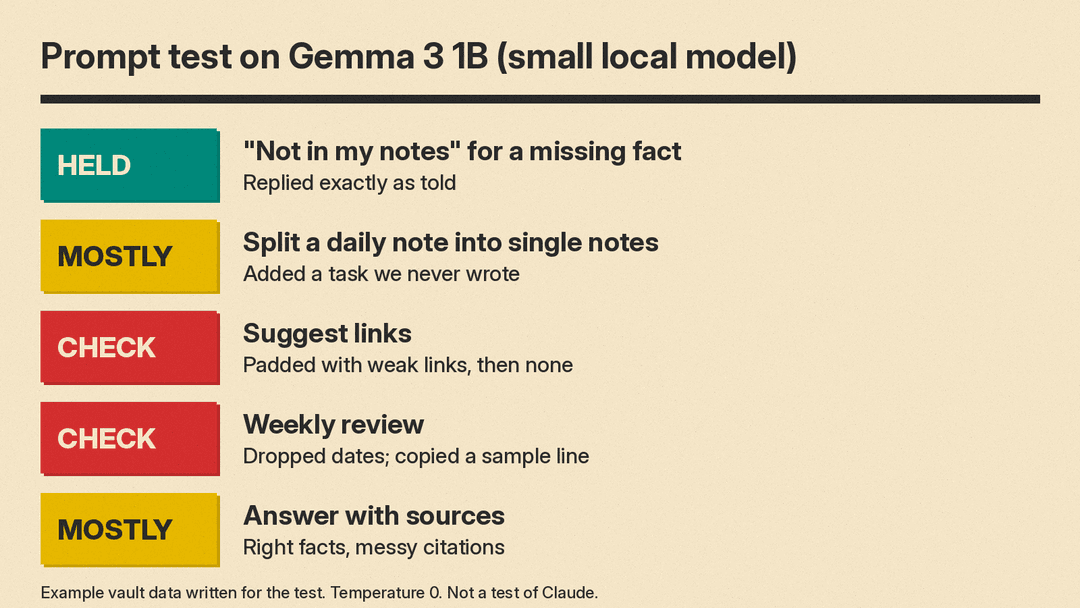
- "Not in my notes" worked. Asked for a budget figure the notes did not contain, the model replied exactly "Not in my notes." That one line is the most useful guard in the set.
- Splitting a daily note mostly worked. It made four sensible notes, each linked to a fitting title from the list. But it added a task we never wrote ("Research spaced repetition methods") and the word "significantly" to a claim. That is why prompt 1 now says "Do not add tasks I did not write."
- Link suggestions padded the list. Asked for "up to 3", it returned the one right link, then two weak ones, then said "No links are needed." When we told it fewer was better, it swung the other way and returned no links at all. The lesson: always review suggested links; do not auto-apply them.
- Example lines leak. In our second weekly review attempt we added a sample line ("Booked the venue") to show the date format. The model copied that sample into the review as if it had happened. Describe the format in words, as prompt 3 does now, instead of giving a fake example.
- Dates and citations were weak. The weekly review dropped the dates, and the cited answer got the facts right but then also appended "Not in my notes." Check citations before you trust an answer.
The pattern: the simple, strict rules (answer only from notes, say a fixed phrase when unsure) held up best. Open-ended judgment calls (which links, which bucket) needed a human check. Expect a larger model like Claude to do better, and still spot-check it the same way.
Habits that keep it useful
- Capture fast, sort weekly. Dump everything into the daily note. Run prompts 1 and 5 once a week, not every day.
- Review every write. Use the approval prompts in Claude Desktop, and the "list changes first" rule in
CLAUDE.md. - Back up the vault. Obsidian's docs note you can manage a vault with Git; they suggest adding
.obsidian/workspace.jsonand.obsidian/workspaces.jsonto.gitignorebecause they change whenever you open a file. Any backup works. Have one before you give an AI write access. - Keep private folders out. Only list folders you are comfortable sharing in the Filesystem Server config.
For more ways to make Claude write in your voice when it drafts notes, see our Claude prompts for writing.
Sources
- Obsidian Help: How Obsidian stores data
- Obsidian Help: Internal links
- Obsidian Help: Backlinks
- Obsidian Help: Graph view
- Obsidian Help: Daily notes
- Obsidian Help: Templates
- Obsidian Help: Web Clipper
- Model Context Protocol: Connect to local MCP servers
- Claude Code docs: Quickstart
- Claude Code docs: How Claude remembers your project
