
AI dictation apps turn your speech into clean, punctuated text inside almost any app. This guide covers the main options as of November 2026: the free dictation already built into your phone or computer, and the newer AI apps that clean up what you say before they paste it.
This page is about live dictation, where you talk and text appears where your cursor is. If you want to turn a recorded meeting or interview into a transcript, see our guides to AI transcription tools and AI note-taking apps instead.
Talking with an AI agent that answers out loud is a different feature. For one example, see our post on Cursor voice chat with agents.
Start with what you already have
Before you install anything, try the dictation that ships with your device. It costs nothing extra, and for short messages it is often enough.
Apple Dictation (iPhone, iPad and Mac)
Apple's iPhone guide says you can dictate "anywhere you can type it", and that the keyboard stays open so you can switch between touch and voice. Apple says dictation "is processed on your iPhone in many languages, and no internet connection is required", with one exception: text dictated into a search field may be sent to the search engine.
- Turn it on in Settings, then General, then Keyboard, then Enable Dictation.
- Say "new line", "exclamation point" or an emoji name such as "heart emoji". In supported languages, Apple adds commas, periods and question marks for you.
- You can fix text by voice. Apple's examples include "Change tea to T-E-E" and saying "select" or "delete" followed by a phrase.
- Apple says that with Apple Intelligence in iOS 27, dictation uses an on-device model to improve spelling, punctuation and capitalization. That part is limited: Apple lists it as English only, on iPhone 17 Pro, iPhone 17 Pro Max, iPhone Air or later.
On the Mac, Apple's Mac guide says you can dictate "text of any length without a timeout", and dictation stops after 30 seconds without speech. Start it with the Microphone key, your Dictation shortcut, or Edit, then Start Dictation. The same on-device cleanup comes to macOS 27, which Apple lists as English only on Macs with M3 and later and at least 12GB of unified memory.
Windows voice typing
On Windows 11 and Windows 10, press Windows key + H in a text box. For Windows 11, Microsoft's support page says voice typing "uses online speech recognition, which is powered by Azure Speech services", so you need an internet connection and a working microphone. Say "stop listening" to stop. Microsoft says echo cancellation suppresses sound from your speakers so it does not end up in your text.
Gboard voice typing (Android)
On Android, Google's keyboard has a microphone at the top. Gboard Help says you can "talk to write in most places where you can type with a keyboard", and you can say "period", "comma" or "new paragraph" to add punctuation. To fix one word, touch and hold it, tap the microphone, and say the new word. Google notes that talk-to-text does not work in every language.
Google Docs voice typing
If you write in Google Docs, open Tools, then Voice typing. Google's help page says it works with the latest versions of Chrome, Edge and Safari, and that your browser controls the speech-to-text service. Docs also takes editing commands such as "select paragraph", "bold" and "insert table". Google says voice commands work only in English, and only when both the account language and the document language are English. Your school or company admin can turn the feature off.
AI dictation apps that clean up your speech
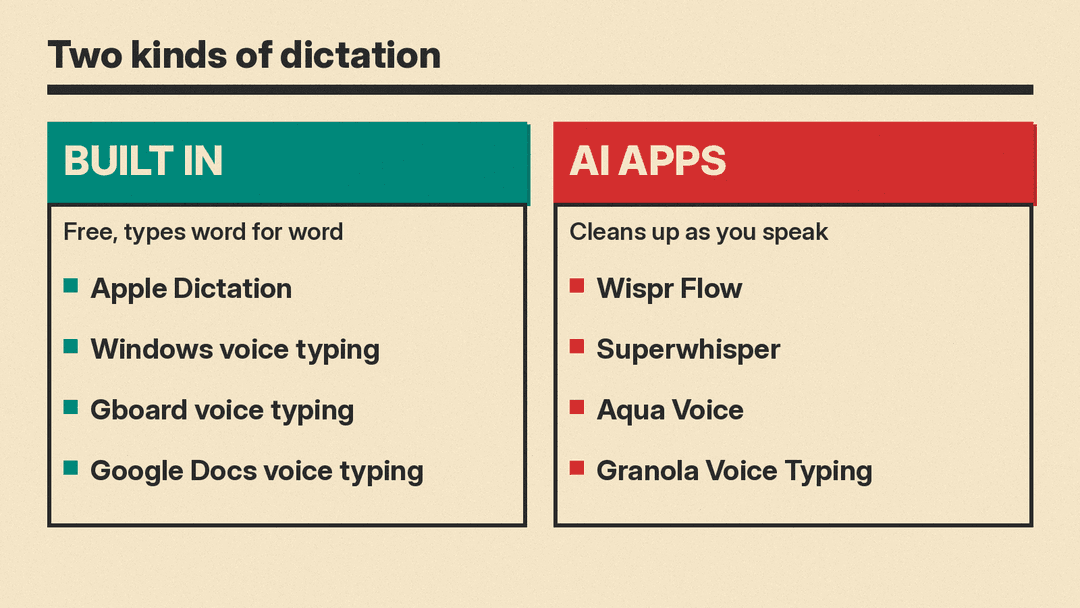
Built-in dictation mostly types what you say, word for word. The newer apps add an AI editing step: they remove filler words, fix grammar, format lists, and change tone to suit the app you are in. They work as a system-wide shortcut: hold a key, speak, let go, and the edited text is pasted where your cursor is.
Wispr Flow
Wispr Flow runs on Mac, Windows, iPhone and Android. Its pricing page says "Free on Mac, Windows, iPhone and Android", and its FAQ says the free plan includes dictation "with generous weekly usage" and needs no credit card. A Pro plan removes the limits. Wispr says students get 50% off Pro and educators get 40% off. Pro costs $15 per user per month billed monthly, or $12 billed annually, and adds a shared dictionary and snippets. The Growth plan adds SSO and admin controls, and Enterprise is custom priced.
Best for: people who want one dictation app on every device, including their phone.
Superwhisper
Superwhisper is available for macOS, Windows, iOS and Android. Its home page leads with offline use and "modes": presets that control tone and formatting, from casual chat to formal or legal writing. You can also write a custom mode with your own formatting rules and pick which AI model does the editing. Its FAQ says Intel Macs work best with its cloud models and that its offline models "only run really well on Apple Silicon macs". On free use, the FAQ says you can try Pro features for 3,000 words, "after that the free tier features are available to you forever."
Best for: people who want offline dictation or fine control over how their text is formatted.
Aqua Voice
Aqua Voice runs on macOS, Windows, iPhone and Android and pastes text "where your cursor is". It lets you teach it the words you use most, such as names, brands and technical terms, and set style rules, from lowercase Slack messages to structured documents. Aqua says it understands 49 languages. Its free plan covers 1,000 words, and Pro costs $10 a month billed annually. Its home page features AI coding tools such as Claude Code and Codex, and Aqua publishes accuracy results from its own technical-terms benchmark. That is a vendor test, so treat it as a claim, not an independent review.
Best for: developers and anyone who dictates a lot of jargon.
Granola Voice Typing
Granola makes a meeting notes app, and it now includes Voice Typing for any app on Mac or Windows. Granola says the feature is in beta and "included for free in every Granola plan", with mobile coming later. It removes filler words such as "um", adds punctuation and paragraphs, and uses bullets when you list things. One useful detail: Granola says it "never answers or acts on what you say", so a dictated request to ChatGPT is pasted as words, not run as a command. A single dictation can run up to 20 minutes. We covered the launch in our Granola Voice Typing post.
Best for: people who already use Granola for meetings.
Also worth a look on iPhone: Raycast's keyboard, which added dictation and AI commands. See our Raycast keyboard post.
How to choose
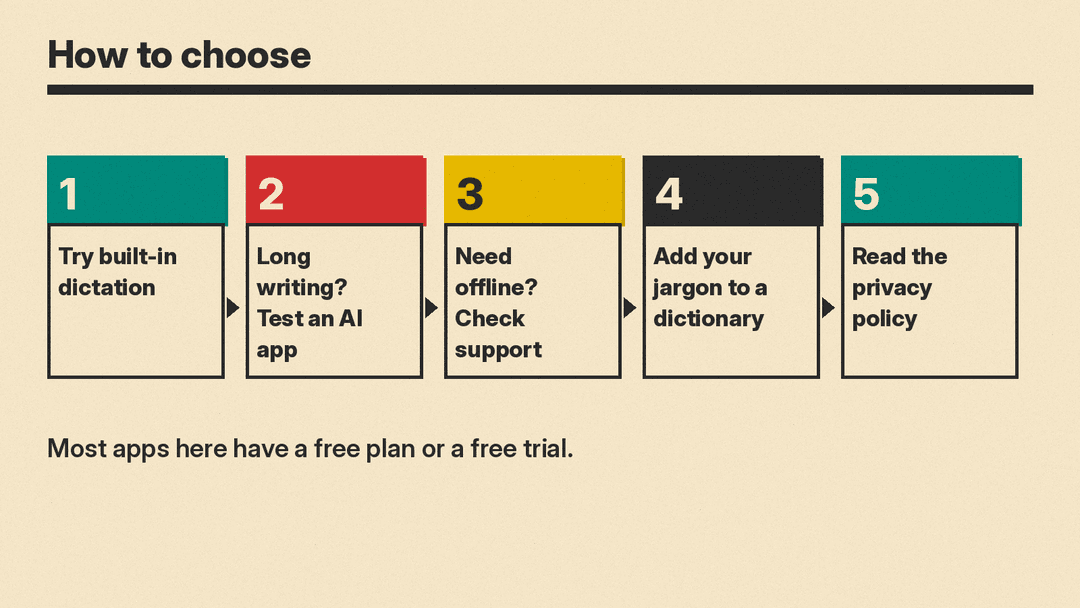
- You mostly send short texts and notes: use the built-in option first. Apple Dictation, Windows voice typing and Gboard are free and already installed.
- You write long emails, documents or chat messages at a computer: try an AI app such as Wispr Flow, Superwhisper, Aqua Voice or Granola. The cleanup step can cut down the editing that raw dictation needs.
- You need offline use: Apple says iPhone dictation works without internet in many languages, and Superwhisper offers offline models. Windows voice typing needs a connection.
- You use specialist words: pick an app with a custom dictionary. Wispr Flow, Superwhisper and Aqua Voice all list one.
- Privacy matters for your work: read each app's privacy policy and data settings before you dictate anything sensitive, and check whether your employer allows the app.
Tips for better results
- Use a wired or built-in microphone. Granola's docs say Bluetooth microphones are less reliable.
- Speak in full sentences and pause briefly between thoughts. AI cleanup works best with whole ideas.
- Add names and product terms to your app's dictionary early, before mistakes pile up.
- Read before you send. Every app here can mishear a word, and AI cleanup can change phrasing.
The bottom line
Free built-in dictation is the right place to start: it costs nothing and is already on your device. If you spend hours a day writing at a computer, an AI dictation app is worth a trial: every app above has a free plan, free tier or free trial, so you can test them with your own voice and your own apps before you pay.
