
Cursor has added voice chat with agents. The Cursor changelog entry dated November 6, 2026 says you can "talk with your agents in a realtime voice call," describe a change out loud, ask what an agent is working on, and "hear updates as the work moves forward." The changelog says voice chat runs on Grok Voice.
According to the same entry, voice chat works in four places: the Agents Window, the IDE, on web, and in Cursor for iOS.
How a call works
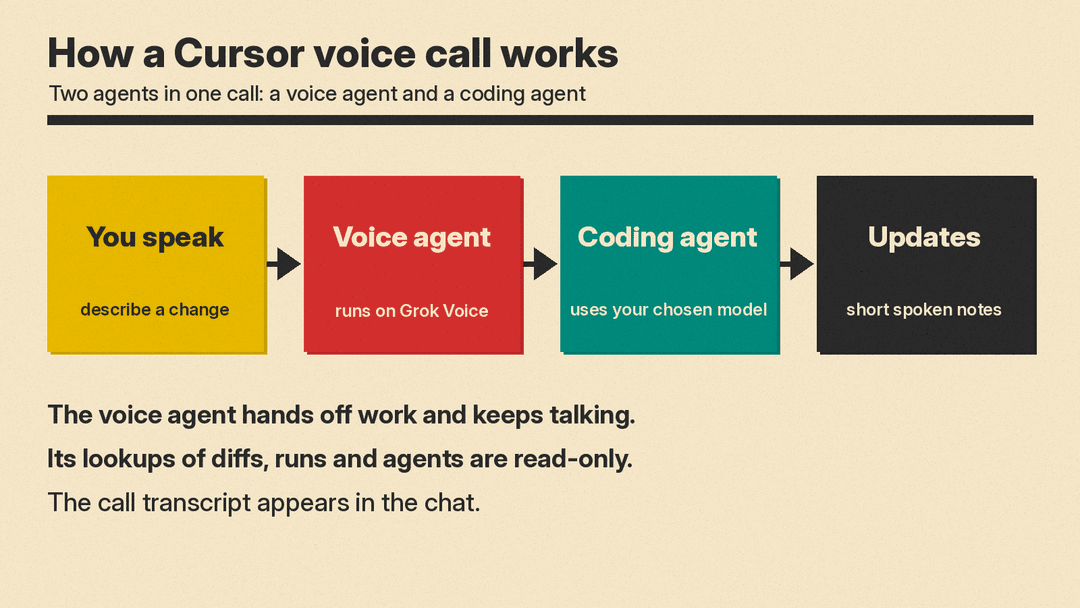
Cursor's voice chat documentation calls the feature "speech-to-speech." You speak to a voice agent, and it replies out loud. When you ask for code changes, the docs say, the voice agent hands the work to the coding agent in that chat and keeps talking with you while the work runs.
So there are two agents in a call. The voice agent listens and talks. The coding agent does the code work and also speaks short updates. The docs say Grok Voice "handles listening and speaking," and "the coding agent in the chat keeps using the model you picked for it."
During a call, the documentation lists five things the voice agent can do:
- Hand off work: send a task or follow-up to the coding agent in the current chat.
- Answer questions about your work: read diffs, runs and agents to tell you what changed and what is still running. The docs say "These lookups are read-only."
- Search this agent's history: search earlier messages and calls with this agent.
- Switch Project workers: in a Project with workers, move the call to a different worker.
- Hang up: end the call when you say you are done.
The coding agent also talks. Per the changelog, it "shares short progress notes while it works and a brief answer when it's done, so you usually hear a short update instead of the full written reply." The docs add that if the coding agent does not write a spoken update for a turn, the call reads its written reply instead. The call transcript appears in the chat.
How to start a call
The docs give the steps. In the Agents Window, open any chat, including a new one. In the IDE, open a chat with at least one message. When the agent is idle and the chat input is empty, a waveform button labeled Start voice chat appears where Send usually is. Click it and allow microphone access if your computer, browser or phone asks.
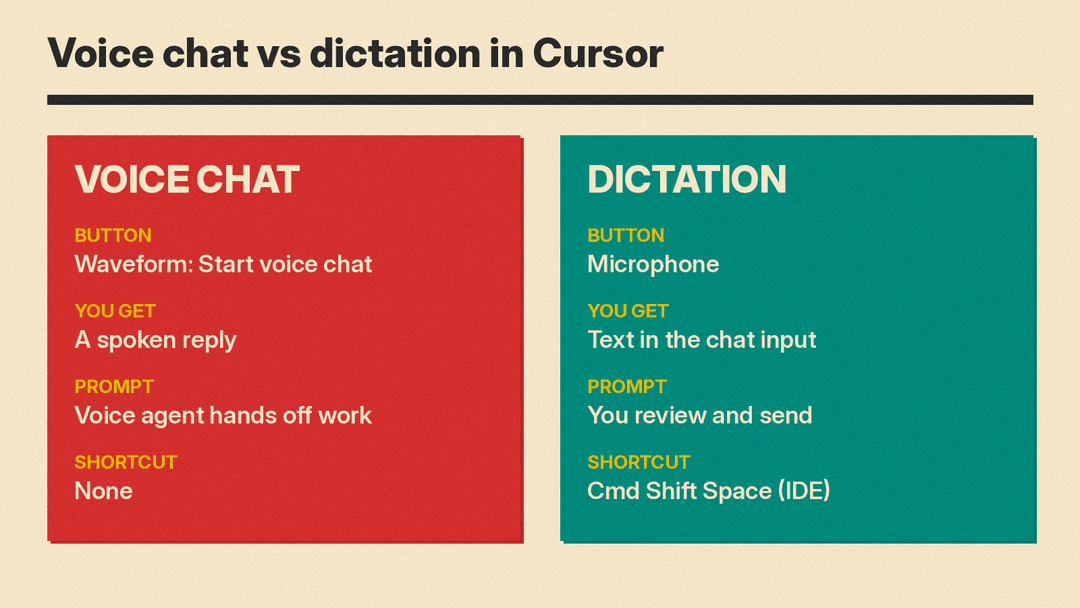
The microphone button next to it is a different feature. That one starts dictation.
The docs list three requirements: a supported surface, a signed-in Cursor account, and microphone permission. Sessions authenticated with an API key cannot start voice chat. If you try, the docs say the call fails with the message "Realtime voice requires sign-in."
The Start voice chat button is hidden in some places. The FAQ lists subagents and Project workers, archived chats, Claude Code chats, and chats owned by another teammate. In the IDE it is also hidden for cloud agents that are still streaming and when dictation is turned off.
Voice chat is not dictation
Cursor separates the two. Dictation turns your speech into text in the chat input, and you review and send it. Voice chat is a two-way conversation where the agent answers out loud and the voice agent hands off the work. The changelog says dictation is what "earlier releases called Voice Mode," and that Cmd+Shift+Space still toggles dictation in the IDE. The docs list no shortcut for voice chat.
If you only want speech-to-text, our guide to AI dictation apps covers tools built for that job.
Voices, iOS and limits
The docs say you pick a default voice in the Voice or Agent Voice settings, from "many named voices, including Ara, Eve, Leo, Rex, and Sal." You can change the voice during a call, and that choice sticks to the agent you are talking to.
On iOS, the changelog says you can say "Hey Siri, call Cursor" to start a call with a new agent. The docs add that your iPhone needs to be unlocked. When iOS cannot show the call on the system call screen, the call appears on the Lock Screen and in the Dynamic Island as a Live Activity. You can mute and hang up from the Lock Screen or the expanded Dynamic Island, but the compact Dynamic Island does not show those controls.
The docs name two call limits. By default, a call hangs up after about 10 minutes of silence from you while the agent has no work in progress. There is also a daily limit on voice calls. The docs do not give the number. They say that if you reach it, Cursor tells you when you can call again.
Privacy
Both the changelog and the docs say that with Privacy Mode on, voice chat runs with zero data retention. The docs also say cloud agent transcripts sync to your other devices while the call is live, unless Privacy Mode is on.
Related reading
For background on what a coding agent does in Cursor and its rivals, see our explainer What Is a Coding Agent?. For another recent change in how editors run several agents, see our post on VS Code 1.145 and mixed agent harnesses.
To try it, the changelog says to update Cursor.
