
A wallpaper is the one picture you look at many times a day. Most people keep whatever image came with the device. AI image generators give you another option: a picture made for your exact screen shape and your own taste, without searching through stock photo sites.
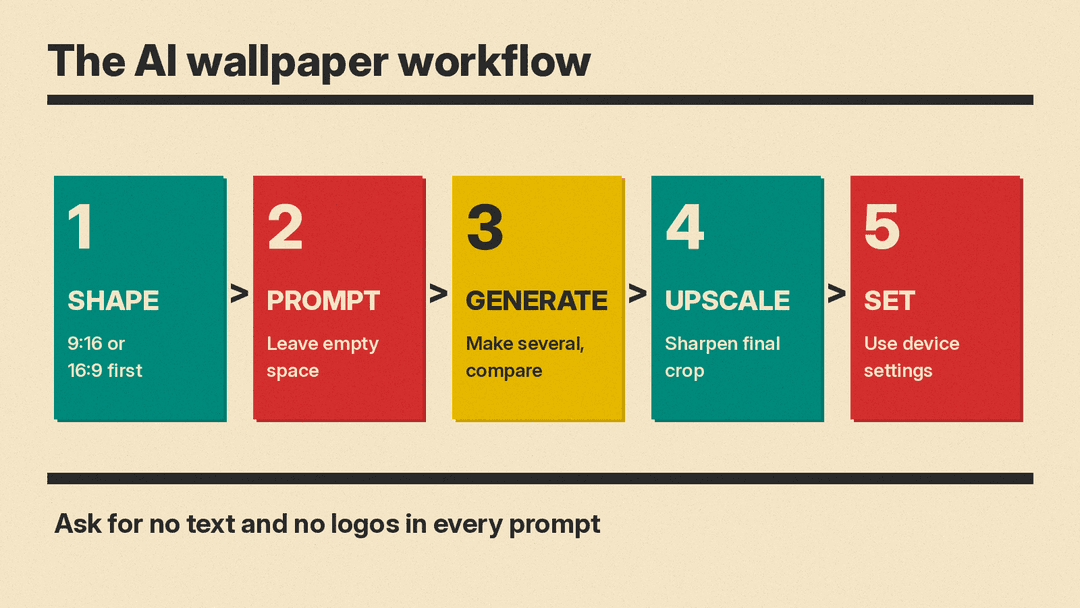
The workflow is short. You choose a shape, write a description, generate a few options, extend or sharpen the one you like, and set it as your background.
Two problems cause most bad AI wallpapers. The first is the wrong shape, so the image gets cropped and the part you liked is gone. The second is busy detail under the clock and the app icons, which makes the screen hard to read. Both are easy to avoid if you plan before you type.
Which shape should an AI wallpaper be?
Pick the shape before you write the prompt. Aspect ratio is how wide an image is compared to how tall, written as two numbers such as 4:3.
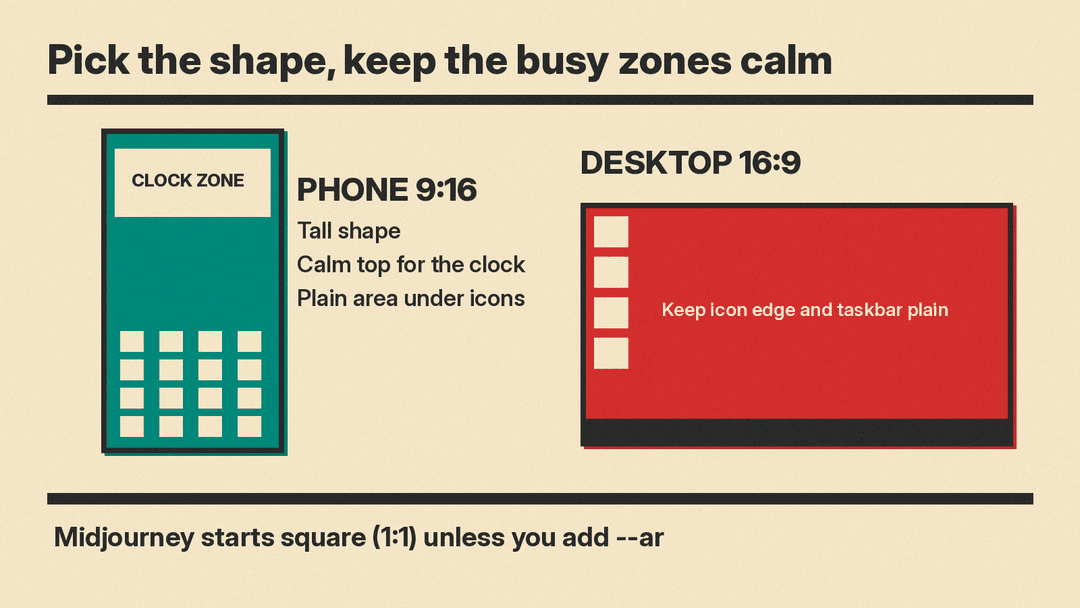
For a phone, use a tall shape. Midjourney's documentation describes 9:16 as vertical and common for mobile content on social media. Many recent phones are taller than that. Apple lists the iPhone 16 display at 2556 by 1179 pixels, which is about 19.5:9, so a 9:16 image can lose a little at the sides. For an exact fit, use your own screen's pixel numbers, as shown below. For most monitors and laptops, use a wide shape. The same documentation describes 16:9 as widescreen, the standard for HD video and most modern TVs.
A useful trick is to start from your own screen. Look up the display resolution in your device settings, then turn those pixel numbers into a ratio. In Midjourney you can type the pixel numbers directly, because entering --ar 1920:1080 is simplified to 16:9. Note that the ratio value cannot contain decimals, so write the two numbers instead of a value like 1.78.
Watch out for the square default. Midjourney images are square, or 1:1, unless you say otherwise. You change the shape by adding --ar #:# (the longer form is --aspect) to the end of the prompt. You can also set a default aspect ratio in the settings panel, which saves typing if every image you make is a wallpaper.
A few things to keep in mind about ratios:
- The ratio is not the final pixel size. Midjourney says the size you get also depends on the version and the upscaler you use, and some ratios may change slightly when you upscale.
- Extremely wide or extremely tall ratios are experimental and can give unpredictable results.
- You can change the shape of an image you already made with the pan and zoom out tools, or with the Editor on midjourney.com.
If you use OpenAI's image generation API instead, its guide lists three recommended sizes: 1024x1024 for square, 1536x1024 for landscape, and 1024x1536 for portrait. Note that 1024x1536 is a 2:3 shape, not 9:16. As of November 9, 2026, the current models also accept custom sizes such as 1536x864, which is 16:9. Width and height must be multiples of 16, the shape must be between 1:3 and 3:1, and no edge can be longer than 3840 pixels. Output can be png, which is the default, jpeg, or webp. Most readers are not writing code, though. In chat tools you can usually just ask for a tall portrait image or a wide landscape image.
If your generator has no shape control at all, generate a square or landscape image and plan to extend it later, or choose a different tool. Our guide to the best free AI image generators compares free options.
How do you write a wallpaper prompt?
A wallpaper prompt has two jobs. It describes a picture, and it describes where the empty space goes.
Start with the four basics: subject, style, color palette, and mood. Then add layout words that push detail away from the busy parts of your screen. Phrases that work well include "lots of empty sky in the top third", "subject in the lower half", "calm background, low detail", and "plenty of empty space".
Look at your own lock screen and desktop first. Notice where the clock, the date, and the icons sit, and describe the image so those areas stay quiet and plain. Keep the fine detail toward the middle or the edges of the frame, away from where text will land.
Also ask for no text and no logos. Image models often add letters that are almost readable but not quite, and stray words or brand marks are hard to remove later.
Six example prompts you can copy and adjust:
- "minimal mountain range at dusk, flat colors, deep blue and soft orange, lots of empty sky in the top third, subject in the lower half, calm and quiet, no text, no logos --ar 9:16"
- "abstract paper-cut waves, layered teal and cream, soft shadows, simple shapes, calm background with low detail, no text, no logos --ar 9:16"
- "cozy view through a rainy window, blurred warm lights outside, quiet and slow mood, soft focus, low detail, no text, no logos --ar 9:16"
- "dark geometric pattern for dark mode, charcoal and midnight blue, thin repeating lines, even and low contrast, no text, no logos --ar 16:9"
- "pastel botanical line art, one leaf stem, soft pink and sage on plain off-white, lots of empty space, minimal, no text, no logos --ar 16:9"
- "retro space travel poster style, small rocket above a curved planet, warm orange and deep navy, grainy texture, subject in the lower half, no words, no letters, no logos --ar 16:9"
For more on describing style, lighting, and composition, see how to write AI image prompts.
Should you generate more than one image?
Yes. Generate several versions of the same prompt before you decide. Small changes in wording or in the random starting point can move the subject into a much better spot, and you cannot predict which attempt will leave the right amount of empty space.
When you compare the results, check three things. Look at the edges for odd shapes, cut-off objects, or strange texture, since the edges stretch across the whole screen. Look at the area where your clock sits and ask whether the time would be easy to read. Look at the area under your icons and ask whether the picture still makes sense with most of it covered.
If you find a version you like and want small variations of it, keep the generation settings fixed and change one thing at a time. Our guide to AI image settings like seed and aspect ratio explains how those controls work.
What if the image is too tight?
Sometimes the picture is right but the framing is wrong. The subject fills the frame, there is no sky left for the clock, or an important detail sits exactly where your icons will go.
You can extend the image instead of starting over. Outpainting adds new content around the edges of an existing picture, which lets you add empty sky above a landscape or plain space below a subject. In Midjourney, the pan and zoom out tools do the same kind of work on an image you have already finished, and the Editor on midjourney.com is another way to change the frame.
Check the added area closely, since it is new content the tool made up. Extending into calm areas such as sky or a plain background keeps the result easier to judge.
For a fuller walkthrough of extending and repairing pictures, see inpainting and outpainting explained.
How do you make the wallpaper sharp?
Generated images are often smaller than your screen, especially on large monitors and on phones with high pixel density. A small image stretched to fill the display looks soft, and fine lines such as thin geometric patterns blur first.
Upscaling rebuilds the image at a larger size and adds detail that was not in the original file. Do this after you have settled on the final crop, so you only sharpen what you keep. Our guide on how to upscale images with AI walks through the options and the settings that matter.
Save the result as PNG, or as a high quality JPEG if file size matters to you. PNG keeps smooth gradients and flat color areas clean, which suits most wallpaper styles. Check the file against your screen once more after upscaling, since sharpening can make small flaws more visible.
How do you set the wallpaper on your device?
On iPhone, Apple's instructions are: open Settings, tap Wallpaper, tap Add New Wallpaper, then tap Photos to choose your own image, or Photo Shuffle if you want a rotating set on the Lock Screen. Customize the image if you want, tap Add, then tap Set as Wallpaper Pair to use it on both the Home Screen and the Lock Screen. If you would rather have a different picture on the Home Screen, tap Customize Home Screen instead.
Photo Shuffle can rotate through several photos On Tap, On Lock, Hourly, or Daily, which is a good fit if you generated a set of variations from the same prompt. Apple also notes that on iPhone 12 or later with iOS 26, certain photos can become 3D Spatial Scene Lock Screen wallpapers. Eligible photos typically have high quality lighting, a clear separation between subject and background, or a landscape orientation. Some AI wallpapers will qualify and some will not.
On Android, Windows, and Mac, open the device's wallpaper or background setting and point it at your saved image.
Do darker wallpapers work better at night?
If you use your phone in a dark room or work late at a desk, a darker design can feel calmer than a bright one. Try a dark version of the same idea: deep blues, charcoal, and muted color instead of white backgrounds and bright highlights.
This is a matter of preference rather than a rule. Make one light design and one dark design from the same prompt and see which one you prefer after a few days of use.
Should you use famous characters or logos?
It is better not to. Avoid building a wallpaper around someone else's characters, brand logos, or trademarked designs, especially anything you plan to share. A tool being able to make an image does not mean you have permission to use it.
Keep the wallpaper personal and original. Generic subjects such as landscapes, weather, abstract shapes, plants, space, and geometric patterns give you plenty of room, and they age better than a picture tied to a brand.
Wallpaper checklist
- Choose the shape first: tall 9:16 for phones, wide 16:9 for most monitors.
- Convert your screen's pixel numbers into a ratio if you want an exact match.
- Add layout words that keep empty space where the clock and icons sit.
- Ask for no text and no logos in every prompt.
- Generate several versions and check the edges and the clock area.
- Extend a too-tight image with outpainting, pan, or zoom out.
- Upscale the final crop, then save as PNG or high quality JPEG.
- Set it on the device and look at it for a day before judging it.
